1. Introduction
The Ovsuqu A3 UV DTF Printer is an advanced printing system designed for creating durable, high-quality UV DTF stickers and transfers. This machine integrates both printing and film pressing functionalities, streamlining the production process for various applications. It supports printing on a wide array of materials and accommodates diverse shapes, making it suitable for custom designs on items such as glass, wood, leather, and plastics.
This manual provides comprehensive instructions for the safe and efficient operation, setup, and maintenance of your Ovsuqu A3 UV DTF Printer. Please read this manual thoroughly before operating the device to ensure proper usage and to prevent damage or injury.
2. Safety Instructions
Observe the following safety precautions to prevent electric shock, fire, or damage to the printer:
- Always connect the printer to a grounded power outlet.
- Do not expose the printer to water or excessive humidity.
- Ensure adequate ventilation around the printer during operation.
- Keep hands and loose clothing away from moving parts.
- Use only recommended UV DTF inks and films.
- Wear appropriate personal protective equipment (PPE), such as gloves and safety glasses, when handling inks.
- In case of malfunction, disconnect the power immediately and contact technical support. Do not attempt to repair the printer yourself.
- Keep out of reach of children.
3. Package Contents
Verify that all items listed below are included in your package. If any items are missing or damaged, please contact your supplier immediately.
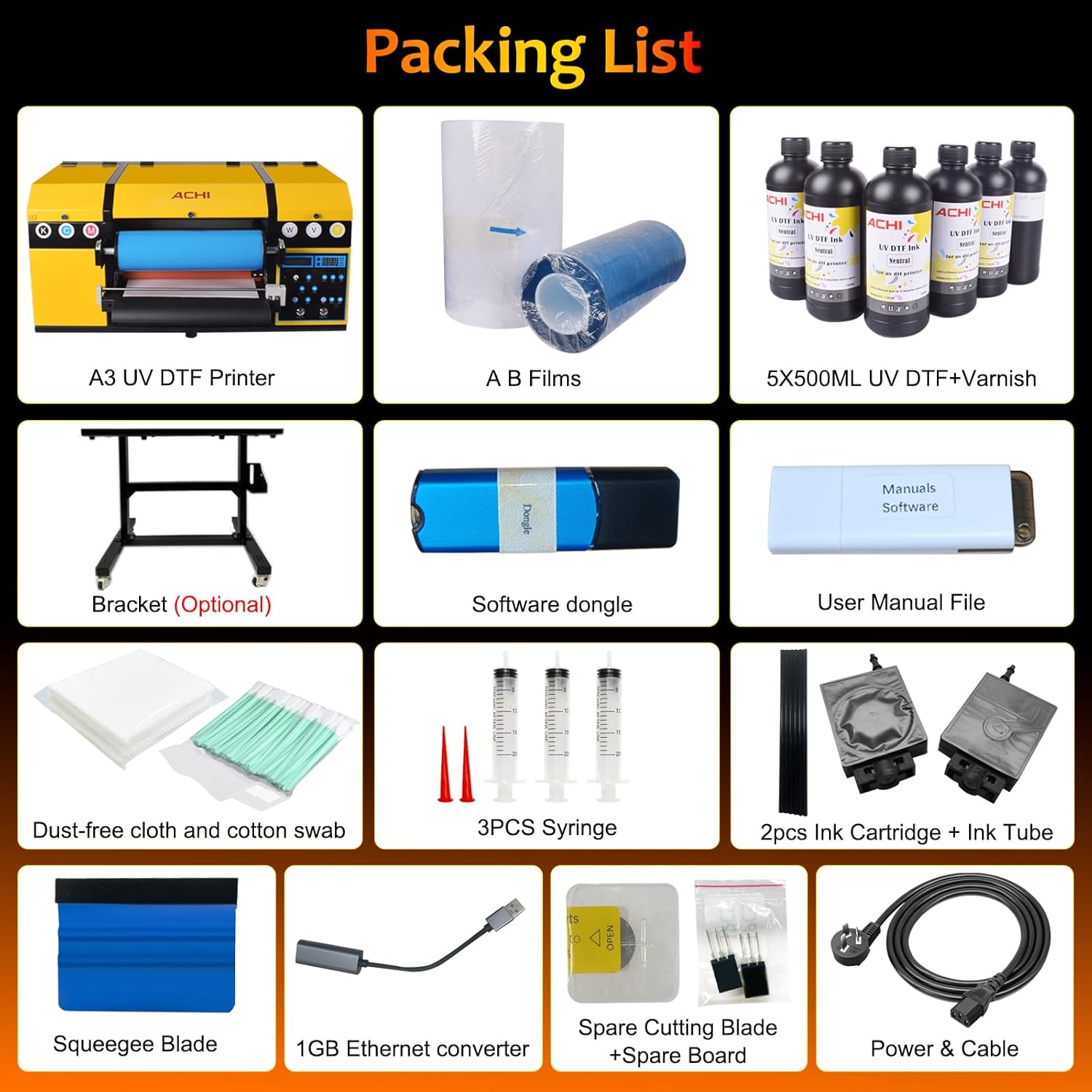
Image: The complete packing list for the Ovsuqu A3 UV DTF Printer, showing the printer unit, AB films, UV DTF ink bottles, software dongle, user manual file, dust-free cloth, cotton swabs, syringes, ink cartridges, ink tubes, squeegee blade, Ethernet converter, spare cutting blade, spare board, and power cable.
- Ovsuqu A3 UV DTF Printer Unit
- AB Films (A film and B film rolls)
- UV DTF Ink Bottles (CMYK + White + Varnish)
- Software Dongle
- User Manual File (digital)
- Dust-free Cloth and Cotton Swabs
- 3PCS Syringes
- 2pcs Ink Cartridge + Ink Tube
- Squeegee Blade
- 1GB Ethernet Converter
- Spare Cutting Blade + Spare Board
- Power & USB Cable
- Bracket (Optional, may be included separately)
4. Initial Setup
4.1 Unpacking and Placement
- Carefully remove the printer from its packaging.
- Place the printer on a stable, level surface in a well-ventilated area. Ensure there is sufficient space around the printer for operation and maintenance.
- Remove all protective tapes and packing materials from the printer. Refer to the included user manual file for specific locations.
4.2 Connecting Power and USB
- Connect the power cable to the printer and then to a grounded electrical outlet.
- Connect the USB cable from the printer to your computer.
4.3 Ink Installation
- Shake the ink bottles gently before opening.
- Carefully fill the corresponding ink tanks with the correct UV DTF inks (CMYK, White, Varnish). Refer to the printer's labels for correct placement.
- Ensure the white ink stirring system is active to prevent pigment sedimentation.
4.4 Software Installation
- Insert the software dongle into your computer.
- Follow the instructions in the digital user manual file to install the printer drivers and RIP software.
- Perform initial calibration as guided by the software to ensure optimal print quality.
5. Operating Instructions
5.1 Printing Process
The Ovsuqu A3 UV DTF Printer features a 2-in-1 printing and film pressing system, allowing for automated production of UV DTF transfers.
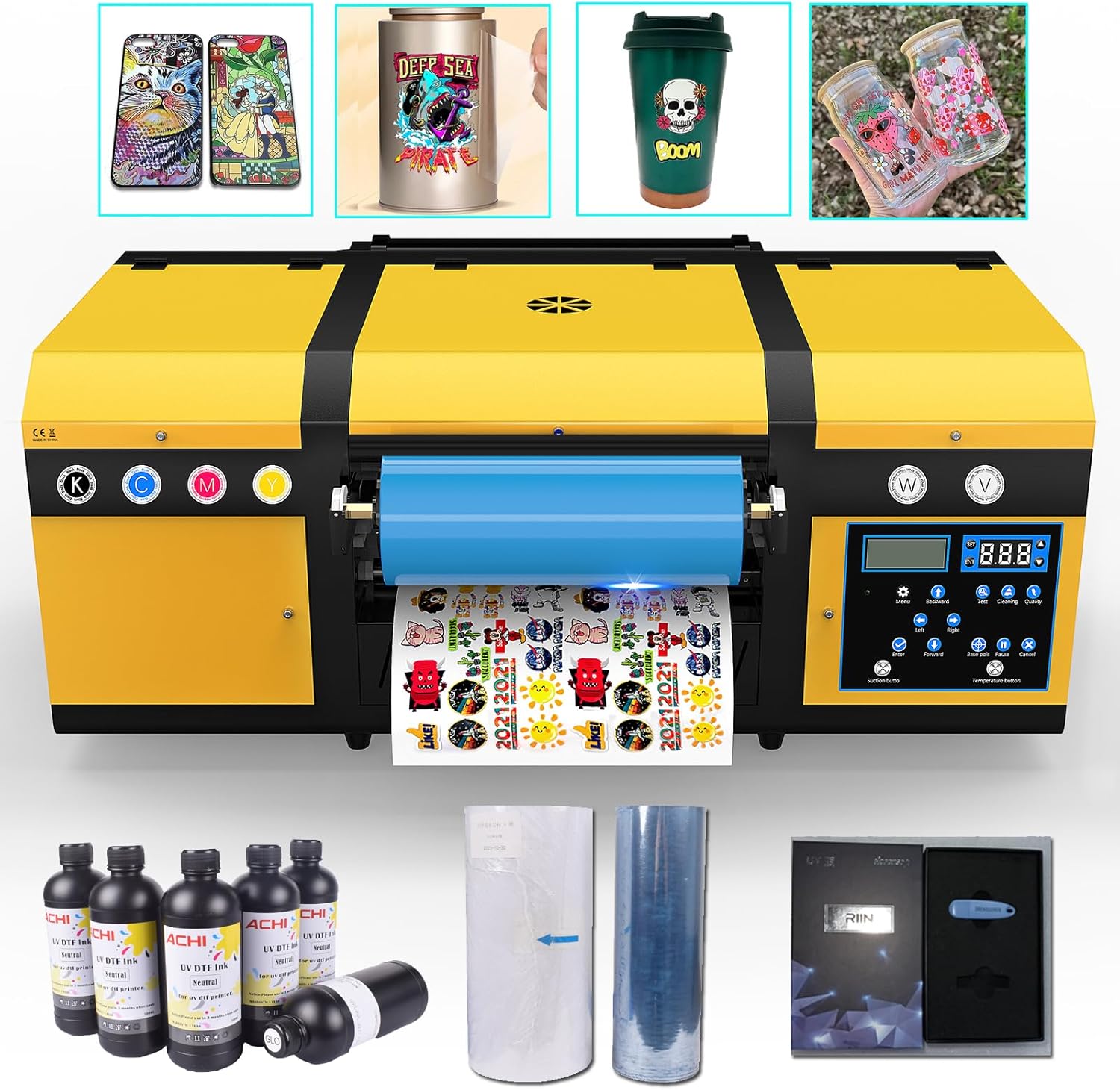
Image: The Ovsuqu A3 UV DTF Printer actively printing onto a film roll, with examples of finished UV DTF stickers applied to phone cases, a metal can, a coffee cup, and a glass jar.
- Prepare your design in the RIP software.
- Load the A film (print film) into the printer according to the instructions.
- Initiate the print job. The printer will automatically print the design onto the A film and then apply the B film (transfer film) to complete the transfer process.
- Once printed and pressed, the transfer is ready to be applied to your desired object.
Material and Shape Compatibility
This printer supports a wide range of materials including plastic, glass, ceramics, paper, cardboard, metal, and leather. It can apply stickers to various shapes such as flat surfaces, cylindrical objects, cambered surfaces, rhombic shapes, and other irregular forms.

Image: A glass jar customized with a colorful UV DTF sticker.

Image: A tumbler customized with a skull design using UV DTF technology.

Image: A phone case decorated with a vibrant UV DTF sticker.

Image: A metal can featuring a detailed UV DTF sticker design.
5.2 Ink System Management
The printer is equipped with a white ink stirring system to prevent pigment settling, which can cause nozzle blockages. It also features an automatic warning system for low ink levels to prevent dry printing and potential damage.

Image: An illustration of the printer's features, including icons representing good material adhesion, high viscosity, water resistance, and abrasion resistance, all crucial for the ink system's performance.
- Regularly check ink levels and refill promptly when the low ink warning appears.
- Ensure the white ink stirring function is operational, especially before long printing sessions or after periods of inactivity.
5.3 Control Panel
The printer features an intuitive button control panel for easy operation and monitoring of printing status.

Image: A close-up of the printer's control panel, displaying buttons for menu navigation, direction control (left, right, forward, backward), test prints, cleaning, pause, and cancel functions. Also shown is the automatic waste film recycling mechanism.
- Use the directional buttons to navigate menus and adjust settings.
- The 'Test' button can be used to print a nozzle check pattern.
- The 'Cleaning' button initiates printhead cleaning cycles.
- 'Pause' and 'Cancel' buttons control ongoing print jobs.
5.4 Waste Film Management
The printer automatically recycles waste films, contributing to a cleaner workspace and efficient operation. The system is designed with increased maximum roll diameter capacity and reinforced torque output for reliable performance.
5.5 Vacuum Adsorption Platform
The integrated vacuum adsorption platform ensures film flatness during printing, preventing material curling and protecting the print head integrity. This feature enables continuous, high-quality printing results.

Image: A detailed view of the printer's vacuum adsorption platform, illustrating how it holds the film flat with suction to ensure precise printing and prevent material movement.
6. Maintenance
Regular maintenance is crucial for extending the lifespan and ensuring optimal performance of your printer.
6.1 Printhead Maintenance
- Perform daily nozzle checks and cleaning cycles as needed, especially if print quality degrades.
- Use the provided cleaning solution and cotton swabs for manual cleaning of the printhead surface if clogs persist.
6.2 Ink System Cleaning
- Regularly inspect ink tubes for any blockages or air bubbles.
- Ensure the white ink stirring system is functioning correctly to prevent pigment settling.
6.3 General Cleaning
- Keep the printer's exterior and internal components free from dust and ink residue using a soft, lint-free cloth.
- Clean the film path regularly to ensure smooth film feeding.

Image: Close-up views of various internal components of the printer, including cooling fans, ink pumps, and the printhead capping station, illustrating areas that may require inspection or cleaning.
7. Troubleshooting
This section addresses common issues you might encounter. For more detailed troubleshooting, refer to the digital user manual file or contact technical support.
7.1 Common Printing Issues
- Poor Print Quality: Check ink levels, perform printhead cleaning, ensure correct media settings in software.
- No Ink Output: Verify ink tanks are filled, check for clogged nozzles, ensure ink tubes are free of air bubbles.
- Film Not Feeding Correctly: Ensure film is loaded properly, check for obstructions in the film path, verify vacuum adsorption is active.
- Printer Not Responding: Check power connection, USB connection, and ensure printer drivers are correctly installed. Restart both printer and computer.
7.2 Error Messages
If an error message appears on the control panel, consult the digital user manual file for specific error codes and their solutions. If the issue persists, contact technical support.
8. Technical Specifications
Below are the technical specifications for the Ovsuqu A3 UV DTF Printer:

Image: The physical dimensions of the Ovsuqu A3 UV DTF Printer, showing a length of 78cm (30.7in), a width of 52cm (20.4in), and a height of 38cm (14.9in) for the main unit, with a total weight of 54KG (182.6 pounds).
| Feature | Specification |
|---|---|
| Model Name | A3 UV DTF Printer |
| Printing Technology | Inkjet (UV Curable Ink) |
| Printer Output | Color |
| Maximum Color Print Resolution | 3600 dpi |
| Maximum Black and White Print Resolution | 3600 dpi |
| Maximum Print Speed (Color/Monochrome) | 36.00 (units not specified) |
| Maximum Media Size (Width) | 33 mm |
| Sheet Size | 297 x 420 Millimeters (A3) |
| Max Input Sheet Capacity | 500 |
| Ink Color | CMYK + White + Varnish (UV Curable Ink) |
| Hardware Interface | USB |
| Connectivity Technology | USB |
| Compatible Devices | Laptops, PC |
| Control Method | Remote |
| Item Weight | 182.6 pounds (approx. 82.8 kg) |
| Package Dimensions | 42.13 x 20.47 x 19.69 inches |
| Manufacturer | ACHI |
9. Warranty and Support
9.1 Warranty Coverage
The Ovsuqu A3 UV DTF Printer comes with a 2-year limited warranty on the machine. Please note that damaged ink contact parts are not covered under this warranty. For specific terms and conditions, refer to your purchase documentation.
9.2 Technical Support
Ovsuqu provides comprehensive customer support, including:
- Detailed user manuals and installation videos.
- Accessory warranties.
- Lifetime remote assistance for technical issues.
For any inquiries or technical assistance, please contact Ovsuqu customer service through the contact information provided at the point of purchase or on the official Ovsuqu website.


