
Introduction
The Skullcandy Riff Wireless 2 On-Ear Bluetooth Headphones are designed for extended listening with comfort and convenience. This manual provides essential information for setting up, operating, maintaining, and troubleshooting your headphones.

Image: Front view of the Skullcandy Riff Wireless 2 On-Ear Bluetooth Headphones in True Black.
What's in the Box
Your Skullcandy Riff Wireless 2 package includes the following items:
- Riff Wireless 2 Headphones
- USB-C Charging Cable
- Backup 3.5mm AUX Cable
- User Manual (this document)

Image: The Skullcandy Riff Wireless 2 headphones shown with the USB-C charging cable and 3.5mm AUX cable.
Setup
1. Charging Your Headphones
Before initial use, fully charge your Riff Wireless 2 headphones. A full charge provides up to 34 hours of battery life.
- Connect the provided USB-C charging cable to the charging port on the headphone earcup.
- Connect the other end of the USB-C cable to a compatible USB power source.
- The LED indicator will show charging status.
Rapid Charge: If battery is low, a 10-minute charge provides approximately 4 hours of listening time.

Image: Illustration showing the rapid charge feature of the Skullcandy Riff Wireless 2 headphones, indicating 10 minutes of charge provides 4 hours of play.
2. Powering On/Off
- To power on, press and hold the main function button on the earcup until the LED indicator lights up.
- To power off, press and hold the main function button until the LED indicator turns off.
3. Bluetooth Pairing
The Riff Wireless 2 headphones support Bluetooth 5.2 for a stable wireless connection.
- Ensure your headphones are powered off.
- Press and hold the main function button for 5 seconds until the LED indicator flashes blue and red, indicating pairing mode.
- On your device (smartphone, tablet, computer), enable Bluetooth and search for "Riff Wireless 2" in the list of available devices.
- Select "Riff Wireless 2" to connect. The LED indicator will turn solid blue when successfully paired.
Multipoint Pairing: Connect your headphones to two devices simultaneously. If your phone rings while watching a video on your laptop, the connection will switch automatically to allow you to take the call.

Image: Illustration demonstrating multipoint pairing, showing headphones connected to both a laptop and a smartphone.
4. Wired Connection (AUX Cable)
For situations where Bluetooth is not available or preferred, use the included 3.5mm AUX cable.
- Plug one end of the 3.5mm AUX cable into the audio jack on the headphone earcup.
- Plug the other end into the 3.5mm audio output of your device.
- The headphones will automatically switch to wired mode.
Operating Your Headphones
1. Call, Track, and Volume Controls
The Riff Wireless 2 headphones feature intuitive button controls on the earcup for managing audio and calls:
- Play/Pause: Press the main function button once.
- Next Track: Press the main function button twice.
- Previous Track: Press the main function button three times.
- Volume Up: Press the '+' button.
- Volume Down: Press the '-' button.
- Answer/End Call: Press the main function button once.
- Reject Call: Press and hold the main function button for 2 seconds.
- Activate Voice Assistant: Press and hold the main function button for 1 second.
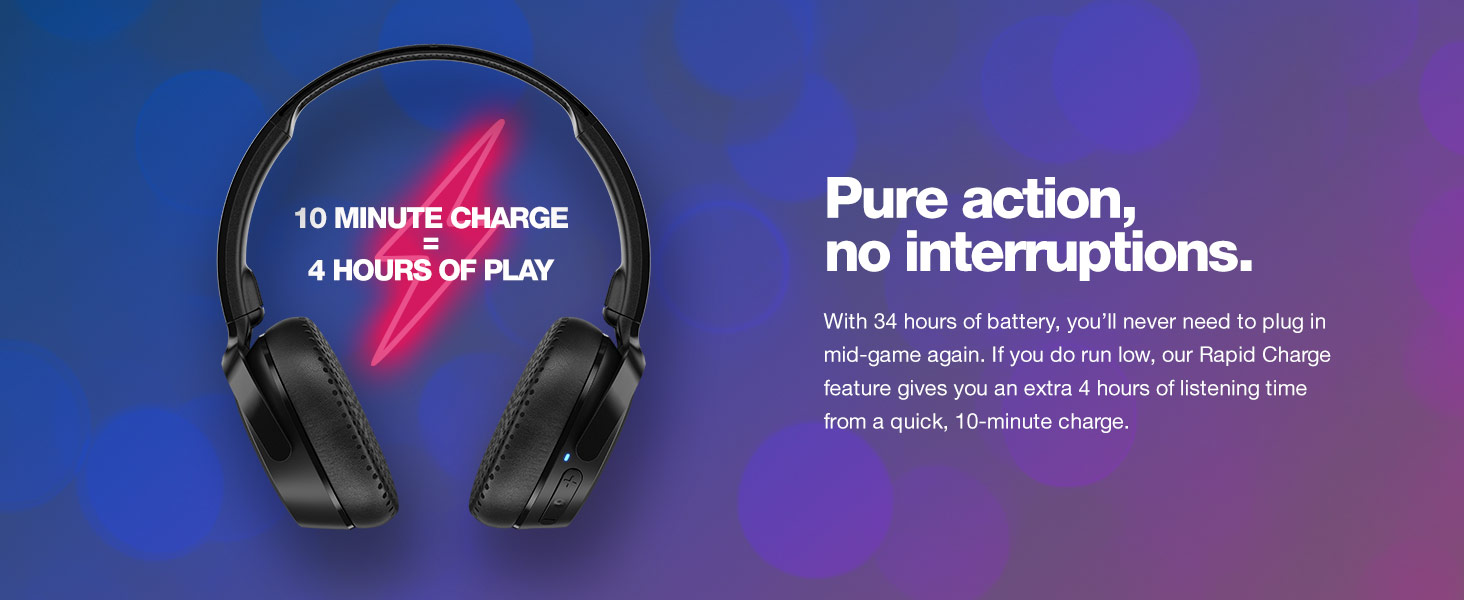
Image: Close-up of the headphone earcup showing the integrated buttons for call, track, and volume control.
2. Tile Finding Technology
Your Riff Wireless 2 headphones have built-in Tile finding technology. To use this feature:
- Download the Tile app on your smartphone or tablet.
- Follow the in-app instructions to register your Skullcandy Riff Wireless 2 headphones.
- If you misplace your headphones, use the Tile app to "ring" them or view their last known location on a map.
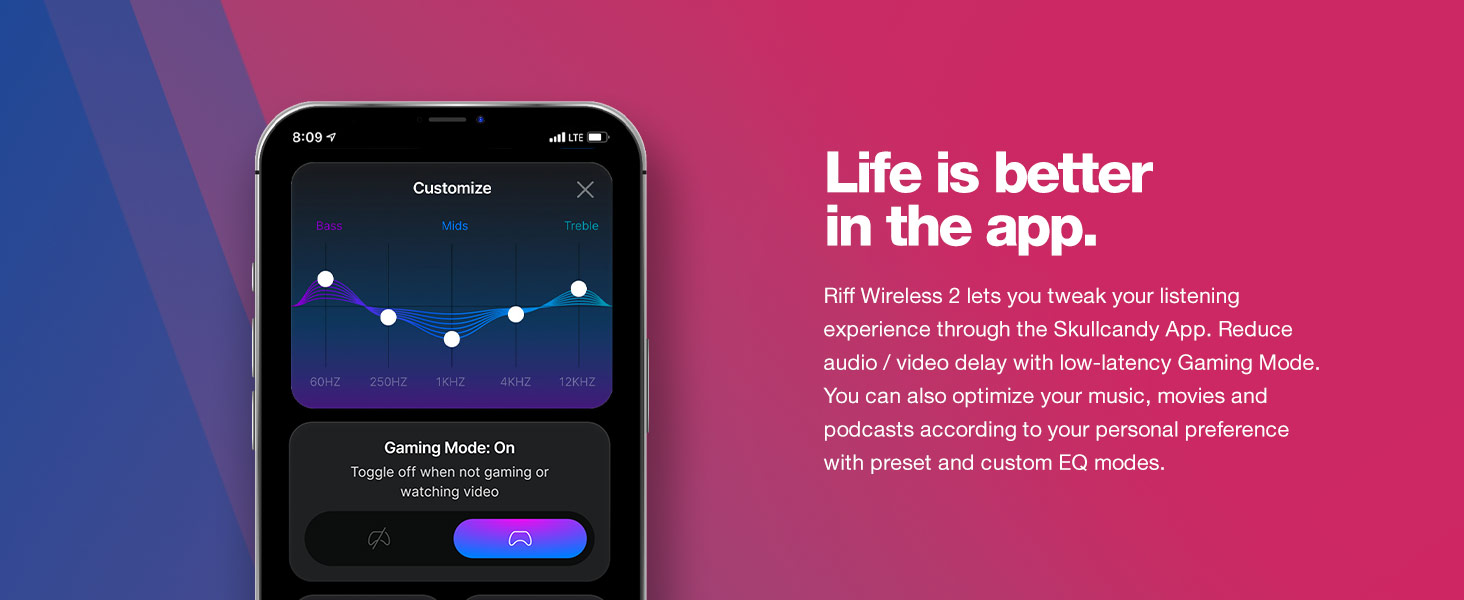
Image: A smartphone displaying the Tile app interface, indicating the location of the Riff Wireless 2 headphones.
3. Skullcandy App Features
Enhance your listening experience by downloading the Skullcandy App. The app allows you to:
- Customize EQ Modes: Adjust audio settings with preset or custom equalizer modes for music, movies, and podcasts.
- Gaming Mode: Reduce audio/video delay for a low-latency gaming experience.
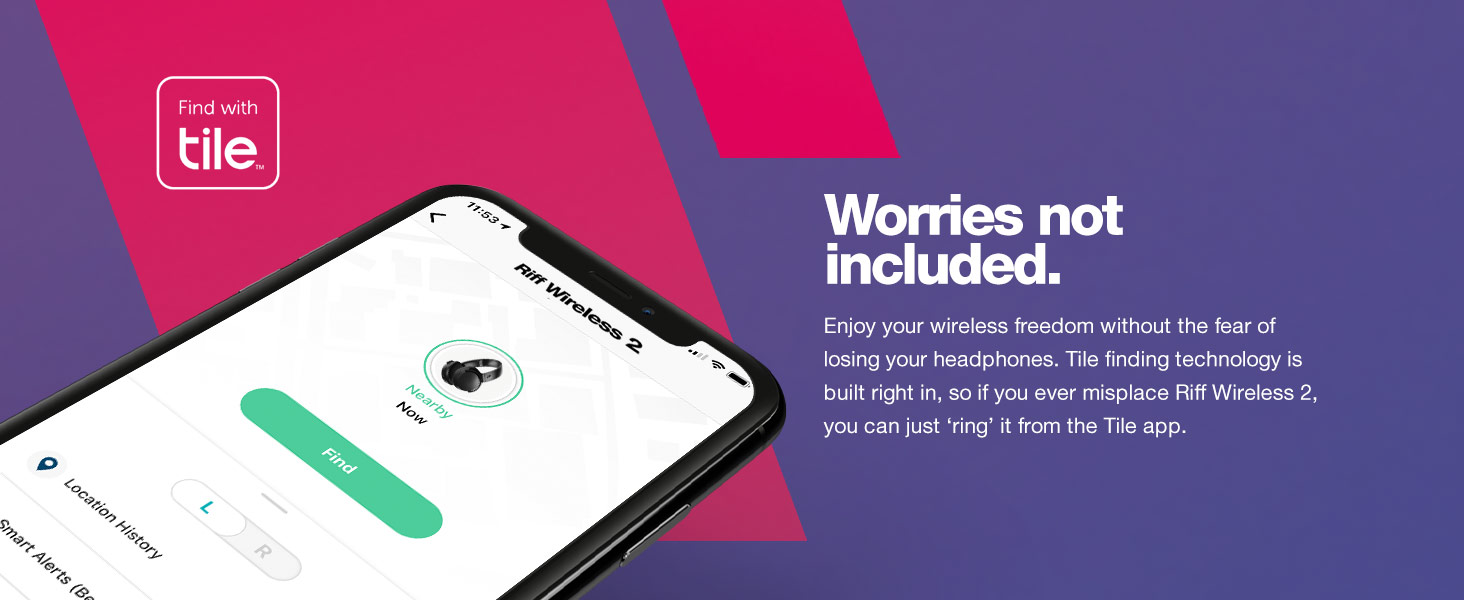
Image: A smartphone screen displaying the Skullcandy App, highlighting options for sound customization and Gaming Mode activation.
Maintenance
Proper care ensures the longevity of your Skullcandy Riff Wireless 2 headphones:
- Cleaning: Use a soft, dry cloth to clean the earcups and headband. Avoid harsh chemicals or abrasive materials.
- Storage: When not in use, fold the headphones flat and store them in a safe place to prevent damage. Avoid extreme temperatures.
- Water Resistance: These headphones are not water resistant. Avoid exposure to moisture, rain, or sweat.

Image: The Skullcandy Riff Wireless 2 headphones shown in their folded, compact state, highlighting their portability.
Troubleshooting
| Problem | Solution |
|---|---|
| Headphones not powering on | Ensure the headphones are charged. Connect to a power source using the USB-C cable. |
| Cannot pair via Bluetooth | Ensure headphones are in pairing mode (flashing blue/red LED). Turn off and on your device's Bluetooth. Move closer to your device. |
| No sound or low volume | Check device volume and headphone volume. Ensure headphones are properly connected (Bluetooth or AUX). |
| Audio cutting out | Move closer to your device to reduce interference. Ensure no other devices are interfering with the Bluetooth signal. |
Specifications
| Feature | Detail |
|---|---|
| Model Name | Riff 2 |
| Connectivity Technology | Wireless (Bluetooth 5.2) |
| Wireless Range | 10 Meters |
| Battery Life | Up to 34 Hours |
| Rapid Charge | 10 min charge = 4 hours playback |
| Headphones Jack | 3.5 mm Jack (for wired connection) |
| Microphone | Built-in |
| Noise Control | Sound Isolation |
| Item Weight | 5.4 ounces (153 Grams) |
| Product Dimensions | 7.28 x 5.51 x 3.11 inches |
| Material | Plastic |
| Special Features | Tile Finding Technology, Multipoint Pairing, Skullcandy App Support |
Warranty and Support
Skullcandy Riff Wireless 2 headphones come with a 1-Year USA Limited Warranty. For warranty claims, technical support, or additional product information, please visit the official Skullcandy website or contact their customer service.
For more details, refer to the official Skullcandy support resources.
Official Product Videos
Skullcandy Riff 2 Wireless Headphones Overview
Video: An official overview of the Skullcandy Riff 2 Wireless Headphones, highlighting key features and design. This video is provided by Amazon Videos (Seller).


