Download PDFFree PDF. The Save button below keeps a bookmark and private notes in your account.
EIGHTREE ET21 Smart WiFi Socket User Manual
Model: ET21
1. Introduction
Thank you for choosing the EIGHTREE ET21 Smart WiFi Socket. This smart plug allows you to control your home appliances remotely, monitor energy consumption, and automate your home with ease. Compatible with popular voice assistants like Alexa and Google Home, it brings convenience and efficiency to your daily life.
Image: The EIGHTREE ET21 Smart WiFi Socket shown alongside a smartphone displaying its energy monitoring capabilities.
2. Safety Information
Please read and follow these safety guidelines carefully to ensure safe operation and prevent damage to the device or injury.
Do not exceed the maximum load of 3680W (16A).
Ensure proper grounding when plugging into an outlet.
Do not disassemble, repair, or modify the device.
Keep the device away from water, moisture, and high temperatures.
This product is designed for indoor use only.
The device features short-circuit protection, overload protection, and is made from fireproof material for enhanced safety.
Image: Key safety features of the EIGHTREE ET21 Smart WiFi Socket, including its electrical ratings and protective mechanisms.
3. Product Overview
The EIGHTREE ET21 Smart WiFi Socket is a compact and versatile device designed to integrate seamlessly into your home. It features a standard plug, a power button with an indicator light, and a robust internal structure.
Image: Various angles of the EIGHTREE ET21 Smart WiFi Socket, highlighting its design and features.
4. Setup Guide
Follow these steps to set up your EIGHTREE ET21 Smart WiFi Socket and connect it to your home network.
Download the Smart Life App: Scan the QR code on the product packaging or visit http://e.tuya.com/smartlife to download the 'Smart Life' app from the App Store or Google Play.
Plug in the Smart Socket: Insert the EIGHTREE ET21 Smart WiFi Socket into a standard wall outlet. The indicator light on the plug should start blinking rapidly.
Add Device in App: Open the Smart Life app, register or log in. Tap the '+' icon in the top right corner, then select 'Electrical' > 'Socket (Wi-Fi)'.
Connect to Wi-Fi: Confirm the indicator light is blinking rapidly. Enter your 2.4GHz Wi-Fi network password. Note: The smart plug only supports 2.4GHz Wi-Fi networks.
Complete Setup: Follow the on-screen instructions in the app to complete the connection process. Once connected, you can rename your device and assign it to a room.
Image: Visual guide for the easy setup process of the smart plug using the Smart Life app.
5. Operating Instructions
Once your smart plug is set up, you can utilize its various features for smart home control.
5.1 Remote Control
Control your home appliances anytime, anywhere through the Smart Life APP. You no longer have to worry about forgetting to turn off appliances when you are not at home.
Image: Remote control of home appliances via the Smart Life app, even when away from home.
5.2 Voice Control
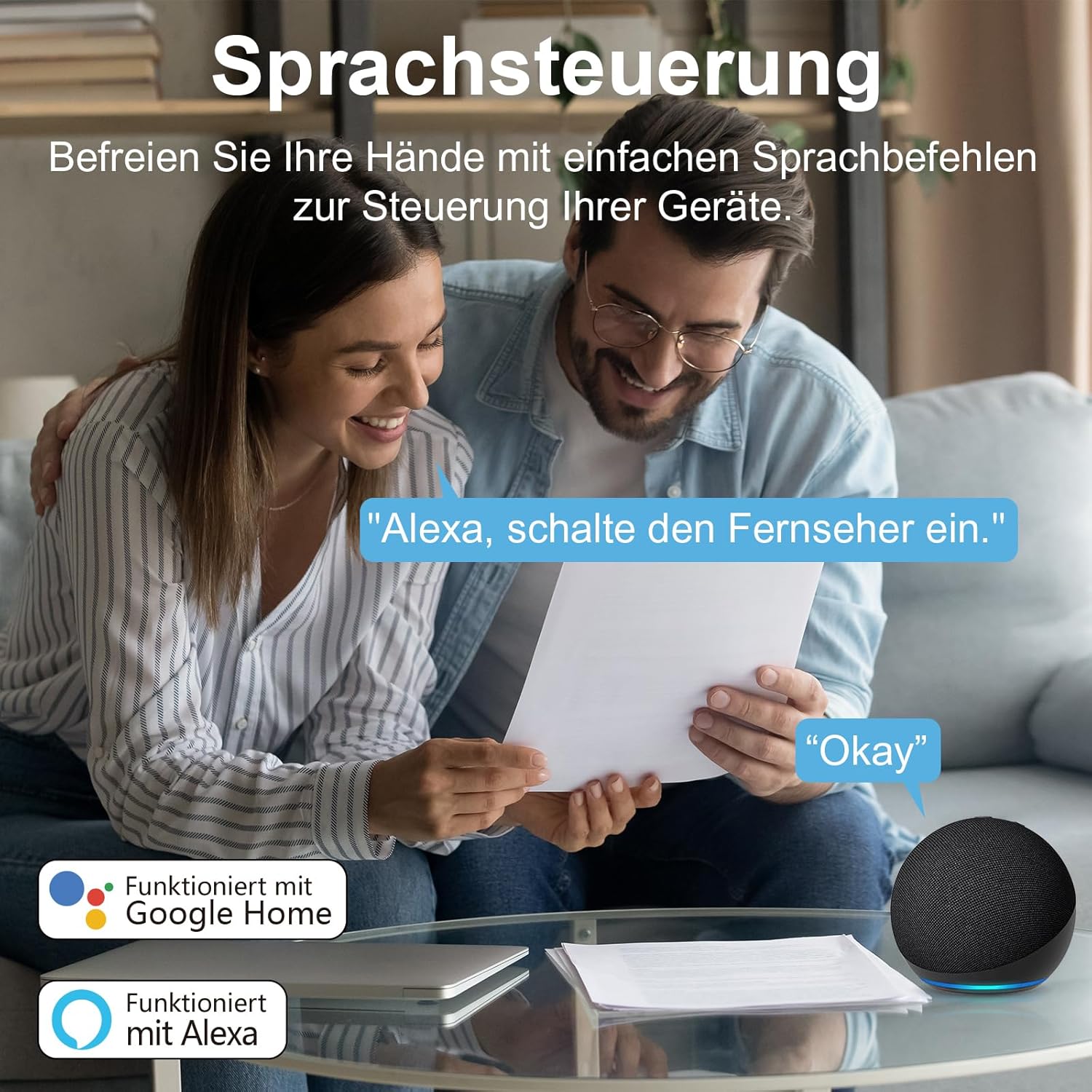
The EIGHTREE ET21 Smart WiFi Socket is compatible with Google Home, Amazon Alexa, and SmartThings. Easily activate your home appliances with simple voice commands.
Image: Voice control in action, showing compatibility with Google Home and Alexa.
5.3 Energy and Cost Monitoring
Monitor your appliances' daily power consumption and electricity costs directly through the Smart Life app. You can set electricity rates for different periods to get more accurate records. Data can also be exported by entering your email address in the app.
Image: The Smart Life app's interface showing detailed electricity consumption statistics.
5.4 Timer & Schedule
Set schedules for your appliances to turn them on and off at specific times. This feature helps you avoid energy waste and save money on your electricity bill by automating device operation.
Image: Example of setting timers and schedules for appliances, such as an air purifier.
5.5 Group Control & Device Sharing
Create groups for your rooms and devices within the app, allowing you to control multiple devices with a single tap. You can also share control of devices with family members, enabling multiple users to manage a single device simultaneously.
6. Maintenance
To ensure the longevity and optimal performance of your EIGHTREE ET21 Smart WiFi Socket, please follow these simple maintenance guidelines:
Cleaning: Use a soft, dry cloth to clean the surface of the smart plug. Do not use liquid cleaners or aerosols.
Storage: When not in use for extended periods, store the plug in a cool, dry place away from direct sunlight and extreme temperatures.
Handling: Avoid dropping or subjecting the plug to strong impacts, as this may damage internal components.
7. Troubleshooting
If you encounter any issues with your EIGHTREE ET21 Smart WiFi Socket, please refer to the table below for common problems and their solutions.
Problem
Possible Cause
Solution
Device is offline in app
No Wi-Fi connection; Router is off; Plug is unplugged or powered off.
Check your Wi-Fi router and ensure it's on. Verify the smart plug is securely plugged in and powered on. Reconnect the plug to Wi-Fi if necessary.
Cannot connect to Wi-Fi
Incorrect Wi-Fi password; Not a 2.4GHz network; Too far from router.
Ensure you are entering the correct Wi-Fi password. Confirm your Wi-Fi network is 2.4GHz. Move the smart plug closer to your router.
Voice control not working
Smart Life app not linked to voice assistant; Incorrect device name.
Check that your Smart Life account is correctly linked to Alexa or Google Home. Ensure the device name in the app is easy for the voice assistant to recognize.
Energy monitoring seems inaccurate
Electricity rates not set or incorrect in app.
Go to the energy monitoring section in the Smart Life app and ensure your electricity rates are correctly entered for accurate cost calculation.
8. Specifications
Detailed technical specifications for the EIGHTREE ET21 Smart WiFi Socket.
Feature
Detail
Model
ET21
Input Voltage
230 Volts (AC)
Maximum Load
3680 Watts / 16 Amps
Material
PC (Polycarbonate)
Support System
Android & iOS
Working Temperature
-20°C to 50°C
Wi-Fi Standard
2.4GHz Only
Product Dimensions
9 x 22.2 x 5.7 cm
Item Weight
380 g
Image: Visual representation of the product specifications.
9. Warranty and Support
EIGHTREE is committed to providing high-quality products and excellent customer service.
Warranty: This product comes with a 24-month worry-free warranty from the date of purchase.
Customer Support: For any inquiries, technical assistance, or warranty claims, please contact our support team.
Image: EIGHTREE's commitment to quality, service, and warranty.
Ask about setup, troubleshooting, compatibility, parts, safety, or missing instructions. Manuals+ will review the question and use this page’s manual context to help answer it.