
Eightree ET21
Eightree ET21 Smart Plug User Manual
Model: ET21
1. Introduction
Thank you for choosing the Eightree ET21 Smart Plug. This device allows you to control your home appliances remotely, monitor energy consumption, and automate your home with ease. This manual provides essential information for setting up, operating, and maintaining your smart plug.

Image: Two Eightree ET21 Smart Plugs, showcasing the compact design of the product.
2. Product Overview & Key Features
The Eightree ET21 Smart Plug is designed to integrate seamlessly into your smart home ecosystem, offering convenience and energy efficiency.
- Remote Control: Control your devices from anywhere using the Smart Life app (2.4 GHz Wi-Fi required).
- Voice Control: Compatible with Google Home, Amazon Alexa, and SmartThings for hands-free operation.
- Energy Consumption Monitoring: Track daily, weekly, monthly, and yearly electricity usage to optimize consumption.
- Timer and Schedule: Automate device power on/off times to save energy and enhance convenience.
- Group Control and Device Sharing: Manage multiple plugs simultaneously and share control with family members via the app.

Image: Diagram illustrating various smart devices integrated into a home, demonstrating the versatility of smart plugs.
3. Safety Information
Please read and follow these safety guidelines to ensure safe operation and prevent damage to the device or injury.
- Do not exceed the maximum load of 16A / 3680W.
- Ensure the plug is fully inserted into the wall socket.
- Do not use in wet environments or near water.
- Keep out of reach of children.
- Do not disassemble or attempt to repair the device.
- The product is designed with short-circuit protection, overload protection, and uses fireproof material. It is CE certified.

Image: Visual representation of the smart plug's safety features, including 16A & 3680W capacity, short-circuit protection, overload protection, fireproof material, and CE certification.
4. Setup Guide
Follow these steps to set up your Eightree ET21 Smart Plug:
- Plug In: Insert the smart plug into a standard wall outlet. The indicator light should blink rapidly.
- Download App: Download the "Smart Life" app from your smartphone's app store (available for Android and iOS).
- Connect to Wi-Fi: Open the Smart Life app, register or log in, and add the device. Ensure your phone is connected to a 2.4GHz Wi-Fi network and enter the Wi-Fi password in the app.
- Follow In-App Instructions: The app will guide you through the pairing process. Once connected, the indicator light on the plug will stop blinking and remain solid.

Image: Three-step visual guide for easy installation: 1. Plug in the device, 2. Enter 2.4GHz Wi-Fi password in the app, 3. Follow app instructions to connect.
5. Operating Instructions
5.1 Remote Control
Once connected to the Smart Life app, you can turn the plug on or off from anywhere with an internet connection. Simply tap the power icon next to the device in the app.

Image: A man checking his phone outside his house, demonstrating the remote control capability of the smart plug.
5.2 Voice Control
Integrate your smart plug with voice assistants like Google Home, Amazon Alexa, or SmartThings for convenient voice commands.
- For Alexa/Google Home: Link your Smart Life account in the Alexa or Google Home app. Then, use commands like "Alexa, turn on the living room light" or "Hey Google, turn off the coffee maker."
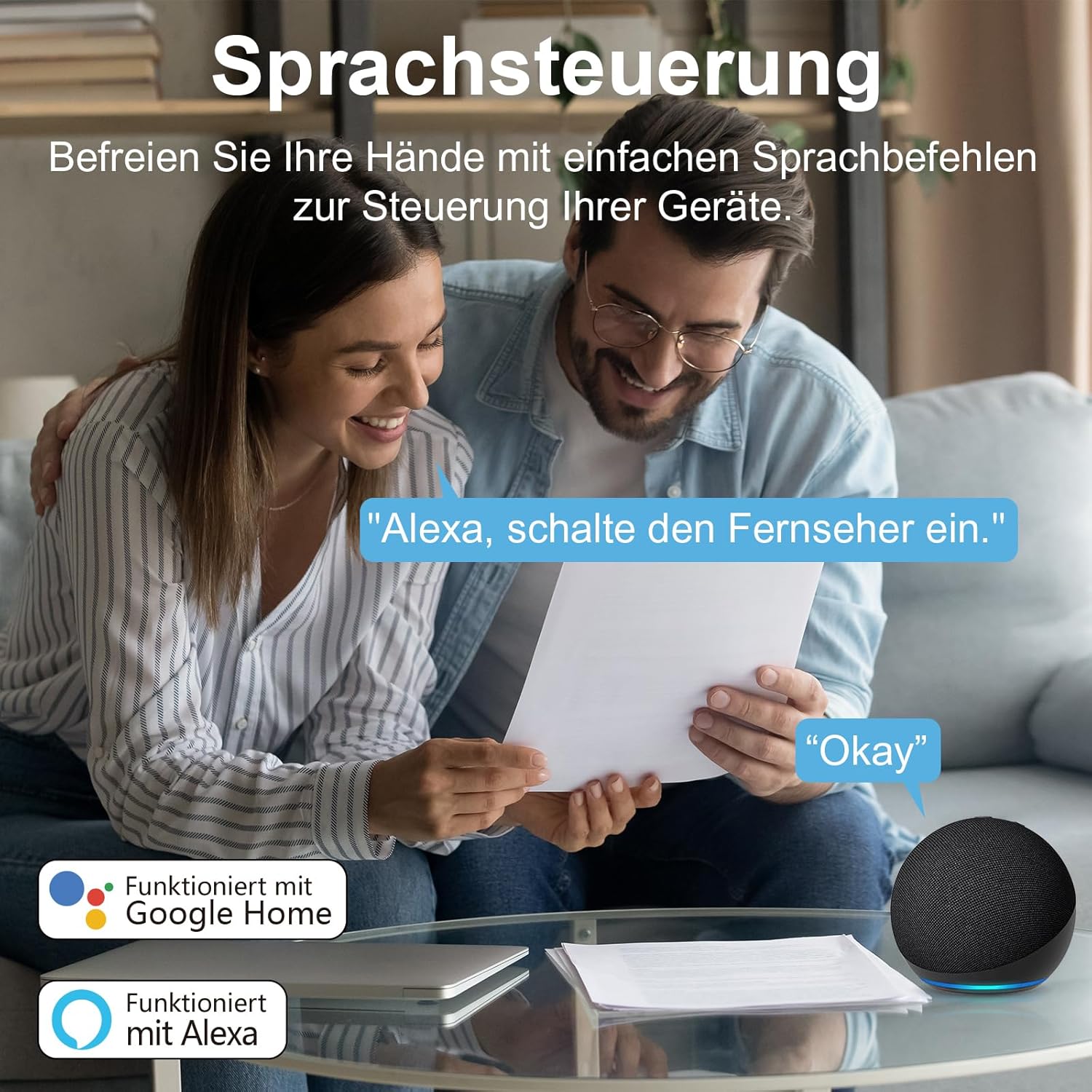
Image: A couple interacting with a smart speaker, illustrating the voice control feature for smart devices.
5.3 Energy Monitoring
The Smart Life app provides detailed insights into your energy consumption. Navigate to the device settings in the app to view daily, weekly, monthly, or yearly electricity usage reports. This feature helps you identify energy-hungry appliances and optimize your consumption.

Image: A smartphone screen displaying an energy consumption graph, showing daily electricity usage data.
5.4 Timer and Schedule
Set up custom schedules to automatically turn your devices on or off at specific times. This is ideal for lighting, coffee makers, or other appliances you want to automate.
- In the Smart Life app, select your smart plug and go to the "Schedule" or "Timer" section.
- Add new schedules, specifying the time and action (on/off).
- You can also set countdown timers for temporary control.

Image: An air purifier connected to a smart plug, with a visual overlay indicating scheduled on/off times (e.g., 3:00 PM ON, 7:00 PM OFF).
5.5 Group Control and Device Sharing
Manage multiple smart plugs efficiently by grouping them together. You can also share control of your devices with family members.
- Group Control: In the Smart Life app, create groups (e.g., "Living Room Lights") to control multiple plugs with a single command.
- Device Sharing: Share access to your smart plugs with other Smart Life app users in your household. They will be able to control the devices from their own accounts.

Image: A smartphone screen displaying a "Share Device" interface within the Smart Life app, showing options to share control with other users.
6. Maintenance
The Eightree ET21 Smart Plug requires minimal maintenance. Follow these guidelines:
- Cleaning: Disconnect the plug from the power outlet before cleaning. Use a dry, soft cloth to wipe the surface. Do not use liquid cleaners or aerosols.
- Storage: Store the device in a cool, dry place away from direct sunlight and extreme temperatures when not in use for extended periods.
- Firmware Updates: Periodically check the Smart Life app for any available firmware updates for your smart plug to ensure optimal performance and security.
7. Troubleshooting
If you encounter issues with your Eightree ET21 Smart Plug, refer to the following common problems and solutions:
- Device not connecting to Wi-Fi:
- Ensure your Wi-Fi network is 2.4GHz. The plug does not support 5GHz Wi-Fi.
- Check that your Wi-Fi password is entered correctly in the app.
- Make sure the smart plug is within range of your Wi-Fi router.
- Try resetting the smart plug by holding the power button for 5-10 seconds until the indicator light blinks rapidly, then attempt pairing again.
- Voice control not working:
- Verify that your Smart Life account is correctly linked to your Alexa or Google Home app.
- Ensure the device name in the Smart Life app is recognizable by your voice assistant.
- Check your internet connection.
- Plug is unresponsive:
- Unplug the smart plug from the wall outlet, wait a few seconds, and plug it back in.
- Check if the power outlet is functioning correctly.
- If the issue persists, try resetting the device and re-pairing it.
For further assistance, please contact Eightree customer support.
8. Specifications
| Feature | Specification |
|---|---|
| Product Name | Smart Plug |
| Model Number | ET21 |
| Operating Systems | Android & iOS |
| Operating Voltage | 230 Volts (AC) |
| Current Rating | 16 A |
| Power | 3680 W |
| Material | PC |
| Permissible Temperature Range | -20~50°C |
| Required Internet Bandwidth | 2.4GHz Wi-Fi only |
| Product Dimensions (L x W x H) | 47 x 26 x 39 cm |
| Weight | 200 grams |
| Operating Mode | Automatic |
| Contact Type | Normally Closed |
| Connector Type | Plug-in |
| Circuit Type | 1-way |
| Country of Origin | China |
9. Warranty & Support
Eightree is committed to providing high-quality smart home solutions. Your ET21 Smart Plug comes with the following:
- 2-Year Warranty: Enjoy a 24-month worry-free warranty from the date of purchase.
- 24-Hour Service: We offer fast service to ensure a great experience.
- CE Certified: All our plugs comply with CE standards.
For any issues or support inquiries, please do not hesitate to contact us directly. We are always at your service.

Image: Information panel highlighting Eightree's commitment to quality, including CE certification, 24-hour service, and a 2-year warranty.
Related documentsET21


Ask a question about this manual
Ask about setup, troubleshooting, compatibility, parts, safety, or missing instructions. Manuals+ will review the question and use this page’s manual context to help answer it.