
BRIMFORD BLTK001
Contents
BRIMFORD Foldable Bluetooth Keyboard with Numeric Keypad User Manual
Model: BLTK001
Introduction
This manual provides detailed instructions for the setup, operation, and maintenance of your BRIMFORD Foldable Bluetooth Keyboard with Numeric Keypad. Please read this manual thoroughly before using the product to ensure optimal performance and longevity.
Product Overview
The BRIMFORD Foldable Bluetooth Keyboard is a portable, wireless input device designed for use with laptops, tablets, iPads, and smartphones. It features a numeric keypad and multi-function keys for enhanced productivity. Its compact, foldable design makes it ideal for travel.

Image: The BRIMFORD Foldable Bluetooth Keyboard shown in both its unfolded, operational state and its compact, folded state. The silver keyboard features a full QWERTY layout with a dedicated numeric keypad on the right.
Key Features:
- Integrated Numeric Keypad: For efficient data entry.
- Multi-Device Connectivity: Connects up to 3 devices simultaneously via Bluetooth 5.1.
- Portable Design: Folds into a compact size for easy transport.
- USB-C Rechargeable: Provides long battery life with quick charging.
- Pantograph Key Structure: Ensures quiet and comfortable typing.
- Wide Compatibility: Supports Windows, Mac OS, iOS, and Android devices.
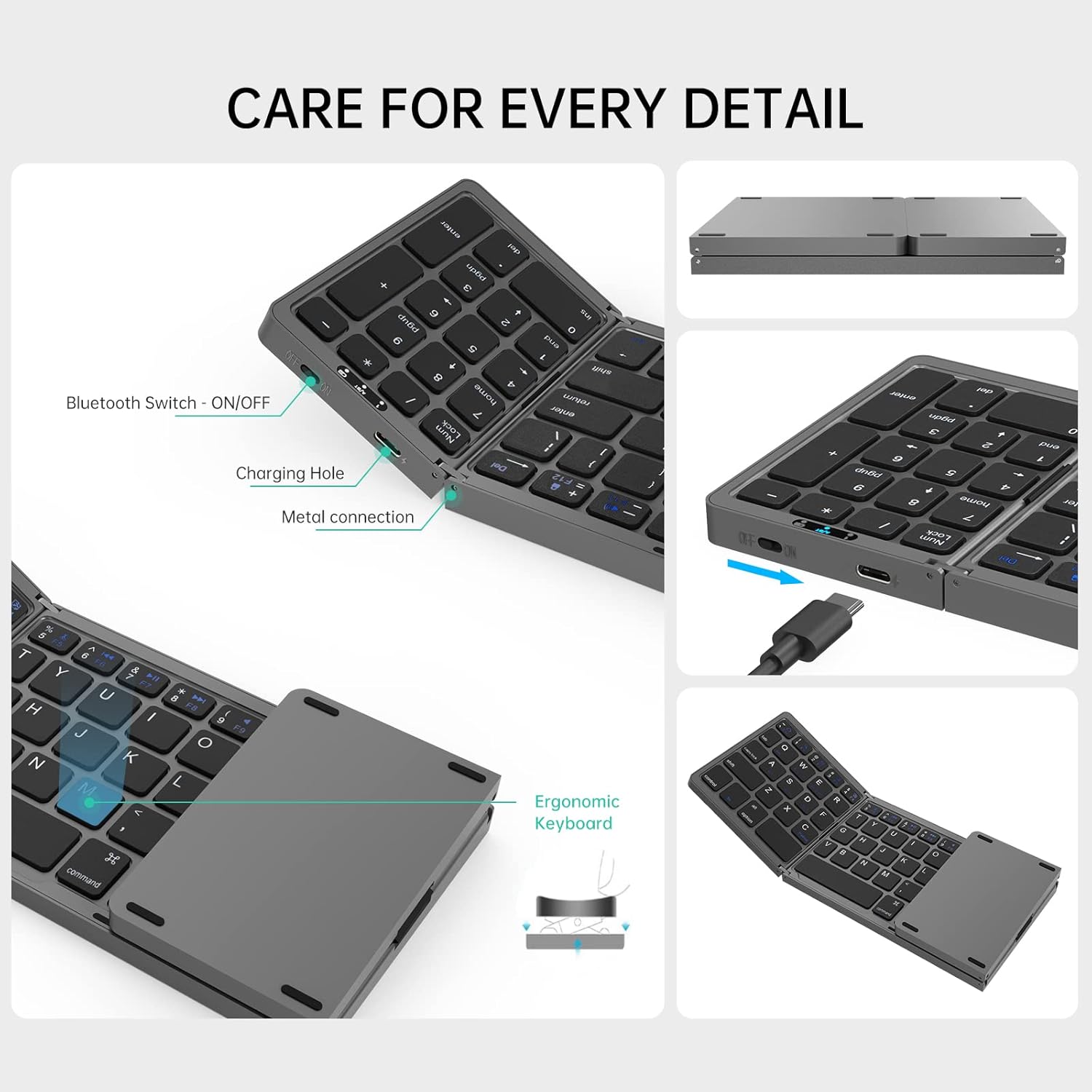
Image: A close-up diagram highlighting various features of the keyboard, including the Bluetooth switch, USB-C charging port, metal connection points, and ergonomic design elements. The keyboard is shown partially folded.
Package Contents
- BRIMFORD Tri-Folded Bluetooth Keyboard x 1
- USB-C Charging Cable x 1
- User Manual (this document)
Specifications
| Model | BLTK001 |
| Connectivity Technology | Bluetooth 5.1 |
| Compatible Devices | Laptop, PC, Smartphone, Tablet (Windows, Mac OS, iOS, Android) |
| Folded Dimensions | 2 x 3.8 x 0.77 inches (approx.) |
| Unfolded Dimensions | 11.81 x 3.8 x 0.38 inches (approx.) |
| Item Weight | 0.44 lbs (7.8 ounces) |
| Charging Time | Approximately 2 hours |
| Continuous Typing Time | Up to 45 hours |
| Standby Time | Up to 90 days |
| Key Structure | Pantograph |
| Material | Acrylonitrile Butadiene Styrene, Silicone |

Image: A visual comparison of the keyboard's folded and unfolded dimensions against an iPhone 12 Pro Max, illustrating its compact size.

Image: An illustration emphasizing the keyboard's mini size and ergonomic design, showing its compact form factor and a side profile.
Charging the Keyboard
Before initial use, fully charge the keyboard. Use the provided USB-C charging cable.
- Connect the USB-C end of the charging cable to the keyboard's charging port.
- Connect the USB-A end of the cable to a compatible USB power source (e.g., computer, wall adapter).
- The charging indicator light will illuminate. Once fully charged (approximately 2 hours), the light will change or turn off.
Battery Status:
- The indicator light will flash when the battery level is below 30%.
- The keyboard will automatically power off when the battery level drops below 3%.

Image: An illustration showing the USB-C charging interface and highlighting the 'Fn' and 'C' keys used for initiating Bluetooth pairing.

Image: A graphic detailing the charging time (2-3 hours), uninterrupted working time (46 hours), and standby time (2160 hours) of the keyboard, alongside an image of the keyboard being placed into a bag.
Setup & Pairing
The keyboard can connect to up to three devices simultaneously. Follow these steps to pair your keyboard:
- Power On: Unfold the keyboard to automatically power it on, or use the dedicated power switch if available.
- Enter Pairing Mode: Press the [Fn] key and the [C] key simultaneously. The Bluetooth indicator light will flash, indicating the keyboard is in pairing mode.
- Activate Bluetooth on Your Device: On your laptop, tablet, or smartphone, go to the Bluetooth settings and ensure Bluetooth is enabled.
- Select Keyboard: In the list of available Bluetooth devices, select "Bluetooth 5.1 Keyboard".
- Confirm Connection: Once connected, your device will display a "Connected" message, and the keyboard's Bluetooth indicator light will stop flashing.

Image: A screenshot sequence demonstrating how to enable Bluetooth on an iPad and select "Bluetooth 5.1 Keyboard" from the device list to establish a connection.
Operating Instructions
Switching Between Devices:
To switch between paired devices (up to 3), press the [Fn] key combined with the corresponding device key:
- Fn + A: Switch to Device 1
- Fn + S: Switch to Device 2
- Fn + D: Switch to Device 3

Image: An overhead view of the keyboard connected wirelessly to a laptop, a desktop monitor, and a smartphone, illustrating its multi-device switching capability using Fn+A, Fn+S, and Fn+D.

Image: The BRIMFORD keyboard in use on a desk, connected to a tablet and a smartphone, demonstrating its multi-device functionality.
Multimedia and Function Keys:
The keyboard includes various multimedia shortcut functions. These keys are typically accessed by pressing the [Fn] key in combination with the desired function key (F1-F12 or other designated keys). Refer to the keycap legends for specific functions such as volume control, media playback, and screen brightness.
Automatic Sleep Mode:
The keyboard will automatically enter sleep mode after 10 minutes of inactivity to conserve battery. Press any key to wake it up.
Maintenance
- Cleaning: Use a soft, dry cloth to clean the keyboard surface. For stubborn dirt, a slightly damp cloth can be used, ensuring no liquid enters the keyboard.
- Storage: When not in use, fold the keyboard to protect the keys and conserve space. Store in a cool, dry place away from direct sunlight and extreme temperatures.
- Avoid Liquids: Do not expose the keyboard to water or other liquids.
- Avoid Drops: Handle the keyboard with care to prevent damage from drops or impacts.

Image: A close-up view of the keyboard keys, highlighting the pantograph key structure for quiet typing, UV coating for durability, and non-slip mats on the base for stability.
Troubleshooting
- Keyboard not pairing or connecting:
- Ensure the keyboard is fully charged.
- Make sure the keyboard is powered on and in pairing mode (Fn + C).
- Verify Bluetooth is enabled on your device.
- Move the keyboard closer to your device.
- Forget "Bluetooth 5.1 Keyboard" from your device's Bluetooth settings and attempt to re-pair.
- Restart both the keyboard and your device.
- Keys not responding:
- Check battery level and charge if necessary.
- Ensure the keyboard is properly connected to your device.
- If in sleep mode, press any key to wake it up.
- Lag or delayed input:
- Ensure there are no obstructions between the keyboard and your device.
- Reduce interference from other wireless devices.
- Check battery level.
Safety Information
- Keep the keyboard away from water, moisture, and extreme temperatures.
- Do not attempt to disassemble or modify the keyboard. This may void the warranty and cause damage.
- Use only the provided charging cable or a certified USB-C cable for charging.
- Dispose of the product responsibly according to local regulations.
Warranty and Support
BRIMFORD stands behind the quality of its products. All items undergo quality checks before shipping. If you receive a defective or damaged product, we offer a refund or replacement.
For any issues regarding Bluetooth connectivity, device switching, or other operational concerns, please contact our customer support. We are committed to assisting you until your problem is resolved.
Contact information for support is typically found on the product packaging or the official BRIMFORD website.
Ask a question about this manual
Ask about setup, troubleshooting, compatibility, parts, safety, or missing instructions. Manuals+ will review the question and use this page’s manual context to help answer it.