
1. Introduction
The OSOTEK G6 Robot Vacuum Cleaner is designed to provide efficient and comprehensive floor cleaning. This device integrates three cleaning functions: vacuuming, mopping, and wiping, ensuring a thorough clean for various floor types. It features powerful suction, extended operation time, and smart control options.
2. Package Contents
Please verify that all items are present in the package:

OSOTEK G6 Robot Vacuum Cleaner: The main cleaning unit.

Instruction Manual (Japanese): Detailed guide for operation.

Mop Cloths (x2): For wet mopping and wiping.

Water Tank: Holds water for mopping function.

Charging Base: For automatic recharging of the robot.

Side Brushes (x2): Sweeps debris into the suction path.

Filter: Traps dust and allergens.

Cleaning Tool: For maintaining the robot vacuum.
Power Adapter: Connects the charging base to power.
3. Setup
3.1 Initial Charging
Before first use, fully charge the robot vacuum. Place the charging base against a wall in an open area. Connect the power adapter to the charging base and a power outlet. Place the robot vacuum onto the charging base, ensuring the charging contacts align. The indicator light will show charging status.
3.2 Wi-Fi Connection Guide
To utilize smart features, connect your OSOTEK G6 to your home Wi-Fi network via the dedicated mobile application. Ensure your smartphone is connected to a 2.4GHz Wi-Fi network.
- Download the 'Smart Life' or 'Tuya Smart' app from your smartphone's app store.
- Register or log in to your account.
- Turn on the robot vacuum.
- Press and hold both the power button and the home button on the robot simultaneously for approximately 3-5 seconds until you hear a voice prompt indicating Wi-Fi pairing mode. The Wi-Fi indicator light on the robot will start blinking.
- In the app, tap 'Add Device' or the '+' icon. Select 'Small Home Appliances' > 'Robot Vacuum Cleaner (Wi-Fi)'.
- Confirm the Wi-Fi indicator on the robot is blinking rapidly. Enter your 2.4GHz Wi-Fi network password.
- Follow the in-app instructions to complete the connection. Once connected, the robot will confirm with a voice prompt, and the Wi-Fi indicator will become solid.
Video: This video demonstrates the process of connecting the OSOTEK G6 Robot Vacuum Cleaner to a Wi-Fi network using the mobile application. It shows the steps for putting the robot into pairing mode and completing the setup via the app.
4. Operating Modes
4.1 Suction Power Modes
The OSOTEK G6 offers four adjustable suction power modes to suit different cleaning needs and floor conditions:
- Silent Mode (750Pa): For quiet cleaning, suitable for light dust and maintaining a peaceful environment.
- Standard Mode (1200Pa): A balanced mode for everyday cleaning, offering good suction with moderate noise.
- Strong Mode (2000Pa): Provides increased suction for more stubborn dirt and debris.
- Max Mode (3500Pa): Delivers maximum suction power for deep cleaning carpets or heavily soiled areas.

Image: Illustration of the four distinct suction power modes (750Pa, 1200Pa, 2000Pa, 3500Pa) available on the OSOTEK G6, demonstrating their suitability for different levels of dirt and floor types.
4.2 Cleaning Modes
The robot vacuum features three primary cleaning modes:
- Automatic Mode: The robot intelligently navigates and cleans the entire room, adjusting its path based on room shape and obstacles.
- Edge Mode: The robot focuses on cleaning along walls and corners, ensuring no dust is left behind in hard-to-reach areas.
- Spot Mode: Ideal for concentrated cleaning of a specific dirty area. The robot cleans in a spiral pattern outwards from the designated spot.

Image: Visual representation of the robot vacuum operating in Automatic, Edge, and Spot cleaning modes, showing its navigation patterns for different cleaning scenarios.
4.3 3-in-1 Functionality: Suction, Mop, and Wipe
The OSOTEK G6 is equipped with a mop on its underside, allowing it to vacuum and mop simultaneously. It sprays water while wiping, which is convenient for preventing stickiness on floors. The large 300ml water tank allows for extensive mopping in one go.

Image: Depiction of the robot vacuum performing both suction and mopping functions simultaneously, highlighting its 3-in-1 capability for comprehensive floor cleaning.
5. Key Features
5.1 Intelligent Navigation and Safety
The robot is equipped with multiple sensors to ensure safe and efficient operation:
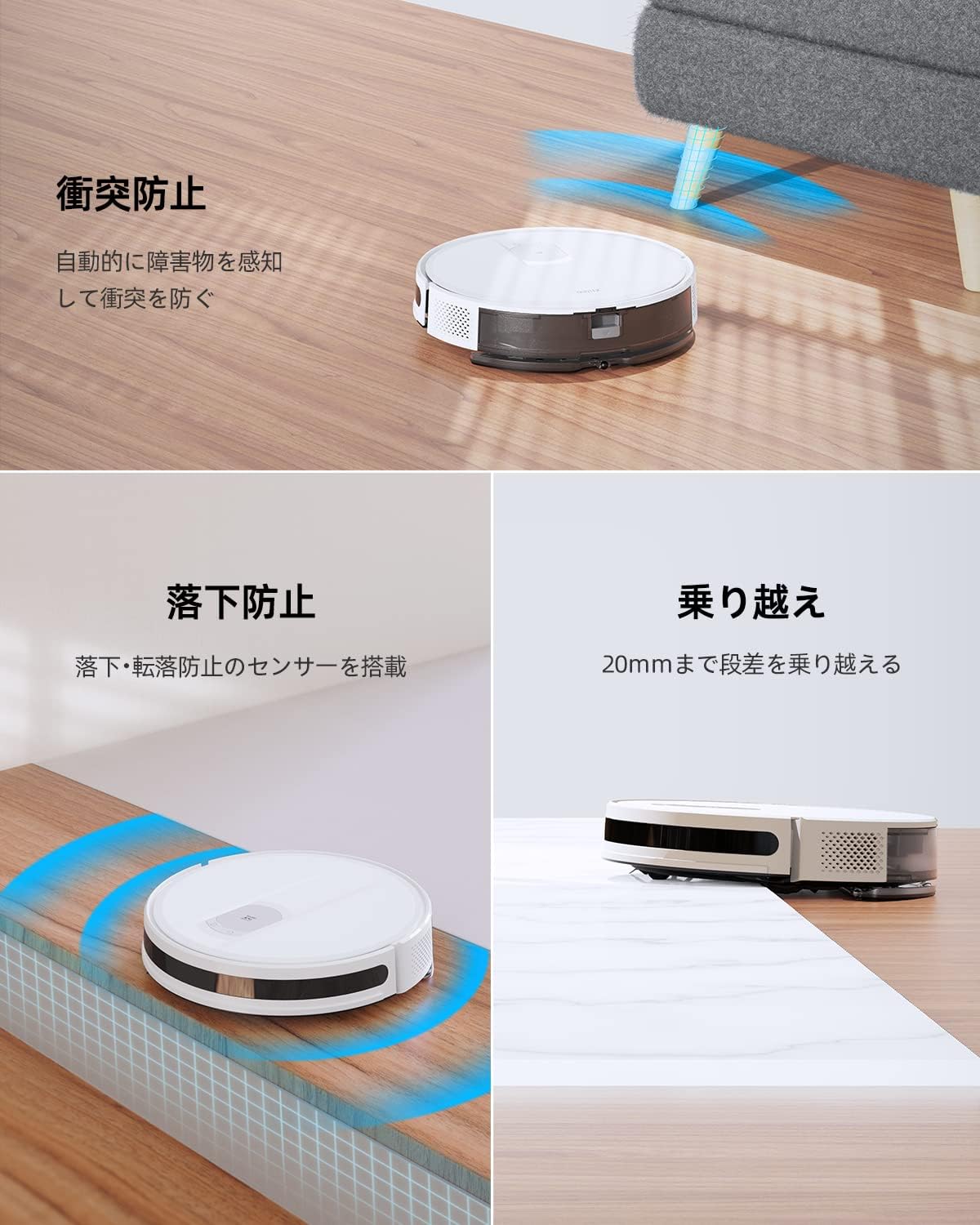
- Collision Prevention: Sensors detect carpets, height differences, and distances to furniture or walls, preventing collisions and ensuring smooth movement around the room.
- Fall Prevention: Built-in anti-drop sensors prevent the robot from falling down stairs or off ledges, such as at entryways.
- Obstacle Climbing: Capable of climbing over obstacles up to 20mm high, such as door sills or low carpets.
- Automatic Charging: The robot automatically returns to its charging base when the battery is low or after completing a cleaning cycle.


Images: A series of images illustrating the robot vacuum's safety features, including collision prevention, fall prevention, obstacle climbing up to 20mm, and automatic return to its charging base.
5.2 Smart Control Options
- App Remote Control: With Wi-Fi connectivity, you can control the robot vacuum from anywhere using the dedicated app. This includes starting/stopping cleaning, setting cleaning areas, and scheduling.
- Voice Control: Compatible with Amazon Alexa and Google Home/Assistant. You can control the robot vacuum with voice commands, such as "Alexa, start the robot vacuum."


Images: An image showing the mobile app interface for scheduling and controlling the robot vacuum, and another image highlighting its compatibility with Google Home and Amazon Alexa for voice control.
6. Maintenance
Regular maintenance ensures optimal performance and extends the lifespan of your OSOTEK G6 robot vacuum. Always turn off the robot and disconnect it from the charging base before performing any maintenance.
- Dustbin: Empty the dustbin after each cleaning cycle.
- Filter: Clean the filter regularly (e.g., weekly) by tapping out debris. Replace the filter every 3-6 months, or as needed.
- Side Brushes: Check side brushes for tangled hair or debris. Clean or replace them if worn.
- Main Brush: Remove the main brush and clean any tangled hair or debris using the provided cleaning tool.
- Water Tank & Mop Cloth: Empty the water tank after each mopping session and clean the mop cloth. Wash the mop cloth regularly.
- Sensors: Wipe all sensors (cliff sensors, collision sensors) with a clean, dry cloth to ensure proper function.
- Charging Contacts: Clean the charging contacts on both the robot and the charging base with a dry cloth.
7. Troubleshooting
If you encounter issues with your OSOTEK G6, refer to the following common solutions:
- Robot not moving, indicator blinking red: If the indicator blinks red and the device stops moving completely, press and hold the power button and home button simultaneously for approximately 15 seconds to reset the robot. After resetting, it should function normally.
- Robot not charging: Ensure the charging contacts on both the robot and the charging base are clean and free of debris. Verify the power adapter is securely connected to the base and a working power outlet.
- Poor suction performance: Check if the dustbin is full and empty it. Clean or replace the filter if it's clogged. Ensure the main brush and side brushes are free of tangled hair or debris.
- Robot getting stuck frequently: Clear obstacles from the cleaning path. Ensure cables, small rugs, or other items that could entangle the robot are removed.
- Wi-Fi connection issues: Ensure your router is broadcasting a 2.4GHz network. Confirm the Wi-Fi password is correct. Try resetting the robot's Wi-Fi connection as described in the setup section.
8. Specifications
| Feature | Specification |
|---|---|
| Brand | OSOTEK |
| Model | G6 |
| Product Type | Robot Vacuum Cleaner |
| Suction Power | Max 3500Pa (4 modes: 750/1200/2000/3500Pa) |
| Battery Life | Up to 150 minutes (Standard Mode) |
| Cleaning Functions | Suction, Mopping, Wiping (3-in-1) |
| Water Tank Capacity | 300ml |
| Cleaning Modes | Automatic, Edge, Spot |
| Navigation | Intelligent sensor-based navigation |
| Obstacle Climbing | Up to 20mm |
| Control Method | App Control, Button Control, Voice Control (Alexa, Google Home) |
| Connectivity | Wi-Fi (2.4GHz) |
| Included Components | Side Brushes (x2), Main Brush, Dustbin, Water Tank, Mop Cloths (x2), Charging Base, Power Adapter, Cleaning Tool, Instruction Manual |
| Recommended Use Location | Carpet, Hardwood, Tile, Laminate |
| Special Features | Collision Prevention, Fall Prevention, Automatic Charging, Scheduled Cleaning |
9. Warranty and Support
The OSOTEK G6 Robot Vacuum Cleaner comes with a 24-month worry-free warranty from the date of purchase. If you have any questions or require assistance during use, please do not hesitate to contact OSOTEK customer support. Support is available in Japanese.

