Introduction
This manual provides comprehensive instructions for the installation, operation, and maintenance of your ASUS NVIDIA GeForce RTX 3080 Noctua Edition Graphics Card. Designed through a collaboration between ASUS and Noctua, this graphics card integrates two high-performance NF-A12x25 PWM fans with a custom-engineered thermal solution on a unique PCB. This design ensures superior cooling efficiency while maintaining exceptionally low noise levels, making it an ideal choice for users prioritizing both performance and acoustic comfort.
Safety Information
Please read all safety instructions carefully before installing or operating the graphics card. Failure to comply with these guidelines may result in personal injury or damage to the product or other components.
- Ensure your computer system is powered off and unplugged from the wall outlet before installation.
- Discharge any static electricity from your body by touching a grounded metal object (e.g., the computer case) before handling the graphics card.
- Handle the graphics card by its edges to avoid touching sensitive components.
- Do not expose the graphics card to moisture or extreme temperatures.
- Only use the graphics card in a well-ventilated computer case.
- Keep out of reach of children.
Package Contents
Verify that all items listed below are present in your product packaging:
- RTX3080-O10G-NOCTUA graphics card
- Collection card
- Speedsetup Manual
Product Overview
The ASUS NVIDIA GeForce RTX 3080 Noctua Edition Graphics Card is engineered for high-performance gaming and content creation, featuring advanced cooling and robust construction.

Figure 1: The ASUS NVIDIA GeForce RTX 3080 Noctua Edition Graphics Card shown alongside its retail packaging.
Key Features
- NVIDIA Ampere Streaming Multiprocessors: Offers 2X the FP32 throughput and improved power efficiency for superior performance.
- 2nd Generation RT Cores: Provides 2X the throughput of 1st gen RT Cores, enabling advanced ray tracing performance.
- 3rd Generation Tensor Cores: Delivers up to 2X the throughput with structural sparsity and AI algorithms like DLSS, supporting up to 8K resolution.
- LHR (Lite Hash Rate): This GeForce RTX 3080 graphics card delivers an estimated 43 MH/s ETH hash rate.
- Clock Speeds: Features an OC mode of 1815 MHz (Boost Clock) and a Gaming mode of 1785 MHz (Boost Clock).
- Noctua NF-A12x25 PWM Fans: Two high-quality fans provide exceptional cooling with minimal noise.
- Tailor-Made Heatsink: Designed to optimize airflow characteristics of the Noctua NF-A12x25 fans for maximum thermal dissipation.
- Dual BIOS Switch: Allows users to easily switch between Quiet and Performance BIOS profiles without software.
- 0dB Technology: Fans stop spinning when GPU temperature is below 50°C, enabling silent operation during light loads.
- GPU Tweak II: Provides an intuitive interface for performance tuning, thermal control, and system monitoring.

Figure 2: The two Noctua NF-A12x25 PWM fans, engineered for superior cooling and quiet operation.

Figure 3: An exploded view illustrating the tailor-made heatsink designed to work in conjunction with the Noctua fans.
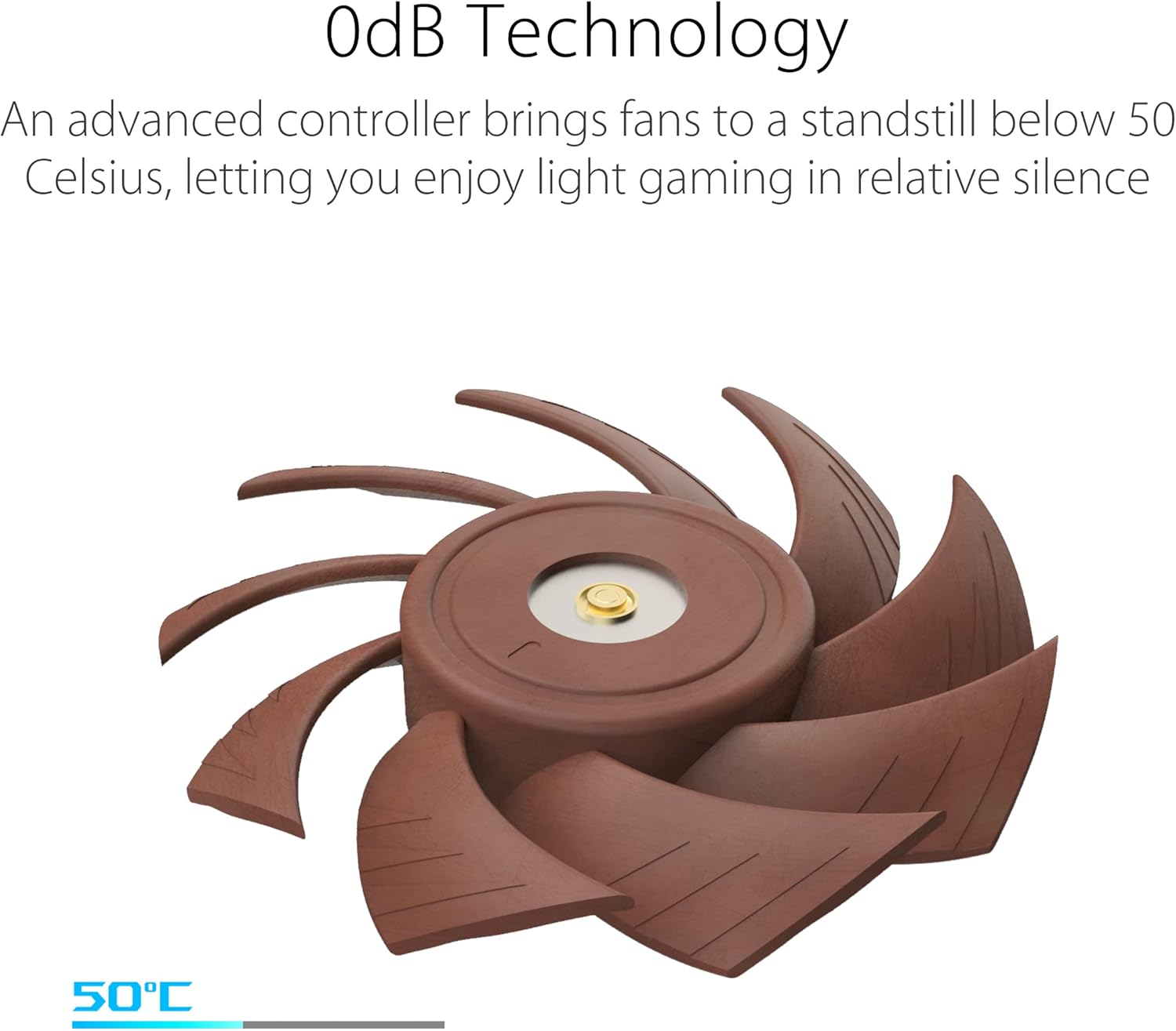
Figure 4: The 0dB Technology allows the fans to stop spinning when the GPU temperature is below 50°C, ensuring silent operation.

Figure 5: A visual representation of the Auto-Extreme Technology, an automated manufacturing process that enhances product reliability.

Figure 6: The rigid vented backplate, designed to prevent PCB flex and facilitate hot air exhaust.

Figure 7: The output panel of the graphics card, featuring 3 Native DisplayPort 1.4a and 2 Native HDMI 2.1 ports.
Setup
System Requirements
- PCI Express-compliant motherboard with one dual-width x16 graphics slot.
- Minimum 750W power supply with appropriate PCIe power connectors.
- Operating System: Windows 10 64-bit or later, Linux 64-bit.
- Minimum 8GB system memory (16GB recommended).
- Internet connection for driver download and software updates.
Installation Steps
- Prepare Your System: Power off your computer and unplug the power cable from the wall outlet. Open your computer case.
- Locate PCIe Slot: Identify an available PCI Express x16 slot on your motherboard. This card is 4.3 slots wide, so ensure sufficient clearance.
- Remove Slot Covers: Remove the necessary expansion slot covers from your computer case corresponding to the PCIe slot.
- Install Graphics Card: Carefully align the graphics card with the PCIe slot and press it firmly until it is securely seated. Ensure the retention clip on the motherboard clicks into place.
- Secure the Card: Secure the graphics card to the computer case using the screws from the removed slot covers.
- Connect Power Cables: Connect the required PCIe power cables from your power supply to the graphics card's power connectors.
- Close Case and Connect Peripherals: Close your computer case, reconnect the power cable, monitor cables, and other peripherals.
- Power On: Turn on your computer.
Operating Your Graphics Card
Driver Installation
After physical installation, you must install the appropriate drivers for your graphics card to function correctly and deliver optimal performance.
- Download Drivers: Visit the official ASUS support website or NVIDIA's driver download page. Select your graphics card model (RTX 3080) and operating system.
- Run Installer: Download the latest stable driver package and run the installer.
- Follow Prompts: Follow the on-screen instructions to complete the driver installation. A system restart may be required.
Software Utilities
ASUS provides the GPU Tweak II utility to help you monitor and optimize your graphics card's performance.
- GPU Tweak II: This software allows for intuitive performance tweaking, thermal controls, and system monitoring. You can download it from the ASUS support website.
- Dual BIOS Switch: Utilize the physical Dual BIOS switch on the card to toggle between Quiet and Performance BIOS profiles without needing software adjustments.
Maintenance
Proper maintenance ensures the longevity and optimal performance of your graphics card.
- Cleaning: Periodically clean dust from the fans and heatsink using compressed air. Ensure the system is powered off and unplugged before cleaning.
- Environmental Conditions: Operate the card in a clean, dust-free environment with adequate airflow.
- Driver Updates: Keep your graphics drivers updated to ensure compatibility and performance improvements.
Troubleshooting
This section addresses common issues you might encounter with your graphics card.
| Problem | Possible Cause | Solution |
|---|---|---|
| No display output. | Incorrect cable connection, card not seated properly, power cables not connected. | Check monitor cables, reseat the graphics card, ensure all PCIe power connectors are securely attached. |
| System fails to boot or crashes. | Insufficient power supply, driver conflict, card not fully compatible. | Verify PSU wattage meets requirements, perform a clean driver installation, check motherboard BIOS settings. |
| Poor performance in games/applications. | Outdated drivers, incorrect settings, thermal throttling. | Update graphics drivers, adjust in-game settings, ensure adequate case airflow and clean heatsink/fans. |
| Fans not spinning. | 0dB technology active (GPU temp below 50°C), fan malfunction. | This is normal if GPU temperature is low. If temperatures are high and fans are still not spinning, check GPU Tweak II settings or contact support. |
Technical Specifications
| Feature | Specification |
|---|---|
| Graphics Coprocessor | NVIDIA GeForce RTX 3080 |
| Chipset Brand | NVIDIA |
| Graphics Card Ram Size | 10 GB GDDR6 |
| Memory Speed | 1785 MHz (Gaming Mode) / 1815 MHz (OC Mode) |
| Max Screen Resolution | 7680x4320 Pixels |
| Video Output Interface | HDMI (2x Native HDMI 2.1), DisplayPort (3x Native DisplayPort 1.4a) |
| Item Weight | 4.06 pounds |
| Product Dimensions (LxWxH) | 12.05 x 5.7 x 3.25 inches |
| Color | BLACK (with Noctua brown/beige accents) |
| Manufacturer | ASUS |
| ASIN | B0B72KH84S |
| Date First Available | July 6, 2022 |
Warranty and Support
ASUS products are manufactured to the highest quality standards. For information regarding warranty coverage, technical support, or service, please refer to the warranty card included in your package or visit the official ASUS support website.
ASUS Support Website: www.asus.com/support/


