
Introduction
This manual provides essential information for the installation, operation, and maintenance of your Hikvision DS-2CD1043G0-IUF 4MP IP Bullet Camera. Please read it thoroughly before using the product to ensure correct and safe operation.
The Hikvision DS-2CD1043G0-IUF is a 4-megapixel IP bullet camera designed for both indoor and outdoor surveillance. It features a 2.8mm lens, built-in microphone, 30-meter night vision, and Power over Ethernet (PoE) capability for simplified installation.
Safety Information
- Ensure the power supply voltage is correct before connecting the camera.
- Do not expose the camera to extreme temperatures, dust, or moisture.
- Avoid pointing the lens directly at strong light sources.
- Use only Hikvision-approved accessories.
- Refer all servicing to qualified personnel.
Package Contents
Verify that all items are present and in good condition:
- Hikvision DS-2CD1043G0-IUF IP Bullet Camera
- Mounting Screws and Wall Plugs
- Waterproof Connector for Network Cable
- Quick Start Guide (if applicable)
Product Overview
The DS-2CD1043G0-IUF camera features a robust metal enclosure, suitable for various environments.
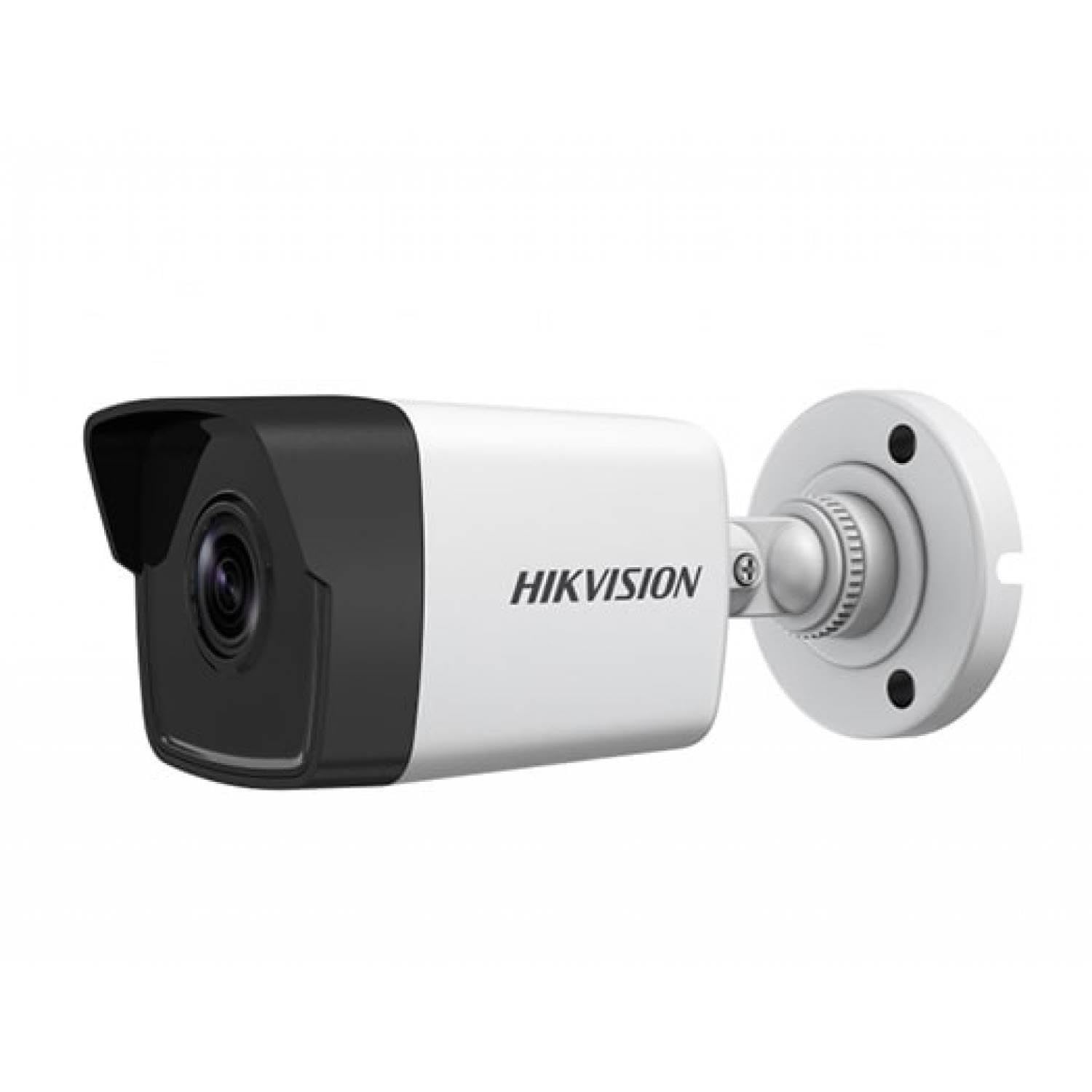
Figure 1: Hikvision DS-2CD1043G0-IUF 4MP IP Bullet Camera. This image shows the front view of the bullet-style camera, highlighting its lens and robust casing.
Key Components:
- Lens: 2.8mm fixed lens for wide-angle viewing.
- Infrared LEDs: For night vision up to 30 meters.
- Microphone: Built-in for audio capture.
- Network Port (RJ45): Supports Power over Ethernet (PoE).
- Power Input: For optional 12V DC power supply (if not using PoE).
Setup
1. Mounting the Camera
The camera is designed for both indoor and outdoor use and has an IP67 waterproof rating. Choose a suitable location that provides the desired surveillance coverage.
- Mark the positions for drilling using the provided mounting template (if included).
- Drill pilot holes and insert wall plugs if mounting on masonry.
- Secure the camera base to the mounting surface using the provided screws.
- Adjust the camera angle for optimal viewing.
2. Power and Network Connection
The camera supports Power over Ethernet (PoE) for simplified installation, allowing both power and data to be transmitted over a single Ethernet cable. Alternatively, it can be powered via a 12V DC power adapter (sold separately).
- PoE Connection: Connect an Ethernet cable from a PoE-enabled switch or NVR to the camera's network port.
- Non-PoE Connection: Connect a 12V DC power adapter to the camera's power input and an Ethernet cable from your router/switch to the camera's network port.
- Use the waterproof connector for the network cable when installing outdoors to protect against moisture.
3. Initial Configuration
After connecting the camera, you will need to activate and configure it using the Hikvision client software or mobile application.
- Download and install the Hik-Connect app or iVMS-4200 client software on your device.
- Ensure your device is on the same local network as the camera.
- Follow the on-screen instructions in the app/software to discover and activate the camera. You will be prompted to set a strong password.
- Once activated, you can access the live view and configure various settings.
Operating the Camera
Live View
Access the live video feed through the Hik-Connect app or iVMS-4200 software. This allows real-time monitoring of the camera's view.
Recording
The camera can record video to a Network Video Recorder (NVR) or a MicroSD card (if supported by the specific model and installed). Configure recording schedules and modes (continuous, motion-triggered) via the client software or app.
Night Vision
The camera automatically switches to night vision mode in low-light conditions, utilizing its infrared LEDs to provide clear black-and-white images up to 30 meters. The "Night Color" feature, if enabled and supported, may provide enhanced color images in very low light.
Motion Detection
Configure motion detection settings to trigger alerts and recordings only when movement is detected within the camera's field of view. Adjust sensitivity and detection zones to minimize false alarms.
Built-in Microphone
The integrated microphone allows for audio monitoring of the surveillance area. Ensure local regulations permit audio recording before enabling this feature.
Maintenance
Cleaning
Regularly clean the camera lens and housing with a soft, dry cloth. For stubborn dirt, use a mild detergent and a damp cloth, then wipe dry. Do not use strong chemicals or abrasive cleaners.
Firmware Updates
Periodically check the Hikvision official website or your client software for available firmware updates. Keeping your camera's firmware up-to-date ensures optimal performance, security, and access to new features.
Troubleshooting
| Problem | Possible Cause | Solution |
|---|---|---|
| No image/video feed | No power; Network connection issue; Incorrect IP address | Check power supply/PoE connection; Verify network cable and router; Ensure correct IP settings. |
| Poor image quality | Dirty lens; Insufficient lighting; Incorrect camera settings | Clean the lens; Ensure adequate lighting or enable night vision; Adjust image settings (brightness, contrast). |
| Motion detection not working | Detection zone not configured; Sensitivity too low; Firmware outdated | Configure detection zones; Increase sensitivity; Update firmware. |
| Cannot connect to camera via app | Network issues; Camera not activated; Incorrect login credentials | Verify network connectivity; Activate the camera; Double-check username/password. |
Specifications
| Feature | Detail |
|---|---|
| Model | DS-2CD1043G0-IUF |
| Video Capture Resolution | 4 MP |
| Lens | 2.8mm |
| Connectivity Technology | Wireless (IP), Corded Electric (PoE) |
| Indoor/Outdoor Usage | Indoor, Outdoor |
| Night Vision Range | 30 Meters |
| Special Feature | Night Vision, Built-in Microphone |
| Power Source | Corded Electric (PoE) |
| Waterproof Rating | IP67 |
| Enclosure Material | Metal |
| Alert Type | Motion Only |
| Control Method | App |
| Photo Sensor Technology | CMOS |
Warranty and Support
For warranty information and technical support, please refer to the official Hikvision website or contact your authorized Hikvision dealer. Keep your purchase receipt as proof of purchase for warranty claims.
Online Resources: Visit the official Hikvision support page for FAQs, software downloads, and additional documentation.


