
1. Introduction
The ORICO 6626C3 is a high-performance dual-bay hard drive docking station designed for 2.5-inch and 3.5-inch SATA I/II/III SSDs and HDDs. It supports a total capacity of up to 36TB (18TB per bay) and features a USB 3.2 Type-C interface with UASP acceleration for fast data transfer. This docking station offers both PC connectivity and an offline clone function, making it a versatile tool for data management, backup, and system migration.
Video 1: ORICO 66 Series Hard Drive Docking Station Overview
This video provides a general overview of the ORICO 66 series hard drive docking station, highlighting its design and key features.
2. Package Contents
Please verify that all items are present in the package:
- 1x Dual Bay Hard Drive Docking Station
- 1x 2-in-1 100cm Data Cable (USB-C to USB-C with USB-A adapter)
- 1x 12V Power Adapter
- 1x User Manual
3. Product Specifications
| Feature | Specification |
|---|---|
| Model Number | 6626C3 |
| Drive Bays | 2 (Dual Bay) |
| Compatible Drive Types | 2.5-inch / 3.5-inch SATA I/II/III SSD/HDD |
| Max Capacity Supported | Up to 36TB (18TB per bay) |
| Interface | USB 3.2 Gen2 Type-C |
| Data Transfer Rate | Up to 6Gbps (SATA 3.0) / 10Gbps (USB 3.2 Gen2) |
| UASP Support | Yes |
| TRIM Support | Yes |
| S.M.A.R.T. Support | Yes |
| Power Supply | 12V 3A Power Adapter |
| Material | Aluminum Alloy, Plastic |
| Dimensions | 5.67 x 4.57 x 2.75 inches |
| Weight | 1.61 pounds |
| Compatible Operating Systems | Windows XP/Vista/7/8.1/8/10, Mac OS 10 or higher, Linux OS, iPad OS |
| Compatible Devices | PC, Laptop, Smart-TV, Smartphone, Router, Projector |
4. Setup and Installation
The ORICO 6626C3 docking station is designed for tool-free installation and plug-and-play functionality.
4.1 Inserting Hard Drives
- Ensure the docking station is powered off and disconnected from your computer.
- Gently insert your 2.5-inch or 3.5-inch SATA SSD/HDD into the drive bays. Ensure the SATA connector aligns correctly.
- Press down firmly until the drive is securely seated in the bay.
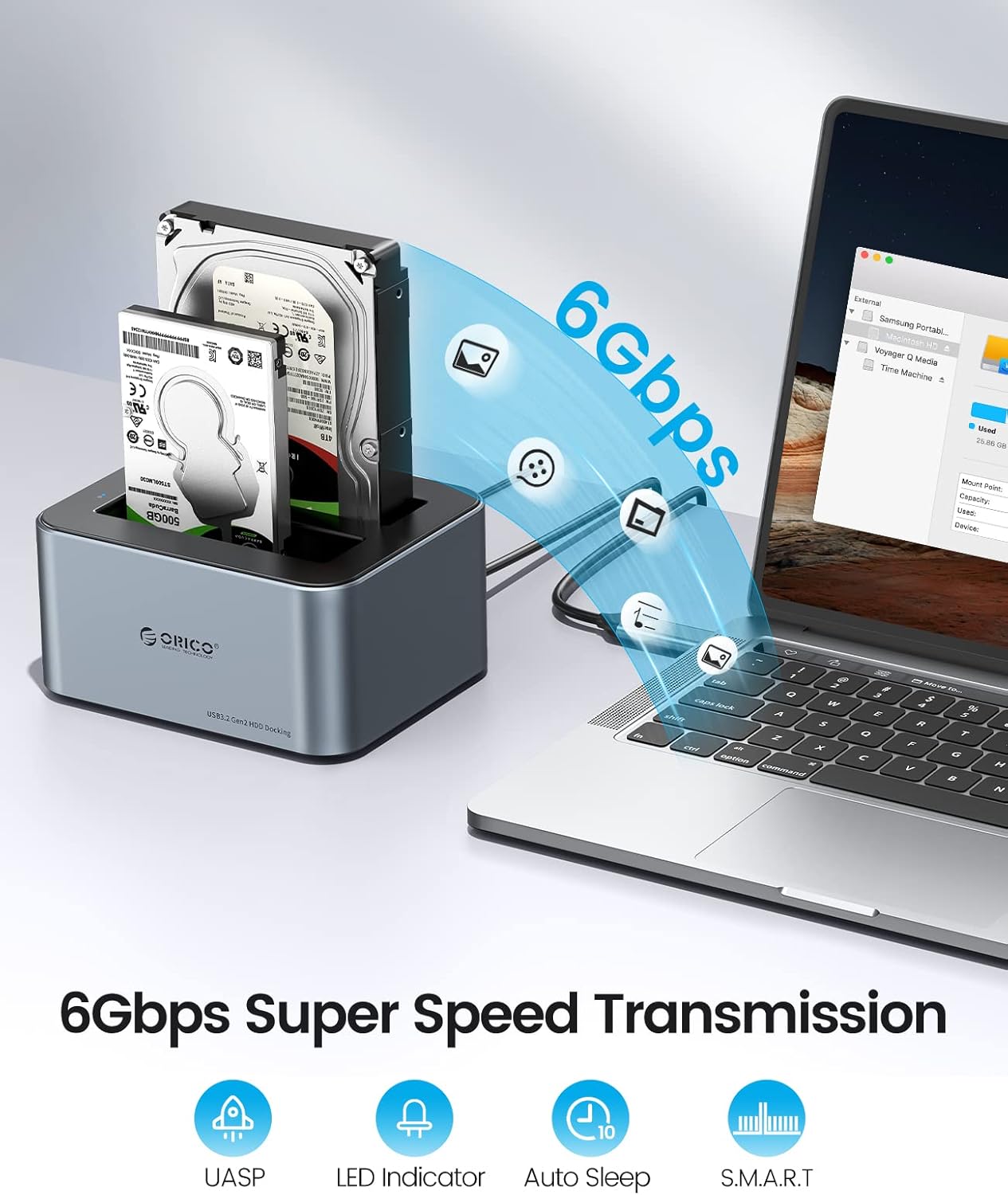
Image 1: Hard Drive Insertion
This image shows the ORICO 6626C3 docking station with both a 2.5-inch and a 3.5-inch hard drive correctly inserted into their respective bays.
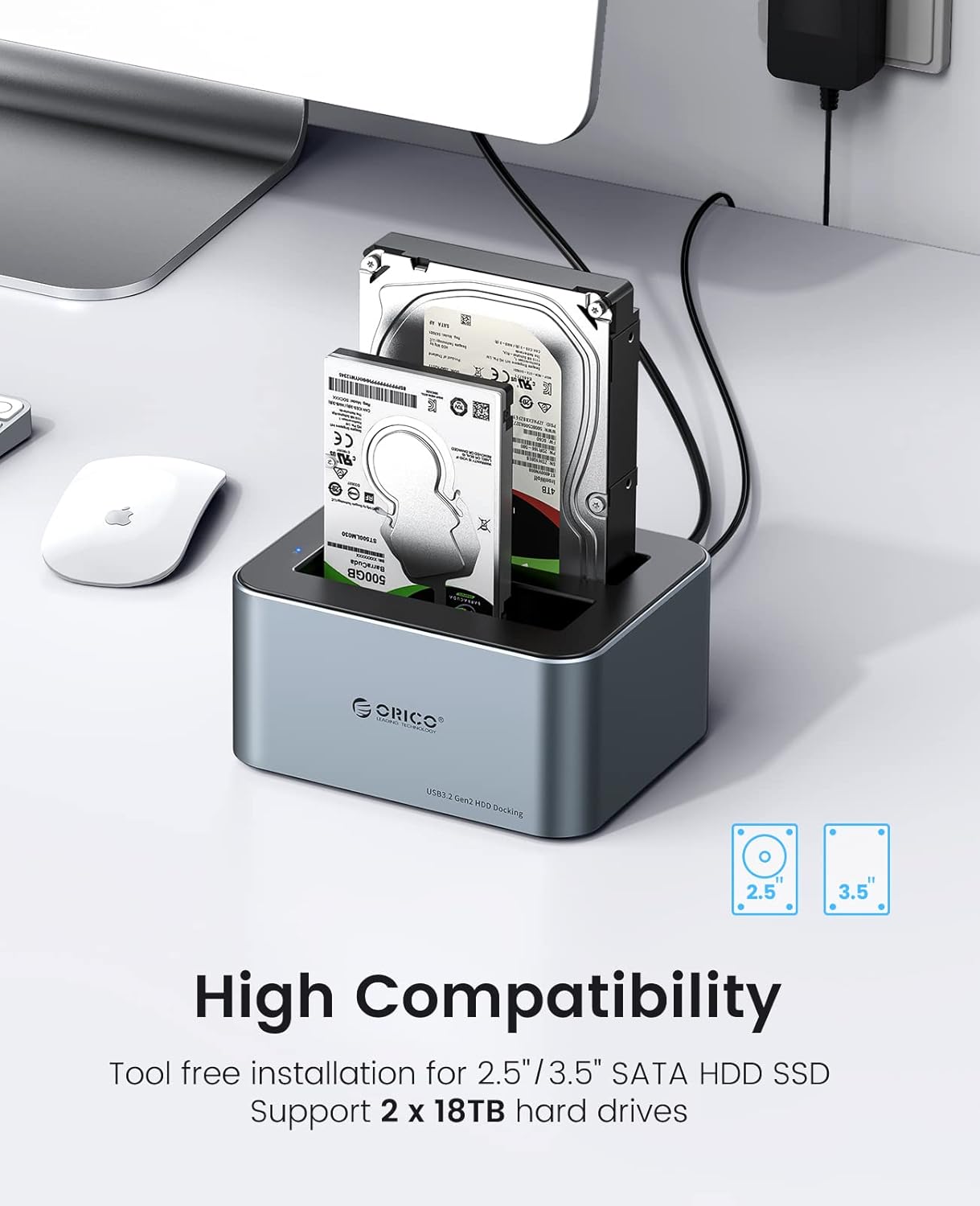
Image 2: High Compatibility
This image illustrates the docking station's compatibility with both 2.5-inch and 3.5-inch SATA hard drives and SSDs.
4.2 Connecting to Power and Computer
- Connect the provided 12V 3A power adapter to the DC input port on the docking station and then to a power outlet.
- Connect the 2-in-1 data cable (USB-C to USB-C) to the USB-C port on the docking station.
- Connect the other end of the data cable to your computer's USB-C port. If your computer only has USB-A ports, use the included USB-A adapter.
- Power on the docking station using the power button. The LED indicators will illuminate.
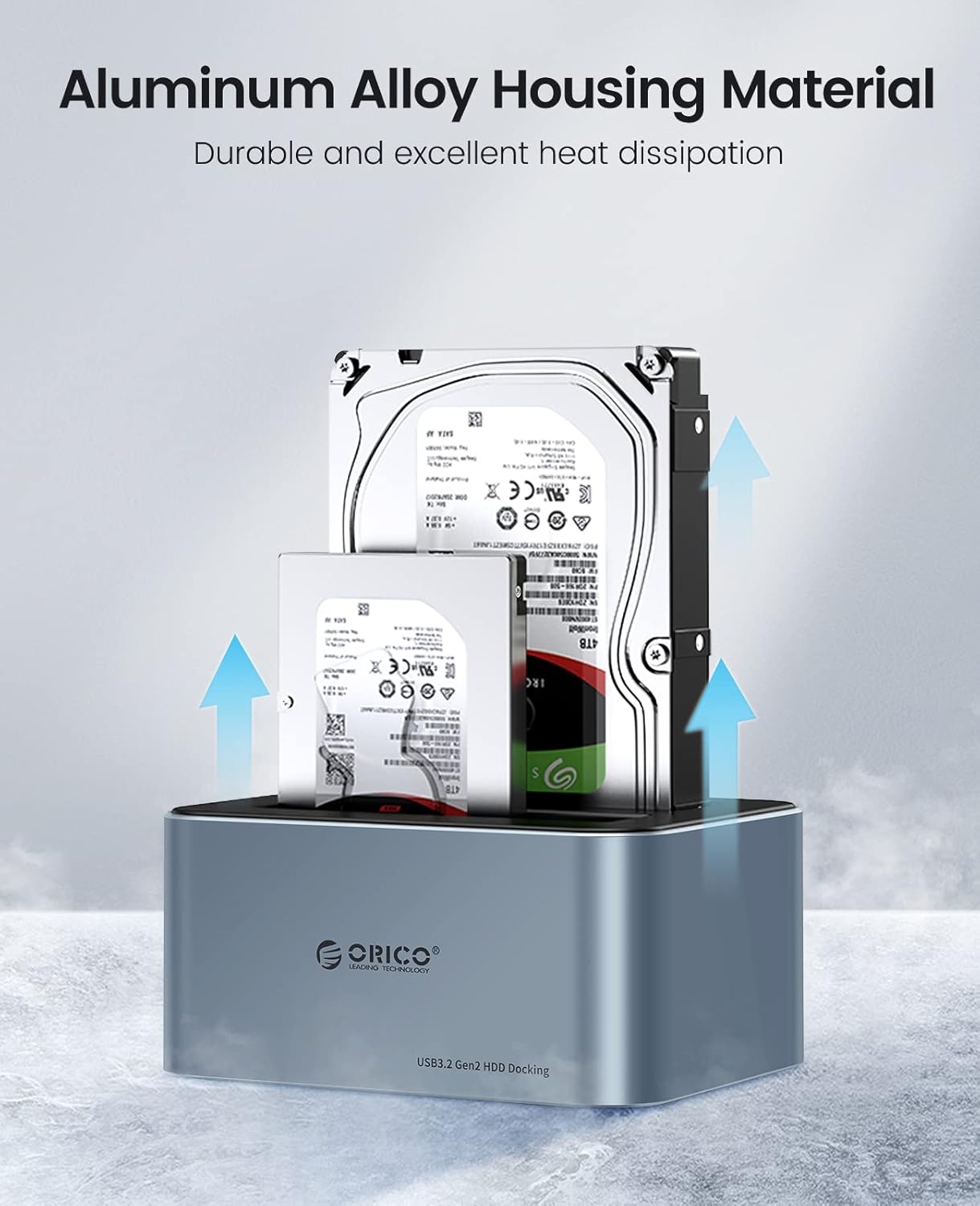
Image 3: USB-C and USB-A Connectivity
This image demonstrates the flexible connectivity options, showing the USB-C to USB-C cable with an included USB-A adapter for broad device compatibility.
5. Operating Modes
5.1 PC Mode (External Drive Function)
In PC mode, the docking station functions as an external drive enclosure, allowing you to access data on your inserted SSDs/HDDs via your computer.
- Ensure the 'PC/Clone' switch on the back of the docking station is set to 'PC'.
- Connect the docking station to your computer as described in Section 4.2.
- Your computer should automatically detect the inserted drives. For new drives or drives that do not appear, you may need to initialize and format them using your operating system's Disk Management utility.
- The docking station supports UASP (USB Attached SCSI Protocol), TRIM, and S.M.A.R.T. functions, optimizing performance and drive health.

Image 4: 6Gbps Super Speed Transmission
This image highlights the high-speed data transfer capabilities of the docking station, featuring UASP support and other smart functions.
5.2 Offline Clone Mode (Stand-alone Duplication)
The offline clone function allows you to duplicate a source drive to a target drive without needing a computer connection.
- Ensure the docking station is powered off and disconnected from your computer.
- Insert the Source Disk (the drive you want to copy FROM) into the 'Source' bay (usually Bay 1).
- Insert the Target Disk (the drive you want to copy TO) into the 'Target' bay (usually Bay 2). The target disk must be equal to or larger in capacity than the source disk.
- Slide the 'PC/Clone' switch on the back of the docking station to the 'Clone' position.
- Connect the power adapter and power on the docking station.
- Press and hold the 'START' button for approximately 3-5 seconds until you hear a 'beep' sound. Release the button.
- The clone process will begin, and the progress indicator LEDs (25%, 50%, 75%, 100%) will illuminate sequentially.
- Once all indicator LEDs are solid, the cloning process is complete.
- Power off the docking station before removing the drives.
Video 2: Hard Drive Docking Station Cloning Process
This video demonstrates the step-by-step process of performing an offline clone using the ORICO 6626C3 docking station, including disk insertion and initiating the clone.
6. Maintenance
To ensure optimal performance and longevity of your ORICO 6626C3 docking station, follow these maintenance guidelines:
- Cleaning: Use a soft, dry cloth to clean the exterior of the docking station. Avoid liquid cleaners or abrasive materials. The dustproof socket baffle helps keep the internal connectors clean.
- Heat Dissipation: The aluminum alloy housing is designed for efficient heat dissipation. Ensure the docking station is placed in a well-ventilated area to prevent overheating, especially during prolonged use or cloning operations.
- Storage: When not in use, store the docking station in a cool, dry place away from direct sunlight and extreme temperatures.
- Automatic Sleep Mode: The device features an automatic sleep mode after 10 minutes of inactivity to save energy and prolong drive life.

Image 5: Aluminum Alloy Housing
This image highlights the aluminum alloy construction of the docking station, which contributes to its durability and effective heat dissipation.

Image 6: Product Features Detail
This image provides detailed views of the LED indicator, the aluminum alloy body, and the non-slip silicone pads, showcasing the design and functional elements.
7. Troubleshooting
- Drives not recognized by computer:
- Ensure the 'PC/Clone' switch is set to 'PC'.
- Verify all cables (power and USB) are securely connected.
- Check your computer's Disk Management (Windows) or Disk Utility (Mac) to see if the drives are detected but require initialization or formatting.
- Try connecting the docking station to a different USB port or computer.
- Slow transfer speeds:
- Ensure your computer's USB port supports USB 3.2 Gen2 (10Gbps) or at least USB 3.0 (5Gbps) for optimal performance.
- Verify that your operating system and drivers support UASP.
- The actual speed may vary depending on the hard drive's speed and your computer's configuration.
- Offline clone not starting or failing:
- Ensure the 'PC/Clone' switch is set to 'Clone'.
- Confirm the target disk's capacity is equal to or larger than the source disk's capacity.
- Press and hold the 'START' button until you hear the 'beep' sound, then release. A short press will not initiate the clone.
- Ensure both drives are properly seated in their bays.
- Drives disconnecting randomly:
- Ensure the 12V 3A power adapter is used and connected to a stable power source.
- Avoid placing the docking station near strong electromagnetic interference.
- Check for loose USB cable connections.
8. Warranty and Support
ORICO products typically come with a manufacturer's warranty. For specific warranty details, technical support, or service inquiries, please refer to the warranty card included in your package or visit the official ORICO website. You may also contact ORICO customer support directly for assistance with product issues or troubleshooting.


