
Introduction
This manual provides detailed instructions for the ORICO 6626C3 Dual Bay USB-C Hard Drive Docking Station. This device is designed to provide a convenient solution for connecting 2.5-inch and 3.5-inch SATA I/II/III SSDs and HDDs to your computer, supporting capacities up to 36TB. It features high-speed data transfer, UASP acceleration, and an offline clone function.

Image: The ORICO 6626C3 Dual Bay USB-C Hard Drive Docking Station, shown with its included USB-C to USB-C cable and USB-A adapter.
Packing List
Please verify that all items are present in the package:
- 1x Dual Bay Hard Drive Docking Station
- 1x 2-in-1 100cm Data Cable (USB-C to USB-C with USB-A adapter)
- 1x 12V 3A Power Adapter
- 1x User Manual

Image: Contents of the ORICO 6626C3 package, including the docking station, cables, power adapter, and user manual.
Setup Guide
1. Power Connection
Connect the provided 12V 3A power adapter to the docking station's DC input port and then to a power outlet. Ensure the power switch on the back of the docking station is in the OFF position before connecting.
2. Drive Installation
The docking station supports both 2.5-inch and 3.5-inch SATA I/II/III HDDs and SSDs. Simply insert your desired hard drives into the bays. Ensure they are seated firmly.
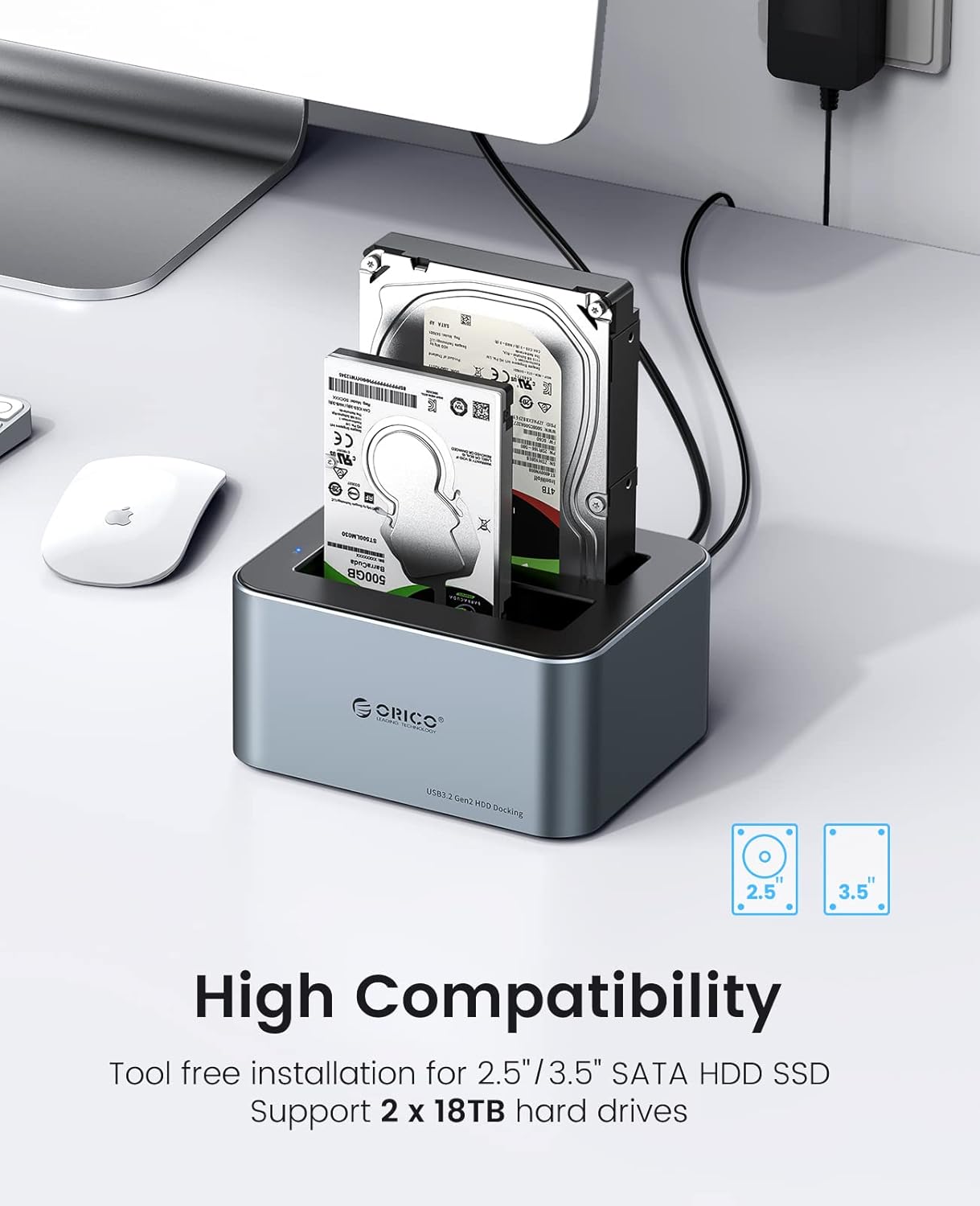
Image: The ORICO 6626C3 docking station with both a 2.5-inch and a 3.5-inch hard drive inserted, demonstrating its dual-bay compatibility.
3. Connect to Computer
Use the provided USB 3.2 Gen2 Type-C to Type-C data cable to connect the docking station to your computer. An included USB-A adapter allows connection to USB-A ports. The device is plug-and-play, requiring no additional drivers for Windows, Mac OS, or Linux systems.

Image: The versatile USB-C to USB-C cable with an attached USB-A adapter, illustrating connectivity options for the docking station.

Image: The ORICO 6626C3 docking station demonstrating universal compatibility with PCs, laptops, TVs, routers, iPads, and projectors, across Windows, Mac OS, Linux OS, and iPad OS.
Video: An overview of the ORICO 66 series hard drive docking station, showcasing its features, ease of installation, and connectivity options.
Operation
Data Transfer
Once connected to your computer and powered on, the inserted drives will appear as external storage devices. You can drag and drop files, copy, paste, and manage data as you would with any other external drive. The USB 3.2 Gen2 interface supports up to 6Gbps transfer speeds, enhanced by UASP (USB Attached SCSI Protocol) for faster performance, especially with SSDs.
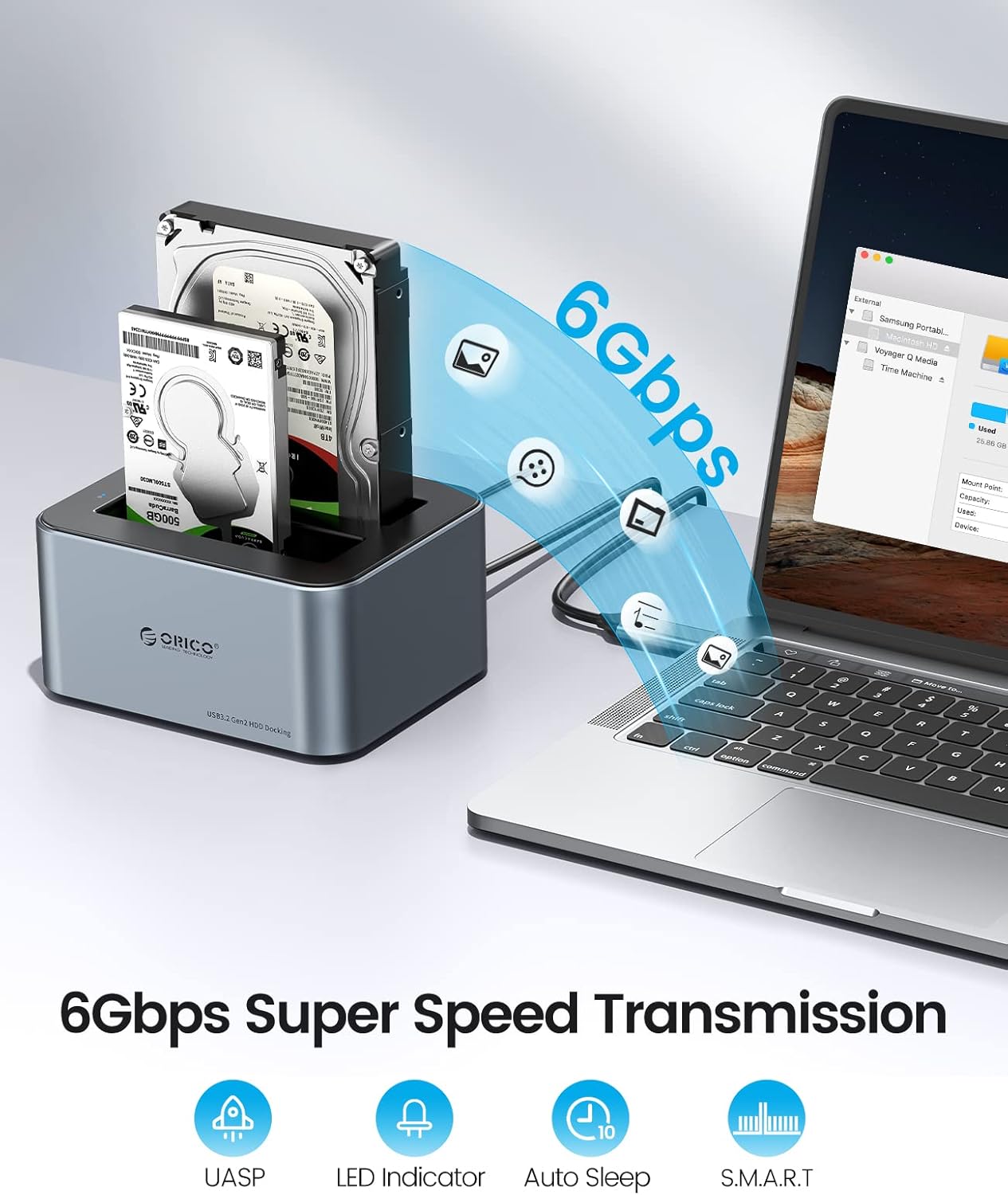
Image: The ORICO 6626C3 docking station connected to a laptop, illustrating high-speed 6Gbps data transmission between the hard drives and the computer.
Offline Clone Function
The ORICO 6626C3 supports offline cloning, allowing you to duplicate a source disk to a target disk without needing a computer connection. This is ideal for data backup and system migration.
- Ensure the docking station is powered off.
- Insert the source disk (the disk you want to copy FROM) into the 'Source' bay (usually Disk A).
- Insert the target disk (the disk you want to copy TO) into the 'Target' bay (usually Disk B). The target disk must be equal to or larger in capacity than the source disk.
- Slide the 'PC/Clone' switch on the back of the docking station to the 'Clone' position.
- Press and hold the 'Start' button for approximately 3-5 seconds until you hear a 'bee' sound. The clone indicator lights will begin to flash, indicating the cloning process has started.
- The indicator lights (25%, 50%, 75%, 100%) will illuminate sequentially as the cloning progresses. All lights will turn solid blue when the cloning is complete.
- Once cloning is finished, power off the docking station and remove the drives.
Video: A demonstration of the offline clone function of the ORICO 6626C3-C hard drive docking station, showing the steps to duplicate a drive without a computer.
Automatic Sleep Mode
The docking station features an automatic sleep mode that activates after 10 minutes of inactivity. This conserves energy and extends the lifespan of your hard drives.
Maintenance
To ensure optimal performance and longevity of your ORICO 6626C3 docking station:
- Keep the device clean and free from dust. Use a soft, dry cloth for cleaning.
- Avoid exposing the device to extreme temperatures or humidity.
- The aluminum alloy housing is designed for efficient heat dissipation. Ensure proper ventilation around the device during operation.
- Do not attempt to disassemble or repair the device yourself. Contact customer support for assistance.
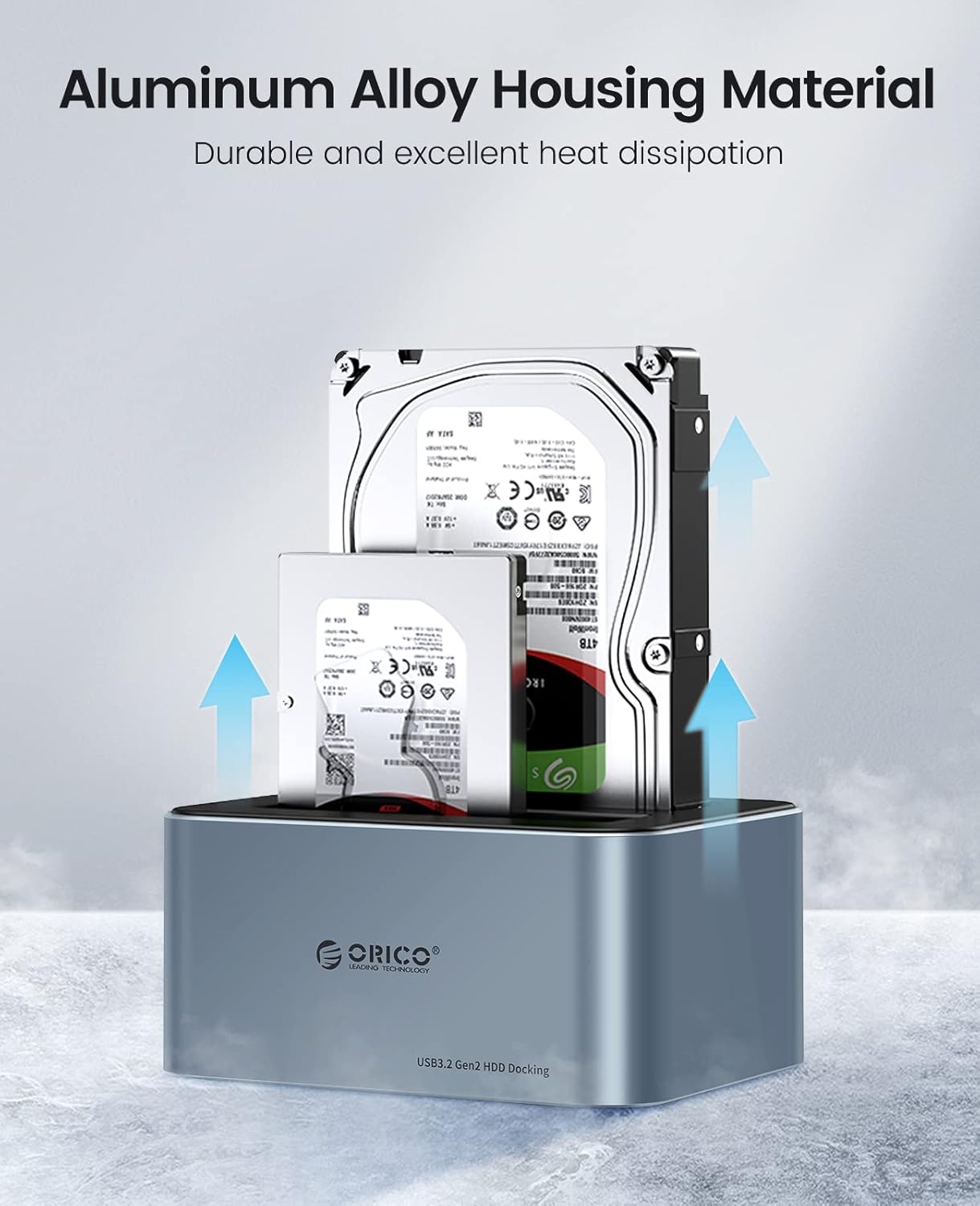
Image: The ORICO 6626C3 docking station with hard drives, highlighting its aluminum alloy housing material for durable and excellent heat dissipation.
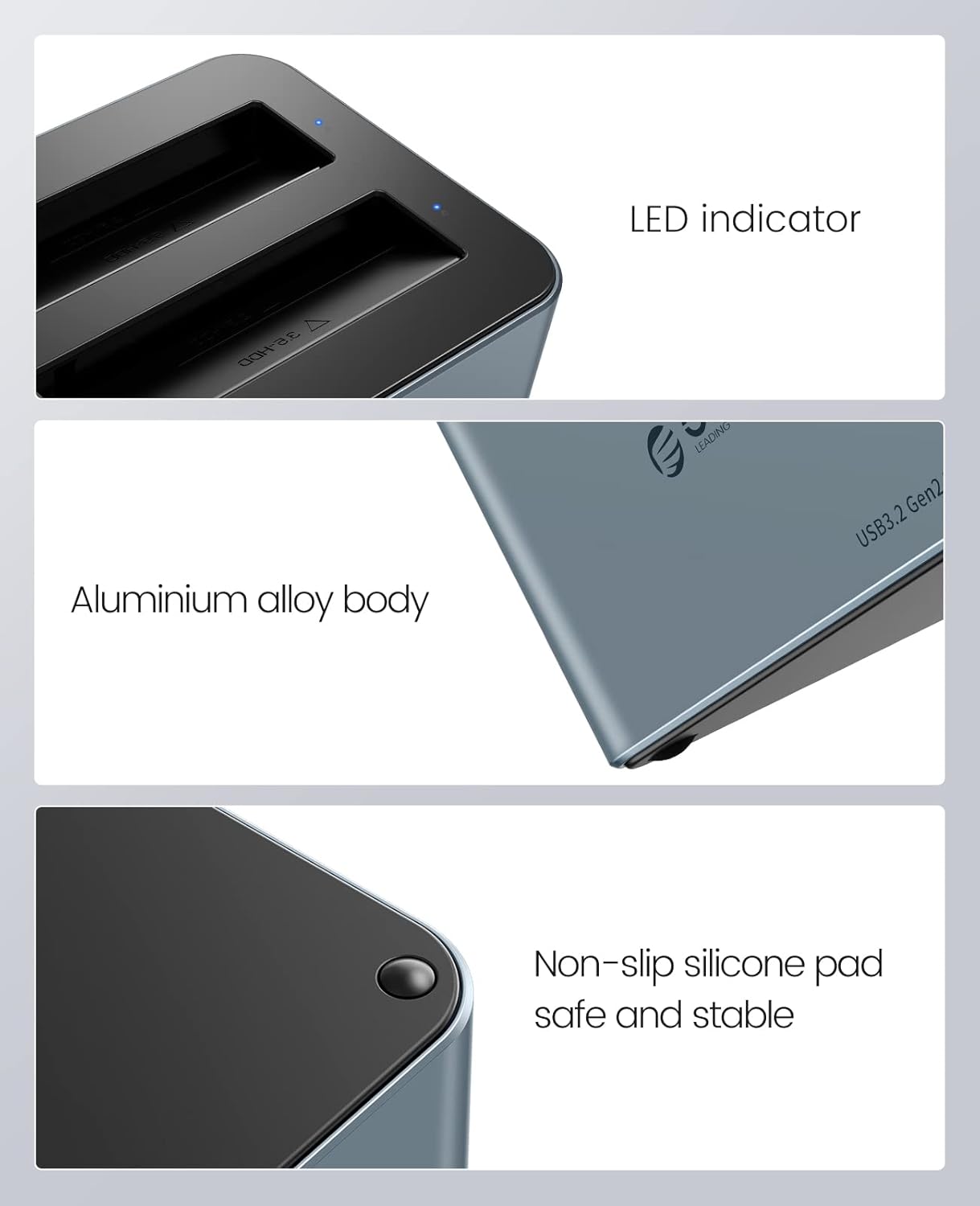
Image: Detailed view of the ORICO 6626C3, showing the LED indicators, the sleek aluminum alloy body, and the non-slip silicone foot pads for stability.
Troubleshooting
- Drive Not Recognized:
Ensure the power adapter is securely connected and the docking station is powered on. Verify that the USB data cable is firmly connected to both the docking station and your computer. Try a different USB port on your computer. For new drives, or drives that appear 'Offline' in Disk Management, you may need to initialize, partition, and format them. - Slow Data Transfer Speed:
Ensure you are using a USB 3.0/3.1/3.2 port on your computer. Older USB 2.0 ports will result in significantly slower speeds. Confirm that your operating system and drivers support UASP for optimal performance. - Offline Disk After Cloning (Windows):
After an offline clone, the target disk might appear 'Offline' in Windows Disk Management due to a signature collision. To bring it online: Right-click 'This PC' > 'Manage' > 'Disk Management'. Locate the 'Offline' disk, right-click on it, and select 'Online'. - Cloning Process Fails or Stops:
Ensure the target disk has equal or greater capacity than the source disk. Check that both drives are properly seated in their bays. Disconnect the docking station from the computer during offline cloning. - Intermittent Disconnections:
Ensure the power supply is stable. Try connecting the docking station to a different USB port or using a different USB cable. If using a USB hub, try connecting directly to the computer.
Technical Specifications
| Feature | Specification |
|---|---|
| Brand | ORICO |
| Model Number | 6626C3 |
| Drive Bays | 2 (Dual Bay) |
| Compatible Drives | 2.5-inch / 3.5-inch SATA I/II/III HDD & SSD |
| Max Capacity Support | Up to 36 TB (18TB per bay) |
| Data Transfer Rate | 6 Gigabits Per Second (USB 3.2 Gen2) |
| Interface | USB Type-C |
| Features | UASP, TRIM, S.M.A.R.T., Offline Clone, Auto Sleep (10 mins) |
| Material | Aluminum Alloy, Plastic |
| Power Supply | 12V 3A Power Adapter |
| Product Dimensions | 5.67 x 4.57 x 2.75 inches |
| Item Weight | 1.61 pounds |
| Compatible OS | Windows XP/Vista/7/8.1/8/10, Mac OS 10 or higher, Linux |
Warranty and Support
ORICO products typically come with a manufacturer's warranty. For specific warranty details, please refer to the documentation included with your product or visit the official ORICO website. If you encounter any issues or require technical assistance, please contact the ORICO Direct US Store customer support. They can provide guidance on troubleshooting, replacements, or any other product-related inquiries.
For further assistance, please visit the ORICO Store on Amazon or refer to the contact information provided in your product packaging.


