
1. Product Overview
The Samsung BD-D5700 is a 3D Blu-ray Disc Player designed to provide high-quality video and audio playback, along with smart connectivity features. This player supports Blu-Ray discs and DVDs, offering a resolution of 1920 x 1080 pixels (1080p video output). It features built-in Wi-Fi for wireless network connectivity, allowing access to Samsung Apps and other Smart TV functionalities.
Key features include:
- Streaming Capabilities: Stream content to your TV and other devices.
- Sleek Design: Slim profile with a high gloss finish and integrated blue disc lighting effect.
- Built-in Wi-Fi: Connect to your wireless home network without additional cables.
- Samsung Apps & Smart TV: Easily access various applications and smart features.
- DLNA (AllShare): Connect with other DLNA-compatible devices.
- Ultra Fast Play: Reduces disc load times for quicker movie starts.
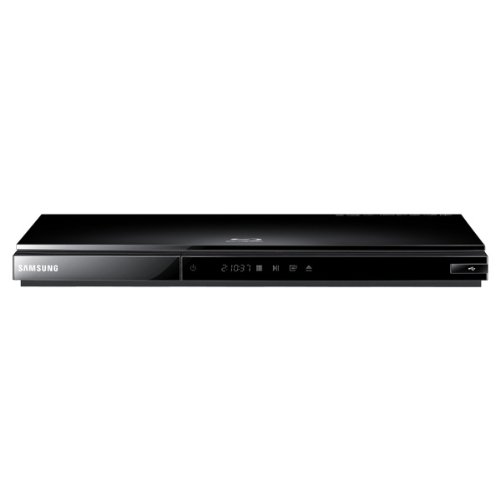
Image: Front view of the Samsung BD-D5700 3D Blu-ray Disc Player. This image displays the player's compact, black chassis with a visible disc tray and front panel controls, highlighting its modern and minimalist aesthetic.
2. Setup
2.1 Unpacking
Carefully remove the Blu-ray player and all accessories from the packaging. Ensure all components are present:
- Samsung BD-D5700 Blu-ray Disc Player
- Remote Control
- Power Cable
- User Manual (this document)
2.2 Connections
Follow these steps to connect your Blu-ray player to your television and network:
- HDMI Connection: Connect one end of an HDMI cable (not included) to the HDMI OUT port on the back of the Blu-ray player and the other end to an HDMI IN port on your television. Note the HDMI input number on your TV.
- Power Connection: Connect the power cable to the AC IN port on the back of the Blu-ray player, then plug the other end into a wall outlet.
- Network Connection (Wireless): The BD-D5700 has built-in Wi-Fi. After powering on, navigate to the network settings menu on the player to connect to your home wireless network. Select your network name (SSID) and enter the password.
- Initial Setup: Turn on your TV and select the correct HDMI input. Power on the Blu-ray player. Follow the on-screen instructions for initial setup, including language selection and network configuration.
3. Operating Instructions
3.1 Basic Disc Playback
- Ensure the player is powered on and connected to your TV.
- Press the OPEN/CLOSE button on the front panel or remote control to open the disc tray.
- Place a Blu-ray disc or DVD onto the disc tray with the label facing up.
- Press the OPEN/CLOSE button again to close the tray. The player will automatically load and begin playback or display the disc menu.
- Use the navigation buttons (Up, Down, Left, Right) and ENTER button on the remote control to navigate disc menus.
- Press the PLAY button to start playback, PAUSE to temporarily stop, and STOP to end playback.
3.2 Smart TV Features and Samsung Apps
With built-in Wi-Fi, you can access a variety of online content:
- From the home screen, navigate to the Smart Hub or Samsung Apps icon using the remote control.
- Press ENTER to access the Smart Hub.
- Browse available applications such as streaming services, news, and entertainment.
- Select an app and press ENTER to launch it. Follow any on-screen prompts for login or setup.
3.3 DLNA (AllShare) Connectivity
The Samsung BD-D5700 supports DLNA (Digital Living Network Alliance) through Samsung AllShare technology, allowing you to share media content with other compatible devices on your home network.
- Ensure both your Blu-ray player and the other DLNA device (e.g., smartphone, PC, NAS) are connected to the same home network.
- Access the AllShare feature from the player's menu.
- Browse and play media files (photos, videos, music) stored on your DLNA-enabled devices directly through the Blu-ray player on your TV.
3.4 Ultra Fast Play
The Ultra Fast Play feature significantly reduces the time it takes for discs to load after insertion. This is an automatic feature designed to enhance your viewing experience by minimizing waiting times.
4. Maintenance
4.1 Cleaning the Unit
To maintain optimal performance and appearance:
- Exterior: Wipe the exterior of the player with a soft, dry cloth. For stubborn marks, lightly dampen the cloth with water and then wipe dry. Avoid using abrasive cleaners, solvents, or chemical sprays.
- Discs: Handle discs by their edges. If a disc is dirty, wipe it gently from the center outwards with a soft, lint-free cloth. Do not use harsh chemicals or abrasive materials.
4.2 Firmware Updates
Periodically, Samsung may release firmware updates to improve performance, add features, or fix bugs. It is recommended to keep your player's firmware updated.
- Ensure the player is connected to the internet via Wi-Fi.
- Navigate to the Settings menu on your player.
- Look for a section like Support or Software Update.
- Select Online Update or Check for Updates and follow the on-screen instructions. Do not power off the player during an update.
5. Troubleshooting
If you encounter issues with your Samsung BD-D5700, refer to the table below for common problems and solutions.
| Problem | Possible Cause | Solution |
|---|---|---|
| No power | Power cable disconnected; Power outlet issue. | Ensure power cable is securely connected to the player and a working wall outlet. Try a different outlet. |
| No picture on TV | Incorrect TV input; HDMI cable loose or faulty. | Select the correct HDMI input on your TV. Check HDMI cable connections at both the player and TV. Try a different HDMI cable. |
| Disc does not play | Disc is dirty or scratched; Incorrect disc type; Region code mismatch. | Clean the disc. Ensure the disc is a compatible Blu-ray or DVD. Check the disc's region code against the player's region. |
| No sound | TV/receiver volume too low; Audio settings incorrect; HDMI cable issue. | Increase TV/receiver volume. Check audio output settings on the player. Verify HDMI cable connection. |
| Wi-Fi connection fails | Incorrect password; Router issue; Signal interference. | Re-enter Wi-Fi password carefully. Restart your wireless router. Ensure the player is within range of your router. |
6. Specifications
Below are the technical specifications for the Samsung BD-D5700 3D Blu-ray Disc Player:
| Feature | Specification |
|---|---|
| Brand | Samsung |
| Model Name | BD-D5700 |
| Media Type | Blu-Ray Disc, DVD |
| Resolution | 1920 x 1080 pixels (1080p Video Output) |
| Connectivity Technology | Wi-Fi |
| Connector Type | HDMI (1 port) |
| Audio Output Mode | Stereo, Surround |
| Supported Audio Format | Dolby Digital, DTS, PCM, MP3, FLAC |
| Surround Sound Channel Configuration | 5.1 |
| Video Encoding | H.264/AVC |
| Compatible Devices | Projector, Television |
| Analog Video Format | NTSC |
| File Format Support | MP3, MP4 |
| Item Weight | 16 ounces |
| Manufacturer | Samsung |
| Mfr Part Number | BD-D5700-cr |
| UPC | 656942893196 |
7. Warranty and Support
7.1 Warranty Information
This product comes with a 90 days limited warranty. Please retain your proof of purchase for warranty claims. The warranty covers defects in materials and workmanship under normal use.
7.2 Customer Support
For technical assistance, troubleshooting beyond this manual, or warranty service, please contact Samsung customer support. Refer to the official Samsung website for the most current contact information, including phone numbers and online support resources.