
Introduction
The CooSpo BC107 GPS Bike Computer is a versatile device designed to enhance your cycling experience. It provides accurate tracking of your rides, supports various external sensors, and offers seamless data synchronization. This manual will guide you through the setup, operation, and maintenance of your BC107 bike computer.

Image: Front view of the CooSpo BC107 GPS Bike Computer, displaying various metrics.
Setup
1. Charging the Device
Before first use, fully charge your BC107. The device features a built-in 1000mAh rechargeable battery, providing up to 27 hours of continuous use in GPS-enabled mode. Use the provided USB-C cable for charging.
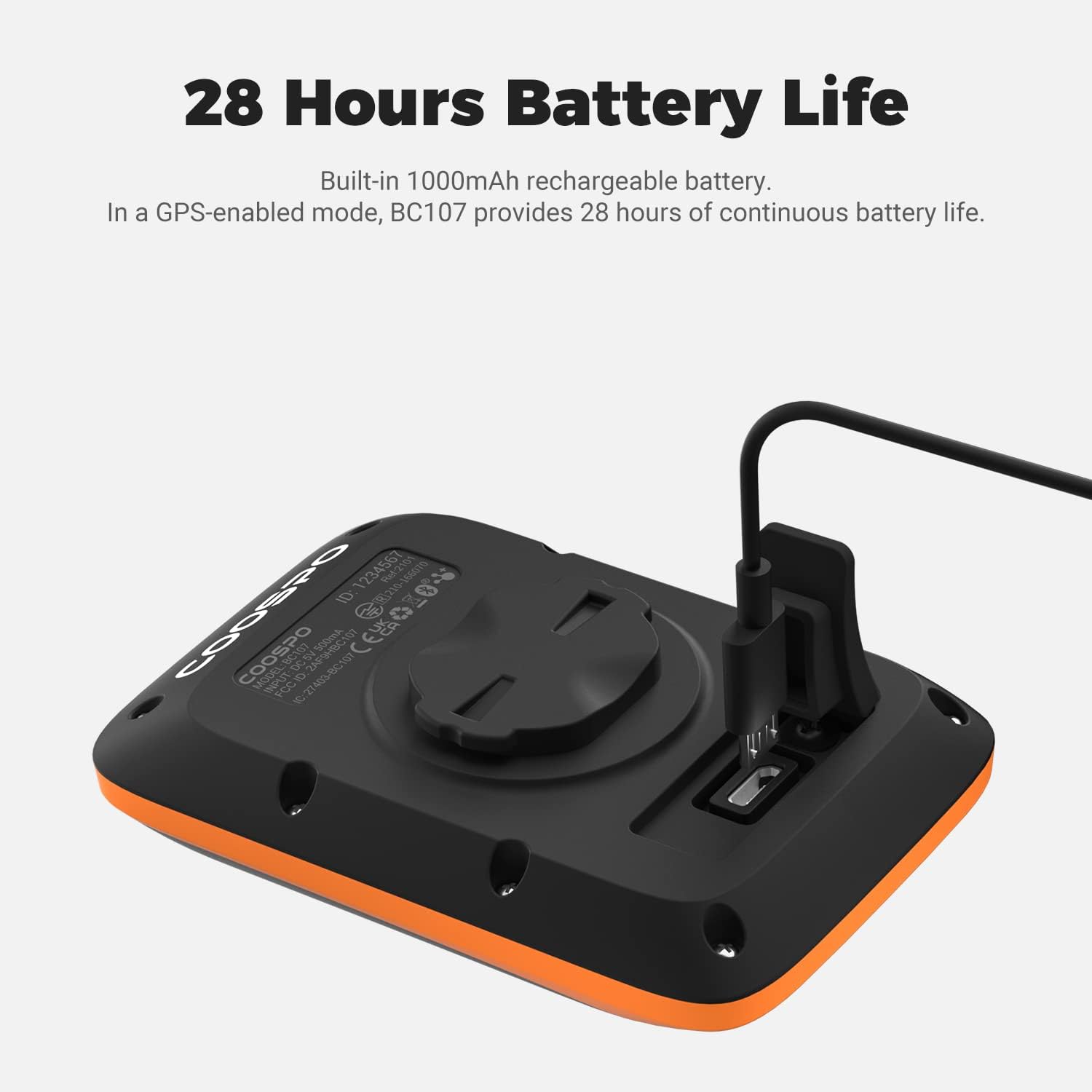
Image: The CooSpo BC107 bike computer connected to a USB-C charging cable.
2. Mounting the Bike Computer
Attach the BC107 to your bicycle's handlebars using the included handlebar mount. Ensure it is securely fastened and positioned for optimal viewing during your ride.
3. Initial Power On and GPS Acquisition
Press and hold the power button to turn on the device. The BC107 will automatically capture GPS signals and calibrate the time, providing accurate positioning data worldwide.
Image: The CooSpo BC107 bike computer screen showing GPS signal acquisition.
4. Sensor Pairing (ANT+)
The BC107 is compatible with ANT+ sensors for enhanced data collection. It works with heart rate monitors, speed and cadence sensors, and power meters. To pair a sensor:
- Ensure your sensor is active and within range of the BC107.
- Navigate to the sensor pairing menu on the BC107 (refer to the on-screen prompts or device settings).
- Select the sensor type and initiate the search.
- Confirm the pairing once the sensor is detected.

Image: Diagram illustrating the CooSpo BC107's compatibility with ANT+ heart rate monitors, armbands, speed/cadence sensors, and power meters.
Operating Instructions
1. Display Overview
The BC107 features a 2.4-inch LCD with an ultra-narrow bezel, ensuring clear readability even in direct sunlight. It also includes an automatic backlight mode that activates in low-light conditions.

Image: Close-up of the CooSpo BC107's 2.4-inch large screen, showing various data fields.

Image: Illustration of the BC107's automatic backlight feature for day and night use, and automatic time calibration via GPS.
2. Button Functions
The device is operated using its physical buttons. These buttons are designed for ease of use and allow you to navigate menus, start/stop recordings, and adjust settings.
- Power Button: Press and hold to turn on/off. Short press for specific menu actions.
- Navigation Buttons: Use to scroll through data screens or menu options.
- Action Button: Confirm selections or start/stop recording.
3. Data Synchronization with Strava
You can synchronize your activity data (.fit file) with Strava using the CoospoRide app on your smartphone. This allows you to track your progress and share your rides.
- Download and install the CoospoRide app on your smartphone.
- Pair your BC107 with the CoospoRide app via Bluetooth.
- After completing a ride, open the app to sync the activity data from your BC107.
- Within the CoospoRide app, you can then upload the .fit file to Strava.
Note: You cannot directly upload .fit files to Strava via USB transmission from the BC107 to your PC.

Image: Illustration showing the CooSpo BC107 syncing data to a smartphone app, which then uploads to Strava.
Maintenance
1. Cleaning
Wipe the device with a soft, damp cloth. Avoid using harsh chemicals or abrasive cleaners, as these can damage the screen or casing.
2. Water Resistance
The BC107 has an IP67 waterproof rating, meaning it is protected against dust and can withstand immersion in water up to 1 meter for 30 minutes. It is splash-proof and suitable for riding in rainy conditions, but avoid prolonged submersion.

Image: The CooSpo BC107 bike computer shown with water splashing on it, highlighting its IP67 waterproof feature.
3. Battery Care
To prolong battery life, avoid exposing the device to extreme temperatures. Recharge the battery regularly, even if the device is not in frequent use.
Troubleshooting
- No GPS Signal: Ensure you are in an open area with a clear view of the sky. Allow a few minutes for the device to acquire satellites after power-on.
- Sensor Not Connecting: Check that the sensor's battery is charged and it is active. Ensure the sensor is an ANT+ compatible device. Try re-pairing the sensor through the BC107's settings.
- Data Not Syncing to Strava: Confirm that your BC107 is successfully paired with the CoospoRide app and that you are attempting to sync through the app. Remember, direct USB upload to Strava is not supported.
- Device Not Turning On: Ensure the battery is charged. If the issue persists, try connecting it to a power source to see if it responds.
If you encounter persistent issues not covered here, please contact CooSpo customer support for assistance.
Specifications
| Feature | Detail |
|---|---|
| Model Number | BC107 |
| Display Type | 2.4 Inch LCD |
| Battery Life | Up to 27 Hours |
| Connectivity | ANT, Bluetooth |
| Waterproof Rating | IP67 |
| Dimensions (L x W x H) | 5.4L x 2.1B x 8H centimeters |
| Weight | 64 Grams |
| User Interface Input | Buttons |
| Manufacturer | CooSpo |
Warranty and Support
For warranty information and technical support, please refer to the official CooSpo website or contact their customer service directly. If you have any questions or require assistance with your BC107 GPS Bike Computer, CooSpo is committed to providing support.