
1. Introduction
This manual provides detailed instructions for the setup, operation, maintenance, and troubleshooting of your INNOCN 13.3-Inch OLED Portable Monitor, Model 13K1F. Please read this manual thoroughly before using the product to ensure proper functionality and to maximize your viewing experience.

Figure 1: INNOCN 13.3-Inch OLED Portable Monitor.
2. Product Features
The INNOCN 13.3-Inch OLED Portable Monitor offers advanced display technology and versatile connectivity for various applications.
- OLED Display Technology: Features a 13.3-inch 1080P Self-Lit OLED panel, providing vibrant colors, deep blacks, and a 100,000:1 contrast ratio.
- High Color Accuracy: Achieves 100% DCI-P3 color gamut coverage, making it suitable for professional photo and video editing.
- Brightness: Delivers up to 400 nits of brightness for clear visibility in various lighting conditions.
- Fast Response Time: Features a 1ms response time, ideal for gaming and fast-paced content.
- HDR Support: Compatible with HDR technology for enhanced dynamic range in supported content.
- Versatile Connectivity: Equipped with USB-C and Mini HDMI ports for broad compatibility with laptops, tablets, smartphones, and gaming consoles.
- Portability: Designed to be ultra-slim and lightweight for easy transport.
- Detachable Stand: Includes a flexible stand for adjustable viewing angles in both horizontal and vertical orientations.

Figure 2: Comparison of color reproduction between LCD and OLED displays, highlighting DCI-P3, contrast ratio, and brightness.
The OLED panel provides superior color accuracy and contrast compared to traditional LCD screens, making it an excellent choice for tasks requiring precise color representation.

Figure 3: Side profile of the INNOCN portable monitor, illustrating its ultra-slim design.
Its compact and lightweight design ensures easy portability, allowing you to extend your workspace or entertainment on the go.
3. Setup
3.1 Package Contents
Before setup, ensure all components are present:
- INNOCN 13.3-Inch OLED Portable Monitor (Model 13K1F)
- USB-C to USB-C Cable
- Mini HDMI to HDMI Cable
- Power Adapter (Power Brick)
- Detachable Stand
3.2 Connecting the Monitor
The monitor supports plug-and-play functionality, requiring no driver installation for most devices.
- Power Connection: Connect the provided power adapter to the monitor's USB-C power input port and then to a power outlet.
- Device Connection (USB-C): For devices with a full-featured USB-C port (supporting video output and power delivery), connect the monitor to your device using the USB-C to USB-C cable. This single cable can provide both power and video signal.
- Device Connection (Mini HDMI): For devices with an HDMI output, connect the monitor using the Mini HDMI to HDMI cable. If using HDMI, ensure the monitor is also powered via its USB-C power input.
- Stand Attachment: Attach the detachable stand to the back of the monitor for stable positioning.
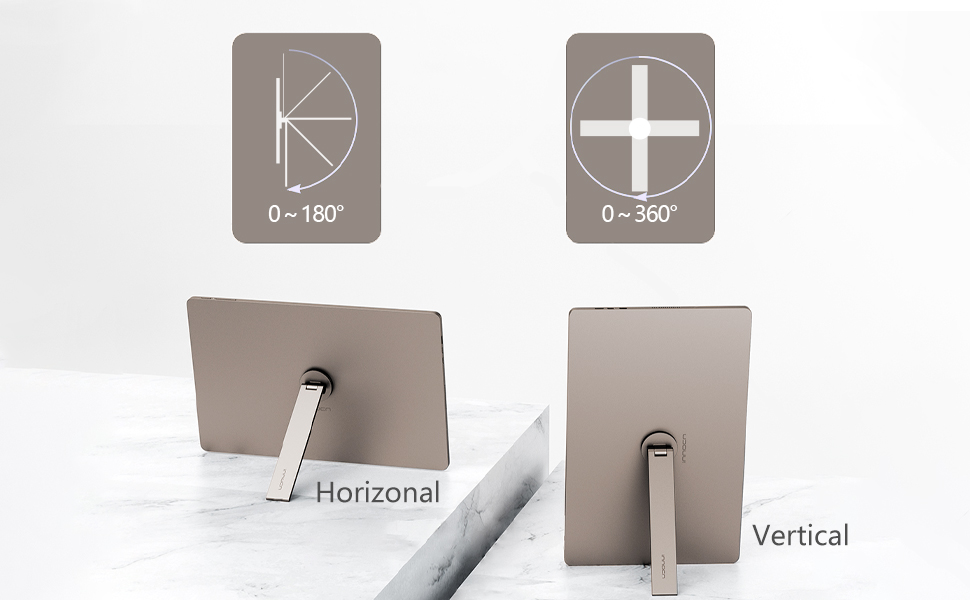
Figure 4: The monitor connected to various devices including a Nintendo Switch, smartphone, and PlayStation 5.
This image demonstrates the monitor's broad compatibility, connecting to gaming consoles and mobile devices.
4. Operating Instructions
4.1 Power On/Off
Press the power button located on the side of the monitor to turn it on or off.
4.2 On-Screen Display (OSD) Menu
The OSD menu allows you to adjust various display settings. Use the control buttons (usually a joystick or a set of buttons) on the monitor to navigate the menu.
- Brightness/Contrast: Adjust display luminance and contrast levels.
- Color Settings: Modify color temperature, gamma, and color space (e.g., DCI-P3).
- Input Source: Manually select between USB-C and Mini HDMI inputs.
- HDR Mode: Enable or disable HDR (High Dynamic Range) for compatible content.
- Aspect Ratio: Adjust the display aspect ratio.
4.3 Multi-Using Modes
When connected to a computer, the monitor supports several display modes:
- Extend Mode: Expands your desktop across both screens, providing more workspace.
- Duplicate Mode: Mirrors your primary display, showing the same content on both screens.
- Second Screen Mode: Uses only the portable monitor as the primary display.
These modes can typically be configured through your operating system's display settings.

Figure 5: The portable monitor demonstrating Extend Mode, Duplicate Mode, and Second Screen Mode with a laptop.
This image illustrates the three primary display modes, showing how the portable monitor can be used with a laptop to enhance productivity.

Figure 6: The portable monitor used alongside a larger desktop monitor, both displaying creative content, highlighting its role in enhancing productivity for design tasks.
The monitor's high color accuracy makes it an ideal companion for creative professionals.
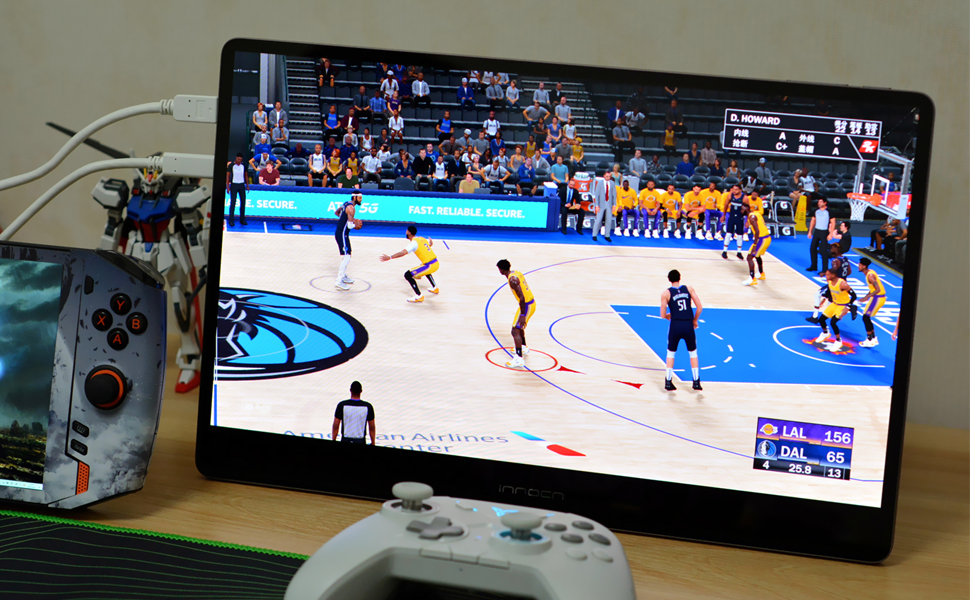
Figure 7: A dynamic gaming scene displayed on the monitor, emphasizing its immersive qualities for gaming.
The fast response time and HDR support provide an immersive gaming experience.
5. Maintenance
Proper maintenance ensures the longevity and optimal performance of your monitor.
- Cleaning the Screen: Use a soft, lint-free cloth slightly dampened with water or a specialized screen cleaner. Avoid harsh chemicals, abrasive materials, or direct spraying onto the screen.
- Cleaning the Casing: Wipe the monitor casing with a soft, dry cloth.
- Storage: When not in use, store the monitor in a cool, dry place, away from direct sunlight and extreme temperatures. Use the original packaging or a protective sleeve for transport.
- Handling: Avoid applying excessive pressure to the screen or dropping the monitor.
6. Troubleshooting
If you encounter issues with your monitor, refer to the following common solutions:
- No Signal/Black Screen:
- Ensure all cables (power and video) are securely connected.
- Verify the correct input source is selected in the OSD menu.
- Test with a different cable or device to rule out cable or source issues.
- Screen Tearing/Stuttering:
- Check your device's display settings to ensure the refresh rate matches the monitor's capabilities (typically 60Hz for 1080P).
- Ensure you are using high-quality cables.
- Image Quality Issues (e.g., Rainbow Shimmer at Angles):
- OLED panels may exhibit slight color shifts or a subtle rainbow shimmer when viewed from extreme off-angles (beyond 30 degrees). This is characteristic of the panel technology and not a defect.
- Eye Strain/PWM Flicker:
- If you experience eye strain, especially when reducing brightness via the monitor's physical buttons, it may be due to Pulse Width Modulation (PWM) flicker.
- Consider setting the monitor's brightness to 100% and using software-based brightness control on your connected device (e.g., Windows display settings, third-party utilities) to adjust luminance without introducing PWM.
- Utilize blue light filter options available in your operating system or monitor OSD to reduce eye fatigue.
- Low Audio Volume:
- Ensure the monitor's volume is set to maximum in the OSD menu.
- Adjust the volume on your connected device.
- For louder audio, consider using external speakers or headphones.
- Compatibility with macOS Devices:
- When connecting to macOS devices, you may experience scaling issues or reduced clarity if the monitor's native resolution (1920x1080) does not align well with macOS's default scaling for external displays.
- Adjust display resolution and scaling settings within macOS System Preferences. For optimal clarity, a 4K monitor is generally recommended for macOS if scaling to HiDPI resolutions like 1440x900 is desired.
7. Specifications
| Feature | Specification |
|---|---|
| Model Number | 13K1F |
| Screen Size | 13.3 Inches |
| Panel Type | OLED |
| Resolution | 1920 x 1080 Pixels (FHD 1080p) |
| Aspect Ratio | 16:9 |
| Color Gamut | 100% DCI-P3 |
| Contrast Ratio | 100,000:1 |
| Brightness | 400 Candela (nits) |
| Response Time | 1ms |
| Connectivity | USB-C, Mini HDMI |
| Total USB Ports | 1 (for power/data) |
| Screen Surface Description | Glossy |
| Item Weight | 3.39 pounds |
| Package Dimensions | 14.33 x 10.35 x 2.72 inches |
8. Warranty and Support
For warranty information and technical support, please refer to the documentation included with your purchase or visit the official INNOCN website. Keep your proof of purchase for warranty claims.