
Easyfone T6
Easyfone T6 4G Senior Mobile Phone User Manual
Model: T6
Introduction
Welcome to the Easyfone T6 4G Senior Mobile Phone user manual. This guide provides comprehensive instructions for setting up, operating, and maintaining your new phone. The Easyfone T6 is designed for ease of use, featuring large buttons, direct picture dialing, and an SOS function, making it ideal for seniors.

The Easyfone T6 4G Senior Mobile Phone, shown on its charging dock, highlighting its large display and direct picture dial buttons.
Package Contents
Please check the box for the following items:
- Easyfone T6 4G Mobile Phone
- Charging Dock
- USB Cable
- Power Adapter
- 1050mAh Lithium-ion Battery
- Picture Cutting Adapter (for direct dial buttons)
- Lanyard
- User Manual
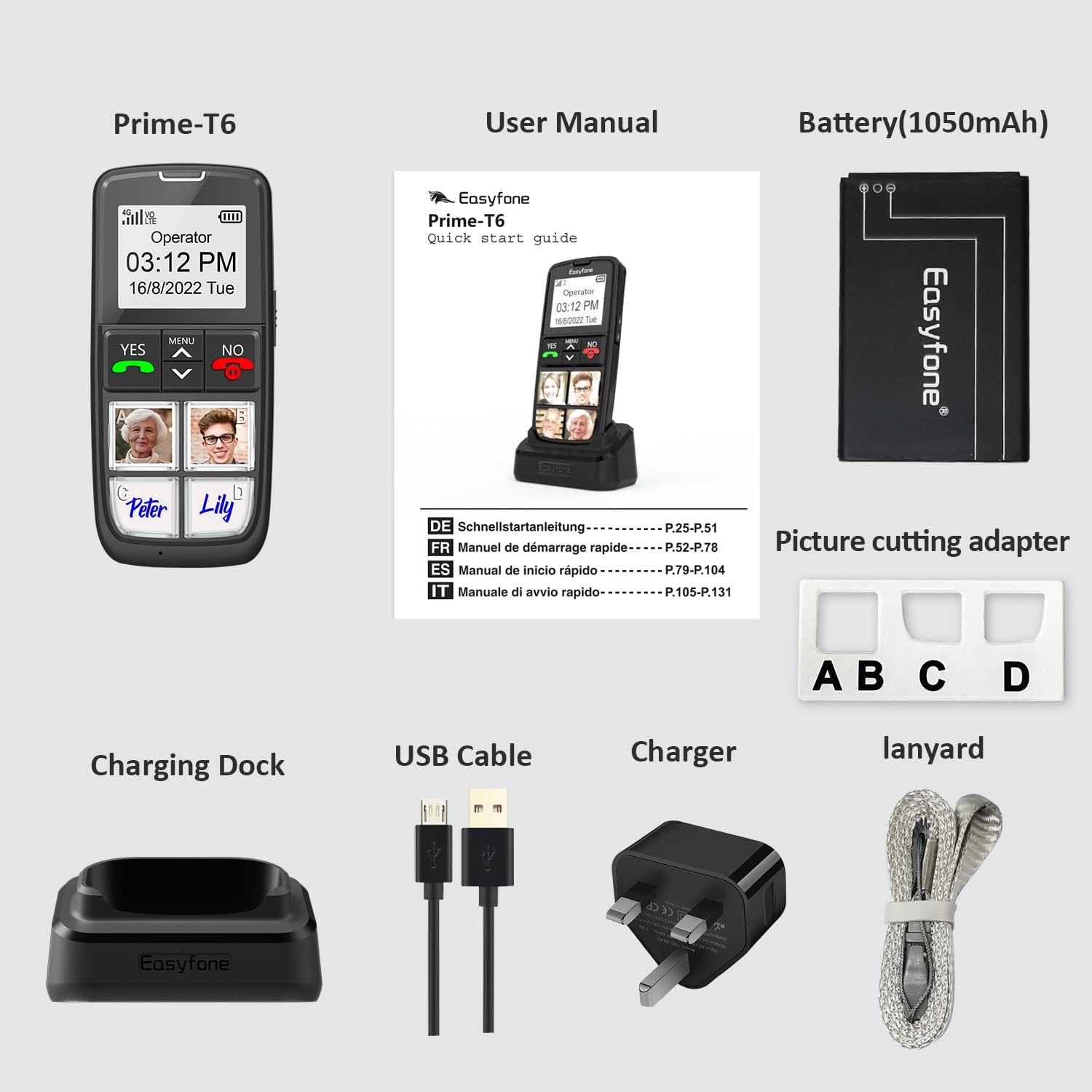
An overview of the Easyfone T6 package contents, including the phone, charging dock, cables, battery, picture cutting adapter, and lanyard.
Setup
1. Inserting the SIM Card and Battery
- Carefully remove the back cover of the phone. This may require some effort.
- Insert your 4G SIM card into the designated slot. Ensure it is correctly oriented.
- Insert the provided Lithium-ion battery into the battery compartment, aligning the gold contacts.
- Replace the back cover, ensuring it clicks securely into place.
2. Charging the Phone
- Connect the USB cable to the power adapter and plug it into a wall outlet.
- Connect the other end of the USB cable to the charging dock.
- Place the Easyfone T6 phone onto the charging dock. The phone will begin charging automatically. The battery icon on the screen will indicate charging status.

The Easyfone T6 conveniently charging on its dock, ready for use.
Operating Instructions
Power On/Off
- To power on, press and hold the red "NO" button until the screen lights up.
- To power off, press and hold the red "NO" button until the power-off option appears, then confirm.
Making Calls
Direct Picture Dialing
The Easyfone T6 features four large direct picture dial buttons (A, B, C, D) for quick access to frequently called contacts.
- Setting up Picture Contacts:
- Print small photos of your desired contacts.
- Use the provided picture cutting adapter to size the photos correctly.
- Lift the clear plastic covers on the A, B, C, D buttons and insert the cut photos underneath.
- Assign the corresponding phone numbers to these buttons in the phone's settings menu.
- Making a Call: Simply press the desired picture dial button (A, B, C, or D) to call the assigned contact.

Detailed view of the Easyfone T6's direct picture dial buttons, demonstrating the process of inserting custom photos for easy contact identification.
Standard Dialing
- Use the numeric keypad to dial a phone number.
- Press the green "YES" button to initiate the call.
Receiving Calls
- When a call comes in, press the green "YES" button to answer.
- To end a call, press the red "NO" button.
SOS Function
The SOS button is located on the side of the phone and is designed for emergencies.
- To activate, press and hold the SOS button for a few seconds.
- The phone will automatically dial pre-set emergency contacts in a loop until an answer is received.
- Ensure emergency contacts are set up in the phone's settings.

A close-up of the Easyfone T6, emphasizing the dedicated SOS button on its side, crucial for emergency situations.
Volume Adjustment
Use the volume buttons on the side of the phone to adjust call and ringtone volume. The phone features a powerful speaker for clear audio, and is HAC (Hearing Aid Compatible) for users with hearing aids.

An illustration demonstrating the Easyfone T6's compatibility with hearing aids, ensuring clear sound for all users.
Maintenance
- Cleaning: Use a soft, dry cloth to clean the phone's surface. Avoid liquid cleaners or abrasive materials.
- Battery Care: To prolong battery life, avoid extreme temperatures. Charge the phone regularly, but do not leave it on the charger for extended periods after it's fully charged.
- Storage: If storing the phone for a long time, charge the battery to about 50% and store it in a cool, dry place.
Troubleshooting
| Problem | Possible Cause | Solution |
|---|---|---|
| Phone does not power on. | Battery is drained or not inserted correctly. | Charge the phone. Ensure the battery is properly inserted. |
| Cannot make or receive calls. | No SIM card, SIM card not active, or no network signal. | Ensure SIM card is inserted and active. Check for network signal strength. Contact your service provider if necessary. |
| Poor call quality. | Weak network signal or interference. | Move to an area with better signal. Avoid sources of interference. |
| Phone not charging. | Charging cable/adapter faulty, or phone not properly seated in dock. | Check cable and adapter. Ensure phone is correctly placed on the charging dock. |
| SOS button not working. | Emergency contacts not set up or button not held long enough. | Set up emergency contacts in settings. Press and hold the SOS button for several seconds. |
Specifications
| Feature | Detail |
|---|---|
| Brand | Easyfone |
| Model Name | T6 |
| Color | Black |
| Operating System | Easyfone OS |
| Screen Size | 1.8 Inches |
| Resolution | 720 x 1280 |
| Cellular Technology | 4G |
| Connectivity | Bluetooth, Cellular |
| Special Features | 4 Picture Dial Buttons, SOS Button, Basic Phone Functionality |
| Battery Composition | Lithium-ion (1050mAh) |
| Compatible Devices | [Wide compatibility] |
Warranty and Support
For warranty information and customer support, please refer to the documentation included with your purchase or visit the official Easyfone website. Keep your proof of purchase for any warranty claims.
For technical assistance or further inquiries, please contact Easyfone customer service.
Related documentsT6


Ask a question about this manual
Ask about setup, troubleshooting, compatibility, parts, safety, or missing instructions. Manuals+ will review the question and use this page’s manual context to help answer it.