1. Introduction
Thank you for purchasing the Aiwa AW-LED55XVC-RM 55-inch Ultra HD Frameless Android TV. This television combines a stunning 4K UHD display with the versatility of the Android 9.0 operating system, offering a comprehensive entertainment experience. It features a built-in soundbar, DVB T2 digital tuner, Chromecast functionality, and multiple connectivity options. This manual provides essential information for the safe and efficient use of your new television.
2. Safety Information
Please read all safety instructions carefully before using the television and retain this manual for future reference. Failure to follow these instructions may result in electric shock, fire, or damage to the product.
- Power Source: Ensure the TV is connected to a power supply within the specified voltage range (220 Volts).
- Ventilation: Do not block ventilation openings. Allow adequate space around the TV for proper airflow to prevent overheating.
- Water and Moisture: Do not expose the TV to rain, moisture, or place objects filled with liquids on or near the TV.
- Cleaning: Unplug the TV from the power outlet before cleaning. Use a soft, dry cloth. Do not use liquid cleaners or aerosol cleaners.
- Placement: Place the TV on a stable, level surface or mount it securely to a wall using a VESA compatible mount (200mm x 200mm). Keep it away from direct sunlight, heat sources, and strong magnetic fields.
- Children: Supervise children to ensure they do not climb on or play with the TV.
- Servicing: Do not attempt to service this product yourself. Refer all servicing to qualified service personnel.
3. Package Contents
Verify that all items listed below are included in your package. If any items are missing or damaged, please contact your retailer.
- 1 x Aiwa AW-LED55XVC-RM 55-inch Ultra HD Frameless Android TV
- 1 x Remote Control (with batteries)
- 1 x Power Cord
- 1 x User Manual (this document)
- 2 x TV Stands (for table mounting)
- Screws for TV Stands
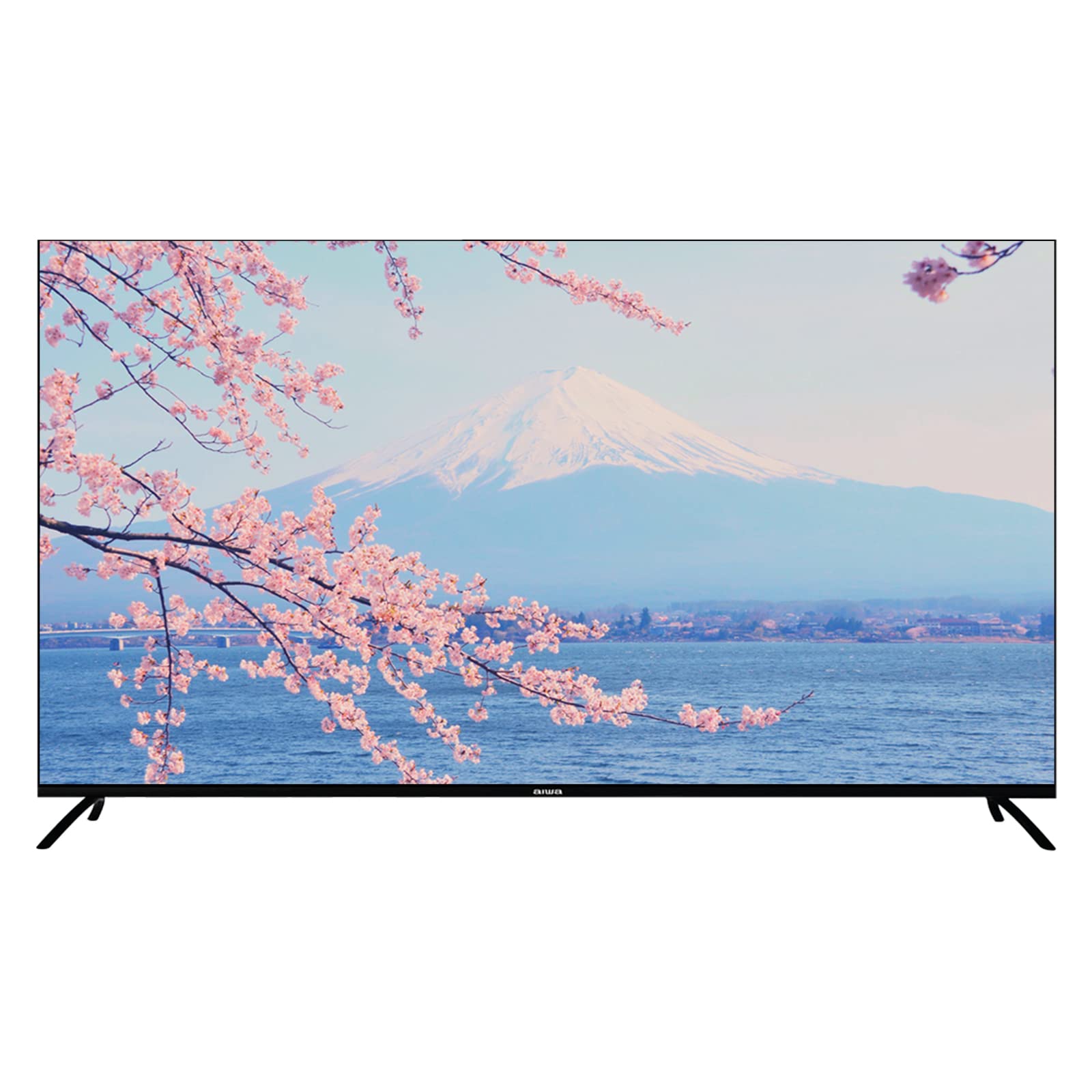
Image: Aiwa AW-LED55XVC-RM TV and included accessories. This image shows the television unit, remote control, and detachable stands.
4. Setup
4.1 Attaching the TV Stands (Table Mount)
- Carefully place the TV face-down on a soft, clean surface to prevent screen damage.
- Align each stand with the corresponding screw holes on the bottom of the TV.
- Secure the stands using the provided screws. Ensure they are tightened firmly.
- Carefully lift the TV to its upright position on a stable, level surface.
4.2 Wall Mounting (Optional)
This TV supports VESA standard wall mounts (200mm x 200mm). Wall mount hardware is not included. Please consult a professional for wall mounting installation to ensure safety and proper setup.
4.3 Connecting External Devices
The TV features various ports for connecting external devices:
- HDMI (3 ports): For connecting Blu-ray players, game consoles, set-top boxes, etc. Use HDMI 2.0 compatible cables for optimal 4K performance.
- USB 2.0 (2 ports): For connecting USB storage devices (e.g., flash drives) to play media or for service updates.
- AV IN (1 port): For connecting older devices using composite video and stereo audio cables.
- Fibre Optic (1 port): For digital audio output to a sound system or home theater receiver.
- Antenna/Cable Input: For connecting a DVB T2 compatible antenna for digital terrestrial television.
Image: Rear view of the Aiwa AW-LED55XVC-RM TV. This image illustrates the location of various input/output ports such as HDMI, USB, AV IN, and Fibre Optic.
4.4 Initial Power-On and Network Setup
- Connect the power cord to the TV and then to a wall outlet.
- Press the Power button on the remote control or on the TV.
- Follow the on-screen instructions to complete the initial setup, including language selection, time zone, and network connection.
- For network connection, select your Wi-Fi network and enter the password, or connect an Ethernet cable to the LAN port (if available).
- Tune in DVB T2 channels by following the on-screen prompts for channel scanning.
5. Operating Your TV
5.1 Android TV Interface
Your Aiwa TV runs on Android 9.0, providing access to a wide range of apps and services. Navigate the interface using the directional buttons and OK button on your remote control. The Home screen displays recommended content, installed apps, and input sources.
5.2 Using Chromecast
The built-in Chromecast allows you to cast content (videos, music, photos) from your compatible smartphone, tablet, or computer directly to your TV. Ensure your device and TV are connected to the same Wi-Fi network. Look for the Cast icon (example icon) within supported apps on your mobile device.
5.3 DVB T2 Digital Television
With the integrated DVB T2 tuner, you can receive free-to-air digital terrestrial television channels. After connecting an antenna and performing a channel scan during initial setup, you can access these channels via the TV's input selection or dedicated TV app.
5.4 Built-in Soundbar
The TV features a built-in soundbar with Dolby Surround System support, providing enhanced audio quality. You can adjust audio settings through the TV's sound menu to customize your listening experience.
6. Maintenance
6.1 Cleaning the TV
- Always unplug the TV before cleaning.
- Use a soft, dry, lint-free cloth to wipe the screen and cabinet.
- For stubborn marks on the screen, lightly dampen the cloth with water or a specialized screen cleaner (ensure it's safe for LED screens) and wipe gently. Do not spray liquid directly onto the screen.
- Avoid using abrasive cleaners, waxes, or solvents.
6.2 Software Updates
Your Android TV may receive software updates periodically to improve performance and add new features. Ensure your TV is connected to the internet. You can check for updates manually in the TV's settings menu (typically under "About" or "System Updates").
7. Troubleshooting
If you encounter issues with your TV, refer to the following common problems and solutions before contacting customer support.
| Problem | Possible Cause / Solution |
|---|---|
| No power / TV does not turn on |
|
| No picture, but sound is present |
|
| No sound, but picture is present |
|
| Remote control not working |
|
| Cannot connect to Wi-Fi |
|
8. Specifications
Below are the technical specifications for the Aiwa AW-LED55XVC-RM 55-inch Ultra HD Frameless Android TV.
| Feature | Detail |
|---|---|
| Model | AW-LED55XVC-RM |
| Screen Size | 55 Inches |
| Display Technology | LED |
| Resolution | 3840 x 2160 (4K UHD) |
| Refresh Rate | 60 Hz |
| Response Time | 6.5ms |
| Operating System | Android 9.0 |
| Tuner Technology | DVB-T2 Digital Ready |
| Audio Output Mode | Surround (Dolby Surround System) |
| HDMI Ports | 3 (HDMI 2.0) |
| USB Ports | 2 (USB 2.0) |
| AV IN | 1 |
| Fibre Optic | 1 |
| VESA Distance | 200mm x 200mm |
| Voltage | 220 Volts |
| Product Dimensions (W x D x H) | 123.1 x 8.9 x 71.3 cm (without stand) / 123.1 x 31.3 x 79.9 cm (with stand) |
| Item Weight | 13.3 kg |
| Special Features | Frameless Design, Built-in Soundbar, 10 Bit High Dynamic Range Imaging Decoder, Chromecast, Incredibly Fluid Motion |
9. Warranty and Support
For warranty information and customer support, please refer to the warranty card included with your product or visit the official Aiwa website. Keep your purchase receipt as proof of purchase for warranty claims.
If you require technical assistance or have questions not covered in this manual, please contact Aiwa customer service.


