
Introduction
This manual provides instructions for the iHeylinkit Mini Android 11 AI Box. This device converts your vehicle's existing wired CarPlay system into a wireless Apple CarPlay and wireless Android Auto experience, while also offering a full Android 11 operating system for additional applications like Netflix and YouTube. It supports GPS navigation and allows for SIM card installation for cellular data connectivity.
The iHeylinkit Mini Android 11 AI Box is designed to integrate seamlessly with compatible vehicles, enhancing your in-car entertainment and navigation capabilities without modifying the original car screen.
Package Contents
- iHeylinkit Mini Android 11 AI Box
- Data Line (USB cable)
- User Manual (this document)
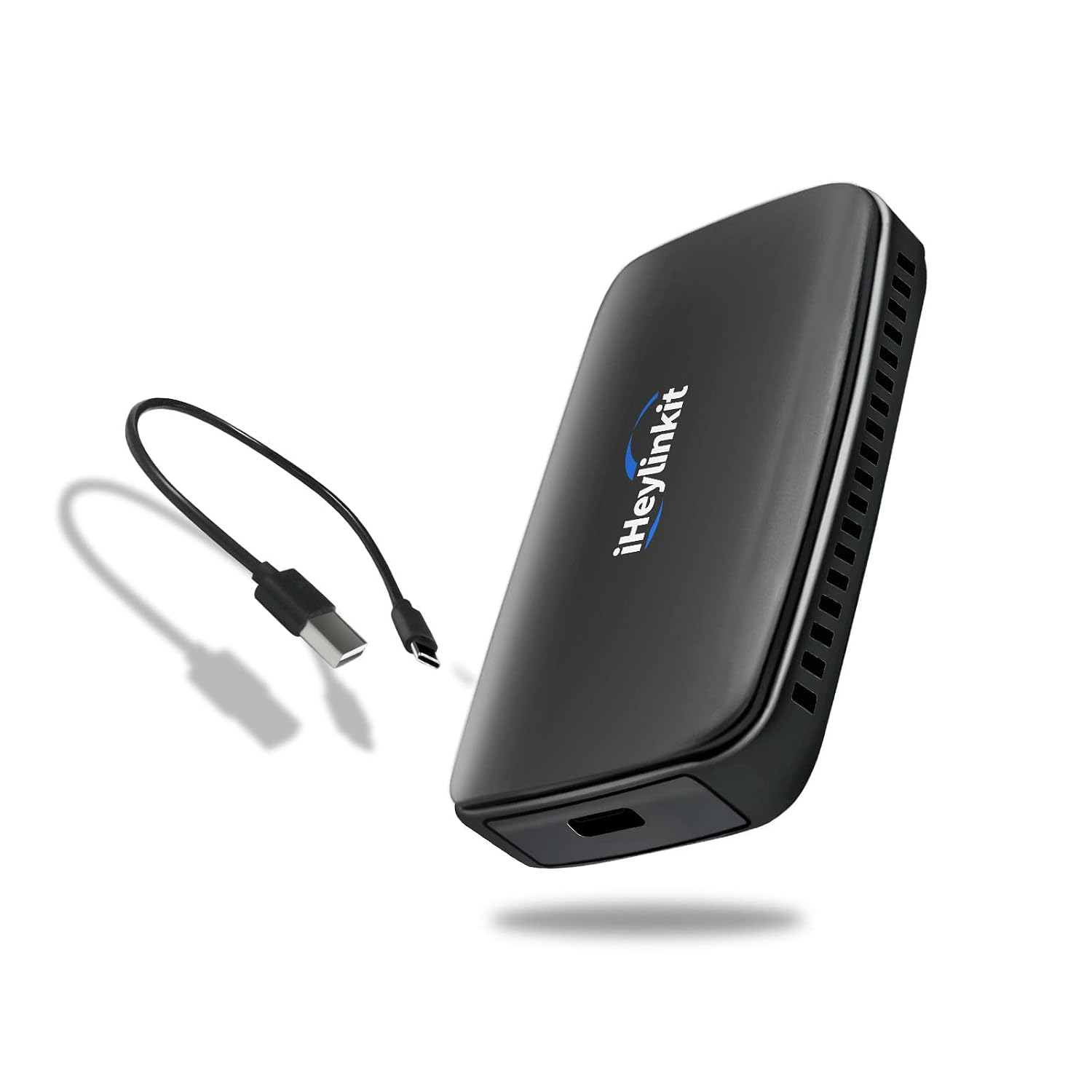
Image: The iHeylinkit Mini Android 11 AI Box and its accompanying data cable. The box is black with the iHeylinkit logo, and the cable is a USB-A to USB-C type.
Setup Instructions
- Vehicle Compatibility: Ensure your vehicle has an OEM wired CarPlay system. The device is compatible with approximately 98% of original cars equipped with wired CarPlay.
- Connect the Device: Using the provided data line, connect the iHeylinkit AI Box to your car's USB port that supports wired CarPlay.
- Initial Boot-up: The device will automatically start. Allow a few seconds for the system to initialize.
- Bluetooth Pairing: On your smartphone, enable Bluetooth and search for the device's Bluetooth name (refer to the on-screen instructions on your car's display). Pair your phone with the AI Box.
- Wi-Fi Connection (Optional): For full Android system functionality and internet access, connect the AI Box to a Wi-Fi hotspot (e.g., from your smartphone or an in-car Wi-Fi system). The device supports both 2.4G and 5G Wi-Fi.
- SIM Card Installation (Optional): If you wish to use cellular data directly with the AI Box, insert a compatible SIM card into the designated slot on the device.
- TF Card Installation (Optional): For expanded storage, insert a TF (microSD) card up to 128GB into the designated slot.

Image: A visual guide illustrating the three-step setup: 1. Insert the AI Box into the car's USB port. 2. Pair via Wi-Fi and Bluetooth. 3. Wait for the system to start up on the car's display.
Operating Instructions
Switching Between Systems
The iHeylinkit AI Box allows seamless switching between four main systems:
- Wireless Apple CarPlay: For iPhone users, access CarPlay wirelessly.
- Wireless Android Auto: For Android users, access Android Auto wirelessly.
- Original Car System: Return to your vehicle's native infotainment system.
- Android 11 System: Access the full Android 11 operating system on your car's screen, allowing installation of apps like Netflix, YouTube, and other Android applications.
Switching is typically done via icons on the car's display. The device features a fast 3-second response and 8-second startup time.
Control Methods
The system supports multiple control methods, integrating with your car's existing interfaces:
- Steering Wheel Controls: Use your vehicle's steering wheel buttons for media playback, volume, and call management.
- OEM Knob Control: Utilize the original equipment manufacturer (OEM) control knob for navigation and selection.
- Touch Screen Control: Interact directly with the car's touchscreen display.
- Siri Voice Control: Use your car's OEM microphone to activate Siri for hands-free operations like music playback, navigation, and text message reading.

Image: Illustration of the four control methods available: steering wheel buttons, OEM rotary knob, direct touchscreen interaction, and voice commands via Siri using the car's built-in microphone.
Key Features and Functions
- Navigation: Utilize mobile GPS for accurate navigation and positioning through Apple CarPlay, Android Auto, or Android apps.
- Media Playback: Stream music, videos (Netflix, YouTube), and other media content.
- Mirror Link: Support for mirroring your smartphone screen to the car's display.
- Bluetooth Phone & Voice Control: Make and receive calls hands-free and use voice commands.
- Multi-language Support: Supports approximately 95% of the world's languages.

Image: The car's display showing interfaces for Wireless CarPlay and Wireless Android Auto, along with other media and navigation apps. The iHeylinkit device is shown next to a smartphone.

Image: A driver interacting with the car's system using Siri voice commands for navigation, music playback, and making calls, demonstrating hands-free operation.
Maintenance
- Cleaning: Use a soft, dry cloth to clean the device. Avoid liquid cleaners or abrasive materials.
- Storage: When not in use for extended periods, disconnect the device from the vehicle and store it in a cool, dry place.
- Software Updates: Periodically check for software updates to ensure optimal performance and compatibility. Updates are typically performed over Wi-Fi.
- Avoid Disassembly: Do not attempt to disassemble or repair the device yourself, as this will void the warranty and may cause damage.
Troubleshooting
| Problem | Possible Cause | Solution |
|---|---|---|
| Device does not power on. | Incorrect USB port or faulty cable. | Ensure the device is connected to a USB port that supports wired CarPlay. Try a different USB port or cable. |
| Cannot connect to Wireless CarPlay/Android Auto. | Bluetooth/Wi-Fi not enabled or pairing issue. | Ensure Bluetooth and Wi-Fi are enabled on your smartphone. Delete previous pairings and re-pair the device. Check car's original CarPlay settings. |
| No sound or distorted audio. | Volume settings or audio output conflict. | Adjust volume on both the car's system and the AI Box. Ensure the car's audio input is set to the correct source (e.g., USB or AUX). |
| Apps are slow or freezing. | Too many apps running or poor internet connection. | Close unnecessary applications. Check Wi-Fi or SIM card data connection strength. Restart the device if necessary. |
| SIM card not recognized. | Incorrect insertion or incompatible SIM card. | Ensure the SIM card is inserted correctly. Verify the SIM card is active and compatible with the device's network bands. |
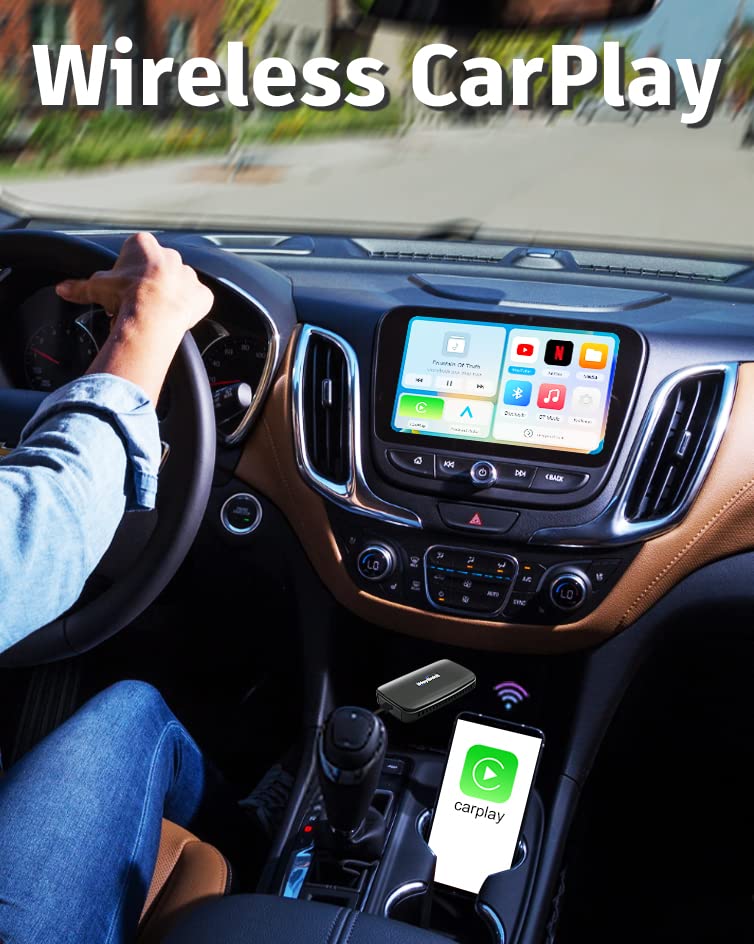
Image: A comparison showing the complexity of disassembling car wiring for traditional modifications (left, marked NO) versus the simple plug-and-play installation of the iHeylinkit AI Box (right, marked YES), which avoids damaging the original car audio effect.
Specifications
| Feature | Detail |
|---|---|
| Model | Mini Android 11 AI Box |
| Operating System | Android 11 |
| Processor | Rockchip RK3328 |
| Connectivity | Wireless Apple CarPlay, Wireless Android Auto, Bluetooth, 2.4G/5G Wi-Fi, USB |
| Memory Card Support | Up to 128GB TF (microSD) card |
| SIM Card Support | Yes |
| Compatible Devices | Smartphones, vehicles with OEM wired CarPlay |
| Dimensions (LxWxH) | 8.5 x 1.6 x 5 cm |
| Weight | 132 g |
| Audio Output Mode | AUX (via car's system) |
Warranty and Support
All iHeylinkit products come with a one-year warranty from the date of purchase. This warranty covers manufacturing defects and ensures product reliability.
For technical assistance, troubleshooting, or any questions regarding product features and compatibility, please contact iHeylinkit customer support. Our professional technical team is available to provide online technical support and solutions within 24 hours.
Contact Information: Refer to your purchase platform (e.g., Amazon email) for direct contact methods.
Important Notes
- Always prioritize safe driving. Do not operate the device in a way that distracts you from the road.
- Ensure all connections are secure before driving.
- Product specifications are subject to change without prior notice.


