
Introduction
The Vormor Language Translator Device is a portable, real-time translation tool designed to facilitate communication across language barriers. It supports online, offline, and photo translation, making it an essential companion for travel, business, and learning. This manual provides detailed instructions on how to set up, operate, maintain, and troubleshoot your device.
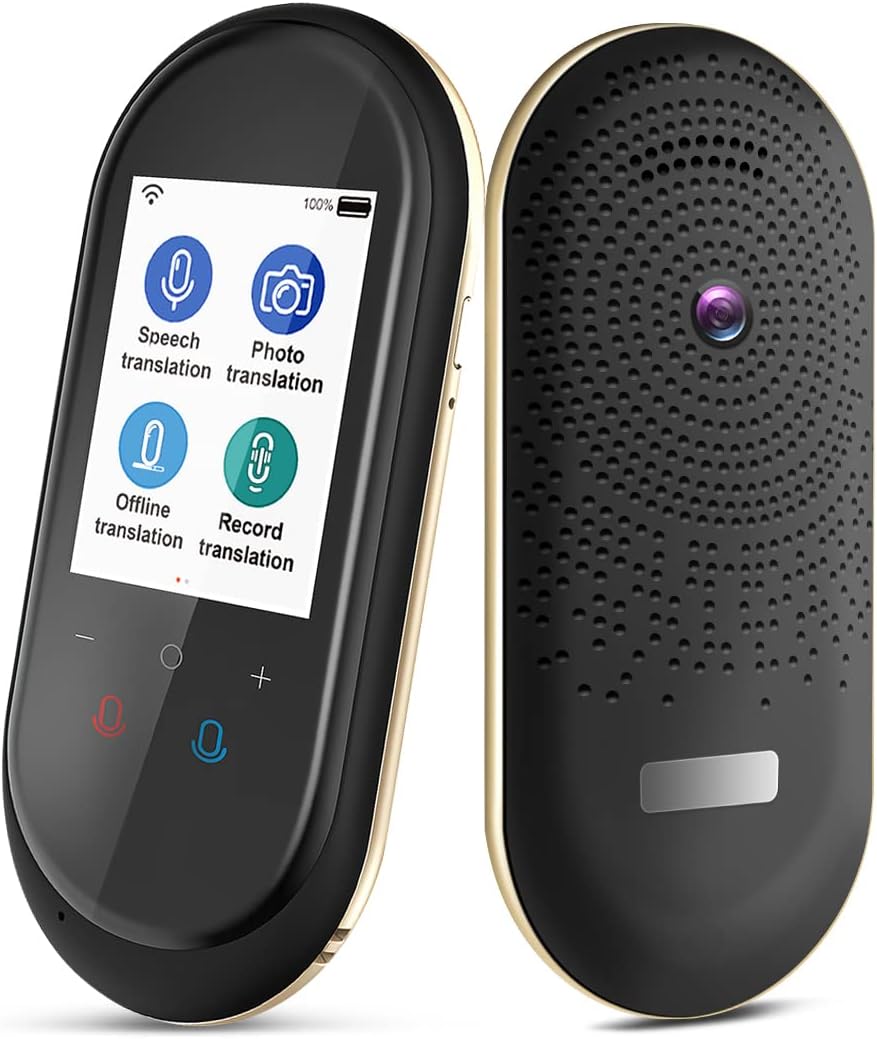
Image: Front and back view of the Vormor Language Translator Device. The front shows the screen with icons for speech, photo, offline, and record translation. The back shows the speaker grille and camera lens.
Setup
1. Charging the Device
Before first use, fully charge the device. The Vormor translator has a built-in 1200mAh lithium battery. A full charge typically takes 1-2 hours.
- Connect the device to a power source using the provided charging cable. The charging port is located at the bottom of the device.
- The battery indicator on the screen will show charging status.
- It is recommended to fully charge the device before its initial use to optimize battery life.
2. Power On/Off
- To power on: Press and hold the power button (usually on the side) until the screen lights up.
- To power off: Press and hold the power button, then select 'Power Off' on the screen.
3. Network Connection (Wi-Fi/Hotspot)
For online translation, the device requires an internet connection.
- From the main screen, navigate to 'Settings'.
- Select 'Wi-Fi' or 'Hotspot'.
- Choose your desired network and enter the password if prompted.
- Once connected, the Wi-Fi icon will appear on the status bar.
4. Initial Language Settings
Set your native language and the target language for translation.
- On the main translation interface, tap on the language displayed for 'Native language' (red microphone button) to select your language.
- Tap on the language displayed for 'Foreign language' (blue microphone button) to select the language you wish to translate to.
Operating the Device
Device Key Structure
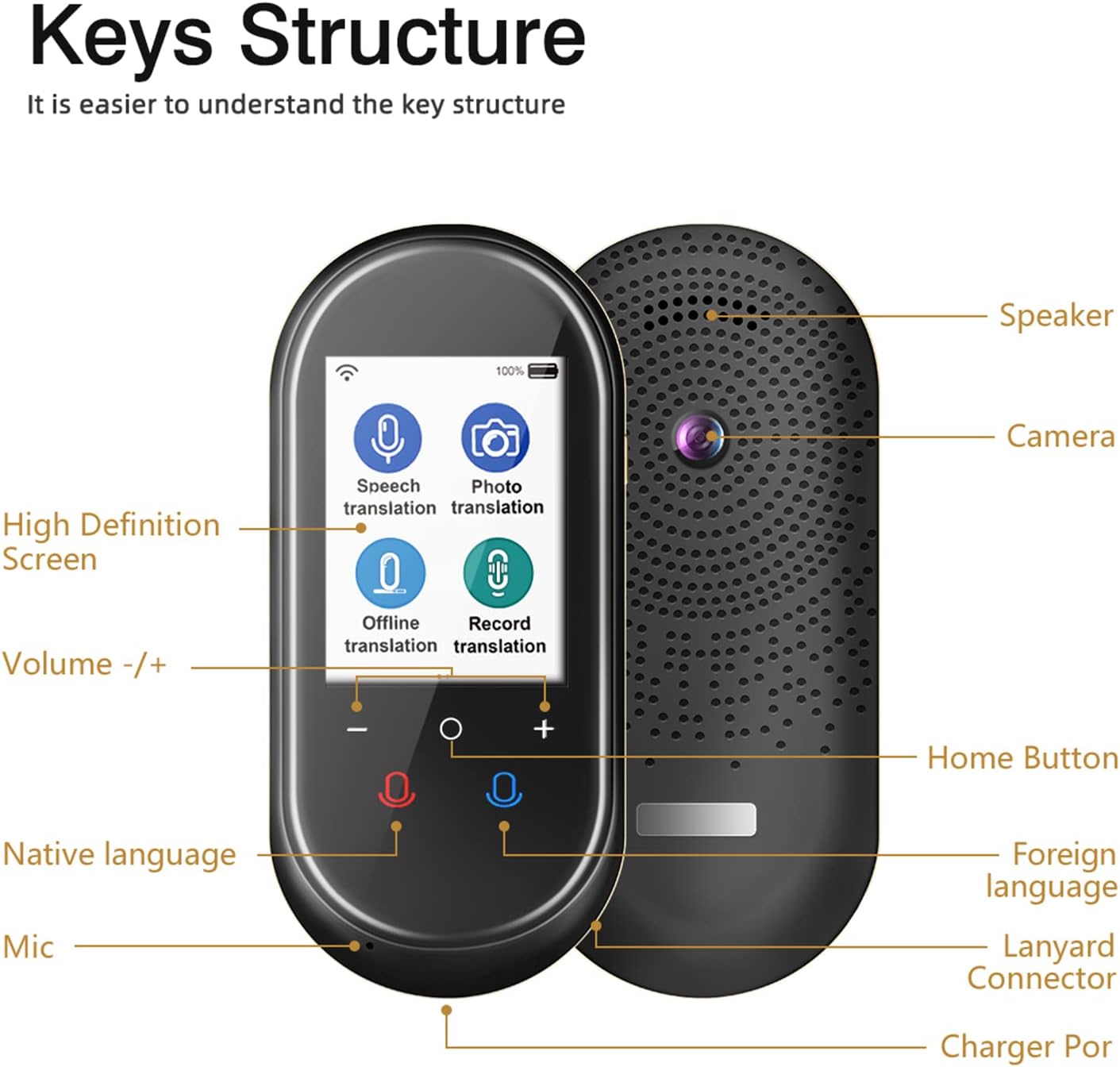
Image: Diagram illustrating the components of the Vormor Language Translator Device. Labels point to the Speaker, Camera, High Definition Screen, Volume -/+, Home Button, Native language microphone, Foreign language microphone, Mic, Lanyard Connector, and Charger Port.
- High Definition Screen: Displays translation results, menus, and settings.
- Speaker: Outputs translated audio.
- Camera: Used for photo translation.
- Volume -/+: Adjusts the audio output volume.
- Home Button: Returns to the main screen.
- Native Language Microphone (Red): Press and hold to speak your native language for translation.
- Foreign Language Microphone (Blue): Press and hold to speak the foreign language for translation.
- Mic: Captures audio for translation.
- Lanyard Connector: For attaching a lanyard.
- Charger Port: For connecting the charging cable.
1. Online Real-Time Translation
The device supports real-time translation for 106 languages with high accuracy when connected to the internet.

Image: The Vormor Language Translator Device screen displaying options for Speech Translation, Photo Translation, Offline Translation, and Record Translation, with a banner indicating support for 106 languages and real-time translation.
- Ensure the device is connected to Wi-Fi or a mobile hotspot.
- Select the 'Speech Translation' icon on the main screen.
- Confirm your native language and the target language are correctly set.
- Press and hold the red microphone button and speak clearly in your native language. Release the button when finished.
- The device will display the translated text on the screen and speak it aloud in the target language.
- To translate from the foreign language to your native language, press and hold the blue microphone button and speak.
2. Offline Translation
The device supports offline translation for 8 major languages, useful when an internet connection is unavailable. Offline language packs must be downloaded in advance.
Image: The Vormor Language Translator Device screen with a world map background, highlighting countries corresponding to 8 major languages supported for offline translation, including English, German, French, Spanish, Russian, Korean, Chinese, and Japanese.
- To download offline language packs: Go to 'Settings' > 'Offline Translation' and select the languages you need. This requires an internet connection.
- Once downloaded, select the 'Offline Translation' icon on the main screen.
- Choose the source and target languages from the downloaded packs.
- Proceed with voice input as you would for online translation. Note that offline translation is typically for simple, everyday phrases.
3. Photo Translation
The built-in high-definition camera supports translation of text from images in 46 languages.

Image: The Vormor Language Translator Device held over a book, demonstrating its real-time photo translation feature. The device's screen shows the original text in English and its German translation overlaid on the image.
- Select the 'Photo Translation' icon on the main screen.
- Point the camera at the text you wish to translate (e.g., books, menus, signs).
- Ensure the text is well-lit and clear within the camera's view.
- The device will automatically recognize the text and display the translation on the screen, often overlaid on the image.
4. Audio Translation and Recording
The device can record and translate audio, useful for interviews, meetings, or conversations.
- Select the 'Record Translation' icon on the main screen.
- Tap the record button to start recording. The device will capture audio through its microphones.
- Tap the button again to stop recording.
- You can then play back the recorded audio and view its translated text.
Maintenance
1. Cleaning the Device
- Use a soft, dry, lint-free cloth to clean the screen and body of the device.
- Do not use abrasive cleaners, solvents, or aerosol sprays.
- Avoid getting moisture into openings.
2. Battery Care
- To prolong battery life, avoid fully discharging the battery frequently.
- Store the device in a cool, dry place when not in use for extended periods.
- Charge the device regularly, even if not in frequent use, to prevent deep discharge.
Troubleshooting
| Problem | Possible Cause | Solution |
|---|---|---|
| Device does not power on. | Low battery; device frozen. | Charge the device for at least 30 minutes. If still unresponsive, perform a hard reset (refer to manufacturer's specific instructions if available, otherwise hold power button for 10-15 seconds). |
| Cannot connect to Wi-Fi. | Incorrect password; out of range; network issue. | Double-check Wi-Fi password. Move closer to the Wi-Fi router. Restart the Wi-Fi router. |
| Translation is inaccurate or slow. | Poor internet connection; unclear speech; complex sentence structure (offline mode). | Ensure stable internet connection. Speak clearly and at a moderate pace. For offline mode, use simpler phrases. |
| Touch screen unresponsive. | Software glitch; screen damage. | Restart the device. If the issue persists, contact customer support. |
| Photo translation not working. | Poor lighting; blurry image; unsupported language. | Ensure adequate lighting. Hold the device steady. Check if the language is supported for photo translation. |
Specifications
| Feature | Detail |
|---|---|
| Model | T8 |
| Screen Size | 2.8-inch Touch Screen |
| Online Translation Languages | 106 Languages |
| Offline Translation Languages | 8 Major Languages |
| Photo Translation Languages | 46 Languages |
| Battery Capacity | 1200mAh Lithium Ion |
| Continuous Working Time | Up to 8 hours |
| Standby Time | Up to 7 days |
| Charging Time | 1-2 hours |
| Microphones | Dual noise-cancelling microphones |
| Pickup Distance | Up to 6.5 feet |
| Response Time | Less than 0.5 seconds |
| Dimensions | 14.3 x 8.61 x 3.91 cm |
| Weight | 231 g |
Warranty and Support
This Vormor Language Translator Device comes with a standard manufacturer's warranty. Please refer to the product packaging or the seller's information for specific warranty terms and duration.
Customer Support
For technical assistance, troubleshooting beyond this manual, or warranty claims, please contact the retailer or manufacturer directly. Keep your purchase receipt and product serial number handy when contacting support.


