
vormor T11
vormor T11 Language Translator Device User Manual
Model: T11
1. Introduction
Welcome to the user manual for your new vormor T11 Language Translator Device. This device is designed to facilitate seamless communication across language barriers, offering real-time two-way translation, photo translation, and offline capabilities. Please read this manual carefully to understand the device's functions and ensure optimal performance.

Image: The vormor T11 Language Translator Device, a sleek black handheld device with a touch screen and control buttons.
2. Product Overview
Key Features
- Real-Time Voice Translation: Supports 106 online languages with high accuracy and fast response (less than 0.5 seconds).
- Photo Translation: Built-in 5-megapixel camera with professional OCR technology for translating text in images across 45 languages.
- Offline Translation: Provides translation for 8 languages without an internet connection.
- Audio Memo Function: Records voice and translates it into the user's chosen language.
- Long Battery Life: 1200mAh battery offers 8 hours of continuous use and 7 days of standby time.
- Noise Reduction: Dual microphone design for clear voice input and recognition.
- Global Chat Function: Create groups for real-time translation among multiple users online.
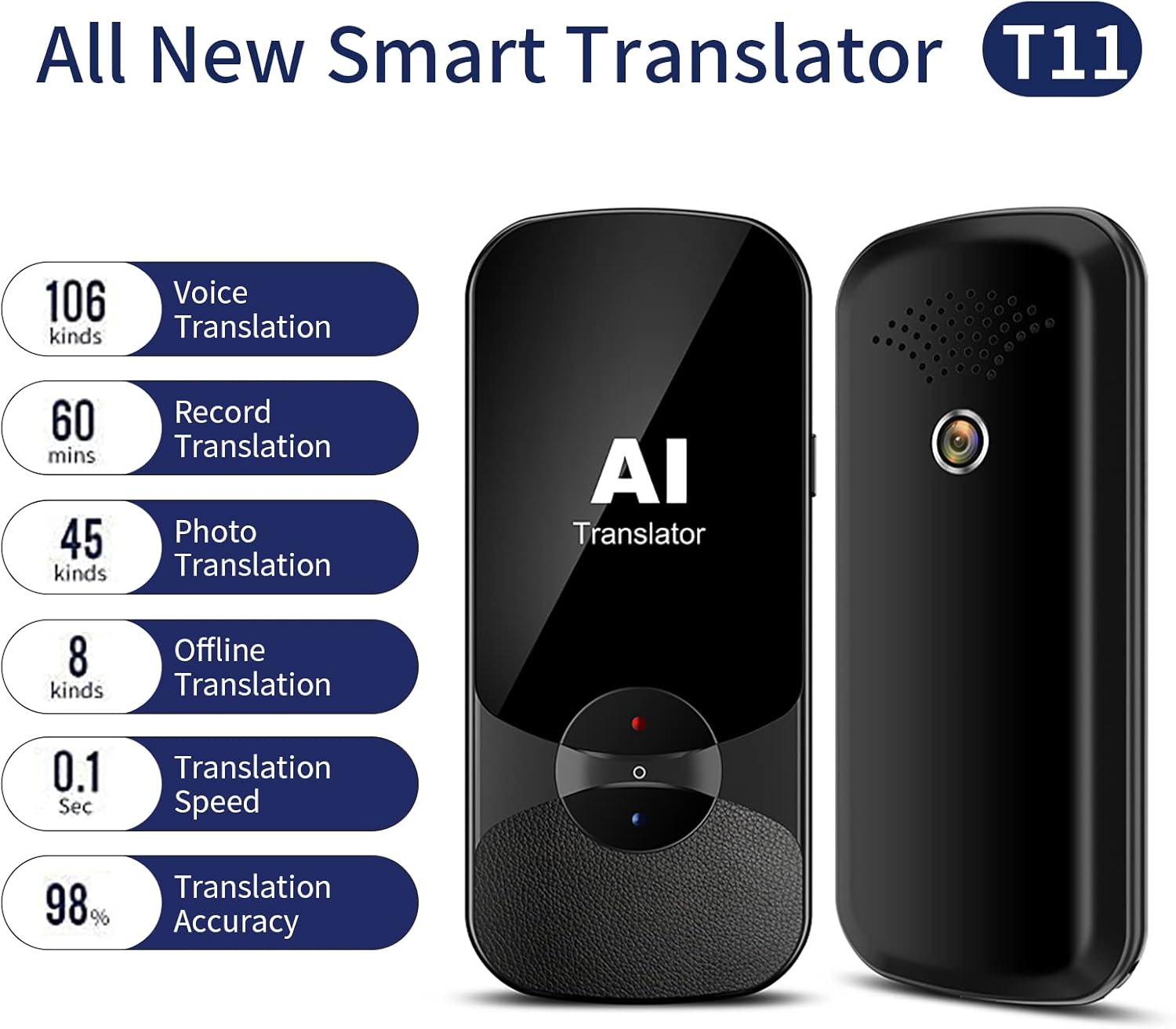
Image: Infographic highlighting key features: 106 Voice Translation, 60 mins Record Translation, 45 Photo Translation, 8 Offline Translation, 0.1 Sec Translation Speed, 98% Translation Accuracy.
Package Contents
The standard package includes:
- 1 x vormor T11 Language Translator Device
- 1 x USB Charging Cable
- 1 x User Manual (this document)
3. Setup
3.1 Initial Charging
Before first use, fully charge the device using the provided USB cable. Connect the cable to the device's charging port and a standard USB power adapter (not included). The charging indicator will show progress.
3.2 Powering On/Off
- To Power On: Press and hold the Power button for a few seconds until the screen lights up.
- To Power Off: Press and hold the Power button until a power-off menu appears, then select 'Power Off'.
3.3 Language Selection
Upon first power-on, you will be prompted to select the device's system language. Navigate using the touch screen and confirm your selection. If the device is in an unfamiliar language (e.g., Chinese as reported by some users), look for a settings icon (often a gear symbol) and then a language option (often represented by an 'A' or globe icon) to change it to English.
3.4 Wi-Fi Connection
For online translation features, connect the device to a Wi-Fi network:
- Go to 'Settings' on the device.
- Select 'Wi-Fi'.
- Turn on Wi-Fi and select your desired network from the list.
- Enter the Wi-Fi password if prompted and connect.
4. Operating Instructions
4.1 Voice Translation
The primary function of the T11 is real-time voice translation:
- On the main screen, select the 'Voice Translation' option.
- Choose the source language (your language) and target language (the language you want to translate to).
- Press and hold the corresponding language button (e.g., red for language A, blue for language B) and speak clearly into the microphone.
- Release the button, and the device will translate and speak the phrase in the target language. The translated text will also appear on the screen.

Image: The translator device surrounded by bubbles indicating various English accents (American, British, Australian, Indian, Kenyan, South African, Filipino, Chinese) to illustrate its 106 language capability.
4.2 Photo Translation
To translate text from images:
- Select the 'Photo Translation' option from the main menu.
- Position the device's camera over the text you wish to translate, ensuring good lighting and clarity.
- Tap the screen to capture the image.
- The device will process the image and display the translated text.
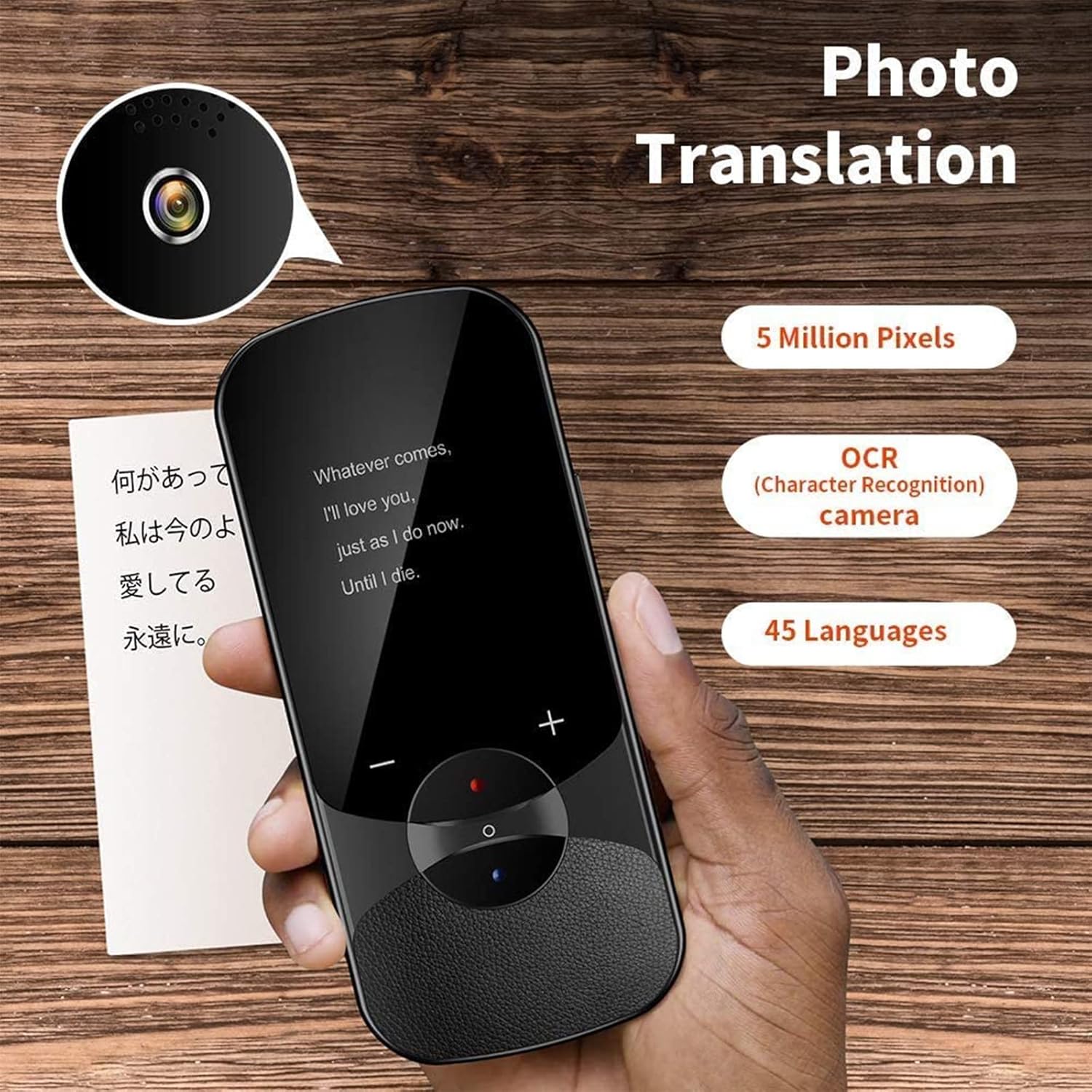
Image: A hand holding the translator device over a piece of paper with text in Japanese and English, demonstrating the photo translation feature with a 5-megapixel camera and OCR technology.
4.3 Offline Translation
The device supports offline translation for 8 languages. Ensure these language packs are downloaded beforehand:
- Go to 'Settings' and find 'Offline Translation' or 'Language Packs'.
- Download the necessary language packs while connected to Wi-Fi.
- Once downloaded, you can use voice translation for these languages without an internet connection.

Image: Flags representing the 8 languages supported for offline translation: China, Great Britain, Japan, Korea, France, Russia, Germany, and Spain.
4.4 Audio Memo / Recording Function
To record and translate audio:
- Select the 'Recording' or 'Audio Memo' option.
- Start recording by tapping the record button.
- Once finished, stop the recording. You can then select the recorded audio and choose a target language for translation.
5. Maintenance
- Cleaning: Use a soft, dry cloth to clean the device. Do not use liquid cleaners or aerosols.
- Storage: Store the device in a cool, dry place away from direct sunlight and extreme temperatures.
- Battery Care: To prolong battery life, avoid fully discharging the device frequently. Charge it regularly, even if not in use for extended periods.
- Software Updates: Periodically check for software updates in the device's settings to ensure optimal performance and access to new features.
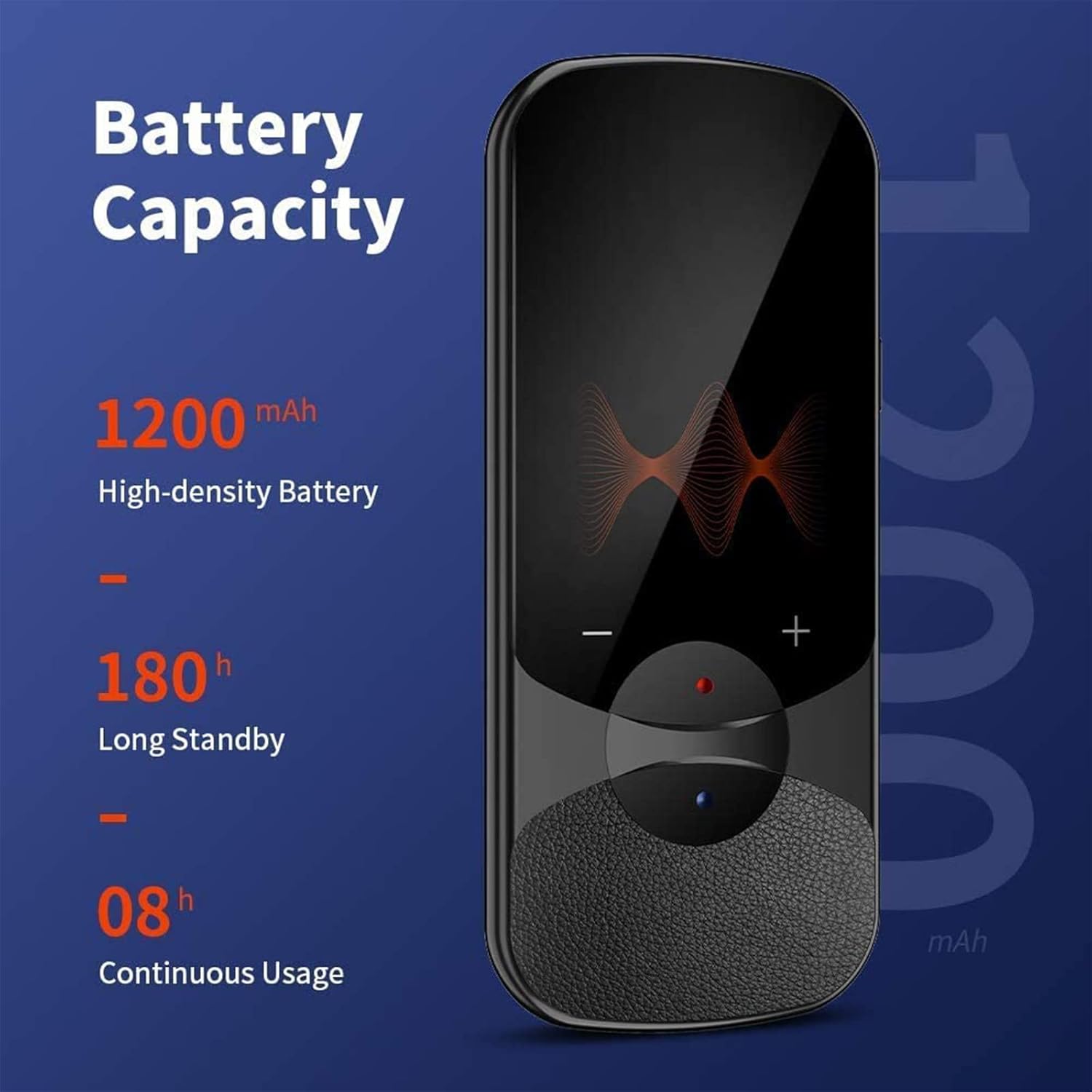
Image: Diagram showing the 1200mAh high-density battery, 180 hours of long standby, and 8 hours of continuous usage.
6. Troubleshooting
| Problem | Possible Cause | Solution |
|---|---|---|
| Device does not power on. | Low battery; device frozen. | Charge the device for at least 30 minutes. If still unresponsive, try a hard reset (refer to manual or manufacturer support for specific steps, usually holding power button for longer). |
| Translation is inaccurate or incorrect. | Unclear speech; noisy environment; accent recognition issues; outdated software. | Speak clearly and at a moderate pace. Ensure minimal background noise. Update device software. If using offline mode, ensure language packs are fully downloaded and up-to-date. |
| Microphone does not pick up sound well. | Microphone obstruction; speaking too far from device; software issue. | Ensure microphone is not covered. Speak directly into the device from a close distance (within 6.5 feet). Restart the device. |
| Cannot connect to Wi-Fi. | Incorrect password; out of range; network issue. | Double-check Wi-Fi password. Move closer to the Wi-Fi router. Restart the device and the router. |
| Device interface is in an unfamiliar language. | Accidental language change; factory reset. | Navigate to 'Settings' (gear icon) > 'Language' (often 'A' or globe icon) > Select 'English'. |
7. Specifications
| Feature | Detail |
|---|---|
| Model | T11 |
| Brand | vormor |
| Item Weight | 7.4 ounces |
| Package Dimensions | 5.71 x 3.43 x 1.65 inches |
| Battery | 1 Lithium Ion battery (included), 1200mAh |
| Screen | 2.4-inch HD Touch Screen |
| Camera | 5 Million Pixels (for Photo Translation) |
| Online Languages Supported | 106 |
| Offline Languages Supported | 8 |
| Translation Accuracy | Up to 98% |
| Response Time | Less than 0.5 seconds |
8. Warranty and Support
vormor is committed to providing high-quality products and customer satisfaction. While specific warranty details are not provided in this manual, our professional after-sales team is available to assist you with any questions or issues you may encounter during the use of your translator device.
For support, please refer to the contact information provided on the product packaging or the official vormor website. When contacting support, please have your device model (T11) and purchase details ready.
Related documentsT11

Ask a question about this manual
Ask about setup, troubleshooting, compatibility, parts, safety, or missing instructions. Manuals+ will review the question and use this page’s manual context to help answer it.