
Introduction
Welcome to the user manual for your new JVC 58-Inch 4K UHD LED Roku Smart TV. This guide provides essential information to help you set up, operate, and maintain your television, ensuring you get the most out of its advanced features, including stunning 4K resolution, HDR10 support, integrated Roku OS, voice control, AirPlay, and screen casting capabilities.
Please read this manual thoroughly before using your TV and keep it for future reference.

Front view of the JVC 58-Inch 4K UHD LED Roku Smart TV, showcasing its sleek design and vibrant display.
Setup Guide
What's in the Box
- JVC 58-Inch 4K UHD LED Roku Smart TV
- Remote Control
- TV Stand (2 pieces)
- Power Cord
- Quick Start Guide (separate document)
Unpacking and Placement
Carefully remove the TV from its packaging. It is recommended to have two people for safe handling. Place the TV on a stable, flat surface or mount it securely to a wall using a compatible VESA mount (not included).

The JVC Roku TV positioned on a media console, ready for setup.
Attaching the Stand
- Place the TV face down on a soft, clean surface to prevent scratches.
- Align the stand legs with the screw holes on the bottom of the TV.
- Secure each leg with the provided screws.
- Carefully lift the TV to its upright position.
Initial Power-On and Roku Guided Setup
Connect the power cord to the TV and then to a power outlet. The TV will automatically power on and begin the Roku Guided Setup. Follow the on-screen instructions to:
- Select your language.
- Connect to your Wi-Fi network.
- Activate your Roku account (or create a new one).
- Scan for channels (if using an antenna).
- Install streaming channels.
Operating Your TV
Roku Home Screen Navigation
The Roku Home screen provides easy access to all your entertainment. Use the directional pad on your remote to navigate through options like:
- Home: Returns you to the main screen.
- Featured Free: Access hundreds of free movies, TV episodes, and live news.
- My Feed: Keep track of movies and TV shows you're interested in.
- Movie Store/TV Store: Browse and purchase content.
- Search: Find movies, TV shows, actors, and channels.
- Streaming Channels: Access your installed apps like Netflix, Disney+, Hulu, YouTube, and more.
- Settings: Configure TV and Roku system options.

The intuitive Roku TV home screen displaying various streaming channels and input options.
Using the Roku Mobile App
Download the free Roku mobile app for iOS or Android devices to enhance your TV experience. The app allows you to:
- Voice Search: Use your voice to search for content.
- Private Listening: Plug headphones into your phone for private viewing.
- Cast Media: Share personal photos, videos, and music from your device to the TV.
- Remote Control: Use your phone as a full-function remote.

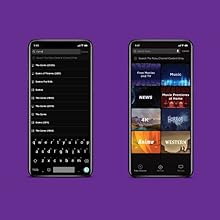
Visual representation of the Roku mobile app's features, including search, private listening, and casting.
AirPlay and Screen Casting
Effortlessly share videos, photos, music, and more from your Apple device to your TV using AirPlay. Plus, mirror the screen from your iPhone, iPad, or Mac to the big screen. This feature allows for seamless content sharing from compatible devices.

An illustration demonstrating the 'Watch', 'Listen', and 'Share' capabilities via AirPlay on the JVC Roku TV.
Key Features
4K UHD Resolution with HDR10
Experience an amazingly pristine image with a resolution of 3840 x 2180, producing vivid and brilliant pictures. High Dynamic Range (HDR10) technology improves contrast with true-to-life shadows and detail, offering a wider range of warm and bright colors for a truly immersive viewing experience.

A visual comparison highlighting the superior detail and clarity of 4K UHD with HDR10 compared to 1080p resolution.
Direct LED (DLED) Technology
DLED technology provides a high contrast ratio with brilliant, saturated colors. Local dimming minimizes blooming for deep blacks, enhancing the overall picture quality.

An illustration demonstrating the benefits of DLED technology for enhanced contrast and color.
ROKU Integrated Advantages
With Roku integrated, you have instant access to a vast selection of apps from top-tier streaming services like Netflix, Disney+, YouTube, and many more. The single remote control simplifies your entertainment experience, eliminating the need for multiple remotes.
Voice Control with Popular Assistants
The JVC Roku TV supports voice control through the free Roku mobile app, allowing you to search by voice. It is also compatible with popular voice assistants like Alexa, Siri, and Google Assistant, enabling you to control your TV with simple voice commands.
Visuals of smart speakers representing compatibility with Alexa, Google Assistant, and Apple HomeKit for voice control.
Connectivity
Your JVC Roku Smart TV offers multiple input and output options to connect all your home theater components.
Available Ports:
- 3 x HDMI ports: For connecting Blu-ray players, game consoles, soundbars, and other HDMI-enabled devices.
- Composite (AV) jacks: For older devices with RCA outputs.
- Digital optical output: For connecting to sound systems or soundbars with optical input.
- USB port: For playing media from USB drives.
- Headphone jack: For private listening.
- Coaxial jack: For connecting an antenna or cable.
- RJ-45 Ethernet: For a wired internet connection.
- Wi-Fi: For wireless internet connectivity.

A diagram illustrating the various connectivity ports available on the JVC Roku TV.
Maintenance
Proper maintenance ensures the longevity and optimal performance of your JVC Roku Smart TV.
Cleaning the Screen
Gently wipe the screen with a soft, lint-free cloth. For stubborn marks, lightly dampen the cloth with water or a screen-specific cleaning solution. Never spray liquid directly onto the screen.
Cleaning the Cabinet
Wipe the TV cabinet with a soft, dry cloth. Avoid using abrasive cleaners or solvents.
Software Updates
Your Roku TV automatically receives software updates when connected to the internet. Ensure your TV is connected to Wi-Fi or Ethernet to receive the latest features and performance improvements.
Troubleshooting
If you encounter issues with your TV, refer to the following common solutions.
| Problem | Possible Solution |
|---|---|
| No Power | Check if the power cord is securely plugged into the TV and the wall outlet. Try a different outlet. |
| No Picture, But Sound | Ensure the correct input source is selected. Check all cable connections (HDMI, AV). |
| No Sound, But Picture | Check the volume level and mute settings. Verify audio cable connections. If using external speakers, check their power and connections. |
| Cannot Connect to Wi-Fi | Ensure your Wi-Fi router is on and working. Re-enter the Wi-Fi password. Try restarting both the TV and the router. |
| Remote Not Working | Replace the batteries in the remote. Ensure there are no obstructions between the remote and the TV's IR sensor. |
Specifications
| Feature | Detail |
|---|---|
| Brand Name | JVC |
| Model Number | LT58MAW7 |
| Screen Size | 58 Inches |
| Display Technology | Direct LED |
| Resolution | 4K (3840 x 2180) |
| Refresh Rate | 60 Hz |
| Aspect Ratio | 16:9 |
| Connectivity Technology | USB, HDMI, Wi-Fi, Ethernet |
| HDMI Ports | 3 |
| Item Weight | 41.9 pounds |
| Package Dimensions | 56.88 x 34.44 x 5.7 inches |
| Supported Internet Services | Pandora, Hulu Plus, Amazon Instant Video (and many more via Roku OS) |
Warranty and Support
For detailed warranty information, please refer to the warranty card included with your product or visit the official JVC website. Keep your proof of purchase for warranty claims.
For technical support, troubleshooting beyond this manual, or service inquiries, please contact JVC customer support through their official website or the contact information provided in your product documentation.
