
Introduction
This manual provides detailed instructions for the installation, operation, maintenance, and troubleshooting of your Nippon NDROID 9PRO(T) Car Multimedia Player. This device features a 9.1-inch high-definition IPS touchscreen, Android 10.1 operating system, 2GB RAM, 16GB ROM, and supports wired Android Auto via T-Link. It integrates essential car entertainment and navigation functionalities including Bluetooth, Wi-Fi, GPS, Mirror Link, AM/FM radio, and compatibility with steering wheel controls, rearview cameras, and DVR systems.
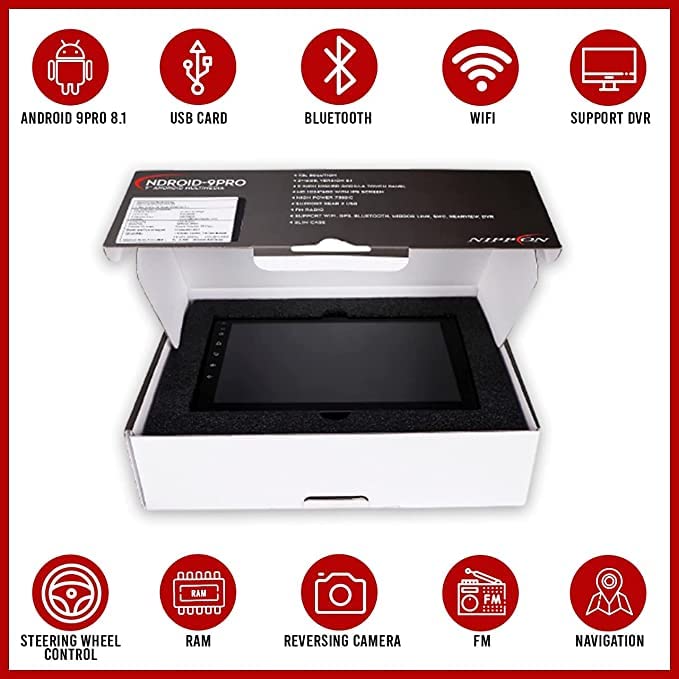
Image: Overview of the Nippon NDROID 9PRO(T) Car Multimedia Player and its key features, including Android 9.1, USB, Bluetooth, WiFi, DVR support, Steering Wheel Control, RAM, Reversing Camera, FM radio, and Navigation.
Setup and Installation
The Nippon NDROID 9PRO(T) is designed for universal compatibility with various car models. Please note that a separate car-specific frame is required for proper installation into your vehicle's dashboard. Professional installation is recommended to ensure correct wiring and functionality.
Initial Connections:
- Power Supply: Connect the main power harness to your vehicle's electrical system. Ensure correct polarity.
- Speaker Outputs: Connect the speaker wires to your car's speakers. Verify correct channel assignment (front left, front right, rear left, rear right).
- GPS Antenna: Mount the included GPS antenna in a location with a clear view of the sky, typically on the dashboard or under the windshield.
- USB Ports: Connect the provided USB cables for external storage or device charging.
- Rearview Camera (Optional): If installing a rearview camera, connect its video input to the designated port on the multimedia player.
- Steering Wheel Controls (SWC): Connect the SWC wires to your vehicle's steering wheel control interface, if applicable. Configuration will be done in the settings menu.
After all connections are made, secure the unit within the car's dashboard using the appropriate mounting frame and brackets.
Operating Instructions
Power On/Off:
The unit will typically power on automatically when the vehicle's ignition is turned on. To manually power off or restart, press and hold the power button on the front panel.
Touchscreen Interface:
Navigate through menus and applications using the 9.1-inch IPS touchscreen. The interface is similar to a standard Android tablet. Swipe, tap, and pinch gestures are supported.
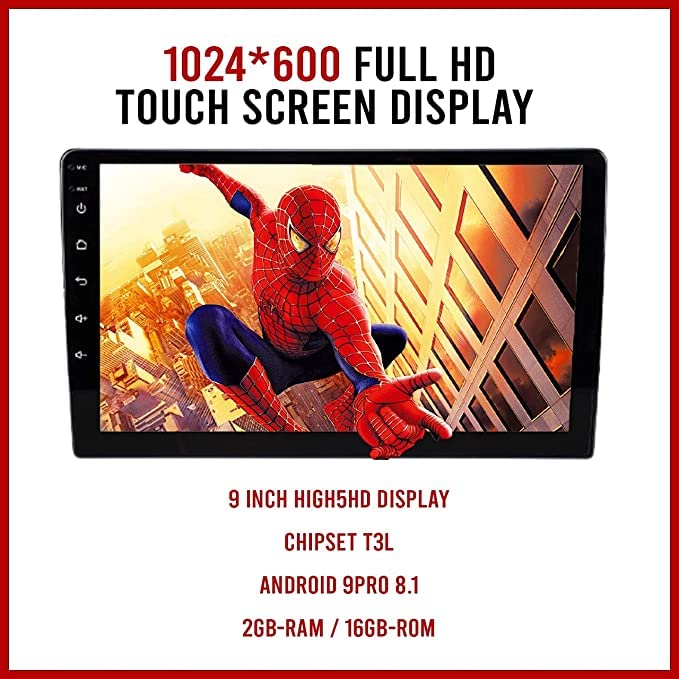
Image: The 9.1-inch display of the Nippon NDROID 9PRO(T) highlighting its 1024x600 Full HD resolution, IPS technology, T3L chipset, Android 8.1 operating system, 2GB RAM, and 16GB ROM.
Wired Android Auto (T-Link):
Connect your Android smartphone to one of the USB ports using a high-quality USB cable. Launch the 'T-Link' application on the multimedia player to initiate Android Auto. Follow on-screen prompts to grant necessary permissions on your phone.
Bluetooth Connectivity:
- Go to 'Settings' > 'Bluetooth'.
- Enable Bluetooth on the multimedia player and your mobile device.
- Search for available devices on your phone and select 'NDROID 9PRO(T)' (or similar name).
- Confirm the pairing code on both devices.
- Once paired, you can make/receive calls and stream audio.
Wi-Fi Connection:
- Go to 'Settings' > 'Wi-Fi'.
- Turn on Wi-Fi and select your desired network from the list.
- Enter the password if prompted and connect. This enables internet access for apps and updates.
GPS Navigation:
The unit comes with built-in GPS. Open the pre-installed navigation application or download your preferred navigation app from the Google Play Store (requires Wi-Fi connection). Ensure the GPS antenna is properly installed for optimal signal reception.
AM/FM Radio:
Access the 'Radio' application. Use the on-screen controls to scan for stations, manually tune, and save your favorite frequencies.
Mirror Link:
Use the 'Mirror Link' app to display your smartphone's screen on the multimedia player. Follow the app's instructions for connecting via USB or Wi-Fi, depending on your phone's compatibility.
Steering Wheel Control (SWC) Configuration:
If your vehicle supports SWC, go to 'Settings' > 'Steering Wheel Control'. Follow the on-screen instructions to map your steering wheel buttons to the corresponding functions on the multimedia player.
Maintenance
Screen Cleaning:
To clean the touchscreen, power off the unit. Use a soft, lint-free cloth slightly dampened with water or a screen-cleaning solution. Avoid harsh chemicals or abrasive materials that could damage the Gorilla Glass display.
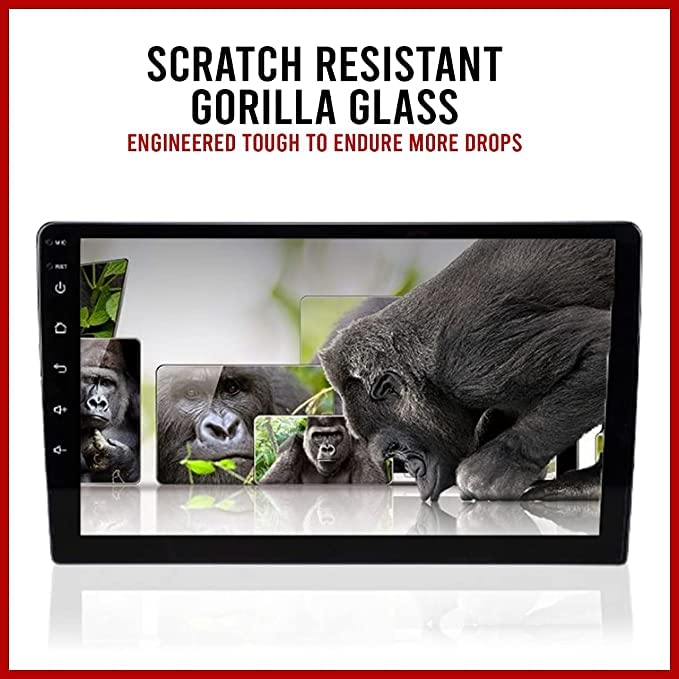
Image: Close-up of the Nippon NDROID 9PRO(T) display, emphasizing its scratch-resistant Gorilla Glass construction for enhanced durability.
Software Updates:
Periodically check for software updates via the 'Settings' menu (requires Wi-Fi connection). Keeping the software updated ensures optimal performance and access to new features.
Environmental Care:
Avoid exposing the unit to extreme temperatures, direct sunlight for prolonged periods, or excessive moisture. Ensure proper ventilation around the unit.
Troubleshooting
- No Power: Check all power connections and the vehicle's fuse box. Ensure the ignition is on.
- No Sound: Verify speaker connections. Check volume settings on the unit and ensure 'Mute' is not activated. Confirm audio output settings.
- GPS Signal Issues: Ensure the GPS antenna is securely connected and placed in an unobstructed location. Restart the unit.
- Bluetooth/Wi-Fi Connectivity Problems: Restart the multimedia player and the device you are trying to connect. Forget and re-pair Bluetooth devices. Re-enter Wi-Fi passwords.
- Touchscreen Unresponsive: Perform a soft reset by pressing the reset button (if available) or by turning the vehicle's ignition off and on.
- System Lag or Freezing: Close unnecessary background applications. If the issue persists, consider a factory data reset (this will erase all user data and settings, so back up important information first).
- Wired Android Auto Not Connecting: Ensure you are using a high-quality USB cable. Check your phone's settings for Android Auto permissions. Try a different USB port.
Specifications
| Feature | Detail |
|---|---|
| Product Dimensions | 20 x 13 x 10 cm |
| Item Model Number | Nippon Android- 9 PRO(T) |
| Colour | Black |
| Display Size | 9.1 inches |
| Display Type | IPS Touch Panel with Gorilla Glass |
| Display Resolution | 1024*600 Full HD |
| Operating System | Android 10.1 (based on Android V9/8.1) |
| Processor | T3L Quad Core Processor |
| RAM | 2 GB DDR3 |
| Internal Storage (ROM) | 16 GB |
| Connectivity Technology | Bluetooth, Wi-Fi |
| Special Features | Touchscreen, Built-in GPS, Mirror Link, Wired Android Auto (T-Link), AM/FM Radio, SWC, Rearview, DVR Support |
| Compatible Devices | Speaker |
| Audio Encoding | Stereo |
| Audio Output Mode | Stereo |
| Surround Sound Channel Configuration | 4.0 |
| Video Encoding | MPEG-4 |
| Item Weight | 710 g |
| Manufacturer | Nippon Audiotronix Pvt Ltd |
| Included Components | 1 Car Media Player, 1 GPS Tracker |
Warranty and Support
The Nippon NDROID 9PRO(T) Car Multimedia Player comes with a 1-Year Warranty from the date of purchase. This warranty covers manufacturing defects and ensures the product meets its specified performance standards.
For warranty claims, technical assistance, or any product-related inquiries, please contact Nippon Audiotronix Pvt Ltd, the manufacturer. Refer to your purchase documentation for specific contact details or visit the official Nippon website for support information.