
Fanvil X3U
Fanvil X3U Enterprise VoIP Phone User Manual
Model: X3U
1. Introduction
This manual provides instructions for the installation, operation, and maintenance of the Fanvil X3U Enterprise VoIP Phone. The Fanvil X3U is a cost-effective Gigabit IP phone featuring a high-resolution color display and multiple SIP lines, designed to enhance communication flexibility and productivity in business environments. It supports HD audio with G.722 and Opus wideband codecs for clear voice quality.
2. Package Contents
Before proceeding with installation, please verify that all items are present in the package:
- Fanvil X3U IP Phone Unit
- Handset
- Handset Cord
- Ethernet Cable
- Phone Stand
- Quick Installation Guide
- Note: Power adapter is not included and must be purchased separately if Power over Ethernet (PoE) is not used.
3. Physical Overview
Familiarize yourself with the components of your Fanvil X3U phone.
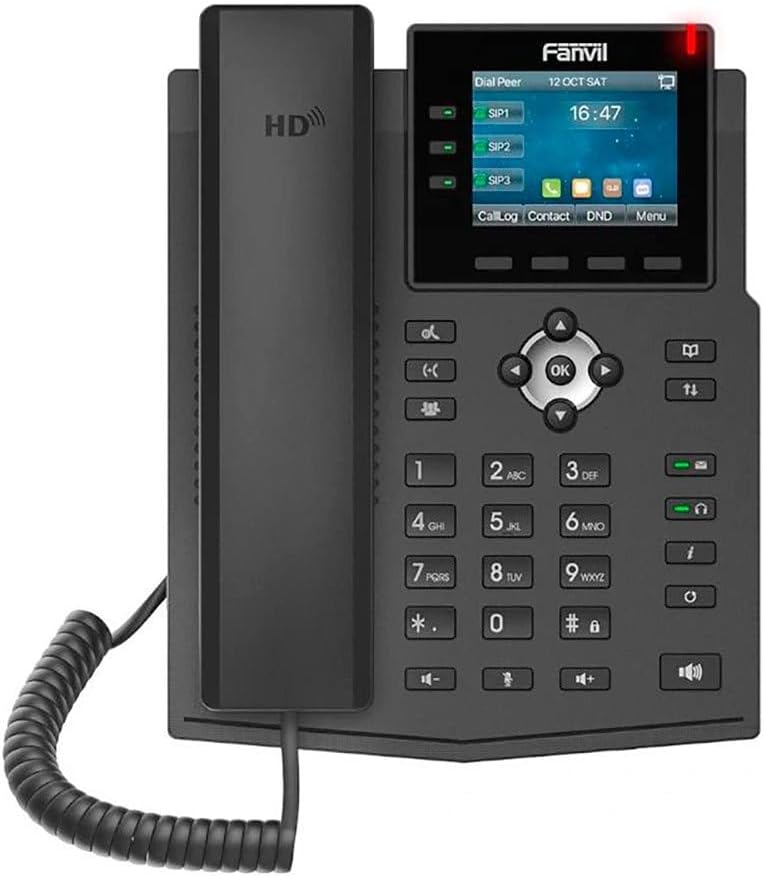
Figure 3.1: Front view of the Fanvil X3U IP Phone, showing the display, keypad, and handset.

Figure 3.2: Side view of the Fanvil X3U IP Phone, illustrating the ergonomic design and handset placement.

Figure 3.3: Side view of the Fanvil X3U IP Phone with its adjustable stand, showing the optimal viewing angle.
3.1 Keypad Layout
- Line Keys: 3 programmable line keys with LED indicators for managing multiple SIP lines.
- Navigation Keys: Up, Down, Left, Right, and OK buttons for menu navigation.
- Soft Keys: Context-sensitive buttons below the display.
- Function Keys: Dedicated keys for features like Message, Headset, Mute, Hold, Transfer, Redial, Speakerphone, and Volume control.
- Numeric Keypad: Standard 0-9, *, # keys for dialing.
4. Setup
4.1 Assembling the Phone
- Attach the Phone Stand: Align the tabs on the phone stand with the slots on the back of the phone unit and push until it clicks into place.
- Connect the Handset: Plug one end of the coiled handset cord into the handset port on the phone unit and the other end into the handset.
- Connect the Ethernet Cable: Plug one end of the Ethernet cable into the LAN port on the back of the phone and the other end into your network switch or router. If using PoE, this connection will also power the phone.
- Connect Power (if not using PoE): If your network does not provide PoE, connect a compatible 5V/1A power adapter (not included) to the power port on the back of the phone and then to a power outlet.
- Connect Headset (Optional): If using a wired headset, plug it into the headset port on the phone. The Fanvil X3U supports EHS wireless headsets.
4.2 Initial Network Configuration
Upon first boot, the phone will attempt to obtain an IP address via DHCP. If successful, the IP address will be displayed on the screen. If not, you may need to configure network settings manually via the phone's menu or a web interface.
4.3 SIP Account Registration
To make and receive calls, you must register at least one SIP account. This is typically done through the phone's web interface or by your system administrator. Consult your VoIP service provider or IT department for SIP account details (SIP server address, username, password).
- Access the phone's web interface by entering its IP address into a web browser.
- Log in using the administrator credentials (default username and password can be found in the full user guide or from your administrator).
- Navigate to the SIP Account settings and enter the provided details.
- Save the settings and reboot the phone if prompted.
5. Operating Instructions
5.1 Making Calls
- Lift the Handset or press the Speakerphone button.
- Dial the number using the numeric keypad.
- Press the Dial soft key or wait a few seconds for the call to initiate automatically.
5.2 Answering Calls
When the phone rings:
- Lift the Handset to answer.
- Alternatively, press the Speakerphone button or the Answer soft key.
5.3 Call Management Features
- Hold: During an active call, press the Hold button. Press it again to resume the call.
- Transfer: During an active call, press the Transfer button, dial the new number, and then press Transfer again (blind transfer) or wait for the other party to answer before pressing Transfer (attended transfer).
- Mute: Press the Mute button to mute your microphone. The LED will illuminate. Press again to unmute.
- Conference: During an active call, press the Conf soft key, dial the third party's number, and then press Conf again to establish a three-way conference.
- Voicemail: Press the Message button to access your voicemail.
5.4 Display and Menu Navigation
The 2.8-inch color display shows call information, status, and menu options. Use the navigation keys (Up, Down, Left, Right, OK) and soft keys to browse and select options.
6. Maintenance
6.1 Cleaning
- Use a soft, dry cloth to clean the phone's surface and display.
- Do not use liquid cleaners or aerosol sprays directly on the phone.
- For stubborn marks, lightly dampen the cloth with water or a mild, non-abrasive cleaner.
6.2 Firmware Updates
Periodically check the Fanvil website or consult your system administrator for firmware updates. Firmware updates can provide new features, performance improvements, and security enhancements. Updates are typically applied via the phone's web interface.
6.3 Environmental Considerations
- Keep the phone away from direct sunlight, heat sources, and excessive moisture.
- Ensure adequate ventilation around the device.
7. Troubleshooting
| Problem | Possible Cause | Solution |
|---|---|---|
| Phone does not power on. | No power from PoE or power adapter. | Check Ethernet cable connection (for PoE) or power adapter connection and outlet. Ensure power adapter meets specifications (5V/1A). |
| Cannot make/receive calls. | SIP account not registered; Network connectivity issue. | Verify SIP account settings in the web interface. Check network cable and IP address. Contact your VoIP provider or administrator. |
| Poor audio quality (echo, static). | Network congestion; Faulty cable/handset; Environmental interference. | Check network bandwidth. Replace handset cord or Ethernet cable. Move phone away from other electronic devices. |
| Display is blank or frozen. | Software error; Power issue. | Perform a power cycle (unplug and replug power). If issue persists, contact support. |
8. Specifications
- Display: 2.8-inch (320x240 pixel) color display
- SIP Lines: 6
- Ethernet Ports: Dual-Port Gigabit Ethernet
- Audio Codecs: HD audio with G.722 and Opus wideband codecs
- Headset Support: EHS wireless headset support
- Protocols: IPv4, IPv6
- Dimensions (L x W x H): 11 x 9 x 3 inches (approximate)
- Item Weight: 1.98 pounds (approximate)
- Power Source: Corded Electric (Power Adapter Not Included, PoE supported)
- Material: Plastic
- Color: Black
9. Warranty and Support
9.1 Warranty Information
The Fanvil X3U Enterprise VoIP Phone typically comes with a manufacturer's limited warranty. Please refer to the warranty card included with your product or visit the official Fanvil website for detailed warranty terms and conditions. Keep your purchase receipt as proof of purchase for warranty claims.
9.2 Technical Support
For technical assistance, troubleshooting beyond this manual, or inquiries regarding your device, please contact your authorized Fanvil reseller or your VoIP service provider's support team. You may also visit the official Fanvil support website for FAQs, documentation, and contact information.
Fanvil Official Website: www.fanvil.com
Related documentsX3U


Ask a question about this manual
Ask about setup, troubleshooting, compatibility, parts, safety, or missing instructions. Manuals+ will review the question and use this page’s manual context to help answer it.