Introduction
This manual provides essential information for the Dell Latitude 5421 Laptop. It covers initial setup, operational guidelines, maintenance procedures, troubleshooting tips, and detailed product specifications. Please read this manual thoroughly to ensure optimal performance and longevity of your device.
Setup
1. Unpacking and Initial Inspection
Carefully remove the laptop and all accessories from the packaging. Inspect for any signs of damage. Ensure all components are present: laptop, power adapter, and documentation.
2. Connecting the Power Adapter
Connect the power adapter to the power connector on the laptop and then plug the power cable into a wall outlet. The battery will begin charging automatically.
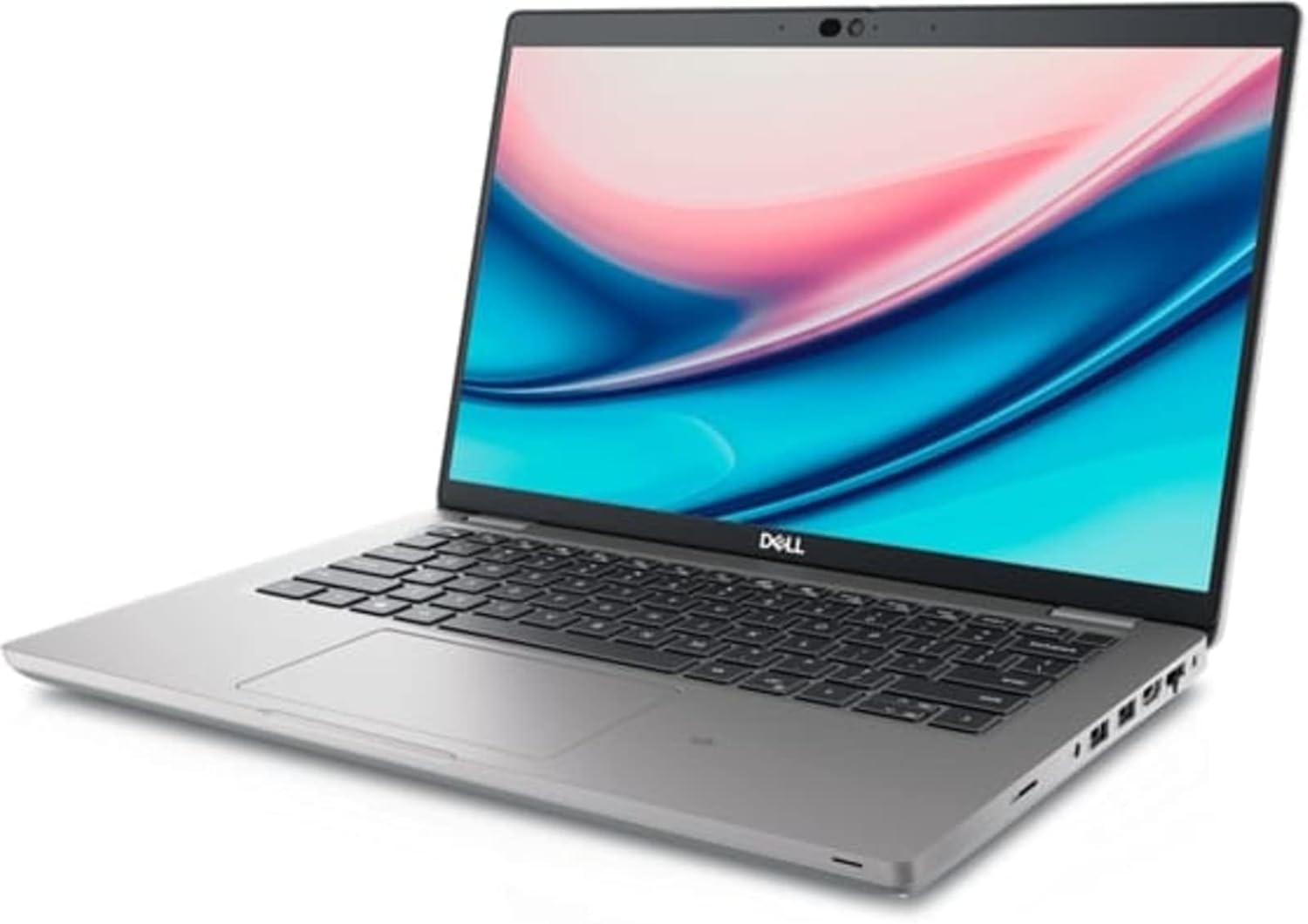
Image: Left side of the Dell Latitude 5421 Laptop, showing the power input, USB ports, HDMI port, and Ethernet port.
3. Initial Power On and Operating System Setup
Open the laptop lid and press the power button. Follow the on-screen instructions to complete the Windows 11 Pro setup. This includes selecting your region, connecting to a network, and creating a user account.
4. Connecting Peripherals
Connect external devices such as a mouse, keyboard, or external monitor to the available ports. The Dell Latitude 5421 features various ports for connectivity:
- Left Side Ports: SD card reader, Headset jack, USB 3.2 Gen 1 port, USB 3.2 Gen 1 port with PowerShare, HDMI 2.0 port, RJ45 Ethernet port.
- Right Side Ports: Wedge-shaped lock slot, USB 3.2 Gen 1 port, USB 3.2 Gen 2 Type-C Thunderbolt 4 port with Power Delivery and DisplayPort, Smart card reader (optional).
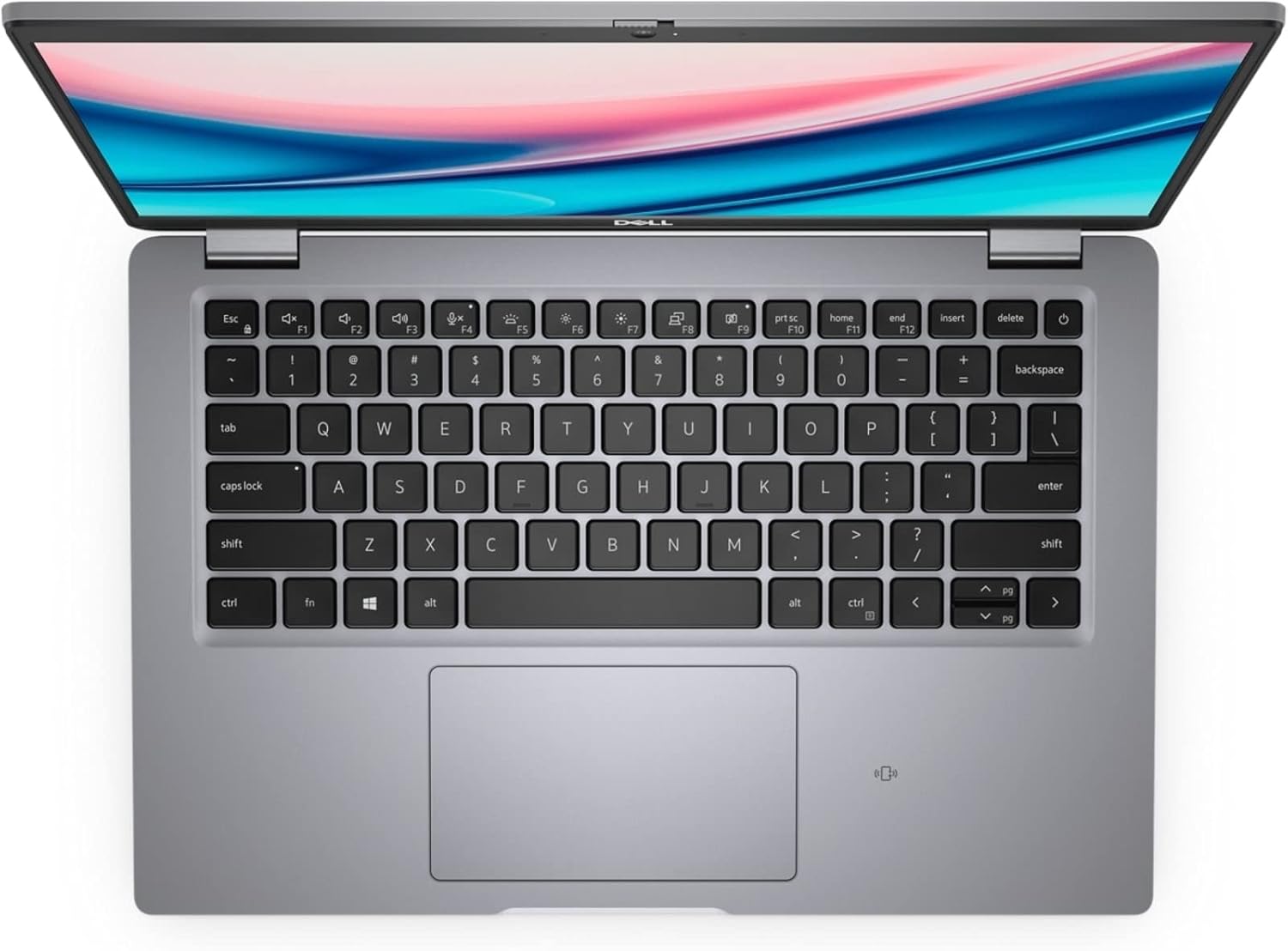
Image: Right side of the Dell Latitude 5421 Laptop, showing the USB-C Thunderbolt 4 port, USB-A port, and lock slot.
Operating Your Laptop
1. Keyboard and Touchpad Usage
The laptop features a full-sized keyboard and a precision touchpad. Use the touchpad for navigation and gestures. Refer to Windows 11 settings for customizing touchpad sensitivity and gestures.

Image: Top-down view of the Dell Latitude 5421 Laptop keyboard and touchpad.
2. Wireless Connectivity
- Wi-Fi: To connect to a wireless network, click the Wi-Fi icon in the taskbar, select your desired network, and enter the password if prompted.
- Bluetooth: To pair Bluetooth devices, go to Settings > Bluetooth & devices, turn on Bluetooth, and select "Add device."
3. Display and External Monitors
The laptop features a 14-inch Full HD (1920x1080) display. You can connect an external monitor using the HDMI port or the USB-C Thunderbolt 4 port (with a compatible adapter) for extended or mirrored display modes.

Image: Front view of the Dell Latitude 5421 Laptop with the screen displaying content.
Maintenance
1. Cleaning Your Laptop
- Use a soft, lint-free cloth dampened with water or a screen cleaner for the display.
- For the keyboard and chassis, use a soft cloth. Avoid harsh chemicals.
- Use compressed air to clear dust from vents and keyboard crevices.
2. Software Updates
Regularly check for and install Windows updates via Settings > Windows Update. Also, ensure Dell drivers and firmware are up-to-date using the Dell SupportAssist application or Dell's official website.
3. Battery Care
To prolong battery life, avoid extreme temperatures. For long-term storage, charge the battery to about 50% and store the laptop in a cool, dry place.
4. Storage Management
Periodically clean up unnecessary files and applications to maintain optimal performance of the 512GB SSD. Use Windows built-in tools like Disk Cleanup or Storage Sense.
Troubleshooting
1. Laptop Does Not Power On
- Ensure the power adapter is securely connected to both the laptop and a working power outlet.
- Verify the power outlet is functional by plugging in another device.
- Try holding the power button for 15-20 seconds to perform a hard reset.
2. Display Issues
- If the screen is blank, try connecting an external monitor to check if the issue is with the laptop's display.
- Adjust screen brightness using the function keys (Fn + F11/F12).
- Update graphics drivers.
3. Wi-Fi or Bluetooth Connectivity Problems
- Ensure Wi-Fi/Bluetooth is enabled in Windows settings.
- Restart your router/modem for Wi-Fi issues.
- Run the Windows Network Troubleshooter.
- Update wireless drivers.
4. Slow Performance
- Close unnecessary applications running in the background.
- Check for malware or viruses using antivirus software.
- Ensure sufficient free space on the SSD.
- Perform a system restart.
Specifications
Below are the detailed technical specifications for the Dell Latitude 5421 Laptop:
| Feature | Specification |
|---|---|
| Model Name | Latitude 5421 Laptop |
| Processor | Intel Core i7-11850H (8 Cores, 2.5 GHz base, up to 4.8 GHz Turbo) |
| RAM | 64 GB DDR4 |
| Storage | 512 GB SSD |
| Display | 14-inch FHD (1920 x 1080) Non-Touch |
| Graphics | Intel Integrated Graphics |
| Operating System | Windows 11 Pro |
| Wireless Connectivity | Wi-Fi, Bluetooth |
| Ports | USB 3.2 Gen 1, USB 3.2 Gen 1 with PowerShare, USB 3.2 Gen 2 Type-C Thunderbolt 4, HDMI 2.0, RJ45 Ethernet, Headset jack, SD card reader, Wedge-shaped lock slot |
| Dimensions (LxWxH) | 8.35 x 12.65 x 0.82 inches |
| Color | Black |
Warranty and Support
This Dell Latitude 5421 Laptop is a renewed product. Please refer to the specific warranty terms provided by the seller at the time of purchase. For technical assistance, driver downloads, or further support, visit the official Dell Support website or contact your seller directly.
Dell Support Website: www.dell.com/support