
Introduction
The XTOOL Anyscan A30M is a professional-grade OBD2 car diagnostic tool designed for comprehensive vehicle system analysis and maintenance. It offers advanced features such as bidirectional control, active tests, and a wide range of service functions, making it suitable for both professional technicians and DIY enthusiasts. This manual provides detailed instructions on setting up, operating, and maintaining your A30M device.

Figure 1: XTOOL Anyscan A30M OBD2 Scanner and its retail packaging.
Key Features
The XTOOL Anyscan A30M offers a robust set of features for in-depth vehicle diagnostics:
- Bidirectional Control / Active Tests: Send commands to the vehicle's ECU to perform various active tests on components like EVAP test, fuel pump, fuel injector, A/C clutch, windows, doors, and sunroof. This helps in quickly identifying faulty parts.
- 21+ Service Functions: Includes essential maintenance functions such as Oil Reset, EPB (Electronic Parking Brake), SAS (Steering Angle Sensor), DPF (Diesel Particulate Filter), BMS (Battery Management System), ABS Bleeding, Throttle Relearn, Injector Coding, Suspension/Seat Calibration, Window Initialization, TPMS Reset, and more. Note: Specific functions may vary by vehicle model and year.
- OEM Level All-System Diagnostics: Capable of scanning all available vehicle systems for comprehensive diagnostics, including Engine, Transmission, ABS, SRS, Air Conditioning, Fuel Systems, and others. This allows for reading/clearing codes, viewing live data, freeze frame data, and retrieving ECU information.
- Wireless Bluetooth Connection: Convenient BT connectivity for data transmission between the vehicle and the A30M. Compatible with both iOS and Android phones/tablets. The device also supports real-time battery voltage display when connected via an extension cable.
- Lifetime Free Software Updates & 2-Year Online Support: Enjoy continuous software improvements and access to 24/7 online technical support for two years.

Figure 2: Overview of XTOOL Anyscan A30M's main features, including bidirectional control, full system diagnosis, special functions, live data, auto-scan, wireless BT, and lifetime updates.
Setup Guide
- Download the App: Search for "XTOOL Anyscan" in the Apple App Store (for iOS) or Google Play Store (for Android). Alternatively, you can download the app directly from the official XTOOL website.
- Install the App: Follow the on-screen instructions to install the application on your smartphone or tablet.
- Register/Log In: Open the XTOOL Anyscan app. If you are a new user, register an account. If you already have an account, log in.
- Connect to Vehicle: Locate your vehicle's OBD-II port, usually under the dashboard on the driver's side. Plug the XTOOL A30M device firmly into the OBD-II port. The device will power on automatically.
- Pair via Bluetooth:
- Turn on Bluetooth on your smartphone/tablet.
- Open the XTOOL Anyscan app. The app will automatically search for available XTOOL devices.
- Select your A30M device from the list to establish a Bluetooth connection. Ensure the device's indicator lights confirm a successful connection.
- Initial Setup in App: Follow any prompts within the app for initial device registration or software updates. It is recommended to update the software to the latest version before first use.
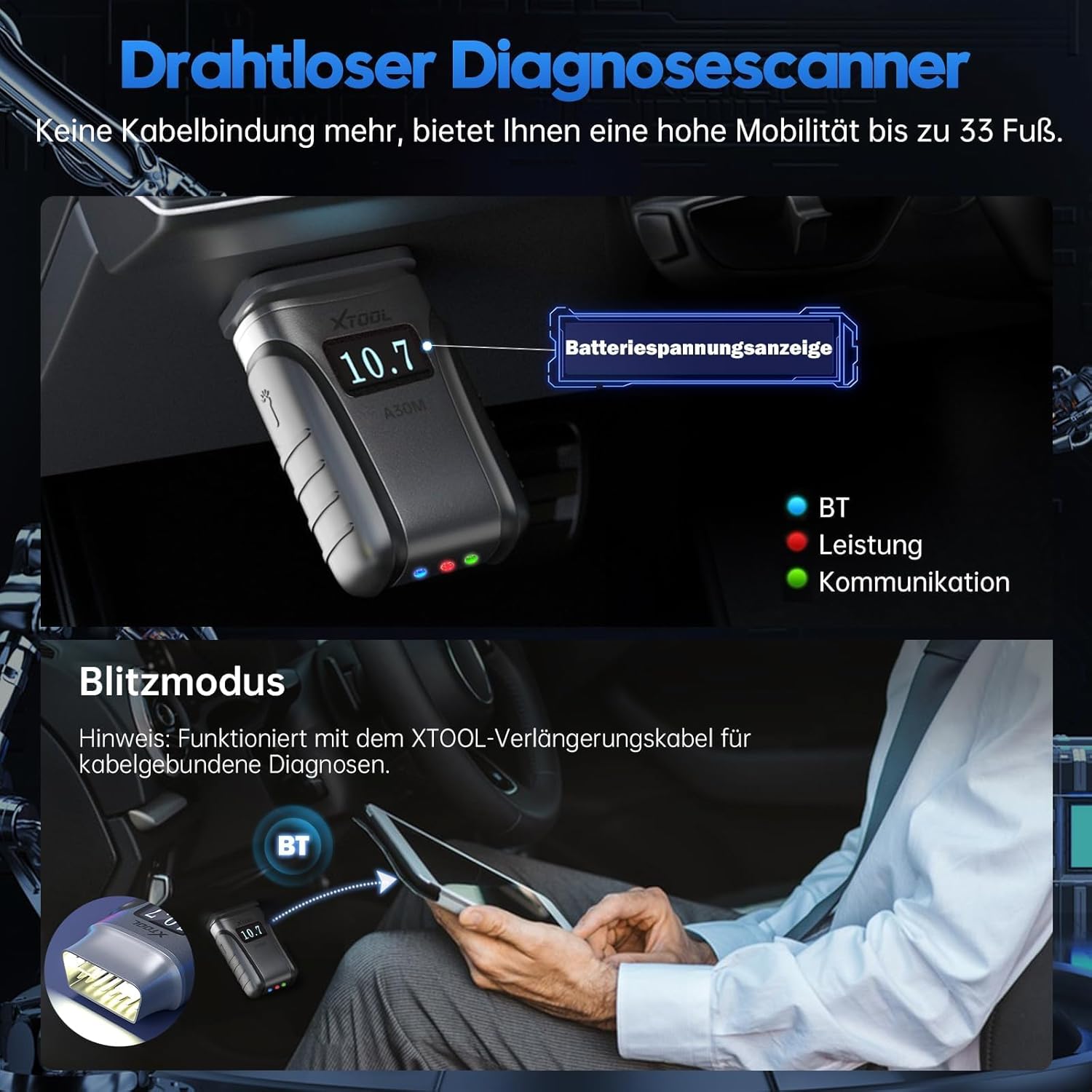
Figure 3: The XTOOL A30M connected wirelessly to a mobile device, showing its compact design and the real-time battery voltage display feature.
Operating Instructions
1. All-System Diagnostics
After connecting the A30M to your vehicle and pairing with the app, you can begin a full system scan. The app will automatically identify your vehicle's VIN (Vehicle Identification Number) and model, then proceed to scan all accessible electronic control units (ECUs).
- Read/Clear Codes: View diagnostic trouble codes (DTCs) with their descriptions and clear them after repairs.
- Live Data: Monitor real-time data streams from various sensors and components. This data can be displayed in text, graph, or gauge format.
- Freeze Frame: Capture a snapshot of vehicle conditions at the moment a DTC was set.
- ECU Information: Retrieve detailed information about the vehicle's control modules.

Figure 4: The A30M performing an OEM-level full system diagnosis, covering various vehicle modules like Engine, Transmission, ABS, SRS, and more.
2. Bidirectional Control / Active Tests
This function allows you to send commands from the A30M to the vehicle's components to test their functionality without manual intervention. This is crucial for pinpointing issues quickly.
- Navigate to the "Active Test" or "Bidirectional Control" section in the app.
- Select the component you wish to test (e.g., fuel pump, window motor, A/C clutch).
- Follow the on-screen prompts to activate or deactivate the component and observe its response.

Figure 5: Illustrates the bidirectional control capabilities, allowing users to perform active tests on various vehicle components such as fuel pumps, valves, wipers, windows, doors, and sunroofs.
3. Service Functions
The A30M provides over 21 common service and reset functions. Access these functions from the main menu of the app.
- Select the desired service function (e.g., Oil Reset, EPB Reset, ABS Bleeding).
- Follow the specific on-screen instructions for each function, as procedures can vary by vehicle.
- Always ensure the vehicle meets the necessary conditions (e.g., engine off, ignition on) before performing a service function.
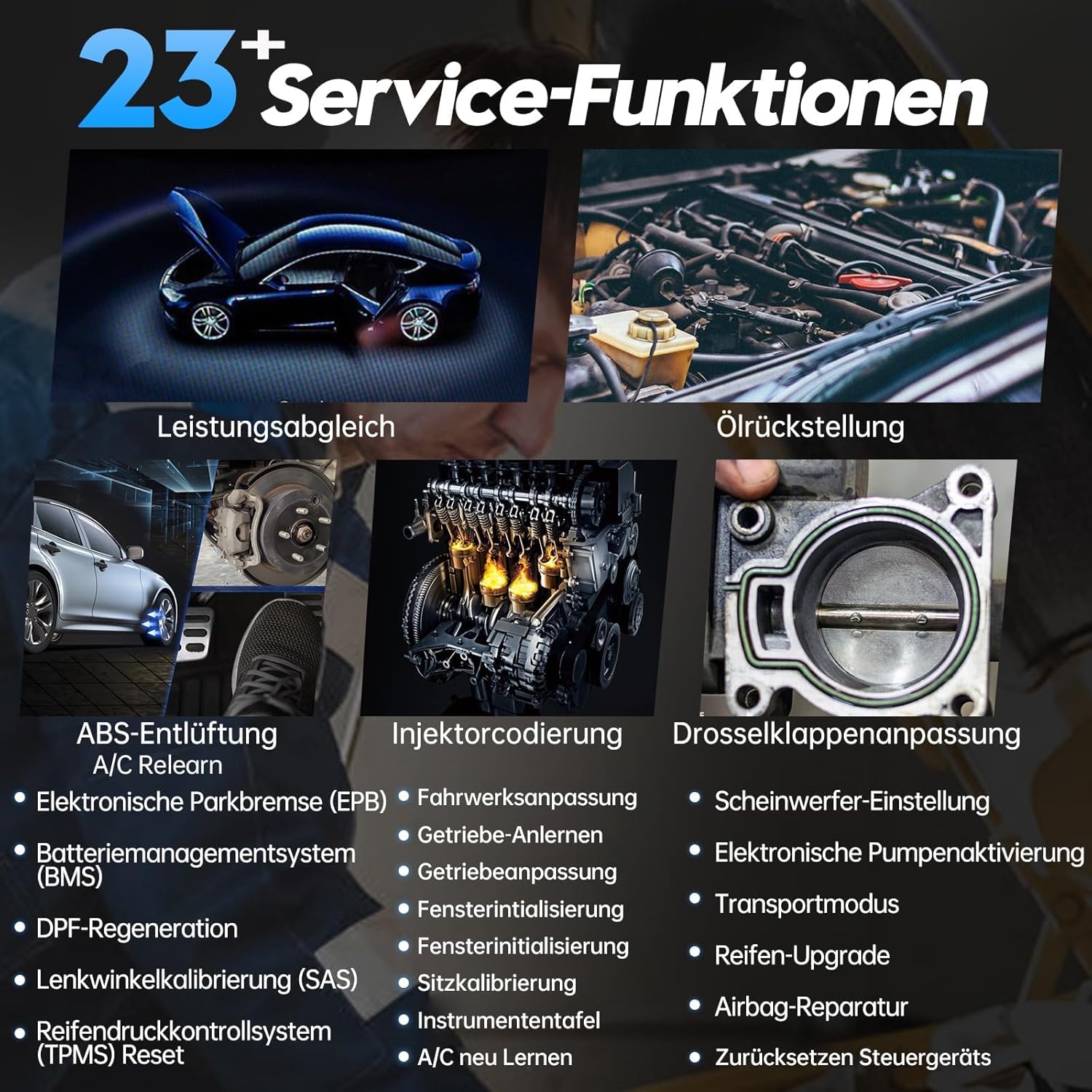
Figure 6: A visual representation of some of the 23+ service functions available, including power matching, oil reset, ABS bleeding, injector coding, throttle adaptation, and more.
4. 10 Modes of OBDII
The A30M supports all 10 modes of OBDII for basic engine diagnostics and emissions-related checks:
- Mode 01: Read Live Data Stream
- Mode 02: Read Freeze Frame Data
- Mode 03: Read Diagnostic Trouble Codes (DTCs)
- Mode 04: Clear DTCs
- Mode 05: O2 Sensor Test Results
- Mode 06: On-Board Monitoring Test Results for Non-Continuously Monitored Systems
- Mode 07: On-Board Monitoring Test Results for Continuously Monitored Systems
- Mode 08: Control of On-Board System, Test, or Component
- Mode 09: Request Vehicle Information (VIN, Calibration ID, etc.)
- Mode 0A: Request Emission-Related Diagnostic Trouble Codes with Permanent Status

Figure 7: Depicts the 10 modes of OBDII functionality, including reading/clearing fault codes, real-time data, freeze frame, I/M readiness, component test, O2 sensor test, on-board monitoring, vehicle information retrieval, and existing modules.

Figure 8: An example of the live data graphing feature, showing multiple data points simultaneously for detailed analysis of vehicle performance.
Maintenance
Software Updates
The XTOOL Anyscan A30M comes with lifetime free software updates. Regularly updating your device ensures you have the latest vehicle coverage, bug fixes, and new features.
- Connect your A30M to the internet via your smartphone/tablet's Wi-Fi or mobile data.
- Open the XTOOL Anyscan app and navigate to the "Update" section.
- Download and install any available updates. Ensure a stable internet connection during the update process.
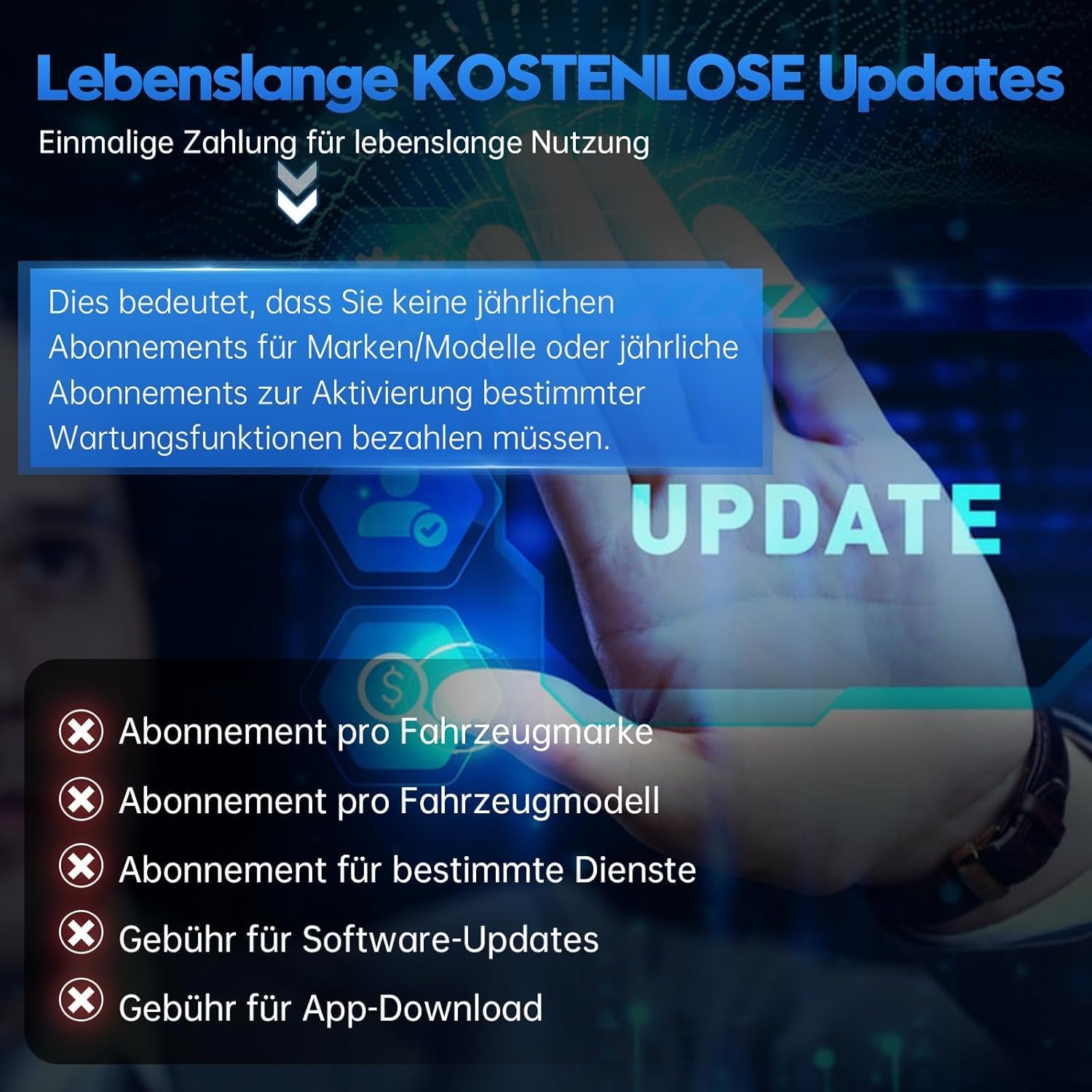
Figure 9: Highlights the benefit of lifetime free software updates, eliminating recurring subscription fees for vehicle brands, models, or specific maintenance functions.
Device Care
- Keep the device clean and free from dust and moisture. Use a soft, dry cloth for cleaning.
- Store the device in a cool, dry place when not in use.
- Avoid dropping the device or subjecting it to strong impacts.
Troubleshooting
| Problem | Possible Cause | Solution |
|---|---|---|
| Device does not power on. | Not properly connected to OBD-II port; vehicle ignition off. | Ensure the device is firmly plugged into the OBD-II port. Turn the vehicle ignition to the ON position (engine can be off). |
| Cannot connect via Bluetooth. | Bluetooth is off on mobile device; A30M not discoverable; interference. | Ensure Bluetooth is enabled on your phone/tablet. Restart the A30M by unplugging and replugging it. Try pairing again. Move closer to the device. |
| App shows "No Communication" with vehicle. | Incorrect vehicle protocol; faulty OBD-II port; device malfunction. | Verify vehicle compatibility. Check the vehicle's OBD-II port for damage. Try the device on another compatible vehicle if possible. Ensure the app is updated. |
| Specific service function not working. | Vehicle not supported for that function; incorrect procedure. | Check the compatibility list for your specific vehicle model and the desired function. Ensure you are following the in-app instructions precisely. Contact support if the issue persists. |
For further assistance, please refer to the support section.
Specifications
- Model: A30M (Anyscan A30M)
- Brand: XTOOL
- Item Weight: 100 grams
- Package Dimensions: 12.3 x 9.2 x 3.7 cm
- Battery: 1 Lithium-polymer (included, likely internal for device operation, not user replaceable)
- Operating System: Android & iOS
- Connectivity: Wireless Bluetooth
- Power Source: Vehicle OBD-II port
Warranty and Support
The XTOOL Anyscan A30M comes with a commitment to long-term support:
- Lifetime Free Software Updates: All software updates for the A30M are free for life, ensuring your device remains current with new vehicle models and diagnostic capabilities.
- 2-Year Online Technical Support: XTOOL provides 24/7 online technical support for two years from the date of purchase. If you encounter any issues or have questions regarding the device's operation or compatibility, please contact XTOOL customer service.
For support inquiries, please visit the official XTOOL website or use the contact information provided within the XTOOL Anyscan application.


