
XTREME DIGITAL LIFESTYLE ACCESSORIES XWC8-1023-BLK
Xtreme 10W Standing Desktop Wireless Smartphone Charger
Model: XWC8-1023-BLK
Brand: XTREME DIGITAL LIFESTYLE ACCESSORIES
Introduction
This manual provides essential information for the safe and efficient operation of your Xtreme 10W Standing Desktop Wireless Smartphone Charger. Please read this manual thoroughly before using the device and retain it for future reference.

Image: The Xtreme 10W Standing Desktop Wireless Smartphone Charger with a smartphone placed horizontally on the stand, indicating 75% charge. The charger is black with a blue LED indicator light.
Safety Precautions
- Do not expose the charger to water or excessive moisture.
- Avoid dropping or subjecting the charger to severe impacts.
- Do not disassemble, repair, or modify the charger.
- Keep the charger away from extreme temperatures and direct sunlight.
- Ensure proper ventilation around the charger during use.
- Use only compatible power sources as specified in the Specifications section.
Package Contents
- Xtreme 10W Standing Desktop Wireless Smartphone Charger
- USB Charging Cable
Note: A wall adapter is not included and must be purchased separately. For fast charging, a 2.0 Fast Charge Adapter is required.

Image: The retail packaging for the Xtreme Desktop Wireless Charger, highlighting its universal compatibility, 10W power, and smart LED indicator.
Setup
- Connect the Charger: Insert the smaller end of the included USB charging cable into the USB Type C port on the back of the wireless charger.
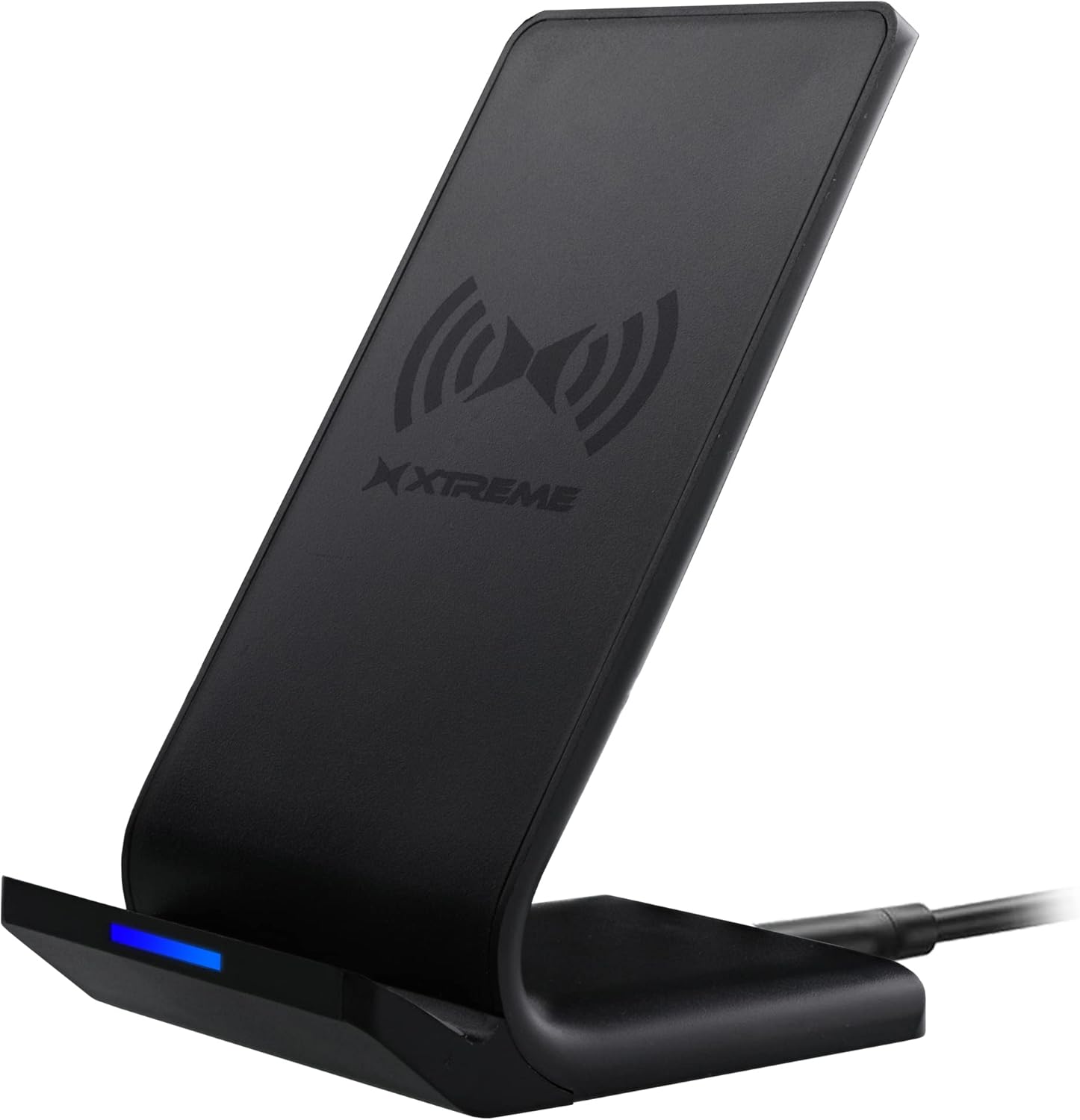
Image: The Xtreme wireless charging stand, showcasing its sleek black design and the USB cable connected to its base.
- Power Source: Connect the larger end of the USB cable to a compatible USB power source. This can be a USB port on a desktop computer, laptop, or a wall adapter (not included) plugged into a power outlet.
- For Regular Charging, any standard USB power source is sufficient.
- For Fast Charging, you must use a Quick Charge 2.0 or 3.0 compatible wall adapter.
- Power On: Once connected to a power source, the charger is ready for use. The LED indicator on the front of the charger will illuminate briefly to confirm power.
Operating Instructions
1. Placing Your Device
Ensure your smartphone supports wireless charging (Qi-enabled). Place your device directly onto the charging stand. The charger supports both horizontal and vertical orientations.

Horizontal Charging

Vertical Charging
The charger is designed to allow you to view videos, watch shows, or listen to music comfortably while your device is charging.
2. Charging Modes
The charger offers two charging modes:
- Regular Charging: Standard charging speed, compatible with any USB power source.
- Fast Charging: Provides faster charging speeds. This mode requires a Quick Charge 2.0 or 3.0 compatible wall adapter (not included).

Image: Visual representation of the two charging types supported by the device, showing a phone in both horizontal and vertical orientations.
3. LED Indicator
The LED indicator on the front of the charger provides status information:
- Blue Light: Indicates that the device is actively charging.
- Green Light: Indicates that the device is fully charged.
- Flashing Blue/Green: May indicate a foreign object detection or improper placement.

Image: A close-up view of the charger's base, highlighting the LED indicator light.
The charger is designed to stop charging once your device reaches 100% to protect the battery.
Maintenance
- To clean the charger, disconnect it from the power source and wipe it with a soft, dry cloth.
- Do not use abrasive cleaners or solvents.
- Store the charger in a cool, dry place when not in use.
Troubleshooting
| Problem | Possible Cause | Solution |
|---|---|---|
| Device not charging. |
|
|
| Slow charging. |
|
|
| LED indicator flashing. |
|
|
Specifications
| Model Number | XWC8-1023-BLK |
| Brand | XTREME DIGITAL LIFESTYLE ACCESSORIES |
| Connectivity Technology | Wireless |
| Connector Type | USB Type C |
| Compatible Devices | Smartphones (Qi-enabled) |
| Compatible Phone Models | iPhone, Qi-enabled Android devices |
| Included Components | Charger and Wire |
| Special Feature | Fast Charging |
| Color | Black |
| Input Voltage | 5 Volts |
| Mounting Type | Tabletop Mount |
| Package Dimensions | 6.2 x 4.7 x 1.3 inches |
| Item Weight | 8 ounces |
Warranty and Support
For warranty information or technical support, please refer to the contact information provided with your product packaging or visit the official Xtreme Digital Lifestyle Accessories website. Keep your purchase receipt as proof of purchase.
For additional support, you may visit the XTREME Store on Amazon: XTREME Digital Lifestyle Accessories Store
Related documentsXWC8-1023-BLK


Ask a question about this manual
Ask about setup, troubleshooting, compatibility, parts, safety, or missing instructions. Manuals+ will review the question and use this page’s manual context to help answer it.