
Introduction
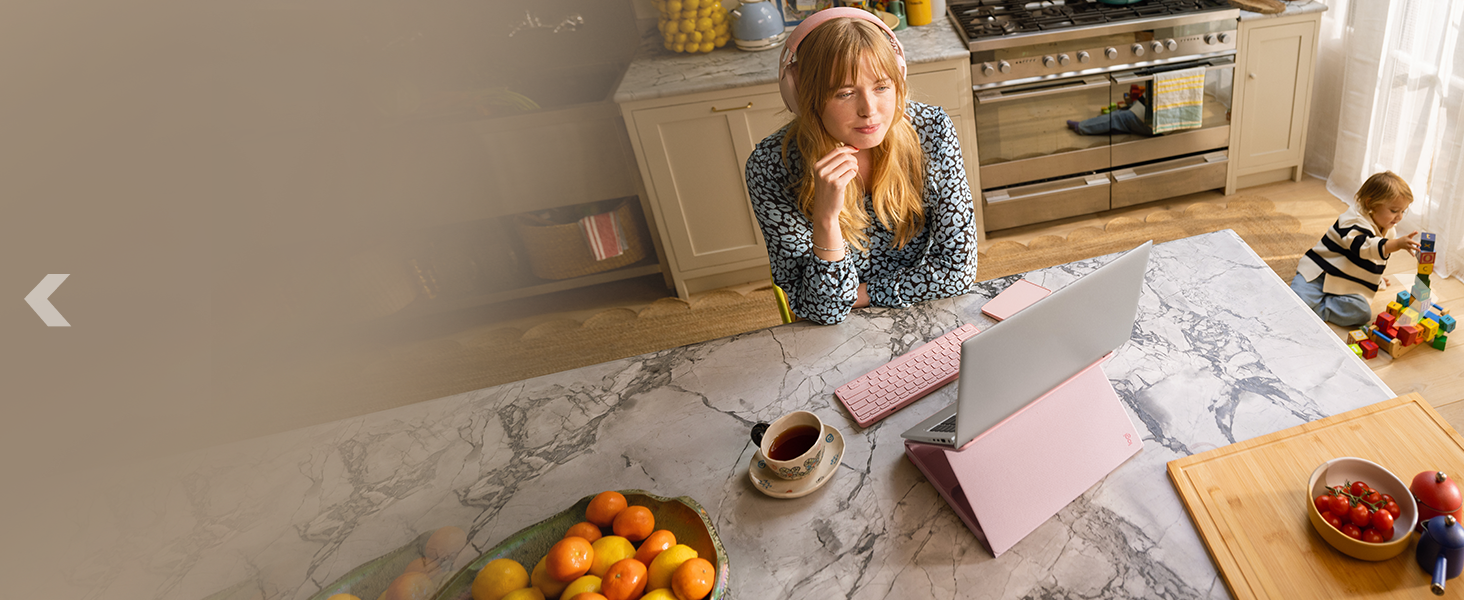
The Logitech Casa Pop-Up Desk Work From Home Kit provides a portable and ergonomic solution for creating a comfortable workspace anywhere in your home. This kit includes a foldable laptop stand (Casa Book), a wireless keyboard (Casa Keys), and a wireless touchpad (Casa Touch). Designed for versatility and ease of use, it supports laptops from 10 to 17 inches and connects via Bluetooth Low Energy to various operating systems including Windows, macOS, iPadOS, and ChromeOS.
Product Components
The Logitech Casa Pop-Up Desk Work From Home Kit includes the following items:
- Casa Keys: Wireless Keyboard
- Casa Touch: Wireless Touchpad
- Casa Book: Book-like case that transforms into a laptop stand
- USB-C Charging Cable: (USB-C to USB-C)
- User Documentation

Setup
1. Unpacking and Initial Inspection
Carefully remove all components from the packaging. Inspect each item for any signs of damage. Retain the packaging for future storage or transport.
2. Assembling the Casa Book Laptop Stand
- Place the Casa Book on a flat, stable surface.
- Gently unfold the book-like case to reveal the integrated laptop stand mechanism.
- Adjust the stand to your desired ergonomic height and angle. Ensure the laptop support arms are securely locked into place.
- Place your laptop (10" to 17") onto the stand, ensuring it rests securely on the rubberized grips to prevent slipping.
3. Connecting Casa Keys (Wireless Keyboard)
- Turn on the Casa Keys keyboard using the power switch.
- Activate Bluetooth on your computer or device.
- Press and hold one of the Easy-Switch keys (1, 2, or 3) on the keyboard for 3 seconds until the LED indicator blinks rapidly, indicating pairing mode.
- Select "Logitech Casa Keys" from the list of available Bluetooth devices on your computer and follow any on-screen prompts to complete pairing.
4. Connecting Casa Touch (Wireless Touchpad)
- Turn on the Casa Touch touchpad using the power switch.
- Ensure Bluetooth is active on your computer or device.
- Press and hold one of the Easy-Switch keys (1, 2, or 3) on the touchpad for 3 seconds until the LED indicator blinks rapidly.
- Select "Logitech Casa Touch" from the list of available Bluetooth devices on your computer and follow any on-screen prompts to complete pairing.
5. Initial Charging
Use the provided USB-C charging cable to charge both the Casa Keys keyboard and Casa Touch touchpad before first use. Connect the cable to the USB-C port on each device and to a powered USB-C port on your computer or a wall adapter. The LED indicator will show charging status.
Operating Instructions
1. Using the Casa Book Laptop Stand
The Casa Book stand elevates your laptop screen to eye level, promoting better posture. Adjust the height and angle by manipulating the scissor-like mechanism until a comfortable viewing position is achieved. The rubberized surface ensures laptop stability.
2. Using Casa Keys (Wireless Keyboard)
The Casa Keys keyboard offers a familiar typing experience with low-profile keys. It includes handy shortcut keys for media controls, emoji, dictation, and screen capture. Refer to the user documentation for a full list of shortcut functions specific to your operating system.
3. Using Casa Touch (Wireless Touchpad)
The Casa Touch touchpad provides smooth and precise navigation. It supports multi-touch gestures for scrolling, zooming, and other functions, similar to a laptop's integrated touchpad. Customize gestures and settings using the Logi Options+ app.
4. Multi-Device Connectivity (Easy-Switch)
Both Casa Keys and Casa Touch feature Easy-Switch buttons (1, 2, 3) allowing you to pair and switch between up to three different devices. Simply press the corresponding Easy-Switch button to instantly connect to a previously paired device.
Maintenance
1. Cleaning
- Devices (Keyboard & Touchpad): Use a soft, lint-free cloth lightly dampened with water or a mild, non-abrasive cleaner. Avoid harsh chemicals or abrasive materials.
- Laptop Stand: Wipe surfaces with a damp cloth. Ensure all components are dry before folding or storing.
2. Battery Care
To maximize battery life, charge the Casa Keys and Casa Touch regularly. Avoid fully discharging the batteries frequently. Store the devices in a cool, dry place when not in use for extended periods.
Troubleshooting
- Device Not Connecting:
- Ensure the devices are powered on and fully charged.
- Verify Bluetooth is enabled on your computer/device.
- Re-initiate pairing mode by holding the Easy-Switch button for 3 seconds.
- Try unpairing and re-pairing the device from your computer's Bluetooth settings.
- Intermittent Connectivity:
- Ensure devices are within the 10m (33 ft) wireless range.
- Minimize interference from other wireless devices.
- Update Bluetooth drivers on your computer.
- Laptop Slipping on Stand:
- Ensure the laptop is centered and resting firmly on the rubberized grips.
- Confirm the stand's support arms are fully extended and locked.
- The stand supports laptops from 10" to 17". Ensure your laptop fits within this range.
- Charging Issues:
- Use the provided USB-C cable.
- Try a different USB-C port or power adapter.
- Ensure the cable is securely connected to both the device and the power source.
Specifications
| Feature | Detail |
|---|---|
| Brand | Logitech |
| Model Number | 920-011238 |
| Item Weight | 1.2 kg (2.65 lbs) |
| Product Dimensions | 1.69 x 9.29 x 1.69 inches (folded) |
| Color | TAN / PURPLE |
| Hardware Platform | Laptop, PC |
| Operating System Compatibility | Windows, macOS, iPadOS, ChromeOS |
| Wireless Connectivity | Bluetooth Low Energy |
| Wireless Range | 10 m (33 ft) |
| Battery Type | Rechargeable Lithium Polymer (included) |
| Casa Keys Battery Life | Up to 5 months on a full charge |
| Casa Touch Battery Life | Up to 3 weeks on a full charge |
| Laptop Stand Compatibility | 10" to 17" laptops |

Warranty and Support
Logitech products are designed for durability and reliability. For detailed warranty information, please refer to the official Logitech website or the warranty card included with your product. For technical support, FAQs, and software downloads (such as Logi Options+ app for customization), visit the Logitech Store or the official Logitech support page.
Optional protection plans are available for purchase to extend coverage beyond the standard warranty period. These plans may include additional benefits such as accidental damage protection. For more details, please check the available protection plan options at the time of purchase.


