
Introduction
This user manual provides comprehensive instructions for the setup, operation, and maintenance of your Fanvil V64 VoIP Linux Wi-Fi HD Audio phone. Please read this manual carefully before using the device to ensure proper functionality and to prevent damage.
Package Contents
Upon opening the package, please verify that all items listed below are present and in good condition:
- 1 x FANVIL SIP-Phone V64
- 1 x Handset
- 1 x Handset Cord
- 1 x Ethernet Cable
- 1 x Power Adapter (if not PoE powered)
- 1 x Quick Installation Guide
Product Overview
Familiarize yourself with the components of your Fanvil V64 VoIP phone.

Figure 1: Front view of the Fanvil V64 VoIP phone. This image displays the main unit with its large color display, numeric keypad, function keys, and the attached handset.
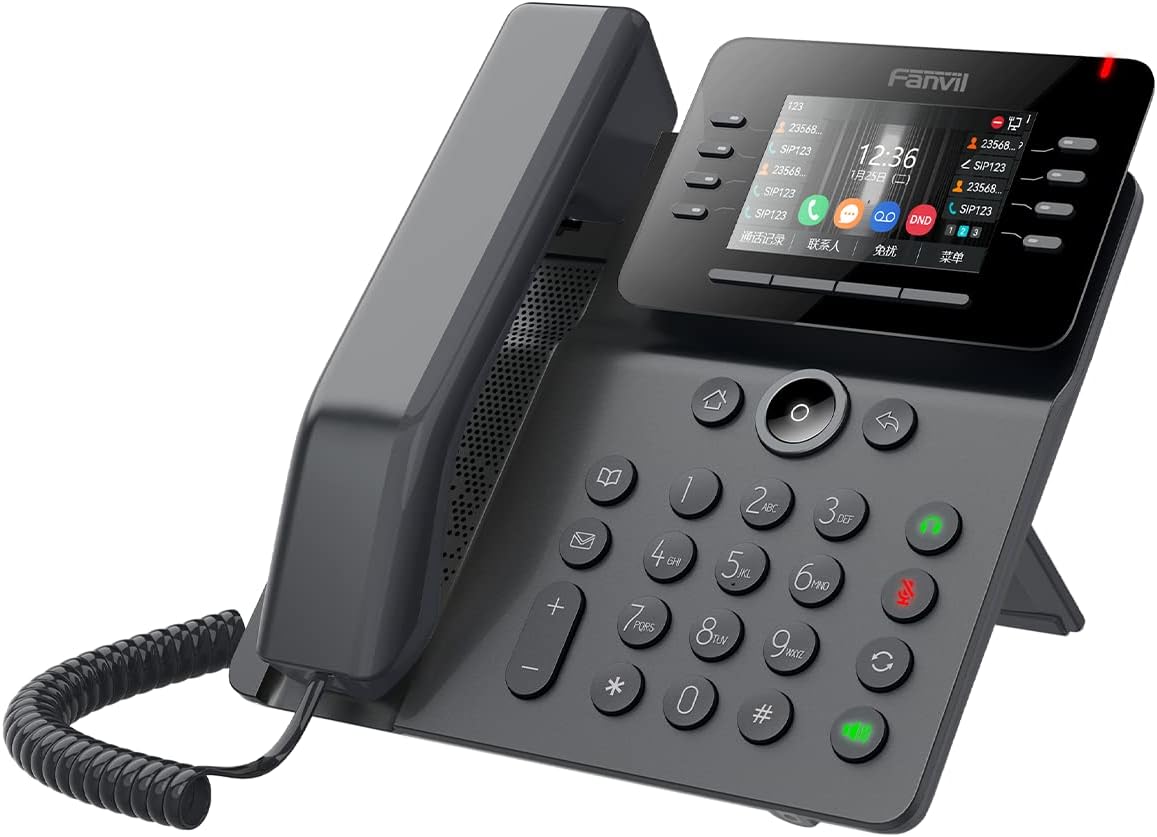
Figure 2: Angled view of the Fanvil V64 VoIP phone. This perspective highlights the ergonomic design of the phone, including the adjustable stand and the layout of the buttons.
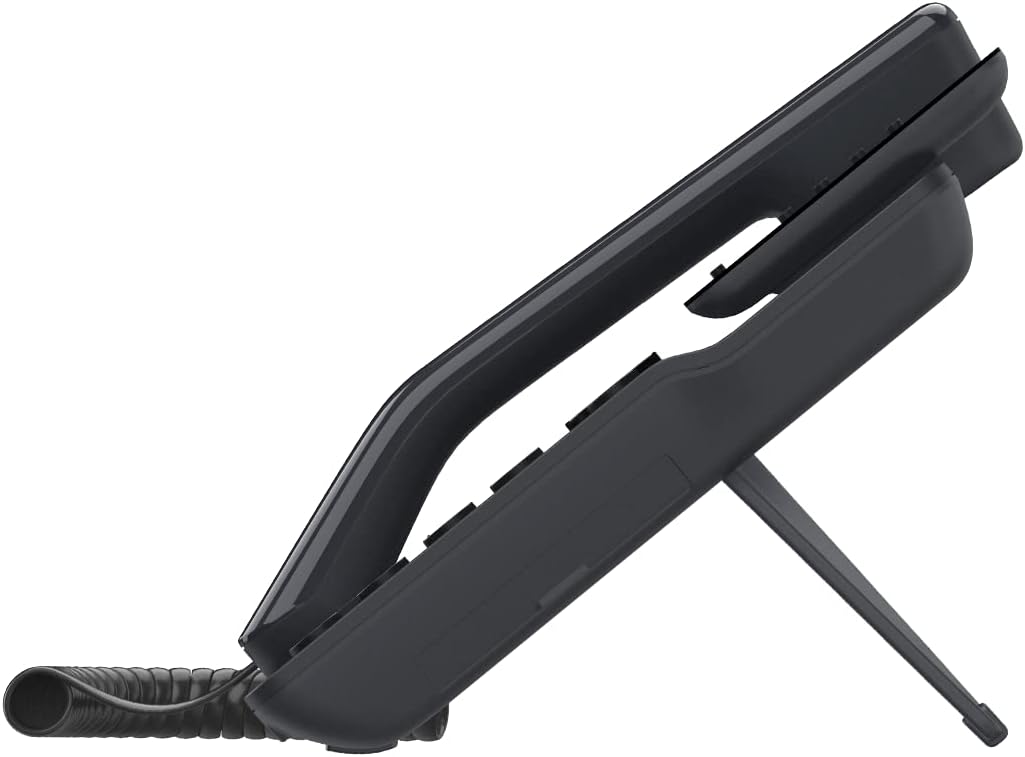
Figure 3: Side view of the Fanvil V64 VoIP phone. This image illustrates the integrated stand that allows the phone to be positioned at an optimal viewing angle on a desk.
Key Components:
- HD Audio Handset: For clear voice communication.
- Large Color Display: Provides call information, menu options, and status indicators.
- Programmable Line Keys: Customizable for speed dial, BLF, or other functions.
- Numeric Keypad: Standard 0-9 keys for dialing.
- Navigation Keys: For menu navigation.
- Function Keys: Hold, Transfer, Mute, Speakerphone, Headset, Voicemail, etc.
- Ethernet Ports: For network connection and PC pass-through.
- Power Port: For external power adapter (if not using PoE).
Setup
1. Connecting the Handset:
- Connect one end of the coiled handset cord to the handset.
- Connect the other end of the coiled handset cord to the handset port on the phone base unit.
2. Network Connection:
The Fanvil V64 supports both wired Ethernet and Wi-Fi connectivity.
Wired Connection (Ethernet):
- Connect one end of the Ethernet cable to the "Internet" or "WAN" port on the phone.
- Connect the other end of the Ethernet cable to a network switch, router, or wall jack.
- If your network supports Power over Ethernet (PoE), the phone will power on automatically.
Wireless Connection (Wi-Fi):
- Ensure the phone is powered on (via PoE or power adapter).
- Navigate to the phone's menu: Menu > Settings > Network > Wi-Fi.
- Enable Wi-Fi and select your desired network from the list.
- Enter the Wi-Fi password if prompted.
3. Power Connection:
If not using PoE, connect the power adapter to the "DC 12V" port on the phone and then plug the adapter into a power outlet.
4. Initial Configuration:
Once powered on, the phone will attempt to obtain an IP address. Your VoIP service provider or IT administrator will provide the necessary SIP account details for registration. Access the phone's web interface or use the on-screen menu to configure your SIP account.
Operating Instructions
Making a Call:
- Pick up the handset, press the Speakerphone button, or press a line key.
- Dial the desired phone number.
- Press the Dial or Send soft key, or wait for automatic dialing.
Answering a Call:
- Pick up the handset.
- Press the Speakerphone button.
- Press the flashing line key.
Ending a Call:
- Hang up the handset.
- Press the End Call soft key.
Call Features:
- Hold: Press the Hold button during a call. Press again to resume.
- Transfer: Press the Transfer button during a call, dial the new number, then press Transfer again (blind transfer) or wait for answer and press Transfer (attended transfer).
- Mute: Press the Mute button to mute your microphone. Press again to unmute.
- Redial: Press the Redial button to call the last dialed number.
- Voicemail: Press the Voicemail button to access your voicemail messages.
Maintenance
Cleaning:
- Use a soft, dry cloth to clean the phone's surface.
- For stubborn marks, lightly dampen the cloth with water.
- Do not use harsh chemicals, abrasive cleaners, or solvents, as these can damage the plastic and finish.
- Ensure the phone is unplugged before cleaning.
Storage:
Store the phone in a cool, dry place away from direct sunlight and extreme temperatures when not in use for extended periods.
Firmware Updates:
Periodically check the Fanvil official website or consult your IT administrator for available firmware updates to ensure optimal performance and security.
Troubleshooting
| Problem | Possible Cause | Solution |
|---|---|---|
| Phone does not power on. | No power connection or faulty power adapter/PoE. | Check power adapter connection or Ethernet cable for PoE. Try a different power outlet. |
| Cannot make/receive calls. | No network connection, SIP account not registered, or incorrect configuration. | Verify network cable connection or Wi-Fi status. Check SIP registration status on the phone's display. Contact your VoIP provider or IT administrator for SIP account details. |
| Poor audio quality (echo, static). | Network congestion, faulty cable, or microphone/speaker issue. | Check network connection stability. Try a different Ethernet cable. Adjust volume levels. If problem persists, contact support. |
| Wi-Fi connection issues. | Incorrect Wi-Fi password, out of range, or network interference. | Re-enter Wi-Fi password. Move phone closer to Wi-Fi router. Check for other devices causing interference. |
Specifications
| Feature | Detail |
|---|---|
| Brand | Fanvil |
| Model Number | V64 |
| Color | Black |
| Material | Plastic |
| Item Weight | 1.04 Kilograms |
| Dimensions (LxWxH) | 50 x 50 x 28 cm |
| Power Source | Corded Electric (or PoE) |
| Compatible Devices | Computer systems, VoIP services |
| Operating System | Linux-based |
| Audio Features | HD Audio |
| Connectivity | Wi-Fi, Ethernet |
Warranty and Support
For warranty information and technical support, please refer to the documentation provided with your purchase or visit the official Fanvil website. Keep your purchase receipt as proof of purchase for warranty claims.
For further assistance, you may contact your VoIP service provider or the reseller from whom you purchased the Fanvil V64 phone.


