
1. Introduction
This manual provides comprehensive instructions for the Varmilo MA Series V2 Koi TKL EC Mechanical Keyboard, model VA87M. It covers setup, operation, maintenance, and troubleshooting to ensure optimal performance and longevity of your device. The Varmilo MA Series V2 features an upgraded design with enhanced functionality and aesthetic details.

Figure 1.1: Varmilo MA Series V2 Koi TKL EC Mechanical Keyboard
2. Product Features
The Varmilo MA Series V2 Koi keyboard incorporates several key features designed for an enhanced user experience:
- Thick Dye Sub PBT Keycaps: Durable keycaps with legends that will not fade over time.
- Space-Saving TKL Form Factor: Tenkeyless design (87 keys) provides a compact footprint without sacrificing essential keys.
- USB-C Connectivity: Modern and reversible USB-C port for reliable connection.
- Original Varmilo Koi Colorway: Unique aesthetic design featuring Koi fish and traditional art.
- Genuine Varmilo Electrocapacitive Switches: Provides a smooth and consistent typing experience.
- Double-Section Kickstand: Upgraded kickstand offers multiple height adjustment options.
- North-Facing LEDs: Ensures optimal illumination for keycap legends.
- Cable Grooves: Integrated grooves on the bottom case allow for flexible cable routing (left, right, or middle).
- Sound-Proof Silicone Pads: Placed between the PCB and positioning plate to reduce typing noise.
- Relocated Indicator Lights: Indicator lights are moved to the top right to minimize distractions during use.
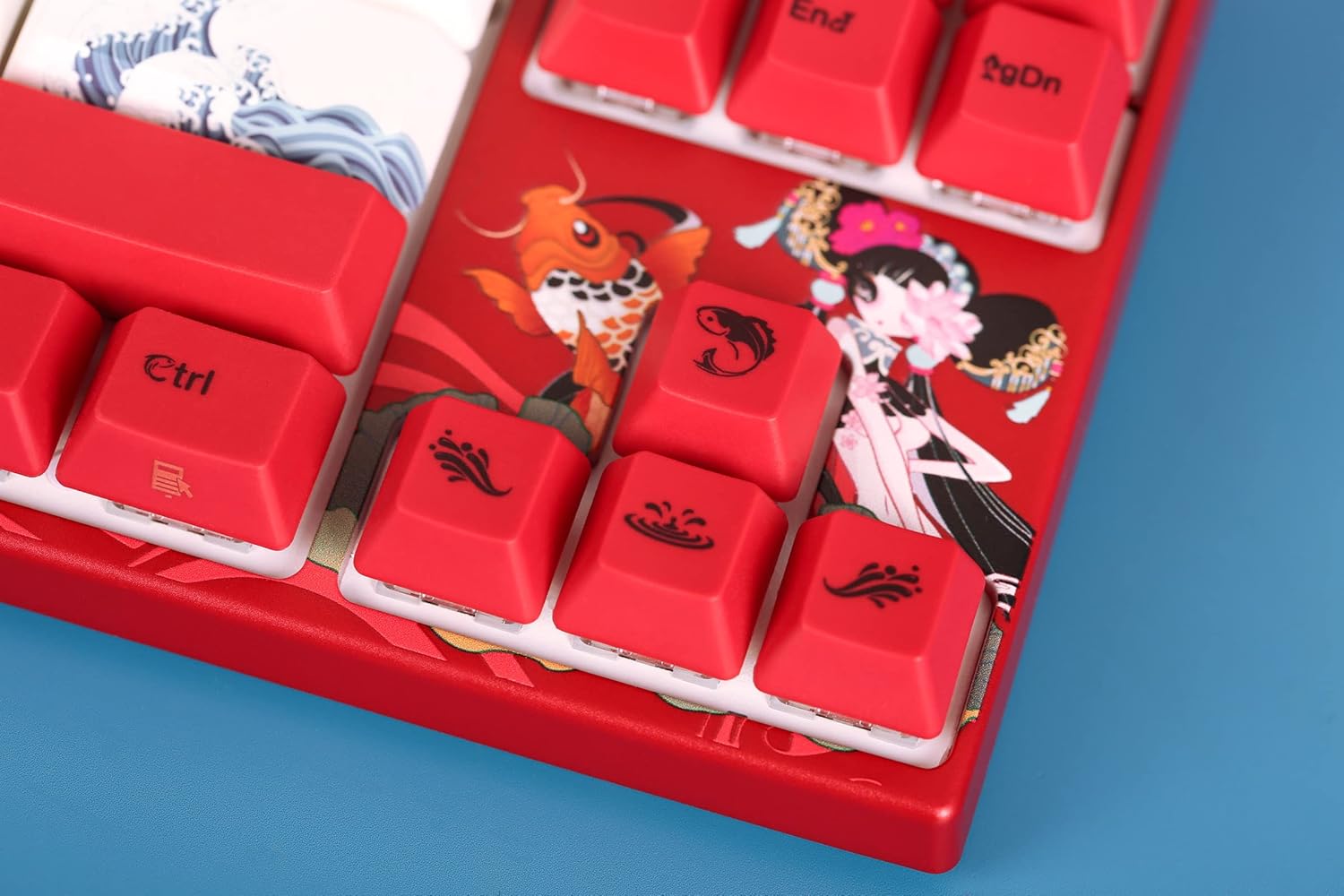
Figure 2.1: Detailed view of special keycaps
3. Package Contents
Upon opening the package, please verify that all the following items are included:
- Varmilo MA Series V2 Koi TKL EC Mechanical Keyboard (VA87M)
- USB-C Cable
- Keycap Puller
- Additional/Replacement Keycaps (specific to Koi design)
- User Manual (this document)

Figure 3.1: Included accessories: keycap puller and extra keycaps
4. Setup
Follow these steps to set up your Varmilo MA Series V2 Koi keyboard:
- Unpack the Keyboard: Carefully remove the keyboard and all accessories from the packaging.
- Connect the USB-C Cable: Insert one end of the provided USB-C cable into the USB-C port on the back of the keyboard.
- Route the Cable (Optional): Utilize the cable grooves on the bottom of the keyboard to route the USB-C cable to the left, right, or center, depending on your desk setup.
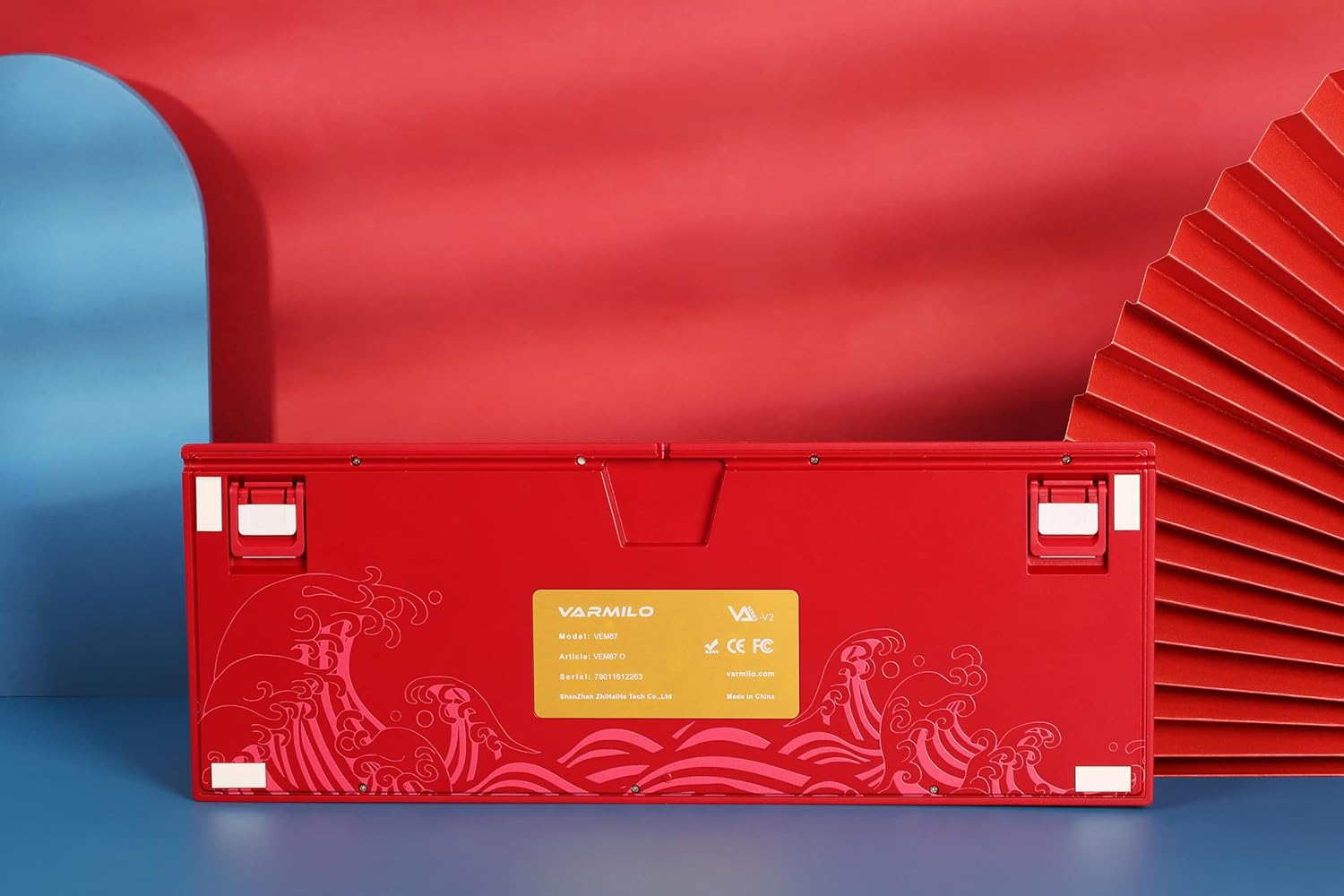
Figure 4.1: Bottom view with cable grooves and kickstands
- Connect to Computer: Plug the other end of the USB-C cable into an available USB port on your computer.
- Adjust Kickstands: Flip out the double-section kickstands on the bottom of the keyboard to adjust the typing angle to your preference.
- Driver Installation: The keyboard is plug-and-play and typically does not require specific drivers for basic functionality. Your operating system should automatically recognize the device.
5. Operating Instructions
The Varmilo MA Series V2 Koi keyboard operates as a standard mechanical keyboard. Below are some common functions and key combinations:
- Standard Typing: Use the alphanumeric keys for text input.
- Function Keys (F1-F12): These keys perform their standard functions. Some may have secondary multimedia or system functions accessible via the Fn key (if present and indicated on keycaps).
- Indicator Lights: Located on the top right, these lights indicate Caps Lock, Scroll Lock, and Num Lock status.
- Backlighting: The keyboard features single-color LED backlighting. Specific key combinations (often Fn + arrow keys or dedicated lighting keys) may control brightness or lighting modes. Refer to the keycap legends for specific lighting controls.
For advanced functions or specific key remapping, refer to any accompanying software or Varmilo's official support resources.
6. Maintenance
Proper maintenance ensures the longevity and performance of your keyboard.
- Cleaning Keycaps:
- Use the provided keycap puller to carefully remove keycaps.
- Clean keycaps with a soft cloth dampened with mild soap and water. Ensure they are completely dry before reattaching.
- Avoid harsh chemicals or abrasive materials.
- Cleaning the Keyboard Body:
- Use a soft, dry cloth to wipe down the keyboard body.
- For dust and debris between keys, use compressed air.
- Storage: Store the keyboard in a cool, dry place away from direct sunlight and extreme temperatures.
- Avoid Spills: Liquid spills can severely damage the keyboard. In case of a spill, immediately disconnect the keyboard and allow it to dry completely before attempting to use it again. Professional inspection may be required.
7. Troubleshooting
If you encounter issues with your Varmilo MA Series V2 Koi keyboard, try the following troubleshooting steps:
| Problem | Possible Cause | Solution |
|---|---|---|
| Keyboard not responding | Loose cable connection, faulty USB port, driver issue. |
|
| Keys not registering | Debris under keycap, faulty switch. |
|
| Backlighting not working | Lighting disabled, brightness set to minimum. |
|
If the problem persists after attempting these solutions, please contact Varmilo customer support.
8. Specifications
| Attribute | Detail |
|---|---|
| Model Number | VA87M |
| Keyboard Type | Mechanical, Electrocapacitive Switches |
| Form Factor | Tenkeyless (TKL), 87 Keys |
| Connectivity | USB-C (Corded Electric) |
| Keycap Material | Dye Sub PBT (Polybutylene Terephthalate) |
| Backlighting | Single Color LED |
| Colorway | Koi (Varmilo EC Rose V2) |
| Item Weight | 4.75 pounds |
| Package Dimensions | 17.83 x 7.83 x 7.28 inches |
| Manufacturer | Varmilo |
| First Available Date | July 12, 2022 |
9. Warranty and Support
For information regarding warranty coverage, returns, or technical support, please refer to the official Varmilo website or contact their customer service directly. Keep your purchase receipt as proof of purchase.
Varmilo Official Website: www.varmilo.com (Note: This is a placeholder URL as no specific support URL was provided in the input. Users should verify the correct official website.)

