
MARVO KG962W
Marvo KG962W Mechanical Gaming Keyboard User Manual
Model: KG962W
Introduction
This manual provides detailed instructions for the setup, operation, maintenance, and troubleshooting of your Marvo KG962W 2.4G BT Three Modes Wired Mechanical Gaming Keyboard. Please read this manual thoroughly before using the product to ensure proper functionality and longevity.

Figure 1: Top-down view of the Marvo KG962W Mechanical Gaming Keyboard.
Package Contents
Ensure all items are present in the package:
- Marvo KG962W Mechanical Gaming Keyboard
- USB Cable
- User Manual (this document)
Setup
Connecting the Keyboard
The Marvo KG962W supports three connection modes: Wired, 2.4G Wireless, and Bluetooth (BT).
1. Wired Mode
- Locate the USB cable provided in the package.
- Connect one end of the USB cable to the USB port on the keyboard.
- Connect the other end of the USB cable to an available USB port on your computer.
- The keyboard will be automatically recognized by your operating system.
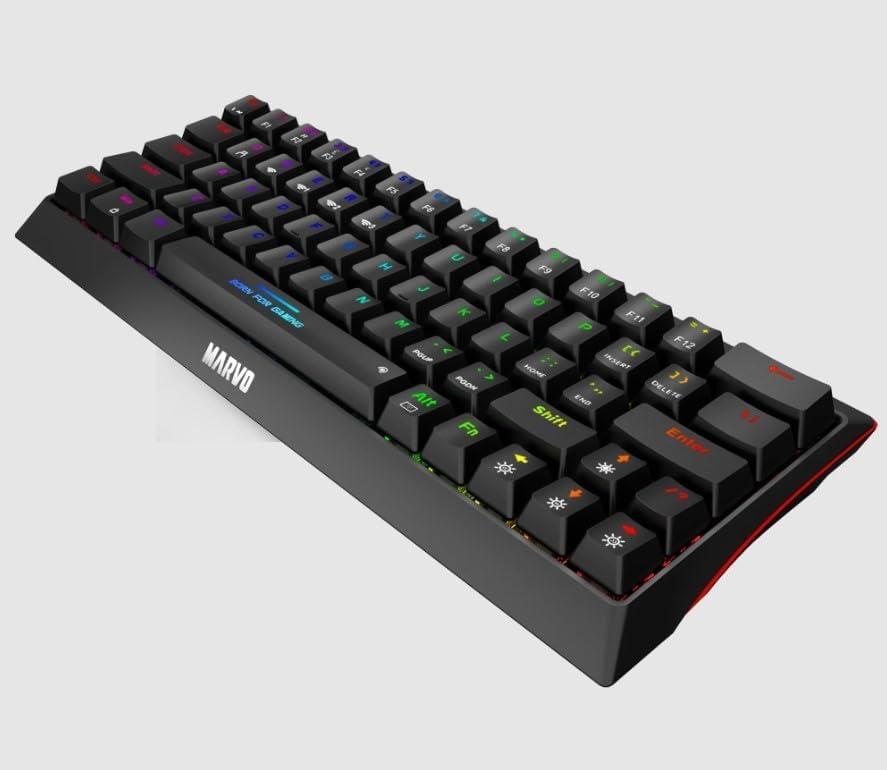
Figure 2: Connecting the USB cable for wired mode.
2. 2.4G Wireless Mode
- Locate the 2.4G USB receiver (dongle), typically stored in a compartment on the keyboard.
- Plug the 2.4G USB receiver into an available USB port on your computer.
- Switch the mode selector on the keyboard to the "2.4G" position.
- The keyboard should connect automatically. If not, press and hold the Fn + R key combination for 3 seconds to initiate pairing.
3. Bluetooth (BT) Mode
- Switch the mode selector on the keyboard to the "BT" position.
- On your computer or device, enable Bluetooth and search for new devices.
- On the keyboard, press and hold Fn + Q, Fn + W, or Fn + E for 3 seconds to enter pairing mode for BT1, BT2, or BT3 respectively. The indicator light will flash rapidly.
- Select "Marvo KG962W" from the list of available Bluetooth devices on your computer.
- Follow any on-screen prompts to complete the pairing process. The indicator light will stop flashing once connected.

Figure 3: Keyboard in an angled view, illustrating its compact design.
Operating Instructions
Basic Functions
- Typing: Use the standard QWERTY layout for typing.
- Function Keys (Fn): The Fn key is used in combination with other keys to access multimedia controls, lighting effects, and other special functions.
Multimedia and Shortcut Keys
Press the Fn key in combination with the following keys for multimedia and system shortcuts:
| Key Combination | Function |
|---|---|
| Fn + F1 | Media Player |
| Fn + F2 | Volume Down |
| Fn + F3 | Volume Up |
| Fn + F4 | Mute |
| Fn + F5 | Stop |
| Fn + F6 | Previous Track |
| Fn + F7 | Play/Pause |
| Fn + F8 | Next Track |
| Fn + F9 | |
| Fn + F10 | Web Browser |
| Fn + F11 | My Computer |
| Fn + F12 | Calculator |
| Fn + Win | Lock/Unlock Windows Key |
RGB Lighting Control
The keyboard features customizable RGB lighting. Use the following combinations to adjust lighting effects:
- Fn + |: Cycle through lighting modes.
- Fn + ↑: Increase brightness.
- Fn + ↓: Decrease brightness.
- Fn + ←: Decrease lighting speed.
- Fn + →: Increase lighting speed.
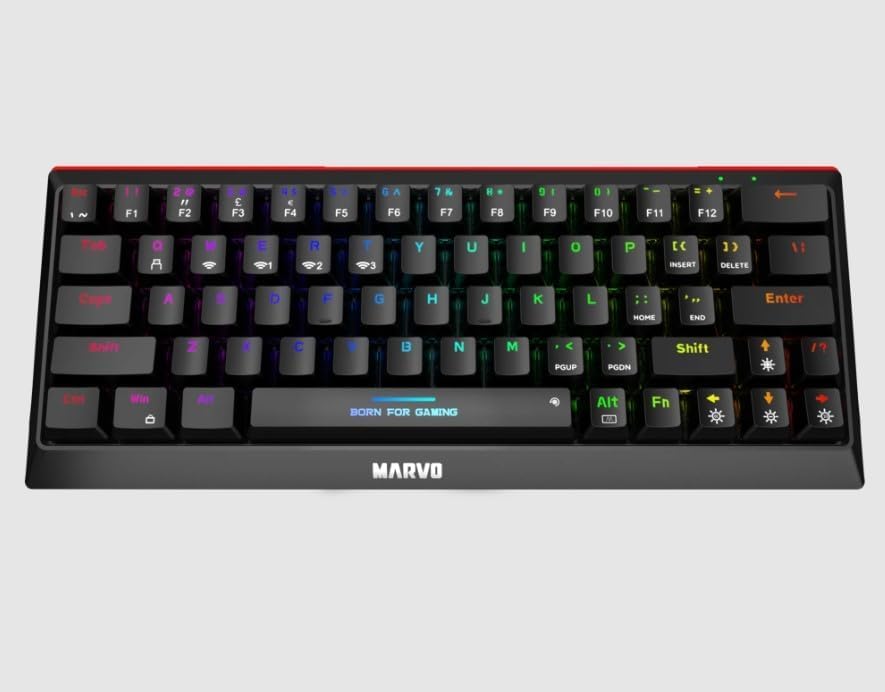
Figure 4: Keyboard showcasing its RGB lighting capabilities.
Maintenance
Proper maintenance ensures the longevity and optimal performance of your keyboard.
Cleaning
- General Cleaning: Use a soft, lint-free cloth slightly dampened with water or a mild cleaning solution to wipe the surface of the keyboard. Avoid harsh chemicals.
- Keycap Cleaning: For deeper cleaning, keycaps can be carefully removed using a keycap puller (not included). Clean the keycaps with mild soap and water, then ensure they are completely dry before reattaching.
- Dust Removal: Use compressed air to remove dust and debris from between the keycaps and switches.
Storage
When not in use for extended periods, store the keyboard in a cool, dry place away from direct sunlight and extreme temperatures.

Figure 5: Front angled view of the keyboard, suitable for illustrating cleaning access.
Troubleshooting
If you encounter issues with your Marvo KG962W keyboard, refer to the following common problems and solutions:
| Problem | Possible Cause | Solution |
|---|---|---|
| Keyboard not responding (Wired Mode) | Loose USB connection, faulty USB port, driver issue. | Ensure USB cable is securely connected. Try a different USB port. Restart your computer. Check Device Manager for driver issues. |
| Keyboard not responding (2.4G Wireless Mode) | Low battery, receiver not plugged in, interference, not paired. | Charge the keyboard. Ensure 2.4G receiver is plugged in. Move closer to the receiver. Re-pair by holding Fn + R for 3 seconds. |
| Keyboard not responding (Bluetooth Mode) | Low battery, Bluetooth not enabled on device, not paired, interference. | Charge the keyboard. Ensure Bluetooth is enabled on your device. Re-pair by holding Fn + Q/W/E for 3 seconds. Reduce distance to device. |
| RGB lighting not working | Lighting turned off, brightness set to minimum, software conflict. | Press Fn + | to cycle modes. Press Fn + ↑ to increase brightness. Check for any conflicting software. |
| Keys are sticky or unresponsive | Debris under keycap, faulty switch. | Clean under the keycap using compressed air. If issue persists for a specific key, it may indicate a faulty switch requiring professional service. |

Figure 6: Rear angled view of the keyboard, useful for identifying mode switches or battery compartments.
Specifications
| Feature | Detail |
|---|---|
| Model | KG962W |
| Connectivity | Wired (USB), 2.4G Wireless, Bluetooth (BT) |
| Keyboard Type | Mechanical Gaming Keyboard |
| Lighting | RGB Backlighting |
| Package Dimensions | 13.46 x 5.91 x 1.89 inches |
| Item Weight | 1.74 pounds |
| Manufacturer | Marvo |
| Language | English |
| ASIN | B0B6835LZL |
| Date First Available | August 1, 2022 |
Warranty Information
Specific warranty details for the Marvo KG962W keyboard are not provided in this document. Please refer to the product packaging or the official Marvo website for the most up-to-date warranty policy.
Support
For technical support or further assistance, please visit the official MARVO website or contact their customer service department. Contact information is typically available on the manufacturer's website or product packaging.
You can also visit the MARVO Store on Amazon for more product information.
Related documentsKG962W

Ask a question about this manual
Ask about setup, troubleshooting, compatibility, parts, safety, or missing instructions. Manuals+ will review the question and use this page’s manual context to help answer it.