
1. Product Overview
The HP Pavilion 14" 2-in-1 Touchscreen FHD Laptop, Model ek0013dx, is a versatile computing device designed for various tasks. Its innovative 360-degree hinge allows for seamless transitions between laptop, tablet, tent, and stand modes, adapting to your needs. This model features a 14.0-inch Full HD (1920 x 1080) multitouch-enabled IPS display, providing clear visuals with wide-viewing angles.
Powered by a 12th Generation Intel Core i3-1215U processor and equipped with 8 GB DDR4-3200 MHz RAM and a 256 GB PCIe NVMe M.2 SSD, the laptop delivers responsive performance for everyday computing. Audio is enhanced by B&O with dual speakers, and connectivity includes 802.11a/b/g/n/ac (2x2) Wi-Fi and Bluetooth combo. The device also supports HP Fast Charge, allowing for quick battery replenishment.

Figure 1: HP Pavilion 14" 2-in-1 Laptop in traditional laptop mode.
Key Features:
- Display: 14.0-inch diagonal, FHD (1920 x 1080), multitouch-enabled, IPS, edge-to-edge glass, microedge.
- Processor: 12th Generation Intel Core i3-1215U.
- Memory: 8 GB DDR4-3200 MHz RAM (onboard).
- Internal Storage: 256 GB PCIe NVMe M.2 SSD.
- Graphics: Intel Iris Xe Graphics.
- Wireless: 802.11a/b/g/n/ac (2x2) Wi-Fi and Bluetooth combo.
- Camera: HP Wide Vision 720p HD camera with temporal noise reduction.
- Audio: Audio by B&O with dual speakers.
- Battery: HP Fast Charge capable.
- Operating System: Windows 11 Home in S mode.
2. Setup Guide
2.1 Unboxing and Package Contents
Carefully remove all components from the packaging. Ensure the following items are present:
- HP Pavilion 14" 2-in-1 Laptop
- AC Adapter
2.2 Initial Power On
- Connect the AC adapter to the laptop's power port and then to a power outlet.
- Open the laptop lid.
- Press the power button, typically located on the side or top right of the keyboard deck.
- Follow the on-screen instructions to complete the initial Windows 11 setup.
2.3 Connecting to a Wireless Network
- During Windows setup or after logging in, click the Wi-Fi icon in the taskbar.
- Select your desired wireless network from the list.
- Enter the network security key (password) if prompted.
- Click 'Connect'.
3. Operating Instructions
3.1 Power Management
- Power On: Press the power button.
- Sleep Mode: Close the lid or select 'Sleep' from the Start menu.
- Shut Down: Select 'Shut down' from the Start menu.
- Restart: Select 'Restart' from the Start menu.
3.2 Using the 2-in-1 Functionality
The HP Pavilion x360 features a 360-degree hinge, allowing it to transform into multiple modes:
- Laptop Mode: Traditional laptop use with keyboard and touchpad.
- Tent Mode: Fold the display back to form an inverted 'V' shape, ideal for watching videos or presentations in confined spaces.
- Stand Mode: Fold the display back further, resting the keyboard face down, to use the screen as a display.
- Tablet Mode: Fold the display completely back against the base, disabling the keyboard and touchpad, for full touchscreen tablet functionality.
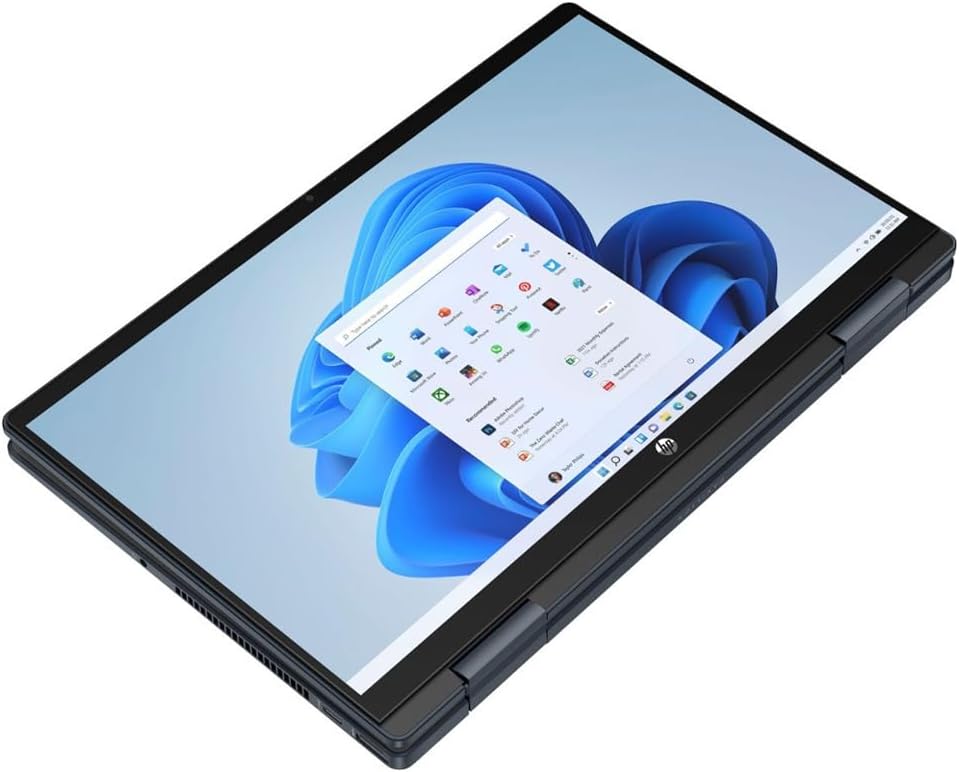
Figure 2: HP Pavilion 14" 2-in-1 Laptop in tablet mode.
3.3 Touchscreen Operation
The touchscreen supports multi-touch gestures for intuitive navigation:
- Tap: Equivalent to a mouse click.
- Tap and Hold: Equivalent to a right-click.
- Pinch-to-Zoom: Use two fingers to zoom in or out.
- Swipe: Move across the screen to scroll or navigate.
3.4 Ports and Connections
Familiarize yourself with the available ports for connecting external devices:

Figure 3: Side view of the laptop with ports.
- USB Ports: Connect USB devices such as external drives, mice, or keyboards.
- HDMI Port: Connect to an external monitor or TV.
- Headphone/Microphone Combo Jack: For audio input/output.
- SD Card Reader: Insert SD cards for data transfer.
4. Maintenance
4.1 Cleaning the Laptop
- Screen: Use a soft, lint-free cloth slightly dampened with water or a screen cleaner. Avoid harsh chemicals.
- Keyboard and Chassis: Use a soft, dry cloth. For stubborn dirt, a slightly dampened cloth is acceptable. Ensure no liquid enters openings.
4.2 Battery Care
- To prolong battery life, avoid fully discharging the battery frequently.
- Store the laptop in a cool, dry place when not in use for extended periods.
- Utilize HP Fast Charge for quick power-ups when needed.
4.3 Software Updates
Regularly update your Windows operating system and device drivers to ensure optimal performance, security, and compatibility. Windows Update typically handles this automatically, but you can manually check for updates in the Settings menu.
5. Troubleshooting
5.1 Common Issues and Solutions
- Laptop does not power on: Ensure the AC adapter is securely connected and the power outlet is functional. Try a different outlet.
- Display issues (no image, flickering): Connect an external monitor to check if the issue is with the laptop's display. Restart the laptop.
- Wi-Fi connectivity problems: Check if Wi-Fi is enabled. Restart your router and modem. Ensure correct network password.
- Slow performance: Close unnecessary applications. Check for background updates. Ensure sufficient free storage space.
- Touchscreen unresponsive: Restart the laptop. Ensure the screen is clean and free of debris.
5.2 Additional Support
For more complex issues, refer to the HP support website or contact HP customer service.
6. Specifications
| Feature | Specification |
|---|---|
| Model Name | HP Pavilion (ek0013dx) |
| Display Size | 14.0 Inches |
| Screen Resolution | 1920 x 1080 pixels (FHD) |
| Processor | 12th Generation Intel Core i3-1215U (3.3 GHz) |
| RAM | 8 GB DDR4-3200 MHz |
| Hard Drive | 256 GB PCIe NVMe M.2 SSD |
| Graphics Coprocessor | Intel Iris Xe Graphics |
| Wireless Type | 802.11a/b/g/n/ac (2x2) Wi-Fi, Bluetooth |
| Operating System | Windows 11 Home in S mode |
| Item Weight | 3.3 pounds |
| Product Dimensions | 12.68 x 8.27 x 0.74 inches |
| Color | Blue |
| Batteries | 1 Lithium Ion battery (included) |
7. Warranty and Support
7.1 Product Warranty
This HP Pavilion laptop is covered by a manufacturer's warranty. For detailed information regarding warranty terms, duration, and coverage, please refer to the warranty documentation included with your product or visit the official HP support website.
7.2 Customer Support
Should you require technical assistance, troubleshooting guidance, or service, please contact HP customer support. Support options typically include online resources, phone support, and authorized service centers. Have your product model number (ek0013dx) and serial number ready when contacting support.
8. Product Videos
8.1 Laptop Overview
Video 1: A general overview of the HP Pavilion x360 laptop, highlighting its design and features. This video provides a visual introduction to the product's capabilities and physical attributes.


