
Introduction
The Logitech Signature M650 L is a full-size wireless mouse designed for users with larger hands, offering enhanced comfort and productivity. It features silent clicks, customizable side buttons, and versatile connectivity options to suit various computing environments.

Figure 1: Top view of the Logitech Signature M650 L Wireless Mouse.
Key Features
- SmartWheel Scrolling: Provides line-by-line precision for documents and super-fast scrolling for long web pages.
- Optimal Fit: Ergonomically designed full-size mouse for larger hands, ensuring comfort during extended use.
- Enhanced Comfort: Features a contoured shape, soft thumb area, and rubber side grips for a secure and comfortable hold.
- Dual Connectivity: Connects instantly via Bluetooth Low Energy or the Logi Bolt USB receiver.
- SilentTouch Technology: Reduces click noise by 90% for a quieter working environment.
- Customizable Side Buttons: Personalize side buttons with favorite shortcuts using Logitech Options+ software (available on Windows and macOS).
- Extended Battery Life: Operates for up to 24 months on a single AA battery (included).
- Multi-Platform Compatibility: Seamlessly works with Windows, macOS, Linux, Chrome OS, iPadOS, and Android operating systems.
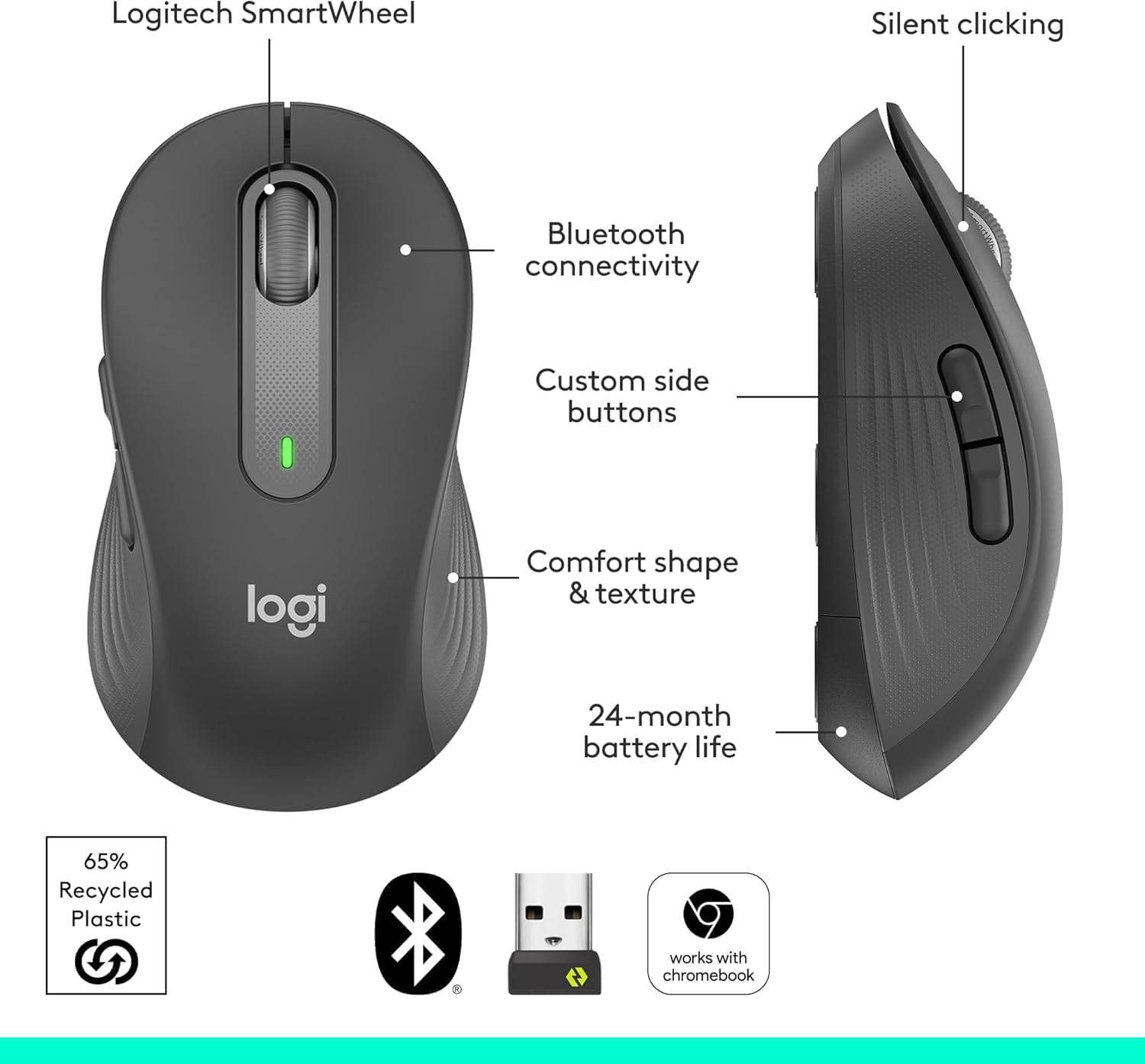
Figure 2: Overview of key features including SmartWheel, silent clicking, Bluetooth, customizable buttons, comfort, and battery life.
Setup
1. Battery Installation
- Locate the battery compartment cover on the underside of the mouse.
- Slide the cover open to reveal the battery slot.
- Insert the included AA battery, ensuring correct polarity (+/-).
- Close the battery compartment cover securely.
Figure 3: The underside of the mouse showing the battery compartment and USB receiver storage.
2. Connectivity Options
2.1. Logi Bolt USB Receiver Connection
- Remove the Logi Bolt USB receiver from its storage slot inside the battery compartment.
- Plug the Logi Bolt USB receiver into an available USB port on your computer.
- Turn on the mouse using the power switch on the bottom. The mouse should automatically connect.
2.2. Bluetooth Low Energy Connection
- Turn on the mouse using the power switch on the bottom.
- Press and hold the Bluetooth pairing button on the bottom of the mouse until the LED indicator starts blinking rapidly.
- On your computer or device, navigate to Bluetooth settings and select "Logitech M650 L" from the list of available devices to pair.
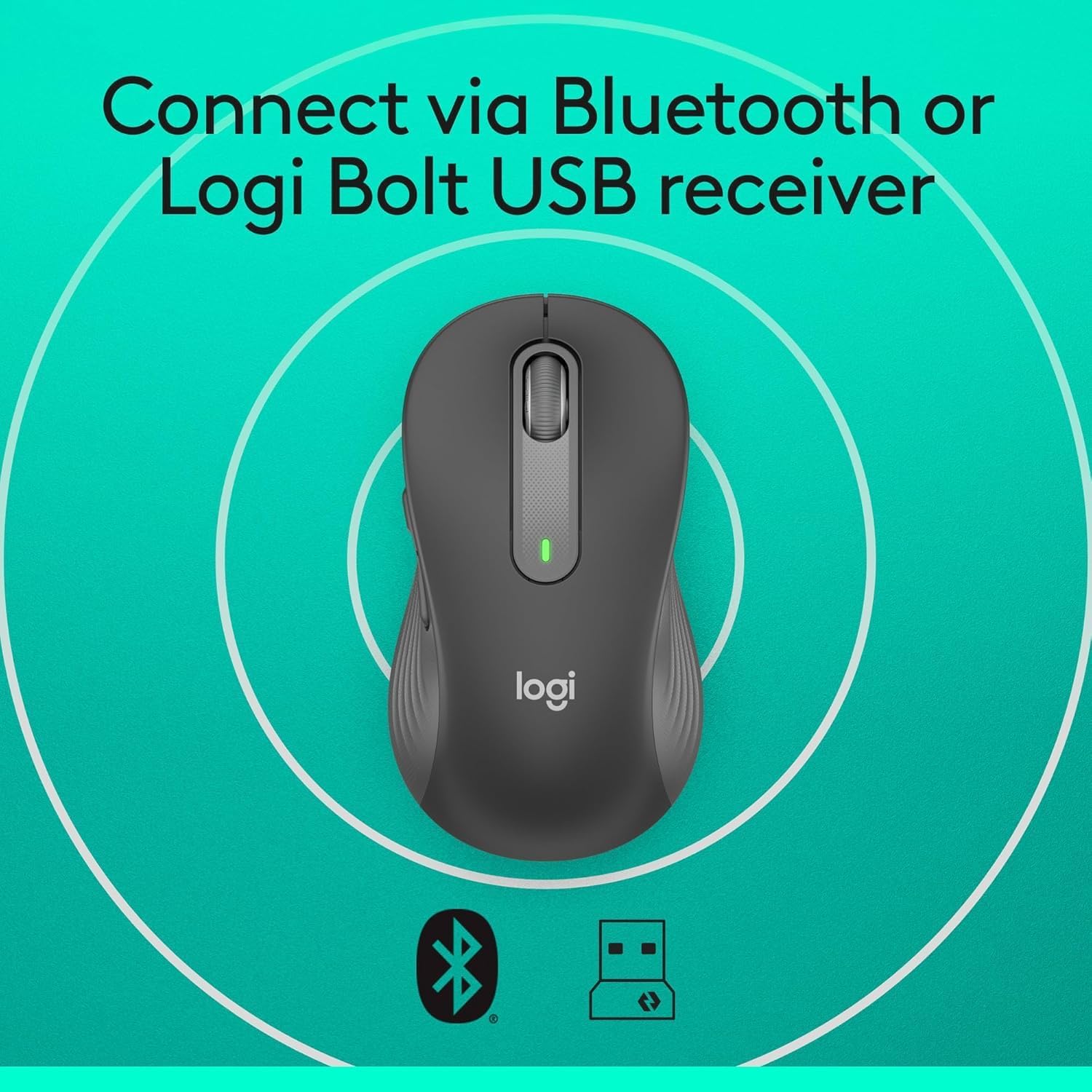
Figure 4: The mouse highlighting its dual connectivity options: Bluetooth and Logi Bolt USB receiver.
Operating Instructions
1. Basic Mouse Functions
- Left-Click: Primary button for selecting items and interacting with software.
- Right-Click: Secondary button for context menus and additional options.
- SmartWheel: Scroll up or down for navigation. The SmartWheel automatically switches between line-by-line precision and super-fast scrolling.

Figure 5: Close-up of the SmartWheel, demonstrating its dual-mode scrolling capability.
2. Customizable Side Buttons
The two side buttons on the Logitech Signature M650 L can be customized to perform various functions, such as back/forward navigation or copy/paste. To customize these buttons:
- Download and install the Logitech Options+ software from the official Logitech website.
- Open the Logitech Options+ software and select your M650 L mouse.
- Follow the on-screen instructions to assign desired shortcuts to the side buttons.

Figure 6: The customizable side buttons and an example of the Logitech Options+ software interface.
Maintenance
1. Battery Replacement
The Logitech Signature M650 L uses one AA battery. When the battery is low, the LED indicator on the mouse will flash red. To replace the battery, follow the installation steps outlined in the "Setup" section.
2. Cleaning
To maintain optimal performance, regularly clean your mouse. Use a soft, lint-free cloth to wipe the exterior. For the optical sensor on the bottom, use a dry cotton swab to gently remove any dust or debris.
Troubleshooting
1. Connectivity Issues
- No Connection (Logi Bolt): Ensure the Logi Bolt USB receiver is securely plugged into a working USB port. Try a different USB port.
- No Connection (Bluetooth): Verify that Bluetooth is enabled on your device. Re-initiate the Bluetooth pairing process as described in the "Setup" section.
- Intermittent Connection: Check the mouse battery level. Ensure the mouse is within range of your device (typically up to 10 meters). Avoid interference from other wireless devices.
2. Cursor Movement Irregularities
- Jumpy or Erratic Cursor: Clean the optical sensor on the bottom of the mouse. Ensure you are using the mouse on a suitable surface; highly reflective or uneven surfaces can affect tracking.
- No Cursor Movement: Check if the mouse is powered on and connected. Replace the battery if necessary.
Product Specifications
| Product Dimensions | 4.65 x 2.58 x 1.63 inches |
| Item Weight | 3.92 ounces |
| Item Model Number | M650 L |
| Batteries | 1 AA batteries required (included) |
| Brand | Logitech |
| Connectivity Technology | Bluetooth, Radio Frequency (Logi Bolt USB receiver) |
| Special Features | Lightweight, Portable, Silent Clicks (SilentTouch), Wireless |
| Movement Detection Technology | Optical |
Warranty and Support
Warranty Information
For detailed warranty information regarding your Logitech Signature M650 L Wireless Mouse, please refer to the official Logitech website or the warranty card included with your product. As a renewed product, it is eligible for replacement or refund under the Amazon Renewed Guarantee.
Customer Support
Should you encounter any issues or require further assistance, please visit the Logitech support website for FAQs, troubleshooting guides, and contact options.