1. Introduction
The LILYGO T-Echo is a versatile development board designed for Meshtastic firmware, enabling long-range, off-grid communication. It integrates a 915MHz LoRa SX1262 wireless module, NRF52840 advanced Bluetooth 5 SoC, GPS, RTC, and NFC capabilities. This manual provides essential information for setting up, operating, and maintaining your T-Echo device.
2. Product Overview
2.1 Key Features
- Adaptable to Meshtastic firmware for mesh networking.
- Features NRF52840 Advanced Bluetooth 5 for multi-protocol support (Thread, Zigbee).
- Integrated LoRa SX1262 for long-range, low-power wireless communication.
- Includes GPS, RTC (Real-Time Clock), and NFC functionalities.
- Equipped with a 1.54-inch E-Paper display for low power consumption.
- Does not include a BME280 temperature pressure sensor in this specific model.
2.2 Components and Layout
The LILYGO T-Echo device features a compact design with an integrated antenna and an E-Paper display. Key components include the main board, antenna, and user interface buttons.

Figure 2.1: Front view of the LILYGO T-Echo Meshtastic Wireless Module.

Figure 2.2: Various angles of the LILYGO T-Echo, showcasing its compact form factor and antenna.

Figure 2.3: Detailed pinmap of the LILYGO T-Echo nRF52840 board, illustrating connections for LoRa, GPS, NFC, and various I/O pins.
3. Specifications
| Attribute | Value |
|---|---|
| Item Weight | 5.9 ounces |
| Product Dimensions | 5 x 2.1 x 0.96 inches |
| Country of Origin | China |
| Batteries | 1 Lithium Ion battery required (included) |
| Display Size | 1.54 Inches |
| Supports Bluetooth | Bluetooth 5 |
| Connectivity Technology | USB |
| Included Components | Battery with 850mAh capacity |
4. Setup
4.1 Initial Preparation
Before first use, ensure the device is fully charged using the provided USB cable. The T-Echo comes pre-loaded with Meshtastic firmware, but it is recommended to update to the latest version for optimal performance and features.
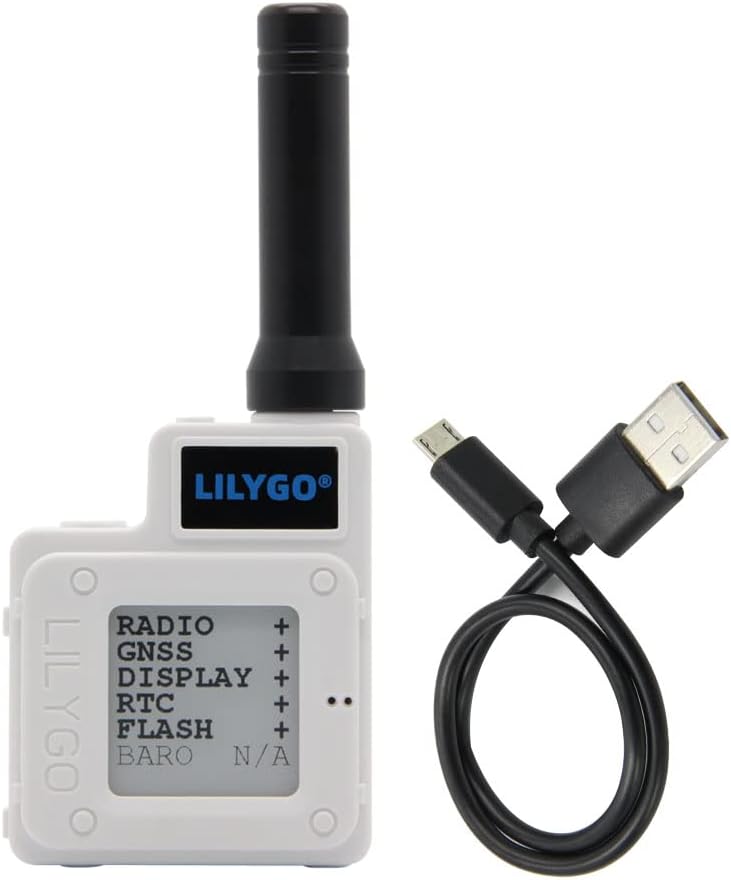
Figure 4.1: The LILYGO T-Echo device connected via USB cable for charging or data transfer.
4.2 Firmware Installation/Update
To install or update the Meshtastic firmware on your LILYGO T-Echo, follow these steps. This process typically involves downloading the firmware from the official Meshtastic website and transferring it to the device via USB.
- Visit the official Meshtastic website (meshtastic.org) and navigate to the 'Downloads' section.
- Locate and download the latest firmware file for the LILYGO T-Echo (usually a .uf2 file).
- Connect your LILYGO T-Echo to your computer using a USB-A to USB-C cable.
- The device should appear as a removable disk (e.g., 'TECHBOOT'). If not, double-click the reset button on the device to enter DFU mode.
- Copy the downloaded .uf2 firmware file directly into the root directory of the 'TECHBOOT' disk.
- The device will automatically refresh and reboot with the new firmware once the file transfer is complete.
Video 4.1: A step-by-step guide on how to install Meshtastic firmware onto your LILYGO T-Echo device.
5. Operating Instructions
5.1 Connecting to the Meshtastic App
To fully utilize your LILYGO T-Echo, you will need to connect it to the Meshtastic application on your smartphone (Android or iOS). Ensure Bluetooth is enabled on your phone.
- Download and install the Meshtastic App from your device's app store or the official Meshtastic website.
- Open the Meshtastic App and switch to the connection interface.
- The app will search for nearby Meshtastic devices. Select your T-Echo from the list to connect.
- Once connected, you can select your desired frequency band and enter a user name.
5.2 Sending and Receiving Messages
After connecting your T-Echo to the Meshtastic app, you can send and receive messages within your mesh network.
- Navigate to the 'Message' tab within the Meshtastic app.
- To send a message to all users in your network, click on the 'All' channel.
- Type your message and press send. Messages will be transmitted via the LoRa network.
5.3 Button Functions
The LILYGO T-Echo features two primary buttons for interaction when the development board is turned on:

Figure 5.1: Diagram illustrating the functions of Button 1 and Button 2 on the LILYGO T-Echo.
- Button 1:
- Press once: Resets the device.
- Press twice: Enters Programming (DFU) Mode.
- Button 2:
- Press once: Changes the page displayed on the device.
- Press twice: Sends temporary node information.
- Press three times: Turns on/off the GPS.
- Press four times: Turns on/off the E-Paper display backlight.
- Long press: Turns off the device.
5.4 Application Scenarios
The LILYGO T-Echo is suitable for a variety of applications due to its versatile features:

Figure 5.2: Examples of LILYGO T-Echo application scenarios, including DIY creation, LoRa networking, GPS positioning, IoT terminal control, and STEM education.
- DIY Creation: Ideal for custom electronics projects and prototyping.
- LoRa Networking: Establishes robust long-range communication networks.
- GPS Positioning: Provides location tracking capabilities.
- IoT Terminal Control: Can serve as a control unit for various Internet of Things devices.
- STEM Education Product: Excellent tool for learning about wireless communication, microcontrollers, and mesh networks.
6. Maintenance
To ensure the longevity and optimal performance of your LILYGO T-Echo, consider the following maintenance tips:
- Keep the device clean and free from dust and debris. Use a soft, dry cloth for cleaning.
- Avoid exposing the device to extreme temperatures, humidity, or direct sunlight.
- Protect the E-Paper display from physical impact, as it can be fragile.
- Charge the battery regularly, but avoid overcharging or completely draining it to prolong its lifespan.
- Store the device in a cool, dry place when not in use.
7. Troubleshooting
If you encounter issues with your LILYGO T-Echo, try the following basic troubleshooting steps:
- Device not powering on: Ensure the battery is charged. Connect to a power source and check for charging indicators.
- Unable to connect to Meshtastic App: Verify Bluetooth is enabled on your phone and the T-Echo. Try restarting both the device and the app. Ensure the firmware is up-to-date.
- Firmware update issues: Double-check that you are using the correct .uf2 file for the T-Echo. Ensure the device is in DFU mode (double-click reset button) before copying the file.
- No messages being sent/received: Confirm that the device is connected to the app and that you are on an active channel. Check the antenna connection.
- Display not updating: Try pressing Button 2 once to refresh the display. If the issue persists, a device reset might be necessary.
For more advanced troubleshooting or specific technical issues, refer to the official Meshtastic documentation on LILYGO's GitHub page or the broader Meshtastic community forums.
8. Support & Warranty
LILYGO is committed to providing quality products. For any questions, suggestions, or technical support regarding your T-Echo Meshtastic Wireless Module, please feel free to contact LILYGO customer service. We aim to answer your inquiries as soon as possible.
Specific warranty details may vary by region and retailer. Please refer to your purchase documentation or contact the seller for information regarding warranty coverage and return policies.


