
Introduction
Thank you for choosing the JOYACCESS Rechargeable Silent 2.4G Wireless Keyboard. This manual provides essential information for setting up, operating, maintaining, and troubleshooting your new keyboard. Please read it thoroughly to ensure optimal performance and longevity of your device.
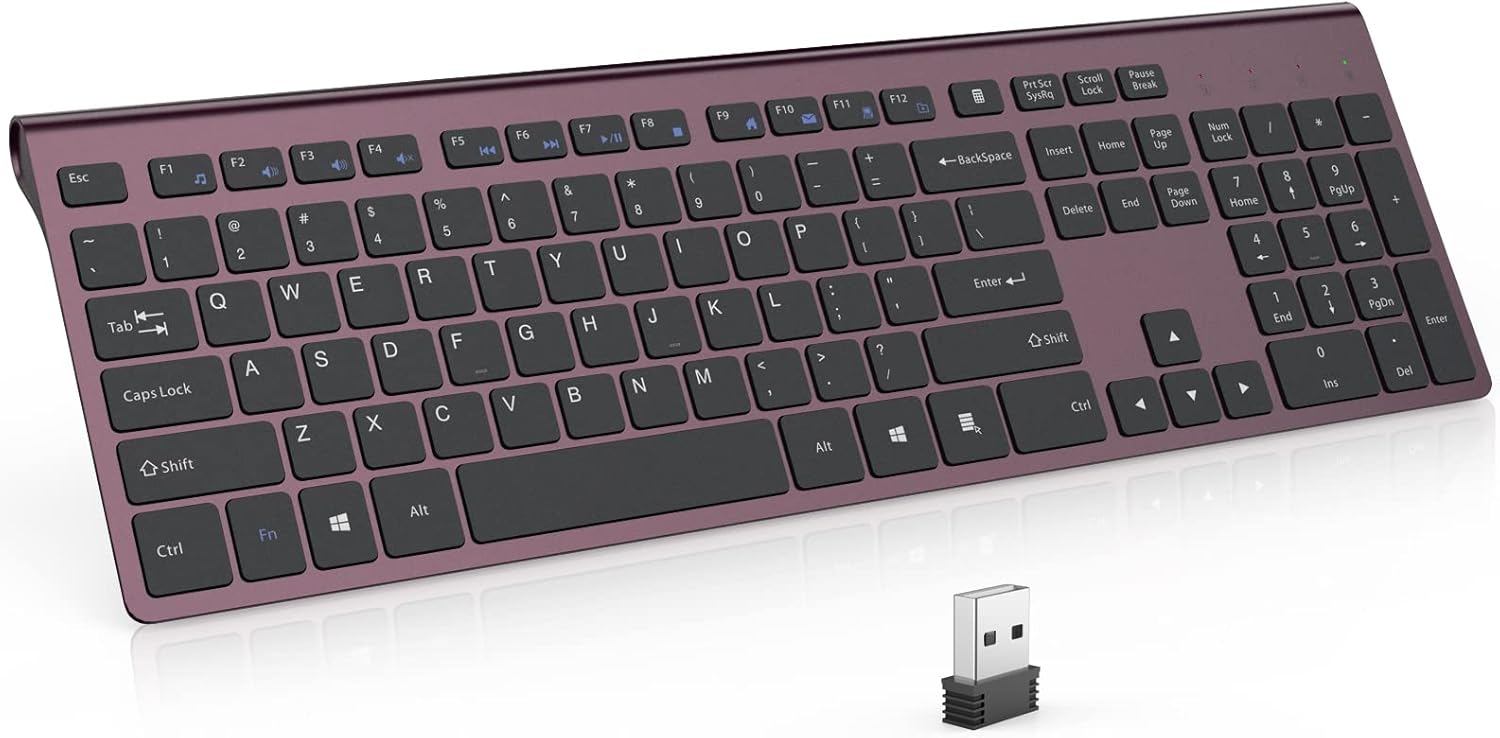
Image: The JOYACCESS Rechargeable Silent 2.4G Wireless Keyboard, showcasing its full-size layout and sleek design, with the USB receiver visible in the foreground.
Package Contents
- JOYACCESS 2.4G Wireless Keyboard
- Nano USB Receiver
- USB Charging Cable
- User Manual (this document)
Setup Instructions
1. Charging the Keyboard
Before first use, it is recommended to fully charge the keyboard. The keyboard is equipped with a 500mAh rechargeable lithium battery.
- Locate the Micro USB charging port on the keyboard.
- Connect the provided USB charging cable to the keyboard's charging port and the other end to a USB power source (e.g., computer USB port, USB wall adapter).
- The charging indicator light will illuminate during charging. It will turn off or change color once fully charged.

Image: Close-up view of the keyboard's Micro USB charging port with a charging cable connected, indicating the charging process.
2. Connecting the USB Receiver
The keyboard connects wirelessly via a 2.4G USB receiver. No software or drivers are required for installation.
- Locate the Nano USB receiver. It is typically stored in the battery compartment or a dedicated slot on the keyboard for safekeeping.
- Plug the Nano USB receiver into an available USB port on your computer, laptop, or Smart TV.
- The system will automatically detect and install the necessary drivers. This process may take a few seconds.
- Once installed, the keyboard is ready for use.
Operating Instructions
Basic Use
Simply begin typing. The keyboard features a full-size layout with a numeric keypad, arrow keys, and standard function keys.
Function Keys (F1-F12)
The top row of keys includes standard function keys (F1-F12) which may have secondary multimedia or shortcut functions. These functions are typically accessed by pressing the Fn key simultaneously with the desired function key.
- Fn + F1: Media Player
- Fn + F2: Volume Down
- Fn + F3: Volume Up
- Fn + F4: Mute
- Fn + F5: Previous Track
- Fn + F6: Next Track
- Fn + F7: Play/Pause
- Fn + F8: Stop
- Fn + F9: Home Page
- Fn + F10: Email
- Fn + F11: My Computer
- Fn + F12: Favorites
Power Saving Mode
To conserve battery life, the keyboard will automatically enter a sleep mode after 8 minutes of inactivity. To wake it up, simply press any key. The keyboard will reconnect automatically.

Image: Hands typing on the JOYACCESS keyboard, highlighting its low-profile keys and quiet operation.
Maintenance
Cleaning
- Disconnect the keyboard from its power source and turn it off before cleaning.
- Use a soft, lint-free cloth slightly dampened with water or a mild cleaning solution to wipe the surface.
- Avoid using harsh chemicals, abrasive cleaners, or spraying liquids directly onto the keyboard.
- Use compressed air to remove dust and debris from between the keys.
Battery Care
- To prolong battery life, avoid fully discharging the keyboard frequently.
- Store the keyboard in a cool, dry place when not in use for extended periods.
- If the keyboard will not be used for a long time, charge it to about 50% before storing.
Troubleshooting
- Keyboard not responding:
- Ensure the USB receiver is securely plugged into a working USB port.
- Check if the keyboard is powered on.
- Recharge the keyboard if the battery is low.
- Try plugging the USB receiver into a different USB port.
- Restart your computer.
- Keys are sticky or not registering:
- Clean the keyboard to remove any debris or spills that might be affecting the keys.
- Ensure you are pressing the keys directly and firmly.
- Poor wireless connection or lag:
- Move the keyboard closer to the USB receiver.
- Avoid placing the receiver near other wireless devices or large metal objects that could cause interference.
- Ensure there are no large obstructions between the keyboard and the receiver.
Specifications
| Brand | JOYACCESS |
| Model | B0B654P96Y |
| Connectivity Technology | 2.4G Wireless (USB Receiver) |
| Battery Capacity | 500mAh Lithium Battery |
| Battery Life | Up to 6 months on a single charge (based on 2 hours non-stop use per day) |
| Keyboard Type | Silent, Scissor Switch, Full-Size with Numeric Keypad |
| Compatible Devices | Windows 2000 / ME / XP / Vista / 7 / 8 / 10, Macbook, Desktops, Chrome-book, PC, Laptop, Smart TV |
| Product Dimensions | 17.7 x 6.7 x 1.6 inches (44.96 x 17.02 x 4.06 cm) |
| Item Weight | 1.61 pounds (0.73 kg) |
| Material | Plastic |

Image: The keyboard displayed with approximate length and width measurements, illustrating its ultra-slim, full-size design on a desk next to a monitor.
Warranty and Support
JOYACCESS products are designed for reliability and performance. For warranty information or technical support, please refer to the contact details provided with your purchase or visit the official JOYACCESS website. Keep your purchase receipt as proof of purchase for warranty claims.
For further assistance, please contact JOYACCESS customer service.
