1. Introduction
The ASUS ROG Keris Wireless EVA Edition Gaming Mouse is a high-performance peripheral designed for precision and customization. This mouse features tri-mode connectivity, allowing for versatile use across various platforms. Its lightweight design and advanced sensor technology provide an optimal gaming experience.
Key features include:
- Tri-mode connectivity: Dual-wireless 2.4 GHz, Bluetooth LE, and wired USB.
- Specially tuned 16,000 DPI, 400 IPS ROG optical sensor with 1000 Hz polling rate.
- Lightweight 79-gram design with a durable honeycomb inner structure.
- Exclusive ROG Push-Fit Switch Socket design for easy switch replacement.
- ROG Micro Switches with a 70-million-click lifespan.
- Premium PBT polymer L/R buttons and swappable side buttons.
- ROG Paracord cable and 100% PTFE rounded-edge mouse feet for smooth glide.
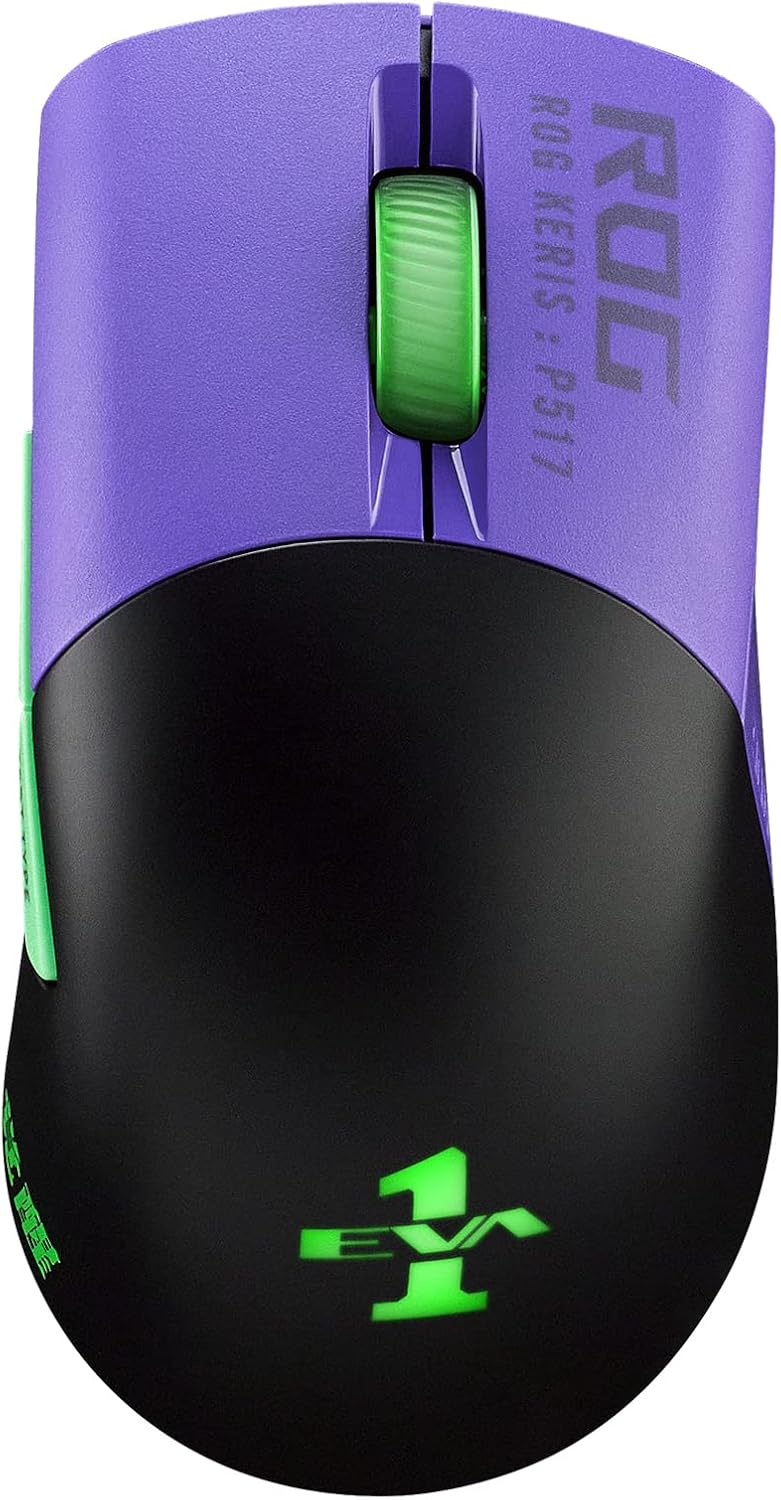
Image: Top view of the ASUS ROG Keris Wireless EVA Edition Gaming Mouse, showcasing its purple and black design with green accents.
2. Package Contents
Verify that all items are present in your product package:
- ASUS ROG Keris Wireless EVA Edition Gaming Mouse
- USB Type-C to Type-A ROG Paracord Cable
- USB Wireless Dongle
- ROG Switch Kit (includes extra switches)
- Swappable Side Buttons (various colors)
- User Manual (this document)
- Warranty Card
3. Setup
3.1 Charging the Mouse
Before first use, it is recommended to fully charge the mouse. Connect the USB Type-C end of the ROG Paracord Cable to the mouse and the USB Type-A end to an available USB port on your computer or a USB wall adapter. The mouse's LED indicator will show charging status.
3.2 Connecting the Mouse
The ROG Keris Wireless EVA Edition supports three connectivity modes:
3.2.1 2.4 GHz Wireless Connection
- Locate the USB wireless dongle.
- Plug the dongle into an available USB Type-A port on your computer.
- On the bottom of the mouse, slide the connectivity switch to the 2.4G position.
- The mouse should automatically connect to your computer.
3.2.2 Bluetooth LE Connection
- On the bottom of the mouse, slide the connectivity switch to the Bluetooth position.
- On your computer, open Bluetooth settings and search for new devices.
- Select "ROG Keris Wireless EVA Edition" from the list of available devices to pair.
3.2.3 Wired USB Connection
- Connect the USB Type-C end of the ROG Paracord Cable to the mouse.
- Connect the USB Type-A end of the cable to an available USB port on your computer.
- The mouse will function immediately in wired mode and will charge simultaneously.
3.3 Software Installation (Armoury Crate)
For full customization options, including DPI settings, button remapping, and RGB lighting control, download and install the ASUS Armoury Crate software from the official ASUS support website. Visit ASUS Support
4. Operating Instructions
4.1 Basic Mouse Functions
- Left Click: Primary action.
- Right Click: Secondary action/context menu.
- Scroll Wheel: Scroll up/down, middle click.
- Side Buttons: Default to forward/back in web browsers. Customizable via Armoury Crate.
4.2 DPI Adjustment
The mouse features a dedicated DPI button (usually located behind the scroll wheel or on the bottom) to cycle through preset DPI levels. You can customize these levels and assign them to specific buttons using the Armoury Crate software.

Image: The underside of the mouse highlighting its 16,000 DPI resolution, 400 IPS max speed, and 40G acceleration.
4.3 Customizing Switches and Side Buttons
The ROG Keris Wireless EVA Edition features an exclusive Push-Fit Switch Socket design, allowing users to easily swap out the mouse switches to customize click force or replace worn switches. The mouse also comes with swappable side buttons for aesthetic and ergonomic customization.

Image: A detailed view of the ROG Push-Fit Switch Socket, illustrating how switches can be easily inserted and removed.

Image: The mouse shown with its customizable side buttons, demonstrating the ability to change their appearance and feel.
5. Maintenance
5.1 Cleaning the Mouse
To maintain optimal performance and appearance, regularly clean your mouse. Use a soft, dry cloth to wipe down the surface. For stubborn dirt, a slightly damp cloth with mild soap can be used, ensuring no liquid enters the mouse. Avoid abrasive cleaners or solvents.
5.2 Battery Care
To prolong battery life, avoid fully discharging the mouse frequently. Charge the mouse when the battery indicator is low. If storing the mouse for an extended period, charge it to approximately 50% before storage.
6. Troubleshooting
6.1 Mouse Not Responding
- Check Battery: Ensure the mouse is charged. Connect it via USB cable to charge and test.
- Check Connectivity: Verify the connectivity switch on the bottom of the mouse is set to the correct mode (2.4G, Bluetooth, or Wired).
- Dongle Connection: If using 2.4G wireless, ensure the USB dongle is securely plugged into a working USB port. Try a different USB port.
- Bluetooth Pairing: If using Bluetooth, ensure the mouse is properly paired with your device and Bluetooth is enabled on your computer. Try re-pairing.
- Restart Computer: A simple restart can often resolve connectivity issues.
6.2 Cursor Lag or Jitter
- Clean Sensor: Ensure the optical sensor on the bottom of the mouse is clean and free of debris.
- Surface: Use the mouse on a clean, uniform surface, preferably a mouse pad. Avoid reflective or transparent surfaces.
- Interference: If using wireless, move the mouse closer to the dongle or computer. Avoid strong electromagnetic interference sources.
- DPI Setting: Adjust DPI settings via the mouse button or Armoury Crate to see if it improves performance.
6.3 Buttons Not Functioning
- Software Conflict: If you have other mouse software installed, it might conflict with Armoury Crate. Try uninstalling other software.
- Switch Replacement: If a specific button is not clicking or double-clicking unintentionally, consider replacing the switch using the provided ROG Switch Kit. Refer to online tutorials or the Armoury Crate software for guidance on switch replacement.
7. Specifications
| Feature | Specification |
|---|---|
| Model Number | P517 ROG KERIS WIRELESS EVA EDITION |
| Connectivity | Tri-Mode (2.4 GHz Wireless, Bluetooth LE, USB Wired) |
| Sensor | ROG Optical Sensor |
| DPI | Up to 16,000 DPI |
| IPS | 400 IPS |
| Acceleration | 40G |
| Polling Rate | 1000 Hz |
| Switches | ROG Micro Switches (70-million-click lifespan), Push-Fit Socket |
| Buttons | 7 programmable buttons, PBT L/R buttons, Swappable side buttons |
| Weight | 79 grams (without cable) |
| Dimensions (LxWxH) | 4.65 x 2.44 x 1.54 inches (118 x 62 x 39 mm) |
| Battery Life | Up to 78 hours (56 hours with RGB lighting on) |
| Cable | ROG Paracord |
| Mouse Feet | 100% PTFE rounded-edge |
| Operating System | Windows, macOS |

Image: The mouse with its dimensions indicated: 4.65 inches length and 2.44 inches width.
8. Warranty and Support
ASUS provides a limited warranty for this product. Please refer to the warranty card included in your package for detailed terms and conditions, including warranty period and coverage.
For technical support, driver downloads, FAQs, and further assistance, please visit the official ASUS support website:
You can also visit the ASUS Store for more information about ROG products:


