1. Introduction
Thank you for choosing the DELTACO Gaming DM220 Wireless Optical Gaming Mouse. This manual provides detailed instructions on how to set up, operate, maintain, and troubleshoot your new gaming mouse. Please read this manual carefully before using the product to ensure optimal performance and longevity.
2. Package Contents
- DELTACO Gaming DM220 Wireless Optical Gaming Mouse
- USB Wireless Receiver
- USB-C Charging Cable
- User Manual (this document)
3. Product Overview
The DELTACO Gaming DM220 is a high-performance wireless gaming mouse designed for precision and comfort. It features 7 programmable buttons, adjustable DPI up to 4800, and vibrant RGB lighting. Its lightweight design with a honeycomb shell ensures extended gaming sessions without fatigue.

Figure 3.1: Front view of the DELTACO Gaming DM220 Wireless Mouse, highlighting the scroll wheel and DPI button.

Figure 3.2: Side view of the mouse, showing the two conveniently placed thumb buttons for forward and backward navigation.

Figure 3.3: The DELTACO Gaming DM220 mouse alongside its compact USB wireless receiver.
4. Setup
4.1 Connecting the Mouse
- Locate the USB wireless receiver in the package.
- Insert the USB receiver into an available USB port on your computer.
- Turn on the mouse using the power switch located on the underside of the mouse.
- The mouse should automatically connect to your computer. If not, ensure the receiver is properly inserted and the mouse is charged.
4.2 Charging the Mouse
The DM220 mouse features a built-in rechargeable battery.
- Connect the supplied USB-C charging cable to the USB-C port on the front of the mouse.
- Connect the other end of the USB-A cable to a USB port on your computer or a USB wall adapter.
- The mouse's lighting or an indicator light will show the charging status. Charging is complete when the indicator changes or turns off.
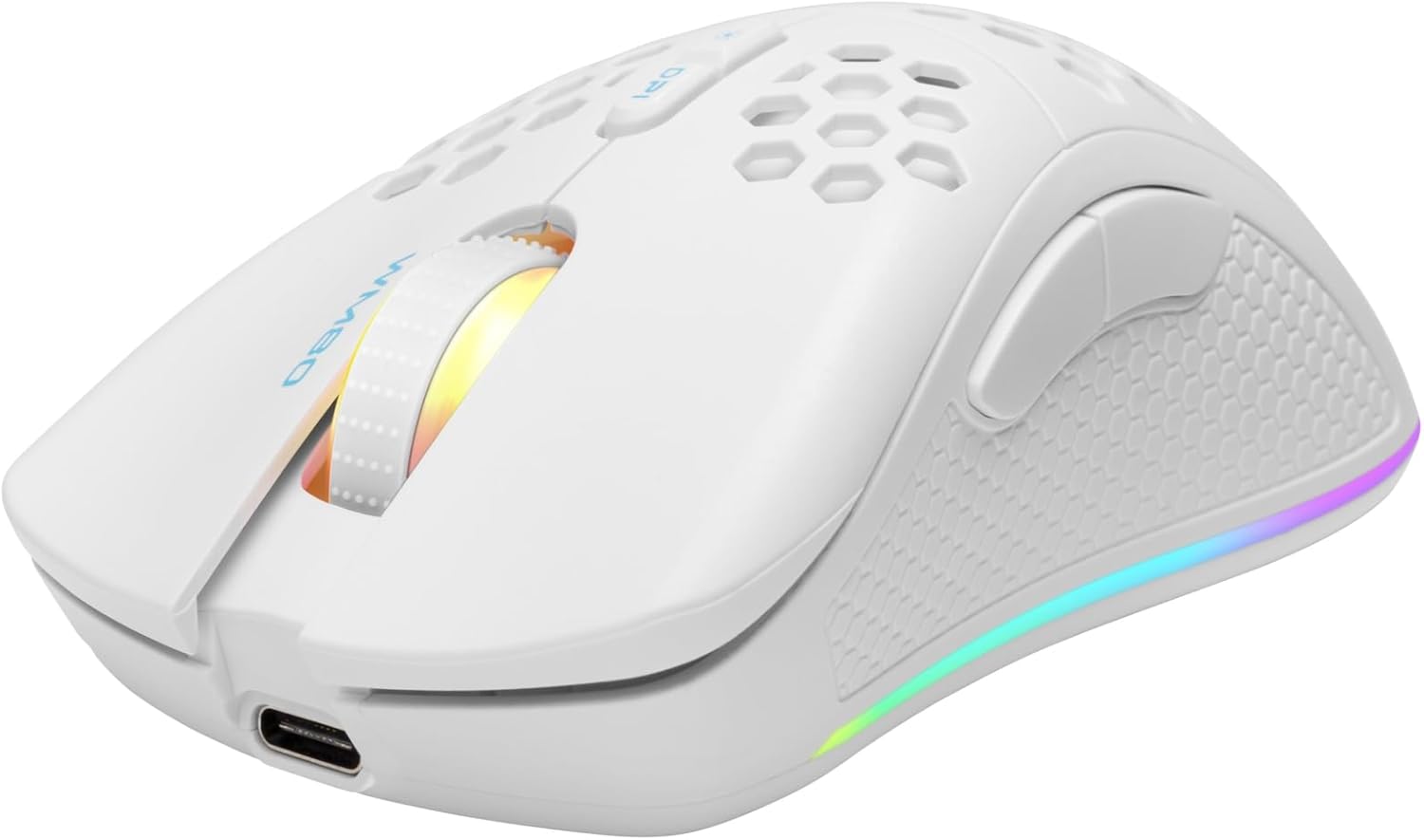
Figure 4.1: The DELTACO Gaming DM220 mouse connected via its USB-C charging cable.
5. Operating the Mouse
5.1 DPI Adjustment
The mouse features a dedicated DPI button, typically located behind the scroll wheel. Press this button to cycle through different DPI (Dots Per Inch) sensitivity settings. The DM220 supports multiple DPI levels up to 4800 DPI, allowing you to adjust cursor speed to your preference for gaming or general use.
5.2 Button Functions
The DM220 mouse has 7 buttons:
- Left Click Button: Standard primary click function.
- Right Click Button: Standard secondary click function.
- Scroll Wheel (Clickable): Scrolls up/down and acts as a middle click button.
- DPI Button: Cycles through DPI settings.
- Forward Button: (Thumb button) Navigates forward in web browsers or file explorers.
- Backward Button: (Thumb button) Navigates backward in web browsers or file explorers.
- Lighting Control Button: (If present, often combined with DPI or on the underside) Cycles through RGB lighting modes or turns lighting on/off. Refer to specific product details for exact button mapping.
5.3 RGB Lighting Control
The DM220 features dynamic RGB lighting. Depending on the model, you can typically change lighting modes by pressing a dedicated lighting button or a combination of buttons (e.g., DPI button + a side button). Cycle through available effects or turn the lighting off to conserve battery life.
6. Maintenance
6.1 Cleaning
To maintain the performance and appearance of your mouse:
- Use a soft, dry cloth to wipe the surface of the mouse.
- For stubborn dirt, slightly dampen the cloth with water or a mild cleaning solution.
- Avoid using harsh chemicals, abrasive cleaners, or solvents.
- Do not allow liquids to enter the mouse's interior.
6.2 Battery Care
To maximize the lifespan of the built-in rechargeable battery:
- Avoid fully discharging the battery frequently.
- Charge the mouse when the low battery indicator appears.
- Store the mouse in a cool, dry place if not used for extended periods.
7. Troubleshooting
If you encounter issues with your DELTACO Gaming DM220 mouse, try the following solutions:
7.1 Mouse Not Responding
- Ensure the mouse is turned on.
- Check if the USB receiver is securely plugged into a working USB port on your computer. Try a different USB port.
- Ensure the mouse battery is charged. Connect the charging cable and wait a few minutes.
- Move the mouse closer to the USB receiver to rule out interference.
- Restart your computer.
7.2 Lag or Intermittent Connection
- Ensure there are no other wireless devices causing interference nearby.
- Try plugging the USB receiver into a different USB port, preferably a USB 2.0 port if available.
- Ensure the mouse is fully charged.
7.3 DPI Button Not Changing Sensitivity
- Ensure the mouse is connected and powered on.
- Press the DPI button firmly.
- Some software might override hardware DPI settings; check your operating system's mouse settings.
8. Specifications
| Feature | Specification |
|---|---|
| Model Number | GAM-120 (DM220) |
| Connectivity Technology | RF (Wireless), USB (for charging) |
| Movement Detection | Optical |
| DPI | Up to 4800 DPI |
| Number of Buttons | 7 |
| Special Features | Wireless, Illuminated (RGB), Rechargeable |
| Color | Black |
| Dimensions (Packaging) | 22.9 x 15.1 x 7.5 cm |
| Weight (Packaging) | 243 Grams |
9. Warranty and Support
DELTACO GAMING products are designed for durability and performance. For information regarding warranty terms and conditions, please refer to the warranty card included with your product or visit the official DELTACO GAMING website. For technical support or further assistance, please contact DELTACO GAMING customer service through their official channels.
You can find more information and support at the DELTACO GAMING Store on Amazon.


