
1. Introduction
This manual provides detailed instructions for the setup, operation, maintenance, and troubleshooting of your DELTACO GAMING DH420 Wireless Headset. Please read this manual thoroughly before using the product to ensure optimal performance and longevity.
2. Package Contents
Ensure all items are present in the package:
- DELTACO GAMING DH420 Wireless Headset
- Detachable Microphone
- 2.4 GHz USB Wireless Receiver
- USB-C to 3.5mm Audio Cable
- USB-C Charging Cable
- 1x 3.5mm to 2x 3.5mm Adapter (for PC audio/mic split)
- User Manual (this document)
3. Product Overview
Familiarize yourself with the components and controls of your headset.
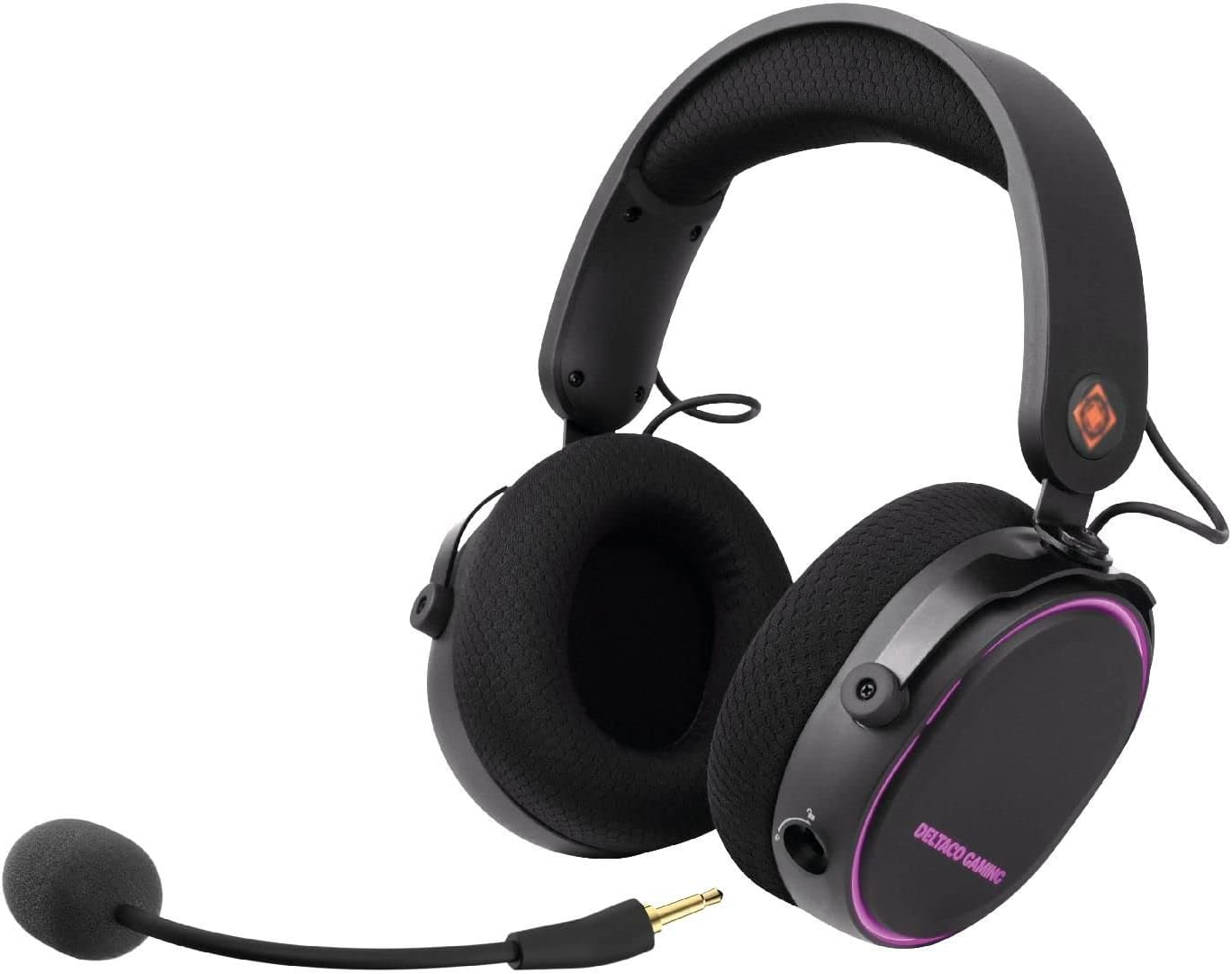
Image 3.1: DELTACO GAMING DH420 Wireless Headset. This image shows the headset from a front-side angle, highlighting the over-ear design, adjustable headband, and the detachable microphone connected to the left earcup.
3.1 Headset Controls and Ports

Image 3.2: Diagram illustrating the location of controls and ports on the DELTACO GAMING DH420 headset. Key features include the volume control, USB-C charge and connection port, microphone mute button, EQ button, and power on/off button.
- Volume Control: Adjusts audio output level.
- USB-C Charge & Connection Port: Used for charging and wired audio connection.
- Microphone Mute Button: Toggles microphone on/off.
- EQ Button: Cycles through available equalizer modes.
- Power On/Off Button: Turns the headset on or off.
- Detachable Microphone Port: For connecting the flexible microphone.
3.2 Design and Comfort Features

Image 3.3: The DELTACO GAMING DH420 headset highlighting its immersive sound with 40mm drivers and comfortable over-ear design with soft memory foam padding.

Image 3.4: Detail of the headset's adjustable headband with soft foam padding and durable metal fittings, ensuring a comfortable and secure fit.
- Over-Ear Design: Provides comfort during extended use and helps with passive noise isolation.
- Soft Memory Foam Padding: Used in earcups for enhanced comfort.
- Adjustable Headband: Allows for a customized fit for various head sizes.
- Metal Fittings: Contribute to the headset's durability and robust construction.
4. Setup and Connection
4.1 Charging the Headset
- Connect the supplied USB-C charging cable to the headset's USB-C port.
- Connect the other end of the cable to a USB power source (e.g., computer USB port, USB wall adapter).
- The LED indicator on the headset will show charging status. A full charge typically takes 2-3 hours.
- Once fully charged, disconnect the charging cable.
Note: The headset can be used while charging in wired mode.
4.2 Attaching the Microphone

Image 4.1: Close-up view of the detachable and flexible microphone. This image shows the microphone's 3.5mm jack and its flexible arm, ready to be inserted into the headset.
Insert the detachable microphone into the 3.5mm microphone port located on the left earcup. Adjust the flexible arm to position the microphone optimally for your voice.
4.3 Wireless Connection (2.4 GHz USB Receiver)
This method is compatible with PC, Mac, and PS5.
- Plug the 2.4 GHz USB wireless receiver into an available USB port on your PC, Mac, or PS5 console.
- Power on the headset by pressing and holding the Power On/Off button until the LED indicator illuminates.
- The headset should automatically pair with the receiver. The LED indicator will show a stable light once connected.
- On your device, ensure the DELTACO GAMING DH420 is selected as the default audio input and output device in your sound settings.

Image 4.2: Promotional image highlighting the wireless functionality of the headset, featuring a low-latency 2.4 GHz USB receiver and a 32 ft (10m) range. The headset is shown with red RGB lighting.
4.4 Wired Connection (USB-C to 3.5mm Cable)
This method is compatible with PC, Mac, PS5, Xbox One (controller), and mobile devices.
- Connect the USB-C end of the USB-C to 3.5mm audio cable to the headset's USB-C port.
- Connect the 3.5mm end of the cable to the audio jack of your device (PC, Mac, PS5 controller, Xbox One controller, or mobile phone).
- If your PC has separate audio and microphone jacks, use the included 1x 3.5mm to 2x 3.5mm adapter. Connect the headset's 3.5mm cable to the adapter, then plug the adapter's two 3.5mm plugs into the corresponding audio and microphone ports on your PC.
- Ensure the DELTACO GAMING DH420 is selected as the default audio input and output device in your device's sound settings.
5. Operation
5.1 Power On/Off
- To Power On: Press and hold the Power On/Off button for approximately 3 seconds until the LED indicator lights up.
- To Power Off: Press and hold the Power On/Off button for approximately 3 seconds until the LED indicator turns off.
5.2 Volume Control
Rotate the volume control wheel located on the earcup upwards to increase volume and downwards to decrease volume.
5.3 Microphone Mute
Press the Microphone Mute button to toggle the microphone on or off. An indicator light (if present) will show the microphone's status.
5.4 Equalizer (EQ) Modes
Press the EQ button to cycle through the available equalizer sound profiles. This allows you to optimize audio for different content types like gaming, music, or movies.
5.5 RGB LED Lighting
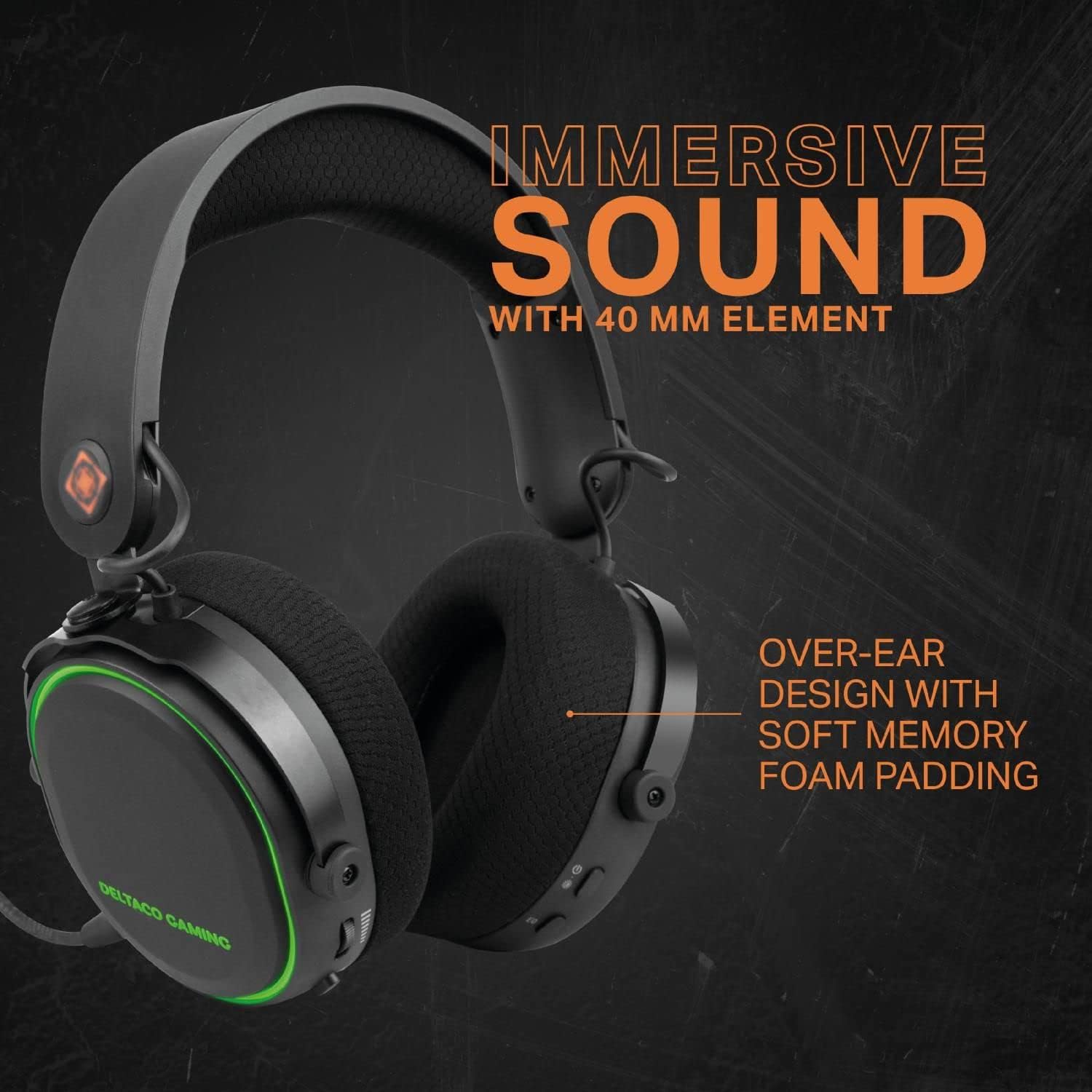
Image 5.1: The DELTACO GAMING DH420 headset displaying its RGB LED lighting. This image highlights the headset's capability to show 8 unique LED modes and its long battery life.
The headset features 8 customizable RGB LED lighting modes. Refer to the product's specific instructions or manufacturer's website for details on how to cycle through or customize these modes, if a dedicated control is not present on the headset itself.
6. Maintenance
6.1 Cleaning
- Use a soft, dry cloth to wipe the headset's surfaces.
- For earcups, gently wipe with a slightly damp cloth and allow to air dry completely before use.
- Do not use harsh chemicals, solvents, or abrasive cleaners.
6.2 Storage
Store the headset in a cool, dry place away from direct sunlight and extreme temperatures. Avoid placing heavy objects on the headset.
6.3 Battery Care
- To prolong battery life, avoid fully discharging the headset frequently.
- Charge the headset regularly, even if not in use for extended periods.
- Do not expose the battery to high temperatures.
7. Troubleshooting
| Problem | Possible Cause | Solution |
|---|---|---|
| No sound from headset |
|
|
| Microphone not working |
|
|
| Headset not connecting wirelessly |
|
|
| RGB lighting not working |
|
|
8. Specifications
| Feature | Detail |
|---|---|
| Model Name | DH420 |
| Drivers | 40mm |
| Frequency Response | 20 Hz – 25 kHz |
| Speaker Sensitivity | 102 dB ±3 dB |
| Microphone Sensitivity | -49 dB ±3 dB |
| Speaker Impedance | 32 Ω |
| Battery Capacity | 1500 mAh |
| Battery Life (RGB OFF) | Up to 28 hours |
| Battery Life (RGB ON) | Up to 18 hours |
| Charging Time | 2-3 hours |
| Wireless Connection | 2.4 GHz USB receiver |
| Wired Connection | USB-C to 3.5mm cable |
| Wireless Range | 10m (32 ft) |
| Compatibility | PC, Mac, PS5, Xbox One (wired only), Mobile (wired only) |
| Product Dimensions | 12 x 20 x 18 cm |
| Weight | 830 g |
9. Warranty and Support
The DELTACO GAMING DH420 Wireless Headset is manufactured by DELTACO GAMING. For warranty information, technical support, or service inquiries, please refer to the warranty card included with your product or visit the official DELTACO GAMING website. Please retain your proof of purchase for warranty claims.


