Product Overview
Familiarize yourself with the main components and controls of your Hama Digital Internet Radio.

Image Description: This image displays the front of the Hama Digital Internet Radio. It features a central color display showing "BBC Radio 1" and a large rotary knob below for volume, navigation, and selection. To the left of the knob is a "POWER" button, and to the right are "ENTER" and "NAVIGATE" labels. Above the display are several small buttons for presets and menu access. The radio has a dark grey finish with fabric-covered speakers on the sides.

Image Description: This image shows the Hama Digital Internet Radio from a slightly angled front perspective, highlighting its compact design. Above the radio, two icons are displayed: one representing Wi-Fi connectivity and another for DAB+ digital radio, indicating the device's primary reception capabilities.

Image Description: The Hama Digital Internet Radio is shown alongside a smartphone. The smartphone's screen displays the Spotify application playing music, with a hand interacting with the phone. Icons for Spotify and Bluetooth are also visible, illustrating the radio's capability to stream music via Bluetooth and Spotify Connect from a mobile device.
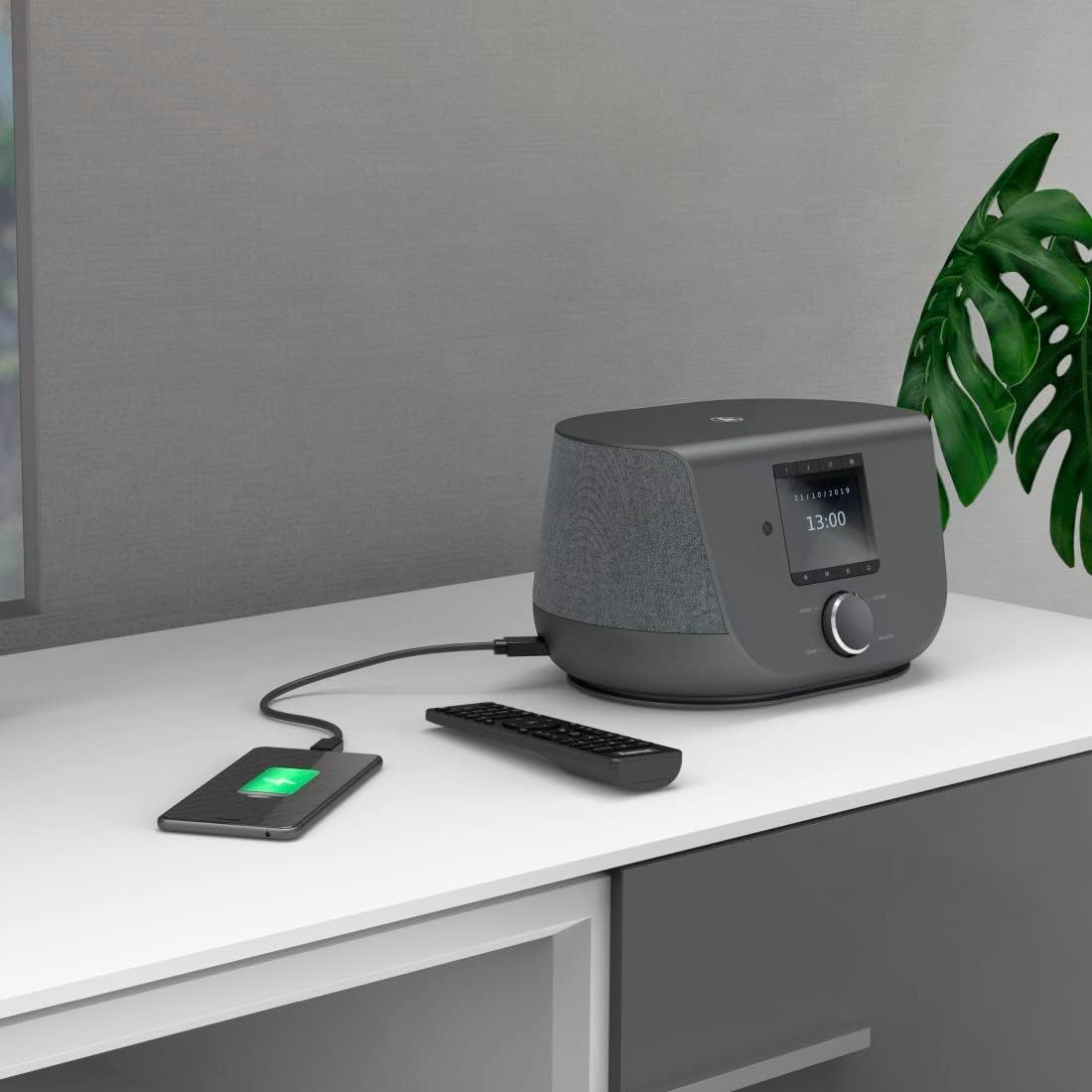
Image Description: This image depicts the Hama Digital Internet Radio placed on a surface next to a smartphone. A cable connects the radio to the smartphone, indicating that the radio's USB-A port is being used to charge the mobile device. A remote control is also visible on the surface.

Image Description: A close-up view of the rear panel of the Hama Digital Internet Radio. Various ports are clearly visible, including DC IN (12V=2A), AUX IN (3.5mm), LINE OUT (3.5mm), a headphone jack, an F-connection for the antenna, and a USB CHARGE (5V=2A) port. Cables are shown connected to some of these ports, illustrating their function.
Operating Instructions
Basic Controls
- POWER Button: Turns the radio on or off (standby mode).
- VOLUME Knob: Rotate to adjust the audio volume. Press to mute/unmute.
- NAVIGATE Knob: Rotate to scroll through menus, lists, or stations.
- ENTER Button: Press the NAVIGATE knob to confirm a selection or enter a menu.
- Preset Buttons (1, 2, L1, L2, etc.): Quickly access your favorite stored stations.
- Menu/Mode Buttons: Navigate through different operating modes (DAB+, FM, Internet Radio, Bluetooth, Aux-In).
Mode Selection
Use the mode buttons on the radio or remote control to switch between available audio sources:
- DAB+ Radio: For digital radio broadcasts.
- FM Radio: For analog radio broadcasts.
- Internet Radio: Access thousands of online radio stations worldwide.
- Bluetooth: Stream audio wirelessly from a paired device.
- Aux-In: Connect external audio devices via a 3.5mm cable.
DAB+ and FM Radio Operation
- Select DAB+ or FM mode.
- For DAB+, the radio will perform an automatic scan for available stations on first use or if prompted. For FM, you can perform an auto-scan or manual tune.
- Use the NAVIGATE knob to browse through the list of found stations.
- Press ENTER to select a station.
- To save a station as a favorite, press and hold one of the preset buttons (e.g., 1 or 2) until the display confirms the save.
Internet Radio Operation
- Ensure the radio is connected to a Wi-Fi network (refer to Setup section).
- Select Internet Radio mode.
- You can browse stations by location, genre, popularity, or search by name.
- Use the NAVIGATE knob and ENTER button to make selections.
- Save frequently listened-to internet radio stations to your favorites for quick access.
Bluetooth Connectivity
- Select Bluetooth mode on the radio. The radio will enter pairing mode, indicated on the display.
- On your mobile device (smartphone, tablet), enable Bluetooth and search for available devices.
- Select "Hama DIR3300SBT" (or similar) from the list of devices to pair.
- Once paired, you can stream audio from your device to the radio.
Spotify Connect
The radio supports Spotify Connect, allowing you to control music playback directly from the Spotify app on your smartphone or tablet. A Spotify Premium account is required.
- Ensure your radio and mobile device are connected to the same Wi-Fi network.
- Open the Spotify app on your mobile device.
- Play a song, then tap the "Devices Available" icon (usually a speaker or computer icon) at the bottom of the screen.
- Select your Hama radio from the list of available devices. The radio will begin playing the Spotify audio.
USB Charging Function
The USB-A port on the rear of the radio can be used to charge mobile devices with a maximum output of 2A.
- Connect your mobile device's charging cable to the "USB CHARGE 5V=2A" port on the radio.
- Ensure the radio is powered on or in standby mode for charging to occur.
Alarm Clock and Timer Functions
The radio includes an alarm clock with two programmable alarm times, a snooze function, and a sleep timer.
- Setting Alarms: Access the alarm settings through the radio's menu. You can set two independent alarms, choose the alarm source (buzzer, DAB+, FM, Internet Radio), and set the volume and frequency (daily, weekdays, weekends, once).
- Snooze: When an alarm sounds, press the SNOOZE button (if available, or a designated button on the remote/radio) to temporarily silence it for a set period.
- Sleep Timer: The sleep timer allows the radio to play for a set duration before automatically turning off. Access this function via the menu and select your desired time (e.g., 15, 30, 60 minutes).
App Control
The Hama Digital Internet Radio can be controlled via a dedicated smartphone app. Search for the "Hama Smart Radio" app (or similar, check product documentation for exact app name) in your device's app store. The app allows for remote control of functions, station management, and settings adjustments.


