
Lenovo ThinkPad T490
Lenovo ThinkPad T490 Laptop User Manual
Model: ThinkPad T490 (10002864)
1. Introduction
Welcome to the user manual for your Lenovo ThinkPad T490 laptop. This document provides essential information to help you set up, operate, maintain, and troubleshoot your device. Please read this manual thoroughly to ensure optimal performance and longevity of your laptop.
2. Product Overview
The Lenovo ThinkPad T490 is a 14-inch business-class laptop designed for reliability and performance. It features an Intel Core i5 processor, 16GB RAM, and a 512GB SSD, running Windows 10 Pro. Its robust design and comprehensive connectivity options make it suitable for various professional and personal computing tasks.

Figure 2.1: Front view of the Lenovo ThinkPad T490 laptop, open, displaying the Lenovo logo on its screen.

Figure 2.2: Angled view of the open Lenovo ThinkPad T490 laptop, highlighting the keyboard, touchpad, and the various ports located on the left side.
2.1. Port Identification
The ThinkPad T490 offers a range of ports for connectivity. Familiarize yourself with their locations for efficient use.
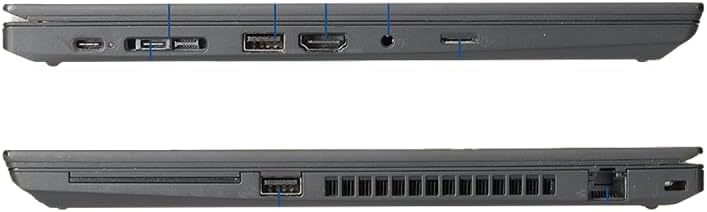
Figure 2.3: Side view of the Lenovo ThinkPad T490, illustrating the arrangement of its ports. These include USB-C (Thunderbolt 3), standard USB-A ports, an HDMI port, and an Ethernet port, among others.
- Left Side: USB-C (Thunderbolt 3), USB-C (Power Delivery), 2x USB 3.1 Gen1, HDMI 1.4, Ethernet (RJ-45), Audio Combo Jack, Smart Card Reader (optional).
- Right Side: USB 3.1 Gen1 (Always On), MicroSD Card Reader, Kensington Lock Slot.
3. Setup
3.1. Unpacking
Carefully remove the laptop and all accessories from the packaging. Ensure the following items are present:
- Lenovo ThinkPad T490 Laptop
- Power Adapter and Cable
- Documentation (this manual)
3.2. Connecting to Power
- Connect the power adapter to the laptop's USB-C power port.
- Plug the power cable into an electrical outlet.
- Allow the battery to charge for at least 30 minutes before initial use, or until the battery indicator shows sufficient charge.
3.3. Initial Boot and Operating System Setup
Upon first power-on, the laptop will guide you through the Windows 10 Pro setup process. Follow the on-screen instructions to configure language, region, network settings, and user accounts.
4. Operating Your Laptop
4.1. Power On/Off
- To Power On: Press the power button located on the right side of the keyboard deck.
- To Shut Down: Click the Start button, then Power > Shut down.
- To Restart: Click the Start button, then Power > Restart.
- To Sleep: Close the lid or click the Start button, then Power > Sleep.
4.2. Keyboard and Touchpad
The ThinkPad T490 features a full-sized AZERTY French keyboard and a precision touchpad. The TrackPoint pointing device (red dot in the center of the keyboard) offers an alternative navigation method.
4.3. Connecting to Wi-Fi
- Click the Wi-Fi icon in the taskbar notification area.
- Select your desired network from the list.
- Enter the network security key (password) if prompted, then click Connect.
4.4. Using External Displays
You can connect external monitors using the HDMI port or the USB-C (Thunderbolt 3) port.
- HDMI: Connect an HDMI cable from the laptop's HDMI port to your monitor's HDMI input.
- USB-C (Thunderbolt 3): Use a compatible USB-C to DisplayPort/HDMI adapter or a Thunderbolt dock.
Press Windows key + P to cycle through display modes (PC screen only, Duplicate, Extend, Second screen only).
4.5. Webcam Usage
The integrated HD webcam can be used for video conferencing and online communication. Ensure the camera shutter (ThinkShutter) is open if your model includes one.
5. Maintenance
5.1. Cleaning
- Screen: Use a soft, lint-free cloth lightly dampened with water or a screen cleaner. Do not spray liquid directly onto the screen.
- Chassis and Keyboard: Use a soft, dry cloth. For stubborn dirt, a slightly damp cloth can be used. Avoid harsh chemicals.
5.2. Battery Care
To maximize battery lifespan:
- Avoid extreme temperatures.
- Do not leave the laptop constantly plugged in at 100% charge for extended periods.
- Periodically discharge and recharge the battery.
5.3. Software Updates
Regularly update your Windows operating system and drivers to ensure security, stability, and optimal performance. Windows Update can be accessed via Settings > Update & Security > Windows Update.
6. Troubleshooting
6.1. Laptop Does Not Turn On
- Ensure the power adapter is securely connected to both the laptop and a working electrical outlet.
- Verify the power outlet is functional by plugging in another device.
- Try holding the power button for 10-15 seconds to perform a hard reset.
6.2. No Wi-Fi Connection
- Check if Wi-Fi is enabled in Windows settings.
- Restart your router and modem.
- Ensure you are connecting to the correct network and entering the correct password.
6.3. Screen Issues (No Display, Flickering)
- If using an external monitor, ensure cables are securely connected.
- Press Fn + F7 (or the appropriate function key with a display icon) to toggle display output.
- Restart the laptop.
7. Specifications
| Feature | Specification |
|---|---|
| Brand | Lenovo |
| Model Name | Lenovo ThinkPad T490 |
| Model Number | 10002864 |
| Operating System | Windows 10 Pro |
| Processor | Intel Core i5 8365U (up to 4.10 GHz) |
| RAM | 16 GB |
| Storage | 512 GB SSD |
| Display | 14-inch LED Full HD TFT (1920 x 1080 pixels), Anti-glare (matte) |
| Graphics | Intel UHD Graphics 620 |
| Keyboard | AZERTY French keyboard |
| Connectivity | Wi-Fi (802.11ac), Bluetooth, Ethernet |
| Ports | 2x USB 3.1 Gen1, 1x USB Type-C, 1x HDMI 1.4, 1x Thunderbolt 3, 1x Ethernet, Audio Combo Jack, Card Reader |
| Color | Black/Anthracite |
| Webcam | HD Webcam |
8. Warranty and Support
This product is a reconditioned device and comes with a 12-month warranty provided by the distributor, it-versand-com. For technical support, warranty claims, or service inquiries, please contact your point of purchase or the distributor directly.
For general information and driver downloads, you may visit the official Lenovo support website, though specific support for reconditioned units should first go through the seller.