
EIGHTREE ET01
EIGHTREE Smart Plug Instruction Manual
Model: ET01
1. Introduction
The EIGHTREE Smart Plug is designed to transform your traditional home appliances into smart devices, allowing for convenient control from anywhere. This manual provides detailed instructions for setting up, operating, and maintaining your smart plugs, ensuring seamless integration with your smart home ecosystem.

Overview of EIGHTREE Smart Plug features and compatibility.

Compact design ensures the second outlet remains accessible.
2. Package Contents
Upon opening the package, you should find the following items:
- EIGHTREE Smart Plug (4-pack)
- User Manual (this document)

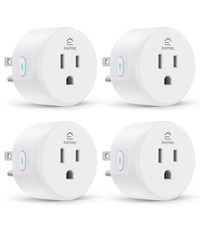
Four EIGHTREE Smart Plugs included in the package.
3. Safety Information
For safe and optimal use of your EIGHTREE Smart Plug, please adhere to the following guidelines:
- Do not exceed the maximum current rating of 10 Amps.
- Ensure the operating voltage is 120 Volts.
- Use in dry indoor locations only.
- Keep away from water and high humidity.
- Do not disassemble or attempt to repair the device.
- The smart plug is constructed with fireproof material for enhanced safety.
- Features over-current protection to prevent damage to connected devices.

Safety features of the EIGHTREE Smart Plug.
4. Specifications
| Attribute | Detail |
|---|---|
| Model Number | ET01 |
| Product Dimensions | 1.96 x 1.96 x 2.03 inches |
| Item Weight | 1.92 ounces |
| Operation Mode | Automatic |
| Current Rating | 10 Amps |
| Operating Voltage | 120 Volts |
| Connector Type | Plug In |
| Wireless Connectivity | 2.4GHz WiFi Only |
| Certifications | ETL, FCC |
| Country of Origin | China |
5. Setup Guide
Follow these steps to set up your EIGHTREE Smart Plug and connect it to your smart home system.
5.1. App Installation and Device Pairing
- Download the Smart Life App: Search for "Smart Life" in your smartphone's app store (iOS or Android) and download it.
- Register/Log In: Open the Smart Life App and register for a new account or log in if you already have one.
- Plug In the Smart Plug: Insert the EIGHTREE Smart Plug into a standard wall outlet.
- Automatic Detection: Ensure your phone's Bluetooth is enabled. The Smart Life App should automatically detect the new device. Tap "Add" to proceed.
- Connect to 2.4GHz Wi-Fi: Select your 2.4GHz Wi-Fi network and enter the password. The smart plug only supports 2.4GHz Wi-Fi.
- Confirm Pairing: Once connected, the app will confirm successful pairing. You can then name your device (e.g., "Living Room Lamp").

Easy setup process with 2.4GHz WiFi and Bluetooth detection.

Step-by-step guide for initial device pairing via the Smart Life App.
5.2. Connecting to Voice Assistants
After successfully adding your smart plug to the Smart Life App, you can link it with voice assistants like Alexa, Google Home, or SmartThings.

EIGHTREE Smart Plugs are compatible with major smart home platforms.
5.2.1. Amazon Alexa
- Open the Smart Life App, go to the "Me" tab, and select "Third-Party Services".
- Choose "Alexa" and follow the on-screen instructions to link your Smart Life account with Alexa.
- Once linked, discover devices in the Alexa app.

Steps to link your Smart Life account with Amazon Alexa.
5.2.2. Google Home
- Open the Smart Life App, go to the "Me" tab, and select "Third-Party Services".
- Choose "Google Assistant" and follow the instructions to link your Smart Life account.
- Select the devices you wish to connect.
Steps to link your Smart Life account with Google Home.
5.2.3. SmartThings
- Launch the SmartThings App and tap "Add device".
- Tap "Partner devices" and then search for "Smart Life".
- Follow the instructions to link your Smart Life account to SmartThings.
Steps to link your Smart Life account with SmartThings.
6. Operating Instructions
6.1. Remote Control via App
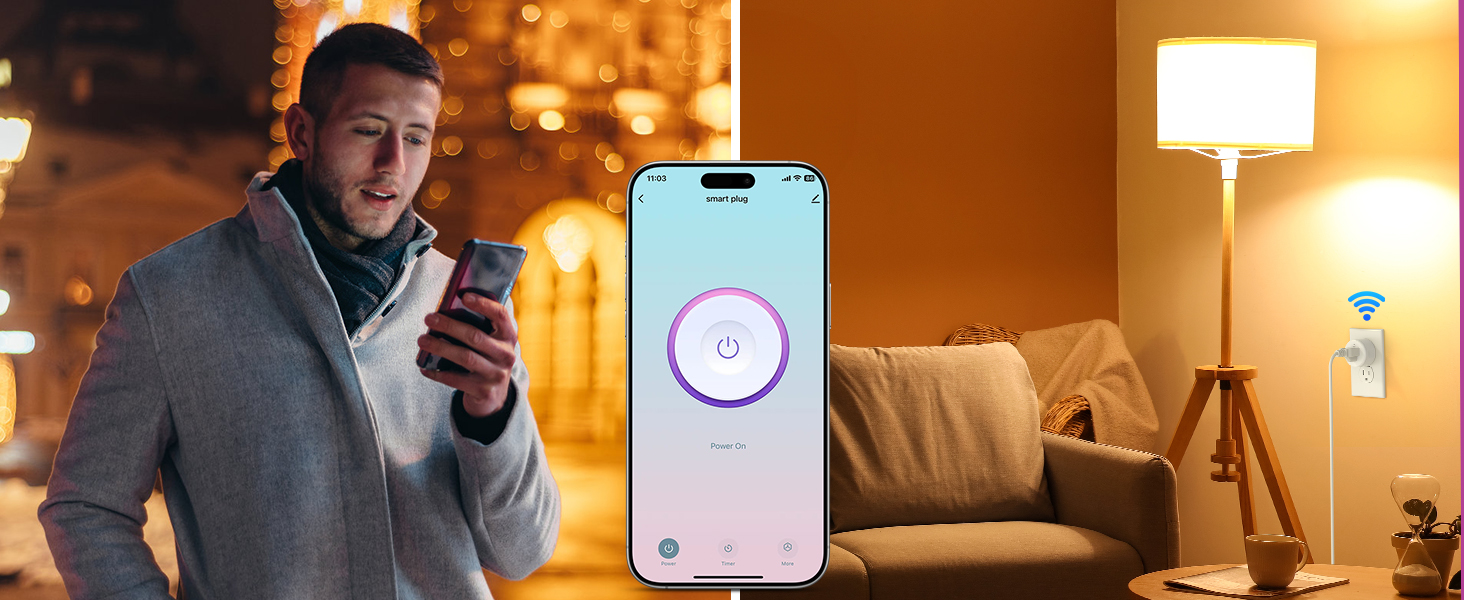
Control your home devices from anywhere using the Smart Life App on your smartphone.
- Open the Smart Life App.
- Tap on the desired smart plug to toggle its power on/off.
- Group multiple plugs for simultaneous control.
Control your devices remotely using the Smart Life App.

Manage your home appliances from anywhere, anytime.
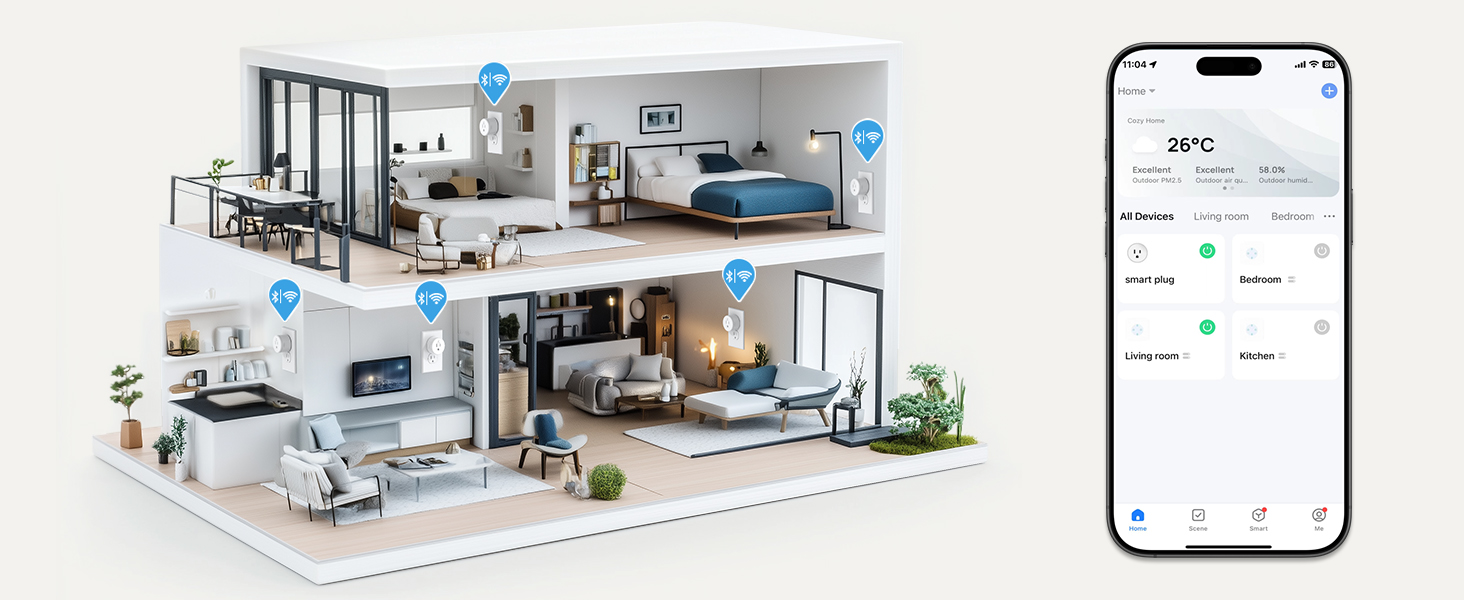
Visualize and control all your smart devices across different rooms.
6.2. Voice Control
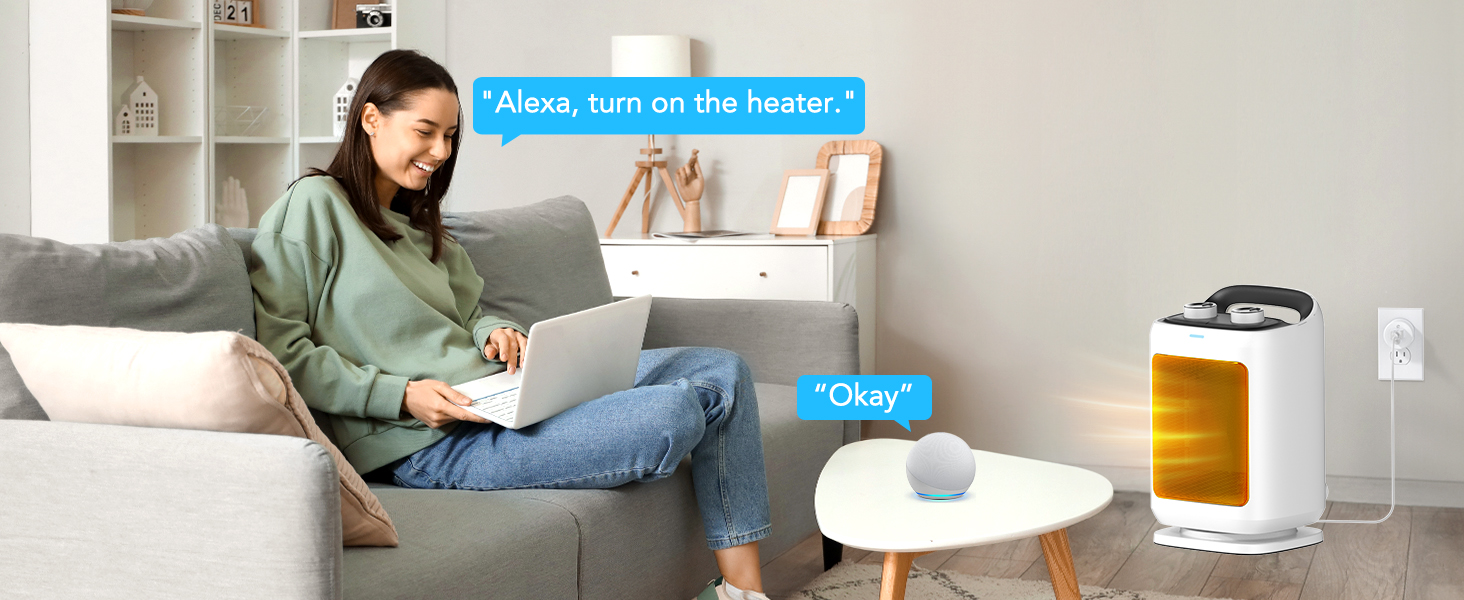
Use simple voice commands with Alexa or Google Home Assistant to operate your smart plugs.
- Example: "Alexa, turn on the fan."
- Example: "Hey Google, turn off the coffee maker."

Control your appliances hands-free using voice commands.
Conveniently activate devices with voice commands.
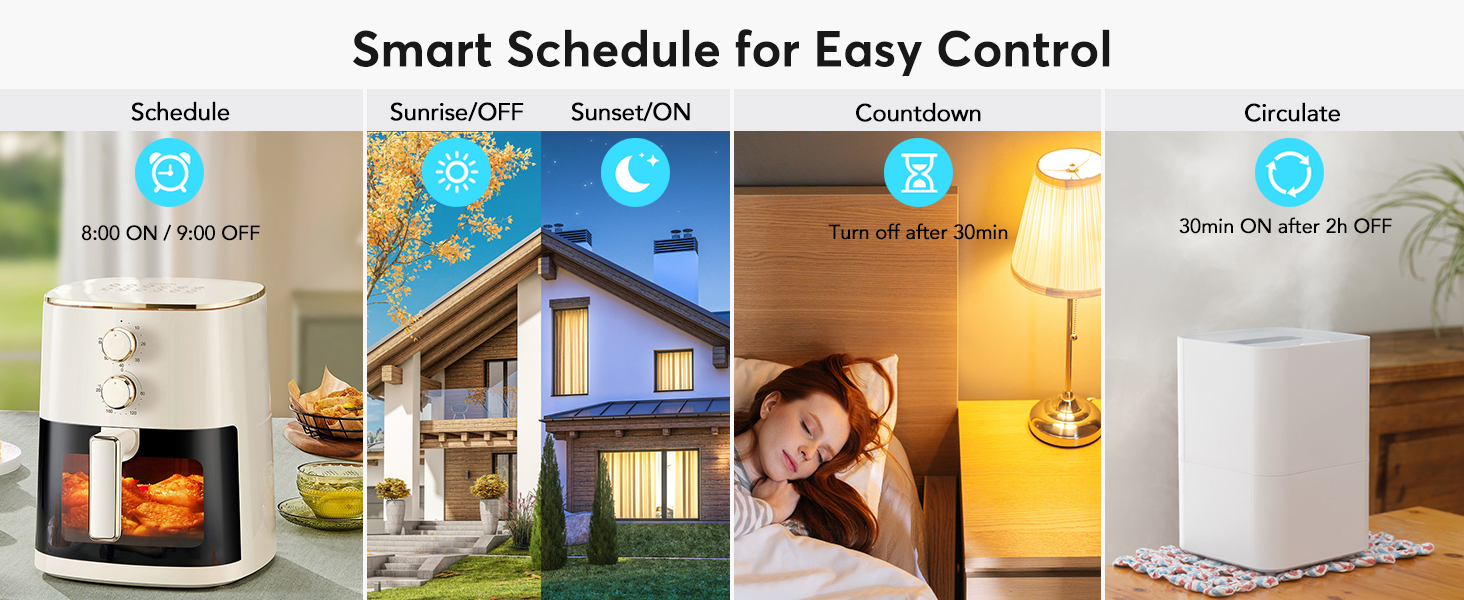
6.3. Schedule & Timer Function
Automate your devices by setting schedules, countdowns, cycles, or random schedules through the Smart Life App.
- Schedule: Set specific on/off times (e.g., turn on coffee maker at 8 AM, turn off lights at 10 PM).
- Countdown: Set a timer for a device to turn off after a specified duration.
- Circulate: Program devices to cycle on and off at regular intervals.
- Sunrise/Sunset: Automate lights based on local sunrise and sunset times.

Set your appliances to turn on/off according to your needs.
Various smart schedule options for automated control.
6.4. Device Sharing
Share control of your smart plugs with family members through the Smart Life App.
- In the Smart Life App, navigate to the device settings.
- Select "Share Device" and invite family members to access and configure the smart plug.

Easily share control of your smart plugs with family members.
7. Maintenance
The EIGHTREE Smart Plug requires minimal maintenance. To ensure its longevity and proper function:
- Wipe the exterior with a soft, dry cloth as needed.
- Do not use harsh chemicals or abrasive cleaners.
- Ensure the plug is disconnected from power before cleaning.
8. Troubleshooting
If you encounter issues with your EIGHTREE Smart Plug, try the following solutions:
8.1. Connection Failure or Timeout
- Check Wi-Fi: Ensure your Wi-Fi network is 2.4GHz. The smart plug does not support 5GHz Wi-Fi.
- Network Stability: Verify your Wi-Fi signal is strong and stable where the plug is located.
- Reset the Plug: If connection fails, power off the smart plug for over 10 seconds, then power it on again. Press and hold the power button on the side of the plug for 5 seconds until the indicator light blinks slowly. Then retry the pairing process in the app.
- AP Mode Connection: If standard pairing fails, try connecting using AP (Access Point) mode. This method involves connecting your phone directly to the plug's Wi-Fi hotspot during setup.
AP Mode Connection Guide:
This video demonstrates how to connect your EIGHTREE Smart Plug using AP Mode, which can be helpful if standard connection methods fail.
8.2. Voice Control Issues
- Account Linking: Double-check that your Smart Life account is correctly linked to your Alexa or Google Home account.
- Device Naming: Ensure the device name in the Smart Life App is simple and easily recognizable by your voice assistant.
- Discover Devices: Try asking your voice assistant to "Discover devices" again.
9. Warranty and Support
EIGHTREE is committed to providing high-quality smart home solutions. Your EIGHTREE Smart Plug comes with a standard warranty covering manufacturing defects.
- All products are certified by FCC & ETL.
For any assistance, technical support, or warranty inquiries, please contact EIGHTREE Customer Service. We offer 7*24 customer service to ensure your peace of mind.
Contact Information:
- Email: support.us@eightree.club

EIGHTREE: Your partner for smart living.
Related documentsET01


Ask a question about this manual
Ask about setup, troubleshooting, compatibility, parts, safety, or missing instructions. Manuals+ will review the question and use this page’s manual context to help answer it.