
ECHTPower SP02
ECHTPower Switch Controller User Manual
Model: SP02
Introduction
This manual provides comprehensive instructions for the ECHTPower Wireless Switch Controller, designed for use with Nintendo Switch, Switch 2, Windows PC, and Android/iOS devices. It covers setup, operation, maintenance, and troubleshooting to ensure optimal performance and an enhanced gaming experience.

Figure 1: ECHTPower Wireless Switch Controller (White Model)
Safety Information
- Do not expose the controller to extreme temperatures or humidity.
- Avoid dropping or subjecting the controller to strong impacts.
- Keep out of reach of small children.
- Do not attempt to disassemble or modify the controller. This will void the warranty.
- Use only the provided USB Type-C cable for charging.
Package Contents
Verify that all items are present in your package:
- 1 x ECHTPower Wireless Pro Switch Controller
- 1 x USB Type-C Charging Cable
- 1 x User Manual
Product Overview
The ECHTPower Switch Controller features an ergonomic design for comfortable extended gameplay and includes advanced functionalities such as customizable LED lighting, adjustable vibration, turbo function, and programmable back buttons.

Figure 2: Customizable 9-Color LED Light with 3 Modes. Users can select their preferred lighting color and mode, and adjust brightness across 4 levels (25%, 50%, 75%, 100%).
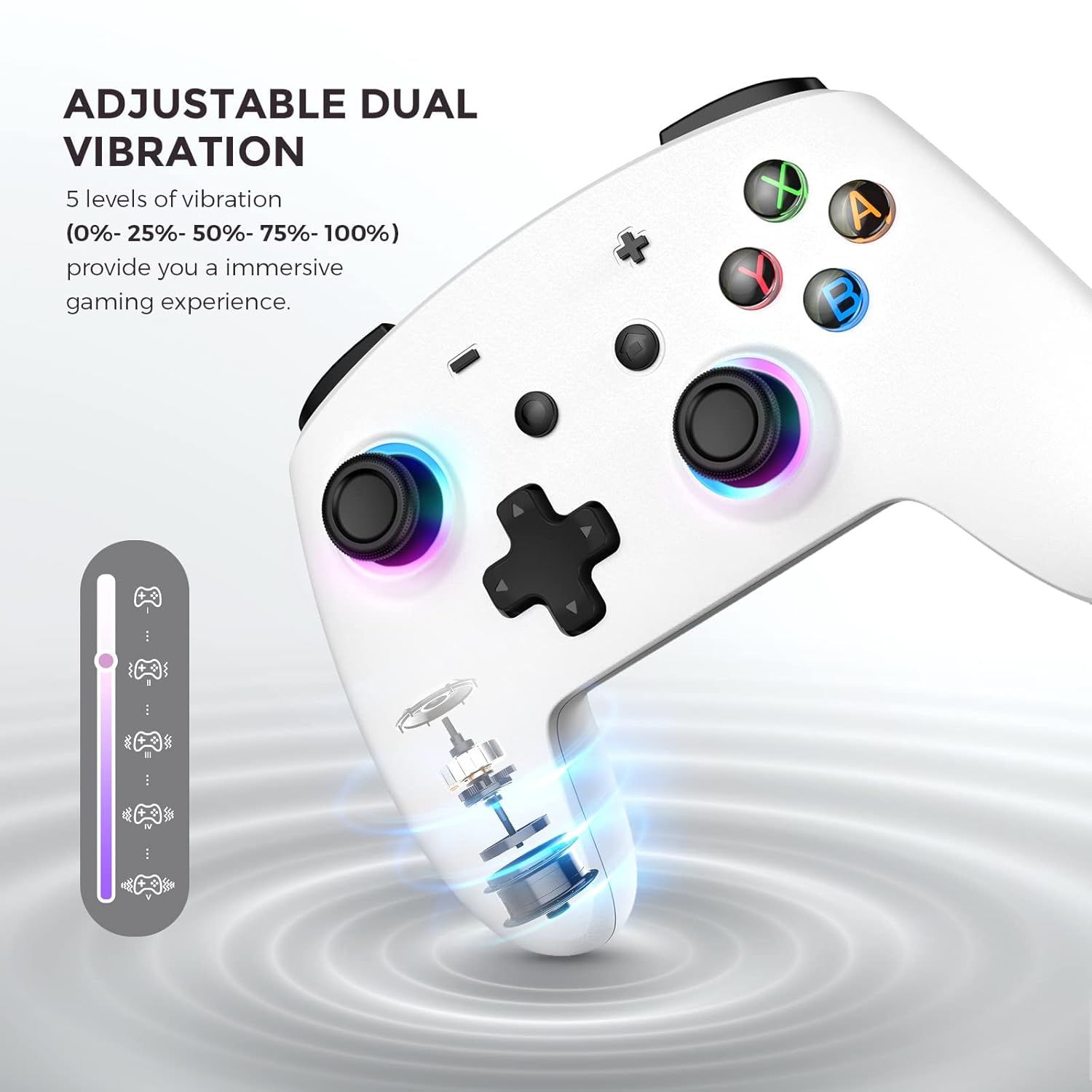
Figure 3: Adjustable Dual Vibration. The controller features built-in dual vibration motors with 5 levels of feedback (0%, 25%, 50%, 75%, 100%) for enhanced game immersion.

Figure 4: Programmable Back Buttons. Four additional MR/ML/XR/XL buttons on the back can be programmed for easier and more efficient operations.

Figure 5: Three Speeds of Turbo Function. The controller supports three turbo speeds (5 shots/s, 12 shots/s, 20 shots/s) to reduce fatigue from repeated button presses.
Setup and Connection
The ECHTPower controller supports multiple platforms including Nintendo Switch, Windows PC, iOS, and Android devices. Follow the instructions below for connection.
Connecting to Nintendo Switch
- On your Nintendo Switch, navigate to "Controllers" and then select "Change Grip/Order".
- Long press the pairing key on the ECHTPower controller until the indicator lights begin to flash.
- The controller will automatically pair with the Switch. Once connected, the indicator light will become solid.
Video 1: Demonstrates the connection method for different devices, including the Nintendo Switch. This video shows how to access the "Change Grip/Order" menu on the Switch and initiate pairing by long-pressing the pairing key on the controller.
Video 2: A short preview video demonstrating the wireless connection of the controller to a Nintendo Switch. It highlights the ease of pairing for quick gameplay.
Connecting to Windows PC (Wired Mode Only)
- Connect the USB Type-C charging cable to the controller.
- Plug the USB-A end of the cable into an available USB port on your Windows PC.
- The controller will be recognized as an Xbox 360 Controller.
Note: This controller only supports wired connection with Windows PC.
Connecting to iOS Devices
- Ensure Bluetooth is enabled on your iOS device.
- Long press the 'X' button + 'HOME' button on the controller simultaneously until the indicator lights flash.
- On your iOS device, go to Bluetooth settings and select "Pro Controller" from the available devices to pair.
Connecting to Android Devices
- Ensure Bluetooth is enabled on your Android device.
- Long press the 'B' button + 'HOME' button on the controller simultaneously until the indicator lights flash.
- On your Android device, go to Bluetooth settings and select "Pro Controller" from the available devices to pair.
Video 3: This video illustrates the wireless connection process for the controller across Switch, PC, iOS, and Android platforms. It provides a visual guide for pairing with various devices.
Operating Instructions
LED Light Customization
The controller features 9 different LED light effects, including 8 distinct colors and 1 rainbow light mode. There are 3 different light models. You can adjust the brightness across 4 levels (25%, 50%, 75%, 100%). The controller supports light cycle switching and has a memory function for your preferred settings.
Video 4: Demonstrates the LED light features of the Switch Pro Controller, showcasing various colors and lighting modes available for customization.
Adjusting Vibration Feedback
The built-in dual vibration motors offer 5 levels of vibration intensity: 0%, 25%, 50%, 75%, and 100%. Adjust the vibration level to suit your preference for different games and enhance immersion.
Turbo Function
The turbo function allows you to set 3 speeds: 5 shots/second, 12 shots/second, and 20 shots/second. You can assign the turbo function to any of the A/B/X/Y/L/R/ZL/ZR buttons as needed, reducing the need for rapid button presses.
Programmable Back Buttons
The controller includes 4 additional programmable buttons (MR/ML/XR/XL) on the back. These buttons can be mapped to other controller inputs (A, B, X, Y, L, R, ZL, ZR, L3, R3, D-pad) to simplify complex operations and improve efficiency during gameplay.
6-Axis Gyro Motion Control
Equipped with built-in 6-axis gyro sensors, the controller provides stable and accurate motion control, allowing for quick responses in games that utilize motion sensing.
One-Key Wake Up and Screenshot
The controller supports one-key wake-up for quick entry into your game and a screenshot function to capture your in-game moments. Note: After being turned on, the controller will automatically turn off if not paired within 2 minutes.
Video 5: This video details the setting methods for various functions of the controller, including customization of LED lights, vibration, and programmable buttons.
Charging
The controller has a built-in 600mAh battery, providing up to 10 hours of playtime on a full charge. A full charge typically takes approximately 2 hours.
- Connect the provided USB Type-C cable to the controller's charging port.
- Connect the other end of the cable to a USB power source (e.g., a computer USB port, a USB wall adapter).
- The indicator lights on the controller will show charging status and turn off or change color when fully charged.
- It is recommended to fully charge the controller before its first use.
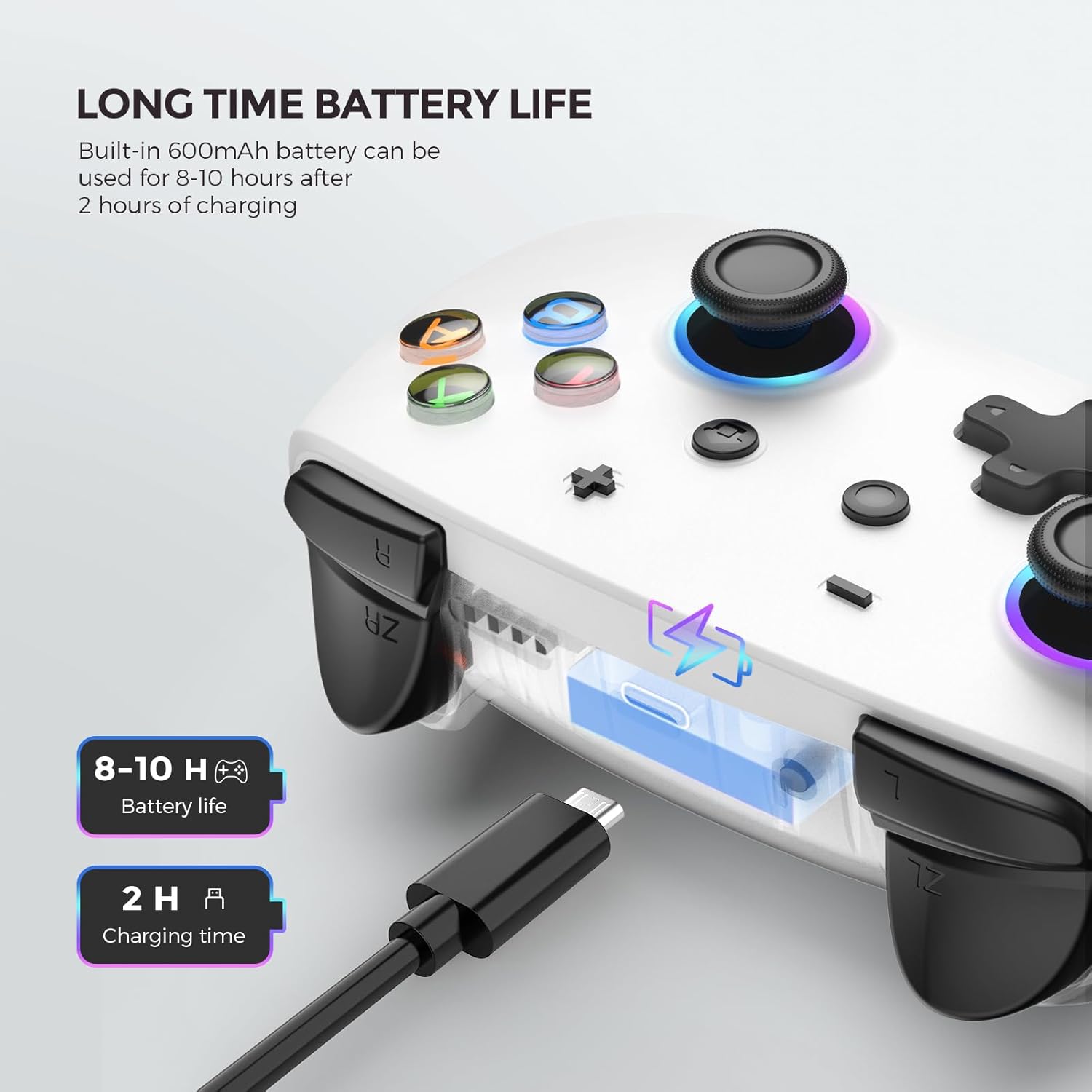
Figure 6: Battery Life and Charging. The controller offers 8-10 hours of playtime and charges fully in approximately 2 hours via USB-C.
Maintenance
- Clean the controller regularly with a soft, dry cloth.
- Do not use abrasive cleaners or solvents.
- Store the controller in a cool, dry place when not in use.
Troubleshooting
| Problem | Possible Cause | Solution |
|---|---|---|
| Controller does not connect. | Low battery, incorrect pairing mode, Bluetooth interference. | Ensure controller is charged. Verify correct pairing mode for your device (Switch, iOS, Android). Try re-pairing. Move closer to the device. |
| Input lag or unresponsive buttons. | Low battery, distance from device, interference. | Charge the controller. Reduce distance to the device. Minimize other wireless devices nearby. |
| Controller automatically turns off. | No activity for 2 minutes after turning on without pairing. | Pair the controller with a device within 2 minutes of turning it on. |
| Controller not recognized by PC. | Only wired connection supported for PC. | Ensure the controller is connected via USB Type-C cable to the PC. |
Video 6: Provides solutions for common controller failures, offering practical steps to resolve connectivity or functionality issues.
Specifications
- Model Number: SP02
- Connectivity: Wireless (Bluetooth), Wired (USB Type-C)
- Battery: 600mAh Lithium Polymer
- Playtime: Up to 10 hours
- Charging Time: Approximately 2 hours
- Vibration: Dual Motors, 5 adjustable levels
- Motion Control: 6-Axis Gyro Sensor
- LED Lights: 9 colors, 3 modes, 4 brightness levels
- Programmable Buttons: 4 back buttons (MR/ML/XR/XL)
- Turbo Function: 3 adjustable speeds (5/12/20 shots/s)
- Compatibility: Nintendo Switch, Switch 2, Windows PC (wired), Android, iOS
- Item Weight: 10.2 ounces
- Package Dimensions: 6.38 x 4.49 x 2.87 inches
Warranty and Support
ECHTPower provides customer support for its products. If you encounter any issues or have questions regarding your controller, please contact ECHTPower directly through Amazon's messaging system. Our friendly support team is dedicated to providing quick solutions and assistance to all our customers.
For specific warranty details, please refer to the product listing on Amazon or contact customer support.
Related documentsSP02


Ask a question about this manual
Ask about setup, troubleshooting, compatibility, parts, safety, or missing instructions. Manuals+ will review the question and use this page’s manual context to help answer it.