
Samsung SM-S908U
Samsung Galaxy S22 Ultra 5G SM-S908U User Manual
Model: SM-S908U
Introduction
Welcome to the user manual for your Samsung Galaxy S22 Ultra 5G. This guide provides essential information on setting up, operating, maintaining, and troubleshooting your device. Please read this manual carefully to ensure optimal performance and longevity of your smartphone.

Image: Front view of the Samsung Galaxy S22 Ultra 5G in Burgundy, showcasing the display and the integrated S-Pen.
Setup
1. Inserting the SIM Card
- Locate the SIM card tray on the side of your device.
- Use the SIM ejector tool (usually included in the box) to open the tray.
- Place your Nano-SIM card(s) into the tray with the gold contacts facing down. This device supports Dual SIM functionality.
- Carefully reinsert the tray into the phone.
2. Initial Power On and Setup
- Press and hold the Power/Side key until the Samsung logo appears.
- Follow the on-screen prompts to select your language, connect to a Wi-Fi network, and set up your Google account.
- You will be guided through setting up security features like facial recognition.
3. S-Pen Integration
The S-Pen is integrated directly into your Galaxy S22 Ultra 5G. To use it, gently press the end of the S-Pen to release it from its slot at the bottom of the device. Reinsert it firmly until it clicks into place when not in use.

Image: Side view of the Samsung Galaxy S22 Ultra 5G with the S-Pen partially extended from its slot.
Operating Your Device
Camera Features
- 8K Super Steady Video: Record videos at an impressive 8K resolution with automatic focus stabilization. Access this mode within the Camera app's video settings.
- Night Mode: Capture clear and bright photos and videos in low-light conditions. The camera automatically adjusts for optimal results.
- Portrait Mode: Automatically detects and focuses on subjects, blurring the background for professional-looking portraits.
- 108 MP Resolution: Utilize the 108-megapixel rear camera for capturing highly detailed images.
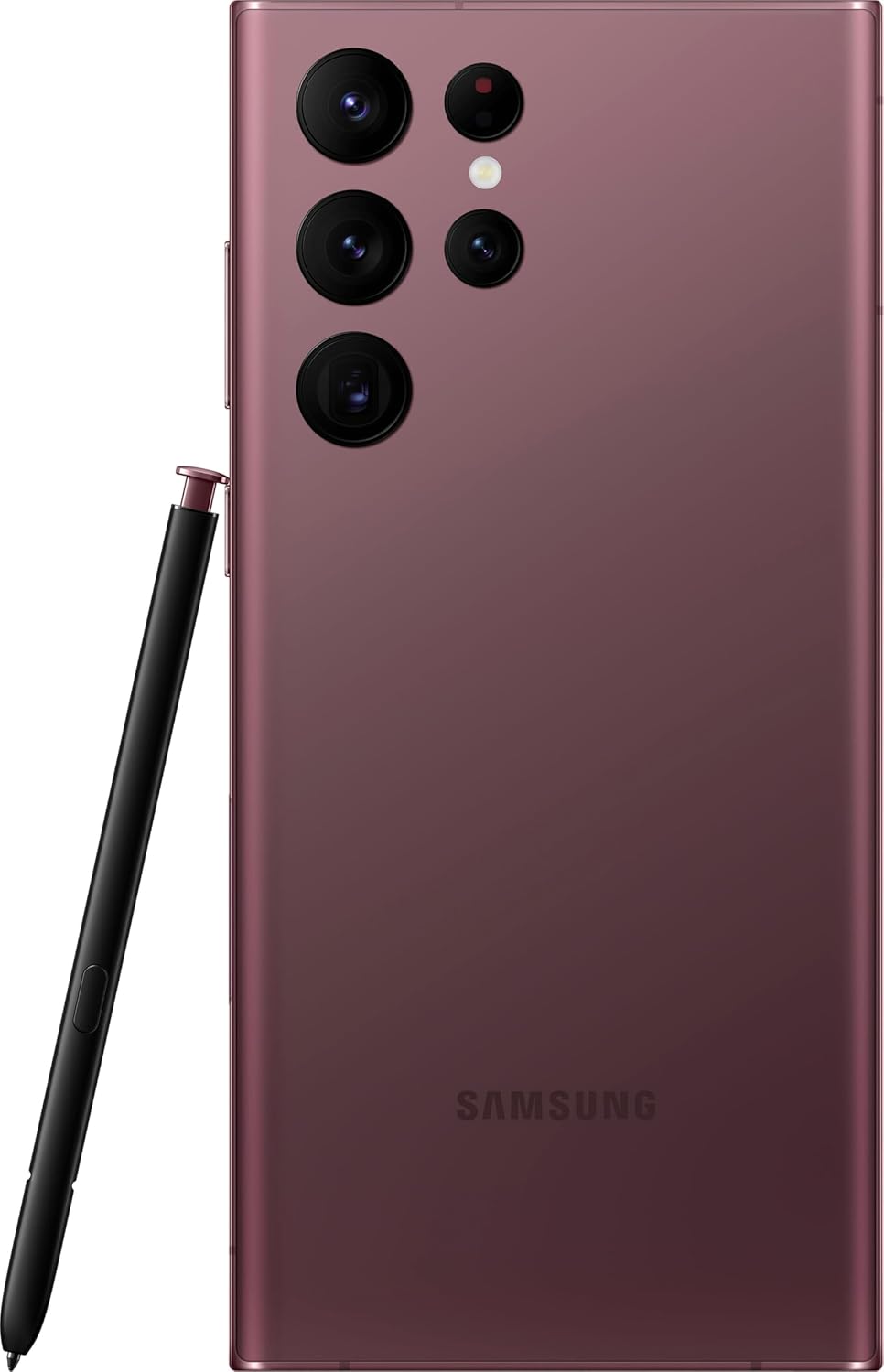
Image: Rear view of the Samsung Galaxy S22 Ultra 5G, highlighting the multi-lens camera system and the S-Pen.
Display and Visuals
- Adaptive Color Contrast: The Galaxy S22 Ultra's display automatically optimizes color and brightness for both indoor and outdoor viewing, ensuring clarity in various lighting conditions.
- Vision Booster: Enhances screen visibility, making your content appear vibrant and clear even in bright environments.

Image: Front view of the Samsung Galaxy S22 Ultra 5G with the screen displaying colorful, dynamic content.
S-Pen Usage
The integrated S-Pen allows for precise interaction with your device. Use it for:
- Taking quick notes directly on the screen.
- Editing photos and videos with enhanced precision.
- Drawing and sketching with a natural pen-on-paper feel.
- Navigating the user interface and selecting text.
Maintenance
Cleaning Your Device
To clean your phone, use a soft, lint-free cloth. Avoid abrasive materials or harsh chemicals. For stubborn smudges, slightly dampen the cloth with water. Ensure no liquid enters openings like the charging port or speaker grilles.
Battery Care
Your device is equipped with a 5000 mAh Li-Ion battery. To maximize battery life:
- Avoid extreme temperatures.
- Do not let the battery completely drain frequently.
- Use the original or certified charging accessories.
Software Updates
Regularly check for and install software updates to ensure your device has the latest features, security patches, and performance improvements. You can usually find this option in the device settings under "Software update".
Water Resistance
The Galaxy S22 Ultra 5G is rated as water-resistant. This means it can withstand splashes and brief immersion in shallow water. It is not fully waterproof. Avoid exposing it to high-pressure water, saltwater, or other liquids. If the device gets wet, dry it thoroughly before charging or using accessories.
Troubleshooting
Common Issues and Solutions
- Device not turning on: Ensure the battery is charged. Connect the device to a charger and wait a few minutes before attempting to power it on again.
- Screen unresponsive: Try restarting the device by holding the Power/Side key and Volume Down key simultaneously for about 7 seconds.
- Poor battery life: Check background app usage, reduce screen brightness, disable unnecessary features like GPS or Bluetooth when not in use. Consider a factory reset if the issue persists after trying other solutions.
- Network connectivity issues: Ensure your SIM card is properly inserted. Try toggling Airplane Mode on and off. If issues persist, contact your wireless carrier (T-Mobile for this model).
Factory Reset
A factory reset will erase all data from your device and restore it to its original factory settings. Back up all important data before proceeding. To perform a factory reset, navigate to Settings > General management > Reset > Factory data reset.
Specifications
| Feature | Detail |
|---|---|
| Brand | Samsung |
| Model Name | Galaxy S22 Ultra 5G |
| Model Number | SM-S908U |
| Operating System | Android |
| CPU Model | A-Series Dual-Core A4-3420 |
| Storage Capacity | 512 GB |
| Screen Size | 6.8 Inches |
| Display Resolution | 1440 x 3200 |
| Refresh Rate | 60 Hz |
| Wireless Carrier | T-Mobile |
| SIM Card Slots | Dual SIM |
| Connectivity Technology | 5G, Wi-Fi, CDMA, GSM, LTE |
| Biometric Security | Facial Recognition |
| Water Resistance Level | Water Resistant |
| Audio Jack | No Headphone Jack |
| Rear Camera Resolution | 108 MP (3 cameras) |
| Front Camera Count | 1 |
| Battery Type | Li-Ion |
| Battery Capacity | 5000 mAh |
| Video Recording Resolution | 8K |
| Color | Burgundy |
Warranty and Support
Warranty Information
This product is a refurbished device. It typically comes with a 90-day return policy for refund or replacement. For specific warranty details, please refer to the documentation provided at the time of purchase or contact your retailer. Manufacturer warranties for new devices may not apply to refurbished products.
Customer Support
For further assistance, technical support, or service inquiries, please visit the official Samsung support website or contact their customer service. You can find contact information and FAQs on their website.
For issues related to your T-Mobile service, please contact T-Mobile customer support directly.
Ask a question about this manual
Ask about setup, troubleshooting, compatibility, parts, safety, or missing instructions. Manuals+ will review the question and use this page’s manual context to help answer it.