
1. Safety Information
Please read all instructions carefully before using this device. Keep this manual for future reference.
- Do not expose the monitor to rain or moisture to prevent fire or shock hazards.
- Do not open the monitor casing. There are no user-serviceable parts inside. Refer all servicing to qualified personnel.
- Ensure proper ventilation. Do not block any ventilation openings.
- Use only the power adapter and cables provided by the manufacturer.
- Avoid placing the monitor on an unstable surface.
- Disconnect the power plug during lightning storms or when unused for long periods.
2. Package Contents
Verify that all items are present in your package:

24C1Q Monitor x1

Power Cable x1

Power Adapter x1

HDMI Cable x1

USB-C Cable x1
USB-A to USB-B Cable x1
Color Calibration Report x1

Instruction Manual x1
3. Setup
3.1 Monitor Assembly
The monitor stand is designed for easy, tool-free assembly. Follow these steps to attach the stand:
- Place the monitor face down on a soft, clean surface to prevent scratches.
- Align the stand arm with the mounting slot on the back of the monitor.
- Gently push the stand arm into the slot until it clicks securely into place.
- Attach the base to the stand arm, ensuring it is firmly connected.
The stand features a cable management hole to keep your workspace tidy.
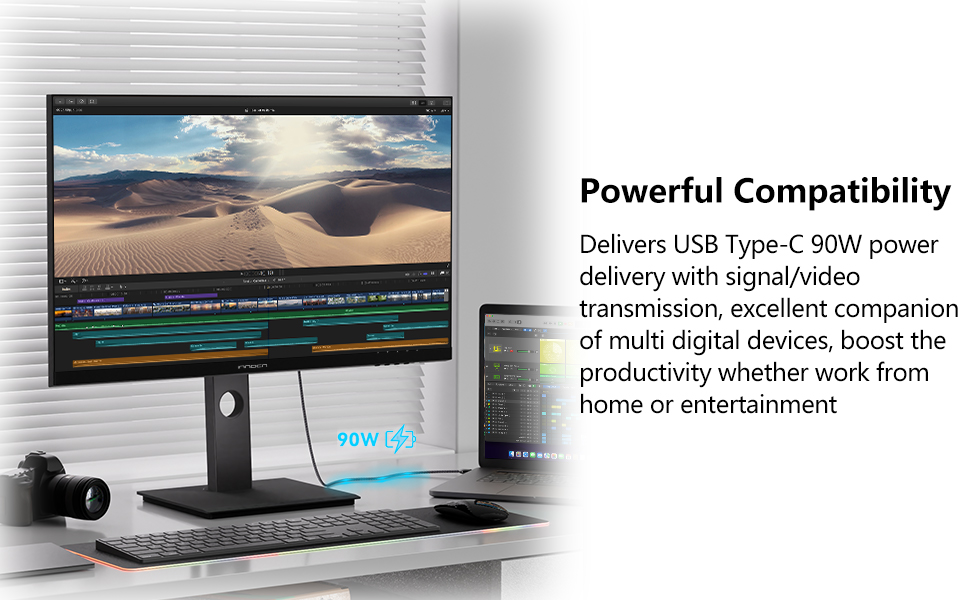
Image: Monitor stand assembly and showing height, tilt, and swivel adjustments.
3.2 Mounting Options
The INNOCN 24C1Q monitor is VESA mountable (75x75mm) for flexible installation on a wall or an alternative monitor arm. Ensure you use VESA-compatible mounting hardware (not included) and follow the instructions provided with your mounting kit.
4. Connectivity
4.1 Connecting to Devices
The monitor offers a variety of input ports for connecting to different devices:
- USB-C (90W Power Delivery): Connect compatible laptops, MacBooks, phones, or tablets for video signal, data transfer, and power delivery through a single cable.
- DisplayPort (DP 1.2): Connect to computers or graphics cards for high-resolution video and audio transmission.
- HDMI (HDMI 2.0, HDMI 1.4): Connect to various devices such as PCs, gaming consoles (PS5/4/3, Xbox), and media players.
- USB-A (x2): Connect peripherals like keyboards, mice, or USB drives.
- USB-B (Upstream): Connect to your computer to enable the USB-A ports on the monitor.
- 3.5mm Audio Jack: Connect external speakers or headphones.
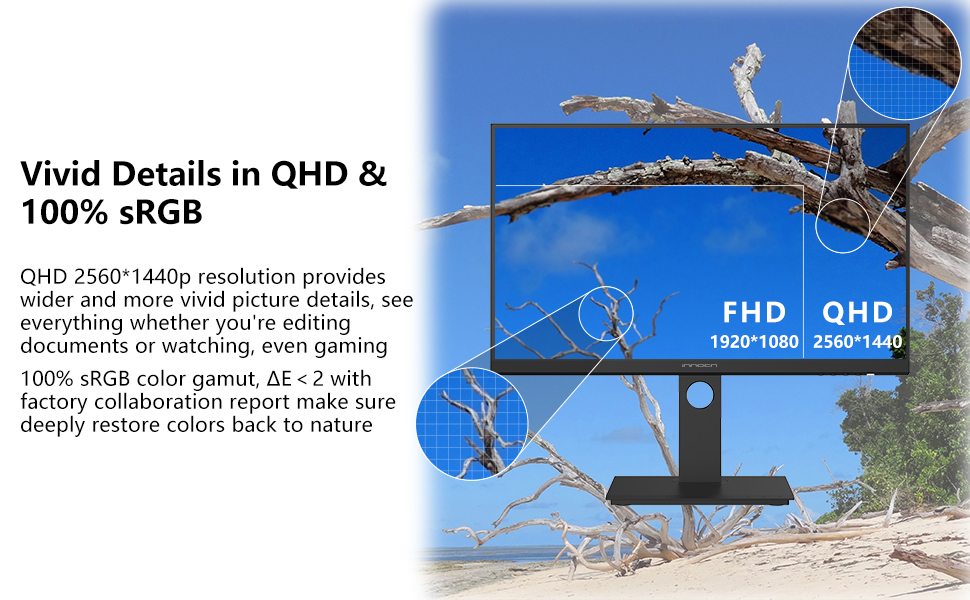
Image: Rear view of the monitor highlighting various input ports including USB-C, HDMI, and DisplayPort.
5. Operating Instructions
5.1 Power On/Off
Press the power button located on the monitor to turn it on or off. The power indicator light will illuminate when the monitor is active.
5.2 On-Screen Display (OSD) Menu
Use the control buttons (usually located on the back or bottom right of the monitor) to navigate and adjust settings in the OSD menu. Common settings include:
- Brightness/Contrast: Adjust the display's luminance and contrast levels. The monitor offers 300 nits brightness and a 1000:1 contrast ratio.
- Color Settings: Fine-tune color temperature, gamma, and saturation. This monitor features 100% sRGB wide color gamut for accurate color reproduction.
- Input Source: Manually select the active input (HDMI, DP, USB-C).
- Picture-in-Picture (PIP) / Picture-by-Picture (PBP): Display content from multiple sources simultaneously.
- Audio: Adjust volume or mute.

Image: Monitor showcasing QHD 2560x1440 resolution and 100% sRGB color accuracy.

Image: Monitor demonstrating Picture-in-Picture (PIP) and Picture-by-Picture (PBP) functionalities.
5.3 Ergonomic Adjustments
The monitor stand allows for various adjustments to optimize your viewing comfort:
- Height Adjustment: Raise or lower the monitor to eye level.
- Tilt: Adjust the screen angle forward or backward.
- Swivel: Rotate the monitor horizontally.
- Pivot: Rotate the screen 90 degrees for portrait mode viewing.
Image: Diagram illustrating the monitor's flexible height, tilt, swivel, and pivot adjustments.
5.4 Special Features
The monitor includes features designed to enhance user experience and eye comfort:
- 75Hz Refresh Rate: Provides smoother visuals compared to standard 60Hz monitors, beneficial for general use and light gaming.
- Flicker-Free Technology: Reduces screen flickering to minimize eye strain during prolonged use.
- Low Blue Light Filter: Decreases harmful blue light emissions to protect your eyes and reduce fatigue.
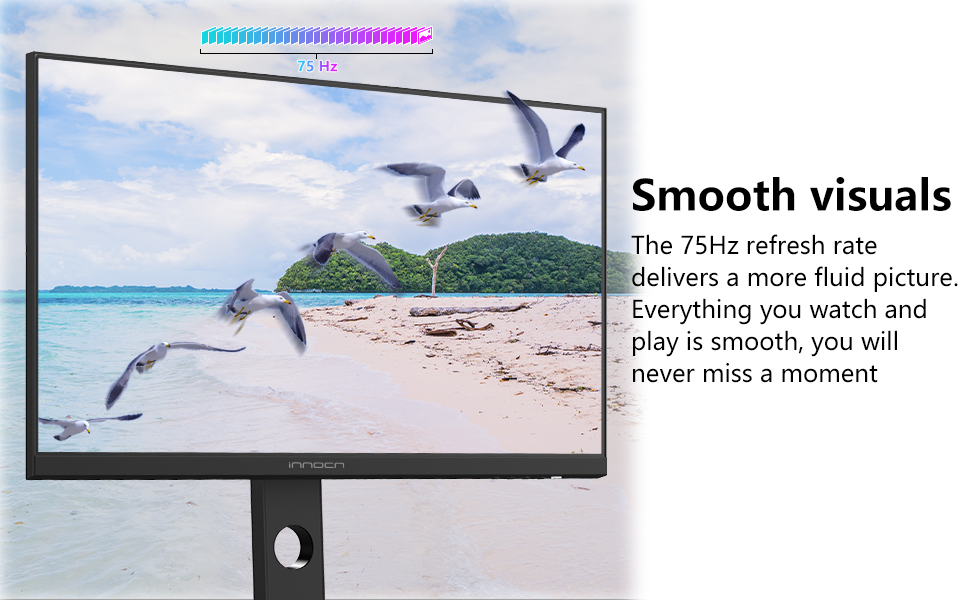
Image: Visual representation of the monitor's 75Hz refresh rate for smooth motion.
Image: Illustration demonstrating Flicker-Free and Low Blue Light technologies for eye protection.
6. Maintenance
6.1 Cleaning the Monitor
To ensure the longevity and optimal performance of your monitor, follow these cleaning guidelines:
- Always unplug the monitor from the power outlet before cleaning.
- Use a soft, lint-free cloth slightly dampened with water or a mild, non-abrasive screen cleaner.
- Wipe the screen gently. Avoid applying excessive pressure.
- Do not use alcohol, ammonia, or abrasive cleaners, as they can damage the screen surface.
- For the monitor casing, use a soft, dry cloth.
7. Troubleshooting
If you encounter issues with your monitor, refer to the following common troubleshooting steps:
| Problem | Possible Solution |
|---|---|
| No power | Ensure the power cable is securely connected to the monitor and a working power outlet. Check the power adapter. |
| No signal | Verify the video cable (HDMI, DP, USB-C) is correctly connected to both the monitor and the source device. Select the correct input source via the OSD menu. |
| Flickering screen | Check the video cable connection. Ensure the refresh rate is set correctly in your device's display settings. |
| Image too dark/bright | Adjust brightness and contrast settings in the OSD menu. |
| Colors are incorrect | Adjust color settings in the OSD menu. Ensure your graphics card drivers are up to date. |
8. Specifications
Key technical specifications for the INNOCN 24C1Q monitor:
| Feature | Specification |
|---|---|
| Screen Size | 24 Inches |
| Resolution | QHD (2560 x 1440 Pixels) |
| Panel Type | IPS |
| Aspect Ratio | 16:9 |
| Refresh Rate | 75 Hz |
| Response Time | 1 Millisecond |
| Brightness | 300 Candela (Nits) |
| Contrast Ratio | 1000:1 |
| Color Gamut | 100% sRGB |
| Viewing Angle | 178 Degrees |
| Connectivity | 1x DP 1.2, 1x USB-C (90W PD), 2x USB-A, 1x USB-B, 1x HDMI 2.0, 1x HDMI 1.4, 1x 3.5mm Audio Jack |
| Adaptive Sync | FreeSync |
| Mounting | VESA Wall Mountable (75x75mm) |
| Adjustments | Height, Tilt, Swivel, Pivot |
| Dimensions (D x W x H) | 6.1"D x 25"W x 16.1"H |
9. Warranty and Support
The INNOCN 24C1Q monitor comes with a 1-year manufacturer warranty. For any product or order issues, INNOCN provides 7*24 hours quick solution support.
For technical assistance, troubleshooting, or warranty claims, please contact INNOCN customer support through their official channels or the retailer where the product was purchased.


