
1. Introduction
Thank you for purchasing the ORCC 10-in-1 Turntable Record Player. This versatile audio system combines a classic vinyl turntable with modern functionalities including CD, cassette, USB, SD/MMC card playback, Bluetooth connectivity, FM/AM radio, and MP3 recording. This manual provides detailed instructions to help you set up, operate, and maintain your device for optimal performance and enjoyment.
Please read this manual thoroughly before using the product and retain it for future reference.
2. Safety Information
To ensure safe operation and prevent damage, please observe the following precautions:
- Do not expose the unit to rain, moisture, or extreme temperatures.
- Avoid placing the unit near heat sources such as radiators, heat registers, stoves, or other apparatus that produce heat.
- Ensure proper ventilation. Do not block any ventilation openings.
- Use only attachments/accessories specified by the manufacturer.
- Unplug the unit during lightning storms or when unused for long periods.
- Refer all servicing to qualified service personnel.
- Keep the unit away from strong magnetic fields.
3. Setup
Follow these steps to set up your ORCC 10-in-1 Turntable Record Player:
- Unpacking: Carefully remove the unit from its packaging. Retain all packaging materials for future transport or storage.
- Placement: Place the unit on a stable, level surface away from direct sunlight, heat sources, and excessive dust or vibration.
- Power Connection: Connect the power adapter to the DC input jack on the unit and then plug it into a wall outlet.
- Dust Cover: Ensure the dust cover is properly attached to protect the turntable.
- Turntable Setup: Remove the stylus protector from the needle. Unlock the tone arm clip.
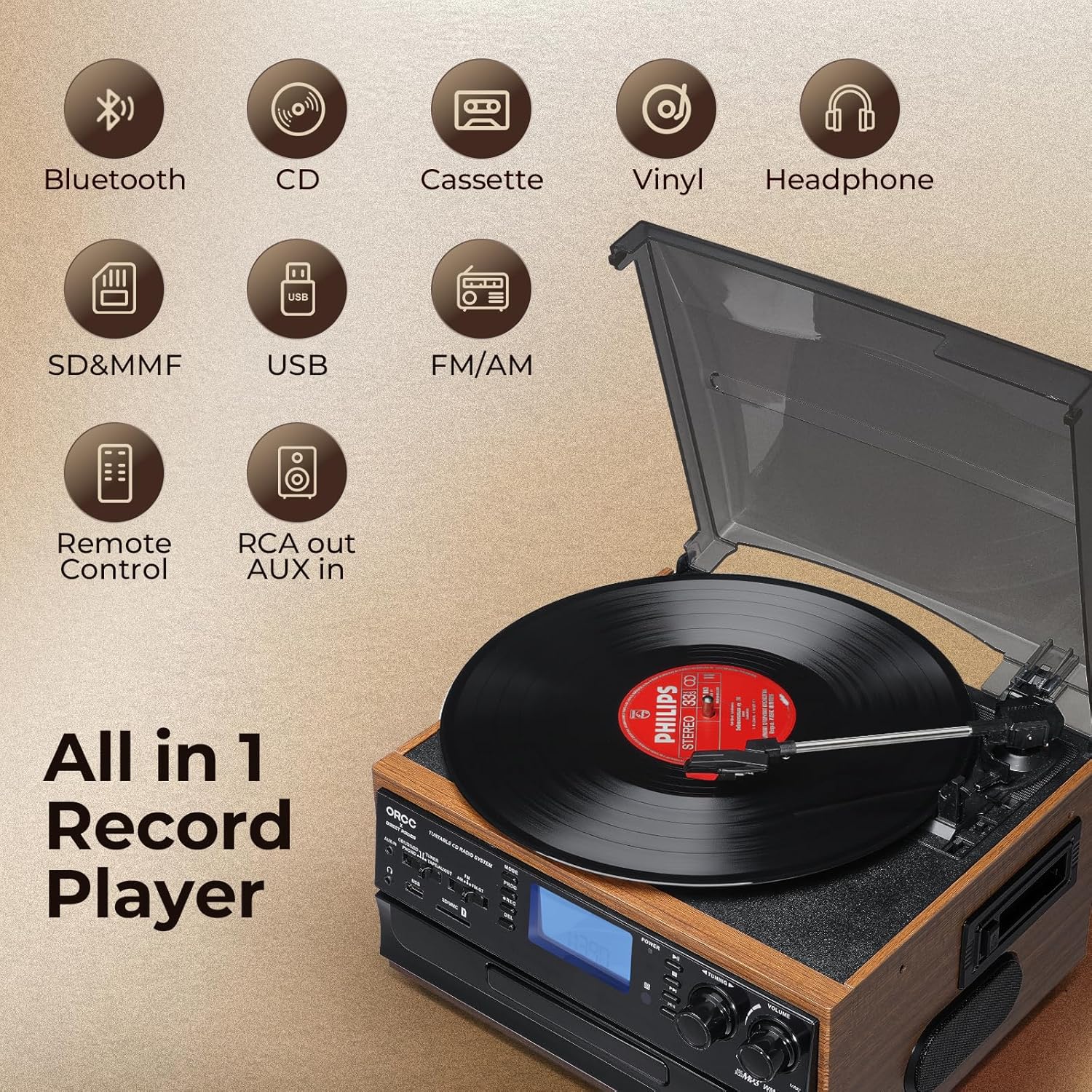
Image: Overview of the ORCC 10-in-1 Turntable Record Player, highlighting its various functions including Bluetooth, CD, Cassette, Vinyl, Headphone, SD/MMC, USB, FM/AM Radio, Remote Control, and RCA out/AUX in.
4. Operating Instructions
4.1. Turntable Operation
This unit supports 33, 45, and 78 RPM records in 7", 10", and 12" sizes.
- Place a record on the turntable platter.
- Select the appropriate speed (33/45/78 RPM) using the speed selector switch. Use the included 45 RPM adapter for 7-inch records.
- Lift the tone arm using the cue lever and position it over the desired track on the record.
- Lower the tone arm gently onto the record using the cue lever. Playback will begin.
- At the end of the record, the auto-stop function will automatically stop the platter rotation. Lift the tone arm and return it to its rest.

Image: Detailed view of the turntable section, illustrating the 45 RPM adapter, 3-speed control, auto-stop feature, and tone arm lock lever for vinyl record playback.
4.2. CD Player Operation
- Press the MODE button to select CD mode.
- Press the OPEN/CLOSE button to open the CD tray.
- Place a CD with the label side facing up into the tray.
- Press the OPEN/CLOSE button again to close the tray. The unit will read the CD.
- Press the PLAY/PAUSE button to start playback. Use the SKIP buttons to navigate tracks.

Image: The built-in CD player with a disc partially inserted into the tray, ready for playback.
4.3. Cassette Player Operation
- Press the MODE button to select TAPE mode.
- Insert a cassette tape into the cassette slot on the side of the unit.
- Press the PLAY button to start playback. Use the FAST FORWARD/REWIND buttons as needed.
- Press the STOP button to end playback.

Image: A cassette tape being inserted into the dedicated cassette player slot on the side of the unit.
4.4. Bluetooth Connectivity
- Press the MODE button to select Bluetooth (BT) mode. The display will show "BT" and flash, indicating it's in pairing mode.
- On your Bluetooth-enabled device (e.g., smartphone, tablet), enable Bluetooth and search for available devices.
- Select "ORCC" from the list of devices to pair. Once connected, the "BT" indicator will stop flashing.
- You can now stream audio wirelessly from your device to the ORCC system.

Image: A smartphone displaying a Bluetooth connection to the ORCC turntable, illustrating wireless audio streaming.
4.5. FM/AM Radio Operation
- Press the MODE button to select TUNER mode.
- Use the FM/AM switch to select your desired band.
- Rotate the TUNING knob to manually search for radio stations.
- For automatic scanning, press and hold the SCAN button. The unit will search and stop at the next available station.

Image: A hand adjusting the tuning knob on the ORCC turntable, which displays an FM radio frequency on its screen.
4.6. USB & SD Card Playback
- Insert a USB flash drive into the USB port or an SD/MMC card into the card slot.
- Press the MODE button to select USB or SD mode.
- The unit will automatically detect and play MP3 files. Use the PLAY/PAUSE and SKIP buttons to control playback.

Image: A close-up view of the USB port and SD/MMC card slot on the front panel of the ORCC turntable, indicating digital media playback options.
4.7. MP3 Recording Function
The unit allows direct recording from Vinyl, CD, Cassette, or AUX-in to a USB flash drive or SD card in MP3 format.
- Insert a USB flash drive or SD card into its respective slot.
- Select the desired source (Vinyl, CD, Cassette, or AUX-in) using the MODE button.
- Start playback of the source material.
- Press the REC button to begin recording. The recording indicator will illuminate.
- Press the REC button again to stop recording. The recorded MP3 file will be saved to the USB drive or SD card.

Image: A visual representation of the recording function, demonstrating how audio from vinyl, CD, or cassette can be converted and saved as MP3 files onto a USB drive.
4.8. Headphone Jack & RCA Output
- Headphone Jack: Plug 3.5mm headphones into the headphone jack for private listening. The built-in speakers will mute automatically.
- RCA Output: Use RCA cables (not included) to connect the RCA LINE OUT ports to an external amplifier or powered speakers for enhanced audio output.
- AUX Input: Connect external audio devices (e.g., MP3 players, smartphones) to the 3.5mm AUX IN jack using an audio cable (not included) to play their audio through the ORCC system.

Image: A pair of black headphones connected to the built-in headphone jack on the ORCC turntable, indicating private listening capability.

Image: A close-up of the rear panel of the ORCC turntable, showing the AUX In and RCA Line Out ports for connecting external devices or speakers.
5. Maintenance
Proper care and maintenance will ensure the longevity of your ORCC audio system:
- Cleaning: Wipe the unit with a soft, dry cloth. Do not use abrasive cleaners or solvents.
- Stylus Care: Handle the stylus carefully. Clean it periodically with a soft brush, brushing from back to front. Replace the stylus when sound quality deteriorates.
- Dust Cover: Keep the dust cover closed when not in use to prevent dust accumulation on the turntable and stylus.
- CD/Cassette Care: Keep CDs and cassette tapes clean and free of scratches or damage.
6. Troubleshooting
If you encounter issues with your ORCC 10-in-1 Turntable, refer to the following common problems and solutions:
| Problem | Possible Cause | Solution |
|---|---|---|
| No power | Power cord not connected; Power outlet not active. | Ensure power cord is securely plugged in. Test outlet with another device. |
| No sound | Volume too low; Incorrect mode selected; Headphones connected. | Increase volume. Select correct input mode. Disconnect headphones if using speakers. |
| Turntable not spinning | Power off; Auto-stop engaged; Belt issue. | Ensure unit is on. Check auto-stop switch. If belt is dislodged or broken, contact support. |
| Bluetooth not pairing | Unit not in BT mode; Device too far; Device already paired. | Ensure unit is in BT mode. Move device closer. Forget device on your phone and re-pair. |
| Poor sound quality from vinyl | Dirty record; Worn stylus; Incorrect speed. | Clean record. Replace stylus. Verify correct RPM speed. |
7. Specifications
- Model Name: 19-WD
- Brand: ORCC
- Product Dimensions: 127.95 x 116.14 x 78.74 inches
- Item Weight: 10.63 pounds
- Material: Wood
- Color: Brown
- Maximum Rotational Speed: 78 RPM
- Motor Type: AC Motor
- Included Components: Built-in speaker
- Special Features: AUX Input, Built-In Bluetooth Receiver, RCA Output
- Compatible Devices: Headphone, Speaker
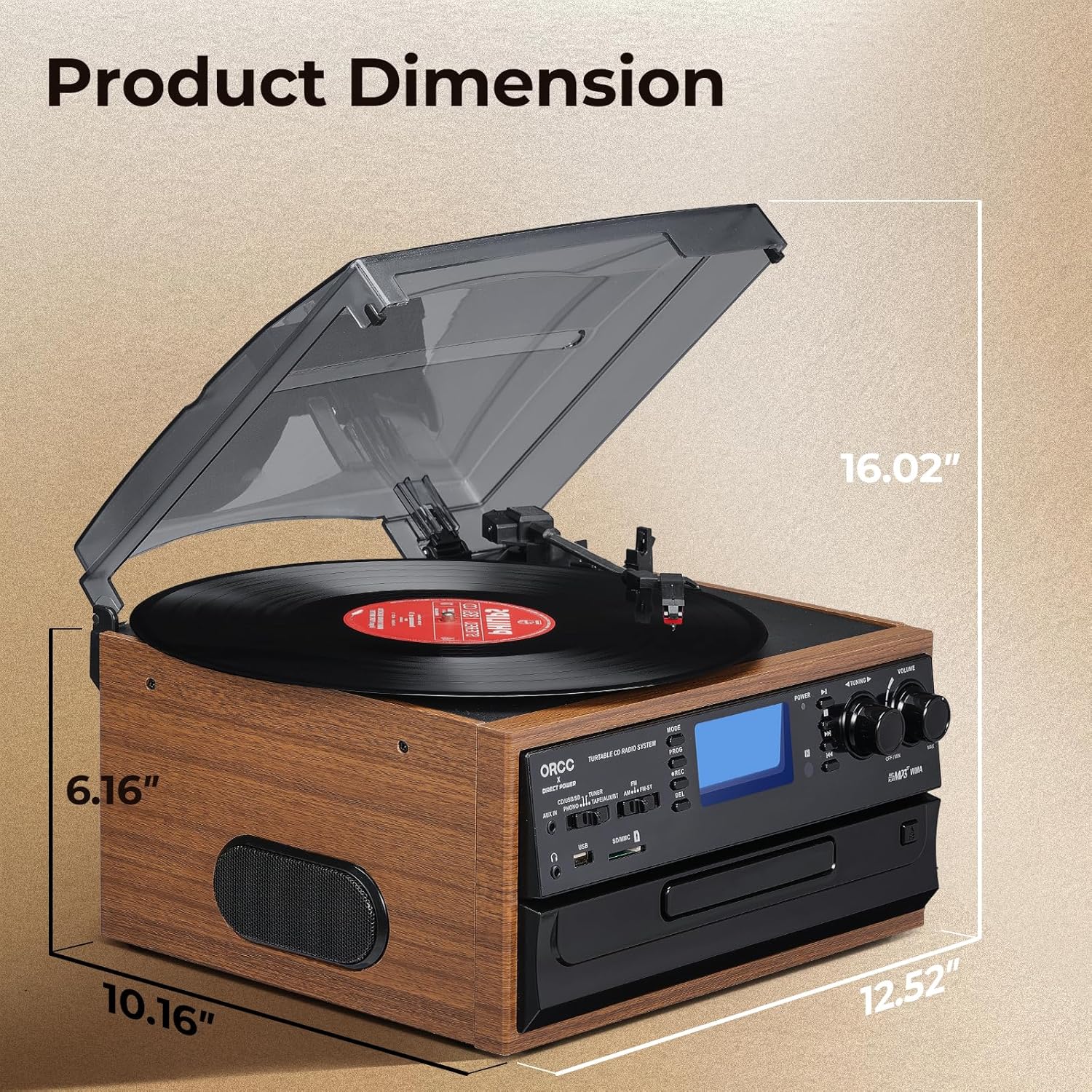
Image: A diagram illustrating the product dimensions of the ORCC turntable, showing height, width, and depth measurements.
8. Warranty and Support
For warranty information and customer support, please refer to the warranty card included with your product or visit the official ORCC website. Keep your purchase receipt as proof of purchase.
If you experience any issues not covered in the troubleshooting section, please contact ORCC customer service for assistance.