
Easyfone T300
Easyfone T300 4G Flip Cell Phone User Manual
Model: T300
1. Introduction
This manual provides comprehensive instructions for the setup, operation, maintenance, and troubleshooting of your Easyfone T300 4G Flip Cell Phone. Designed for ease of use, this phone features large buttons, clear and loud sound, hearing aid compatibility, and essential functions like photo speed dial and an SOS emergency button.
2. Setup
2.1 Unboxing
Upon opening the package, ensure all components are present:
- Easyfone T300 Flip Phone
- Charging Set (with Charging Dock)
- 1500mAh Battery
- User Manual
- SpeedTalk 3-in-1 SIM Card Kit
For a visual guide to unboxing and initial setup, please refer to the video below:
Video: How to set Photo Speed Dial & SOS function (Easyfone T300). This video demonstrates the unboxing process and key feature setup.
2.2 SIM Card and Battery Installation
To install the SIM card and battery:
- Remove the back cover of the phone.
- Insert the micro-size SIM card into the designated SIM slot. A nano-size SIM can be used with the supplied adapter.
- Insert the 1500mAh battery into its compartment.
- Replace the back cover.
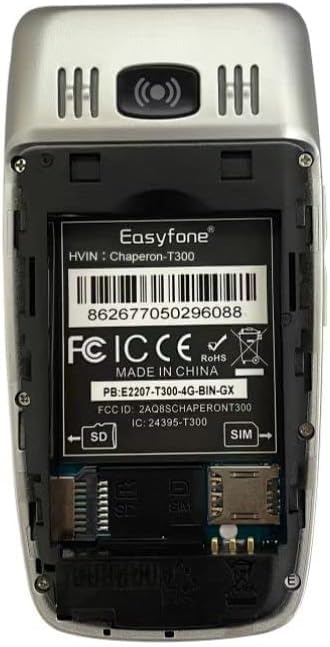
Image: Rear view of the Easyfone T300 with the battery cover removed, illustrating the SIM and SD card insertion points.
2.3 Charging the Phone
Charge the phone using the provided charging dock or a micro-USB cable. The 1500mAh battery offers long standby time.


Images: The Easyfone T300 securely placed in its charging dock, ready for use or charging.
3. Operating Instructions
3.1 Basic Call Functions
The Easyfone T300 allows you to answer calls by simply flipping open the phone. Its large buttons facilitate easy dialing.
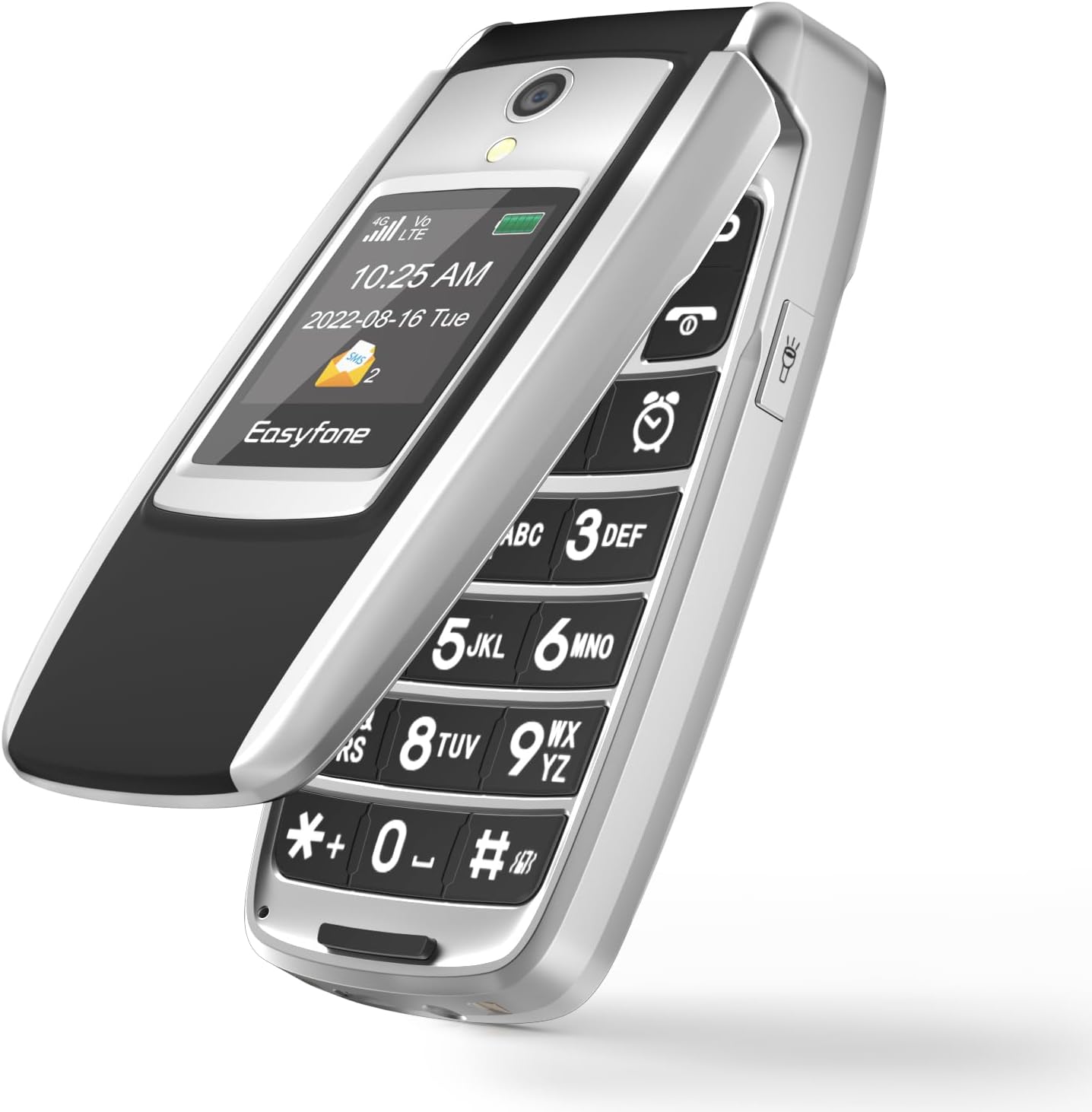
Image: The Easyfone T300 in its open position, highlighting the large, easy-to-use keypad and clear internal display.
3.2 Photo Speed Dial
The phone supports up to 8 photo speed dial contacts. To set up and use:
- Save Contacts: Press 'Contact' > 'Add contact' > 'Phone'. Edit necessary information including 'Add Photo', 'Name', and 'Mobile'. Select 'SAVE'.
- Add to Speed Dial: Select the target contact from your list. Press 'Option' > 'Add to Speed Dial'. Choose an available number (1-8) for the contact.
- Use Speed Dial: From the main page, press the photo speed dial shortcut button. Use 'up' and 'down' to switch between contacts. Press the call button to initiate a call.

Image: Demonstrates the photo speed dial feature, allowing users to call contacts by selecting their picture.
3.3 SOS Emergency Button
The SOS button provides a critical safety feature. To set up and use:
- Set SOS Numbers: Press 'Menu' > 'SOS settings' > 'SOS numbers'. You can save up to 5 emergency contacts. Press 'Option' > 'Add from contacts' to select.
- Activate SOS: Ensure 'SOS active' is set to 'On' in 'SOS settings'.
- Initiate SOS: From the main page, press and hold the SOS button (located on the back of the phone) for 3 seconds. The phone will call the saved emergency contacts in a loop until a call is answered. Simultaneously, an SOS message will be sent to each emergency contact.

Image: Visual representation of the SOS emergency feature, showing the button and its function in alerting contacts.
3.4 Other Features
The Easyfone T300 includes additional convenient features:
- Dual HD Display: Features a 2.4" HD main display and a 1.44" external colorful HD screen, both displaying large fonts and icons for easy viewing.
- Shortcut Buttons: Dedicated shortcut buttons for FM Radio, Alarm Clock, and Photo Speed Dial.
- Clear & Loud Sound: Enhanced audio for calls and media.
- HAC Compatible: Hearing Aid Compatible for users with hearing aids.
4. Maintenance
4.1 Cleaning
Wipe the phone regularly with a soft, dry cloth. Avoid using harsh chemicals or abrasive materials.
4.2 Battery Care
To prolong battery life, avoid extreme temperatures and fully discharge and recharge the battery periodically. Use only the provided charging accessories.
5. Troubleshooting
5.1 Network Compatibility
This phone is compatible with T-Mobile, SpeedTalk, and Tello Mobile networks. It is NOT compatible with AT&T, Cricket, or any CDMA Networks like Verizon, Sprint, and Boost Mobile. Please contact customer support if you have questions about compatibility.

Image: Displays the logos of various compatible mobile carriers in the US.
5.2 General Issues
- Setup Difficulty: While designed for simplicity, initial setup may require careful reading of the manual. Online video guides are available for assistance.
- External Display Not Working: If the external display ceases to function, ensure the phone has not sustained physical damage. Contact customer support for further assistance.
- Button Sounds: The phone's buttons produce sounds upon pressing. Refer to the phone's settings menu for options to adjust or disable these sounds.
6. Specifications
| Feature | Specification |
|---|---|
| Model Name | T300 |
| Brand | Easyfone |
| Operating System | Nucleus OS |
| Cellular Technology | 4G |
| Wireless Communication | Bluetooth, Cellular |
| Screen Size | 2.4 Inches (Main) |
| Resolution | 720 x 600 |
| Battery Capacity | 1500 Amp Hours (Lithium Ion) |
| Item Weight | 4 ounces |
| Special Features | Big buttons, Clear & Loud Sound, Dual HD display, Photo speed dial, charging station |
| Audio Jack | 3.5 mm |
| Memory Storage Capacity | 1 GB |
| RAM Memory Installed Size | 64 MB |
7. Warranty and Support
For warranty information and customer support, please refer to the documentation included with your product or visit the official Easyfone store online. For additional assistance, you may contact the seller, FamFun Direct, through the platform where the product was purchased.
Visit the Easyfone Store for more products and information.
Related documentsT300


Ask a question about this manual
Ask about setup, troubleshooting, compatibility, parts, safety, or missing instructions. Manuals+ will review the question and use this page’s manual context to help answer it.