1. Introduction
This manual provides detailed instructions for the installation, operation, maintenance, and troubleshooting of your Biorunn Android 9 Inch Car Stereo. This unit is specifically designed for Benz Smart 453 Fortwo vehicles manufactured between 2015 and 2020, for models without a factory navigation screen. Please read this manual thoroughly before installation and use to ensure proper functionality and safety.
2. Setup and Installation
2.1. Compatibility Check
This unit is compatible with Benz Smart 453 Fortwo models from 2015-2020 that do not have a factory navigation screen. If your vehicle is equipped with a factory navigation screen, please ensure you have selected the correct variant (typically designated as 'B' models).
2.2. Package Contents
Verify that all components are present in your package:
- Biorunn 9 Inch Android Head Unit
- Power Cable Harness
- RCA Cable Set
- GPS Antenna
- USB Cables (x2)
- Microphone (MIC)
- Reversing Camera Input Cable (Camera not included)
- CANbus Decoder Box (may include multiple types; use the one compatible with your vehicle)

This image illustrates the physical dimensions of the 9-inch head unit and the various cables and accessories typically included in the package, such as the power cable, RCA cables, GPS antenna, USB cables, and microphone.
2.3. Installation Steps
- Preparation: Disconnect the vehicle's battery before beginning installation. Remove the original car stereo and trim panels carefully.
- Wiring Connections: Connect the main power harness, RCA cables, GPS antenna, USB cables, and microphone to the corresponding ports on the new head unit. Ensure all connections are secure.
- CANbus Decoder: Connect the appropriate CANbus decoder box to the vehicle's wiring harness. If multiple CANbus boxes are provided, identify and use the one that fits your vehicle's system (e.g., 'SimpleSoft' or 'Hiworld').
- JBL Stereo System (Specific Note): If your Smart Fortwo is equipped with a JBL stereo system and you experience no audio after installation, locate the pink wire from the car's harness. This wire needs to be manually spliced into the 'AMP CONTD' wire coming from the new stereo's harness to activate the amplifier.
- Steering Wheel Controls: Ensure the steering wheel control wires are correctly connected. In some cases, a specific part of the harness may need to be looped back into itself for the controls to function. Refer to the wiring diagram provided with the unit or contact support if issues persist.
- Test Fit: Before fully securing the unit, connect the battery and perform a brief functional test to ensure the unit powers on, audio works, and basic functions are operational.
- Secure Unit: Carefully install the head unit into the dashboard opening and reattach all trim panels.
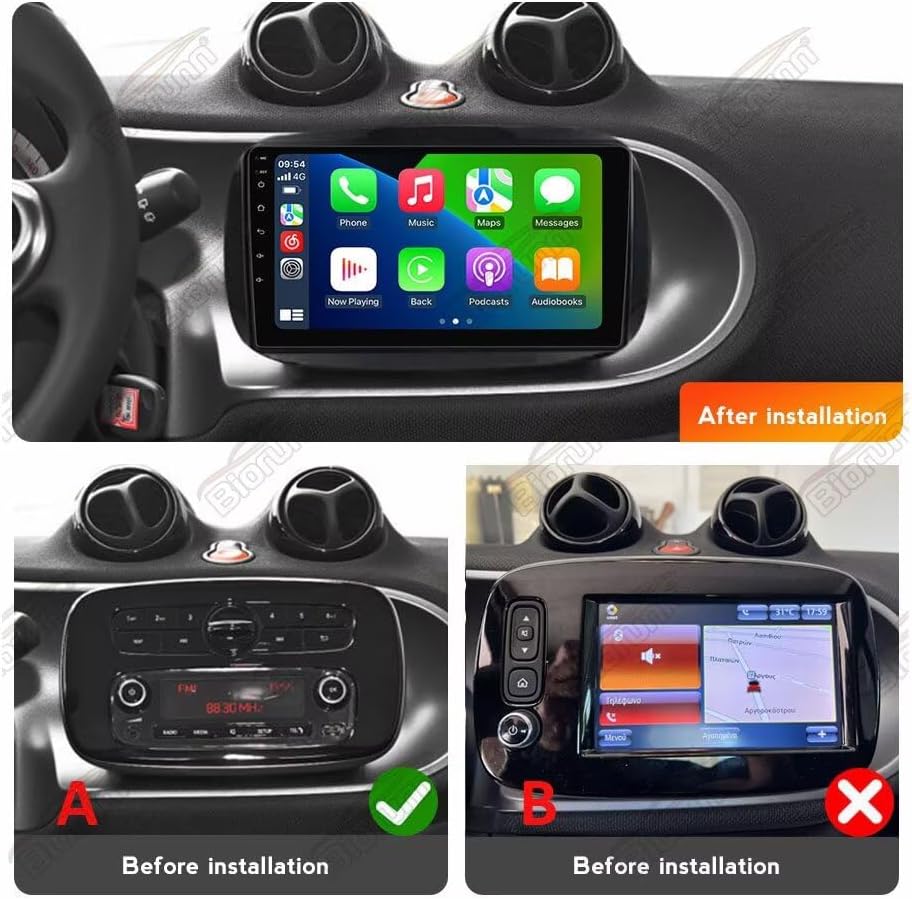
This image provides a visual guide, showing the original dashboard configurations (standard radio 'A' and factory navigation 'B') and the final appearance of the Biorunn Android stereo after successful installation.
3. Operating Instructions
3.1. Basic Operation
The Biorunn Android head unit features a 9-inch IPS touchscreen with a resolution of 1280x720 pixels. Navigate the interface by touching icons and swiping. The unit runs on an Android operating system, providing access to various applications and settings.
3.2. Wireless Car-Play and Android Auto
The unit supports both wireless and wired Car-Play (for iOS devices) and Android Auto (for Android devices), allowing seamless integration of your smartphone's features.

To connect:
- Enable Bluetooth on your smartphone and connect it to the head unit.
- On the head unit, open the application named "Car Link" (or similar).
- Wait for the connection to establish. You can also connect via a USB cable for a wired connection.
3.3. GPS Navigation
The unit includes a built-in global positioning system (GPS) with support for GPS, BDS, and GLONASS. It offers omni-directional map display and real-time traffic conditions. The system supports various navigation applications.
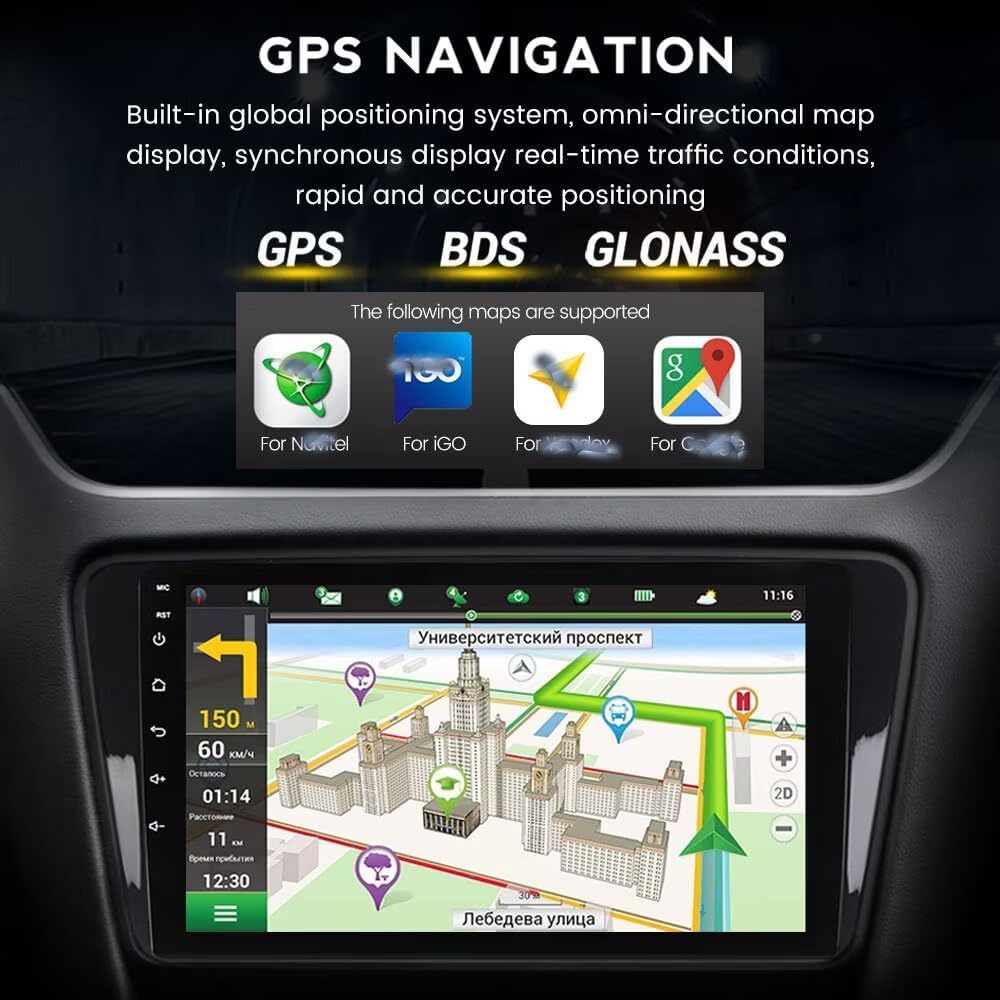
The image displays the navigation interface, highlighting supported map applications and real-time route information.
3.4. Bluetooth Functionality
Equipped with Bluetooth 5.0, the unit supports hands-free calling, phone book synchronization, and Bluetooth music streaming. This allows for safer communication and entertainment while driving.

This image illustrates the Bluetooth capabilities, including hands-free calling and contact management, emphasizing safe driving practices.
3.5. FM/AM RDS Radio
The built-in FM/AM RDS radio supports automatic and manual station searching. You can save your favorite stations for quick access.

The image displays the radio interface, showing frequency tuning and preset station management.
3.6. 5GHz WiFi Support
The unit supports 5GHz WiFi (802.11 b/g/n) for fast transmission, low latency, and wide coverage, ensuring a stable internet connection for online features and app downloads.

This image points out the 5GHz WiFi antenna and lists the advantages of its high-frequency support.
3.7. Additional Features
- Split Screen: Supports running two applications simultaneously on the screen.
- 4G LTE: Supports 4G LTE connectivity (requires a compatible USB dongle, not included).
- ADAS DVR: Supports Anti-collision warning driving recorder (DVR not included).
- OBD II: Supports OBD II diagnostic tools (OBD II not included).
- TPMS: Supports Tire Pressure Monitoring System (TPMS not included).
- Multimedia Playback: Supports various audio (MP3, WMA, AAC, RM, FALC) and video (MPEG-1/2/4, H264, H263, VC1, RV, RMVB, DivX, Sorenson SparK, Spark, VP8, AVS Stream) formats.
- Multi-language Support: Includes English, German, French, Spanish, Italian, Portuguese, Russian, Dutch, Polish, Japanese, Simplified & Traditional Chinese, Arabic, etc.
4. Maintenance
4.1. General Care
- Clean the screen with a soft, lint-free cloth. Avoid abrasive cleaners or solvents.
- Keep the unit free from dust and moisture.
- Avoid exposing the unit to extreme temperatures.
4.2. Cooling System
The head unit is equipped with a powerful cooling fan to manage heat generated during long-term operation or in high-temperature environments. This fan helps maintain stable performance and prolong the unit's lifespan.
This image highlights the integrated cooling fan on the rear of the unit, designed for thermal management.
5. Troubleshooting
If you encounter issues, please refer to the following common solutions before contacting support.
| Problem | Possible Cause / Solution |
|---|---|
| No Power | Check all power cable connections. Ensure the vehicle's battery is connected and charged. Check relevant fuses. |
| No Sound (JBL System) | The pink wire from the car's harness may need to be spliced into the 'AMP CONTD' wire from the stereo's harness. |
| Steering Wheel Controls Not Working | Verify CANbus decoder connection. Ensure the steering wheel control wires are correctly connected; some harnesses require a specific loop-back connection. |
| Unit Freezes or Malfunctions | Perform a factory reset through the system settings. Ensure all connections are snug. If the issue persists, contact support. |
| Wireless Car-Play/Android Auto Not Connecting | Ensure Bluetooth is enabled and paired. Confirm the 'Car Link' app is open on the head unit. Try connecting via USB cable. |
For persistent or complex issues, please refer to the support section.
6. Specifications
| Feature | Detail |
|---|---|
| Operating System | Android |
| Core | 8-Core |
| Screen Size | 9 Inch |
| RAM | 8GB |
| ROM | 128GB |
| Resolution | 1280 x 720 (IPS Screen) |
| Bluetooth | Bluetooth 5.0 |
| DSP Processor | Built-in |
| Car-Play / Android Auto | Built-in (Wireless/Wired) |
| Split Screen | Supported |
| 4G LTE | Supported |
| WiFi | 5GHz (802.11 b/g/n) |
| GPS | Built-in (GPS, BDS, GLONASS) |
| Radio | FM/AM RDS |
| Audio Output Mode | Stereo |
| Mounting Type | Panel Mount or Dashboard Mount |
7. Warranty and Support
7.1. Warranty Information
The Biorunn Android Car Stereo comes with a 1-year manufacturer's warranty, covering defects in materials and workmanship under normal use. Please retain your proof of purchase for warranty claims.
7.2. Customer Support
For technical assistance, installation queries, or troubleshooting beyond the scope of this manual, please contact Biorunn customer support. Support contact information is typically provided with your product packaging or can be found on the official Biorunn website or Amazon store page.
When contacting support, please have your product model number (A: No Factory Navi Screen 8-Core,8GB+128GB) and purchase details ready.
You can visit the Biorunn Store on Amazon for more information.


