
Introduction
This manual provides essential information for the proper installation, operation, and maintenance of your Nextbase 322GW Dash Cam. Please read this manual thoroughly before using the device to ensure optimal performance and longevity.
What's in the Box
Verify that all components are present before proceeding with the installation.
- Nextbase 322GW Dash Cam
- Click&Go PRO GPS Mount
- 12-24V Power Cable (4m)
- USB Cable
- Spare Window Mount
- Power Cable Fitting Tool
- Quick Start Guide
- Memory Card (32GB Micro SD Card)
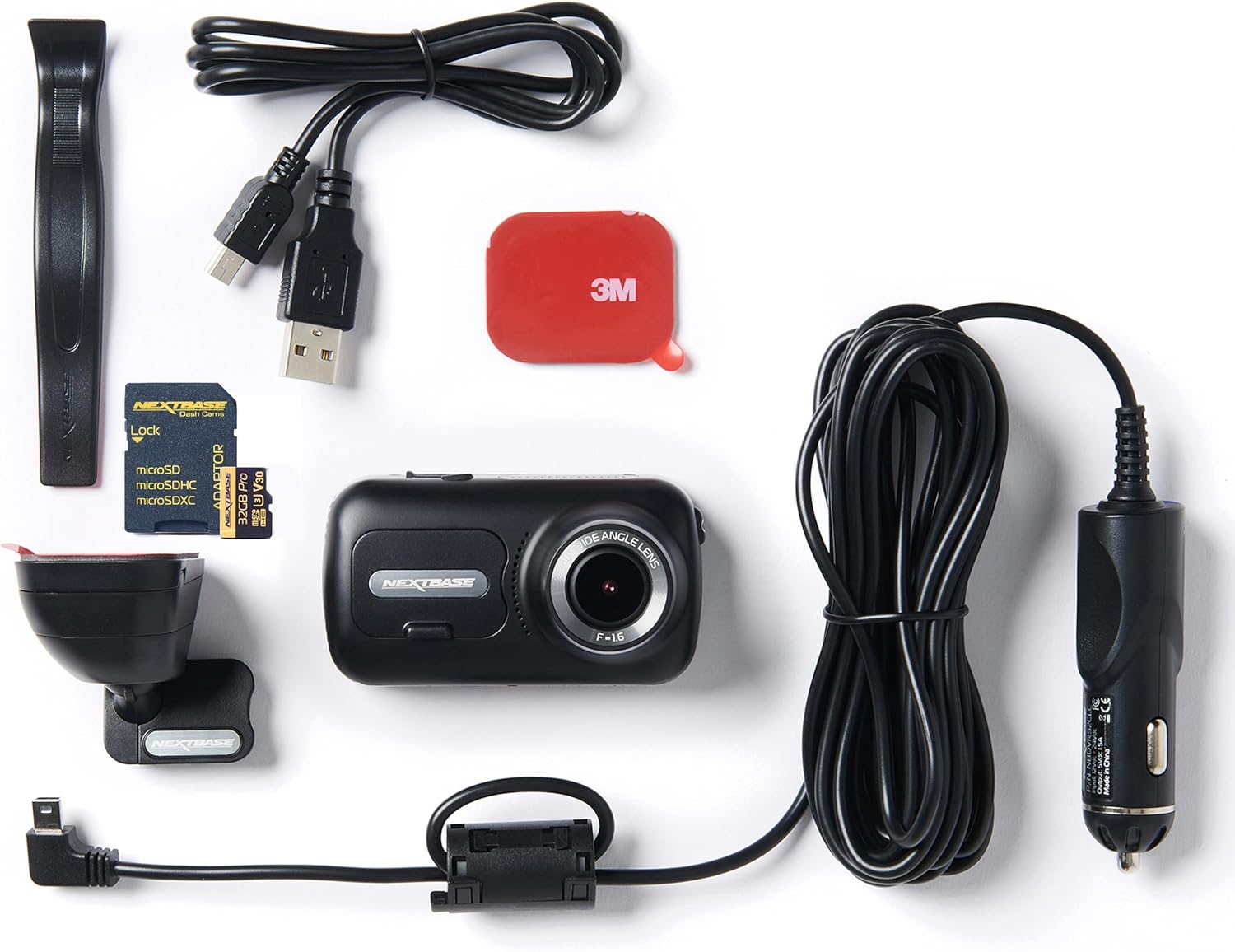
Image: Contents of the Nextbase 322GW Dash Cam package, including the dash cam, mount, cables, and memory card.
Key Features
- Full HD Recording: Records in 1080p/30fps and 720p/60fps with a 140-degree wide angle lens.
- Emergency SOS: Automatically alerts emergency services with your location and medical data in case of an incident.
- High-Resolution Touch Screen: Features a 2.5-inch IPS touch screen for easy menu navigation and playback.
- Intelligent Parking Mode: Automatically records any physical movement or bump to your vehicle when parked.
- Rear Camera Compatibility: Expand your viewing area with an optional rear camera.
- Wi-Fi, GPS, Bluetooth: For seamless connectivity, file sharing, and location tracking.
- Polarizing Filter: Reduces glare and improves video quality.
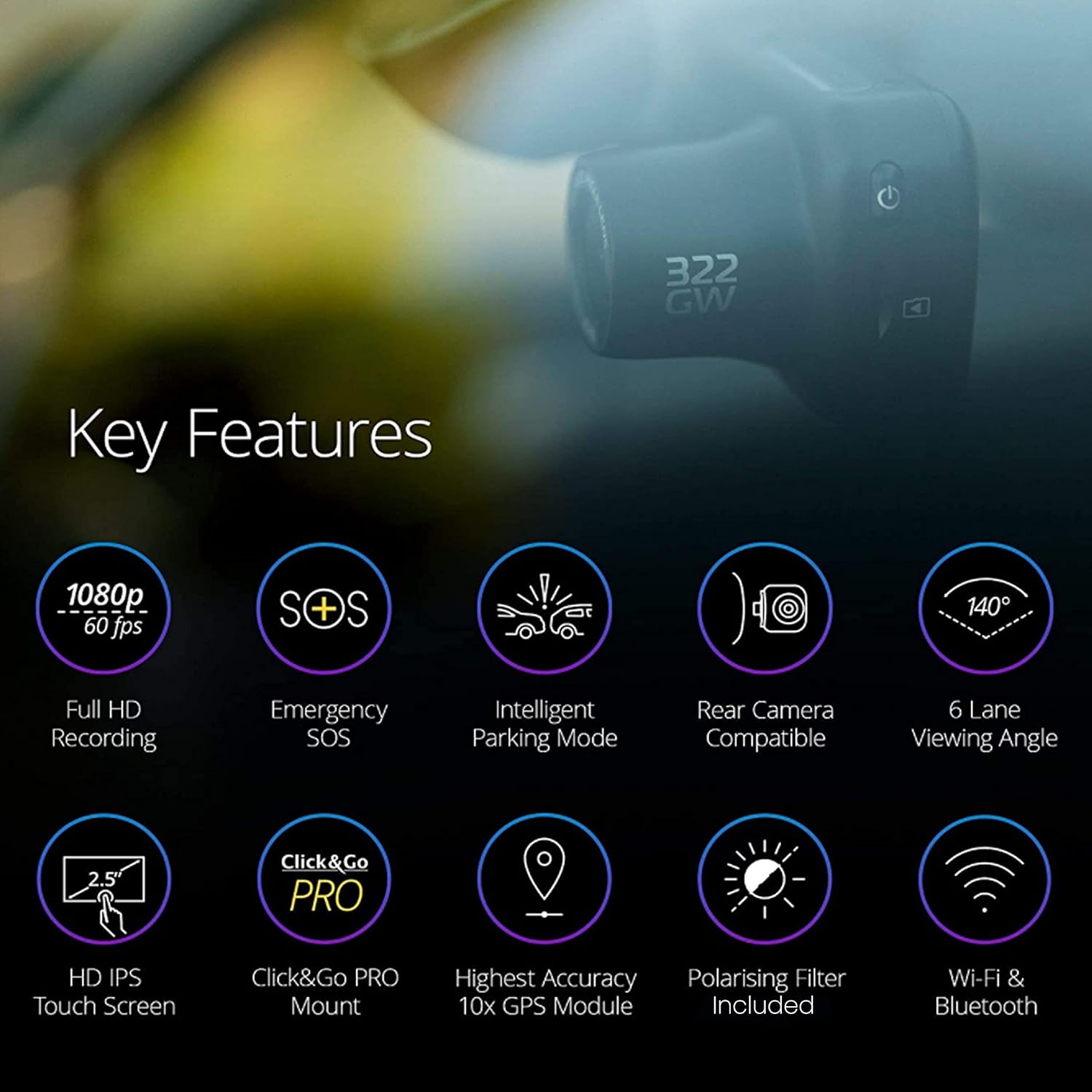
Image: Visual representation of the Nextbase 322GW's key features, including Full HD Recording, Emergency SOS, Intelligent Parking Mode, Rear Camera Compatibility, 6 Lane Viewing Angle, HD IPS Touch Screen, Click&Go PRO Mount, Highest Accuracy 10x GPS Module, Polarising Filter Included, and Wi-Fi & Bluetooth.
Setup
1. Mounting the Dash Cam
The Nextbase 322GW uses a Click&Go PRO GPS Mount for easy installation and removal. The mount is designed to be placed high on the windscreen, minimizing obstruction. Use the provided 3M adhesive pad for a secure attachment to the windshield.
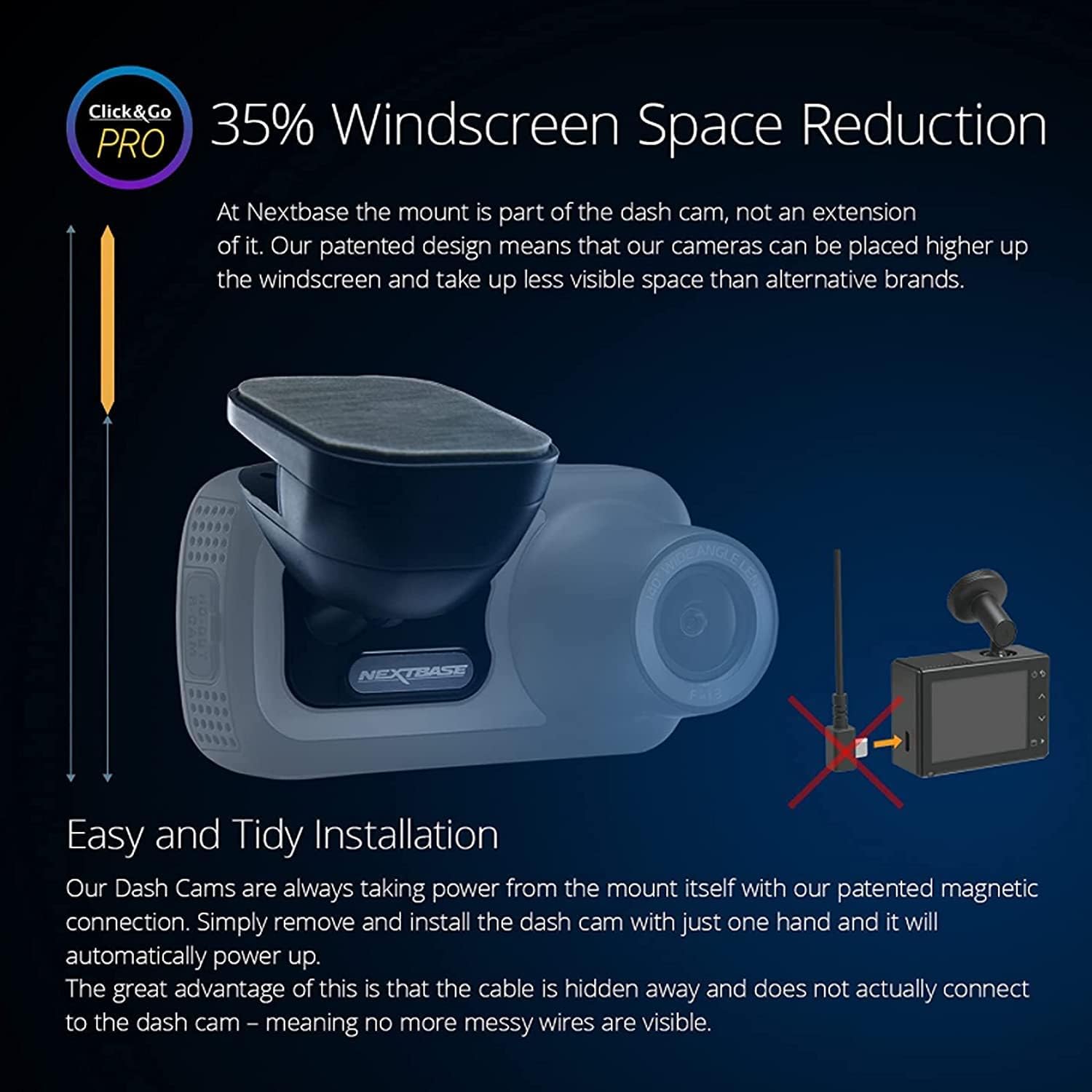
Image: Illustration demonstrating the 35% windscreen space reduction achieved by the Click&Go PRO mount, showing how the dash cam integrates closely with the windshield.

Image: A Nextbase 322GW Dash Cam is shown mounted on the upper part of a car's windshield, providing a clear view of the road ahead.
2. Inserting the Micro SD Card
The dash cam requires a compatible Micro SD card (U3 class recommended) for recording. A 32GB Micro SD card is included in this bundle. Insert the card into the designated slot on the side of the dash cam.
Image: A Nextbase branded 32GB Micro SD card with an adapter, highlighting its compatibility and high-quality recording capabilities.
3. Power Connection
Connect the provided 12-24V power cable to your vehicle's cigarette lighter socket and to the dash cam mount. The cable is designed to be discreetly routed around the windshield for a tidy installation.
Operating the Dash Cam
1. Initial Power On and Settings
Once connected to power, the dash cam will automatically turn on. Use the 2.5-inch IPS touch screen to navigate through the initial setup, including language, time, and date settings. Ensure the dash cam is charged for at least 2 hours indoors before first use to retain settings.
2. Recording Modes
The 322GW records continuously in Full HD (1080p/30fps or 720p/60fps). The loop recording feature ensures that older, unprotected files are overwritten when the SD card is full. Critical footage can be protected from overwriting manually or automatically via the G-Sensor.

Image: A table detailing the approximate loop recording times in hours for various SD card sizes (32GB, 64GB, 128GB, 256GB) and resolutions (1080p, 1440p, 4K), for both front-only and front & rear camera setups.
3. Intelligent Parking Mode
When your vehicle is parked and the ignition is off, the Intelligent Parking Mode activates. If any physical movement or bump is detected, the dash cam will automatically record to protect your vehicle.

Image: A split image illustrating 'Intelligent Parking Mode' on the left, showing a car in a parking lot with motion detection icons. The right side depicts 'Nextbase Emergency SOS' with an image of a car accident and a smartphone screen showing 'Emergency SOS Sent Successfully'.
4. Emergency SOS
In the event of a serious accident where the driver is unresponsive, the Emergency SOS feature will automatically alert emergency services to your precise GPS location. It can also send crucial medical data to aid efficient treatment.
5. Connectivity (Wi-Fi, GPS, Bluetooth)
The 322GW features built-in Wi-Fi, GPS, and Bluetooth. Use the MyNextbase Connect app on your smartphone (Android or iPhone) to view, edit, and share your footage. The MyNextbase Player software is also available for PC and Mac.
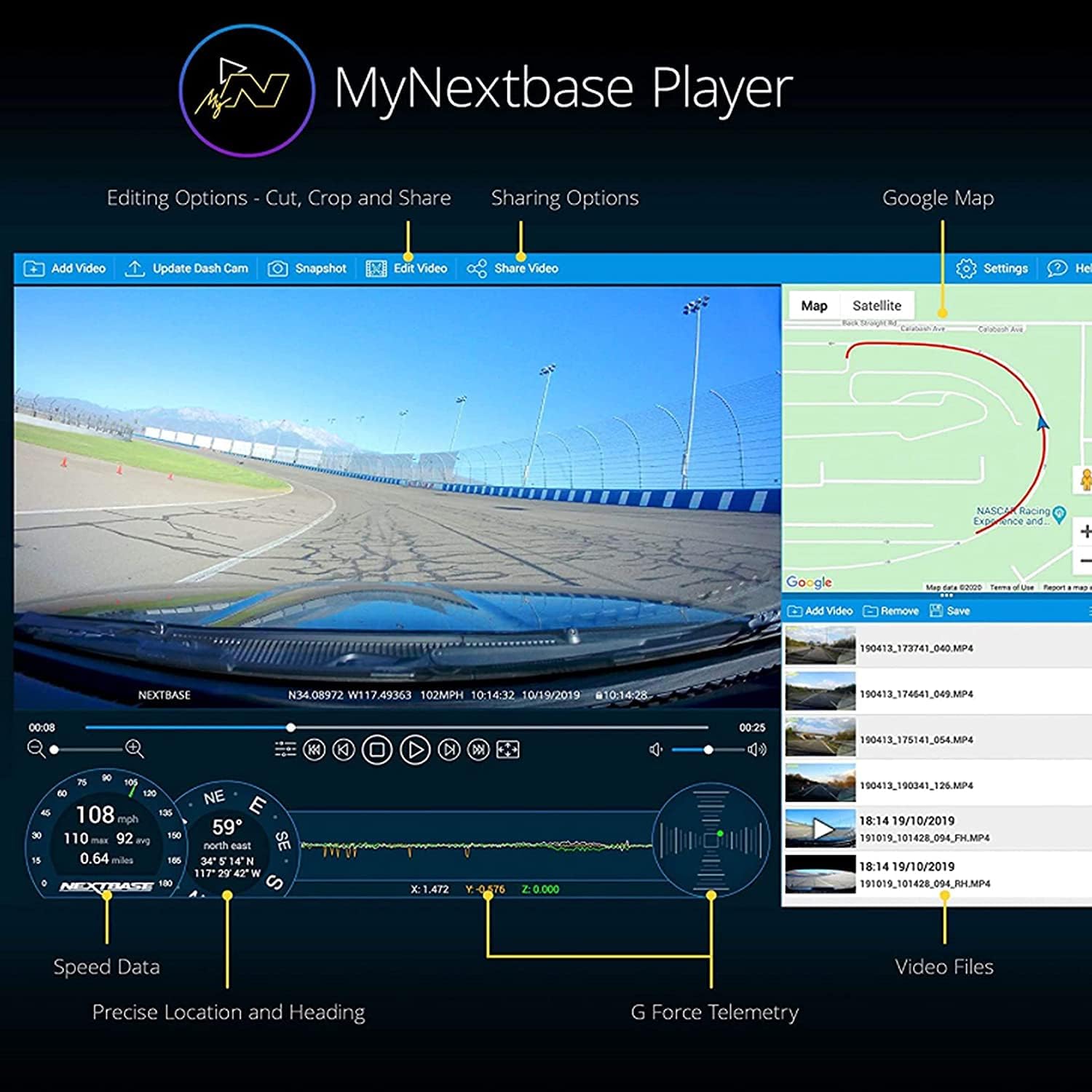
Image: A screenshot of the MyNextbase Player software interface, displaying video footage, speed data, precise location and heading, G-Force telemetry, and video files, along with editing and sharing options.
6. Night Vision and Image Quality
The dash cam's sensors improve picture clarity for night-time driving by adjusting contrast and brightness. The 140-degree wide-angle lens captures details across six lanes, ensuring clear road signs and license plates.

Image: A split image comparing 'Image Quality' and 'Night Vision'. The left side shows daytime footage with clear license plates and 1440p 30fps recording. The right side shows enhanced night vision with multiple resolution settings in a low-light driving scenario.
Maintenance
Regular maintenance ensures the optimal performance of your dash cam.
- Clean the Lens: Regularly clean the dash cam lens with a soft, lint-free cloth to ensure clear recordings.
- SD Card Care: Format your Micro SD card regularly (e.g., monthly) using the dash cam's menu to prevent data corruption and ensure smooth recording. Using a Nextbase U3 SD card is recommended for reliable performance. Non-compatible SD cards may cause freezing or malfunction.
- Firmware Updates: Check the Nextbase website periodically for firmware updates to ensure your dash cam has the latest features and bug fixes.
Troubleshooting
If you encounter issues with your Nextbase 322GW Dash Cam, refer to the following common solutions:
- Dash Cam Not Turning On: Ensure the power cable is securely connected to both the dash cam mount and the vehicle's power outlet. Check the vehicle's power outlet for functionality. Ensure the dash cam battery is charged for at least 2 hours before use.
- Recording Issues (Freezing/Malfunction): This is often caused by an incompatible or corrupted Micro SD card. Use a Nextbase U3 SD card and format it regularly. Try a different compatible SD card if issues persist.
- Poor Video Quality: Clean the lens. Ensure the protective film has been removed. Check the resolution settings in the dash cam menu. A polarizing filter can help reduce glare.
- GPS/Wi-Fi/Bluetooth Connectivity Problems: Ensure your smartphone app is up-to-date. Restart both the dash cam and your smartphone. Check for any obstructions that might interfere with GPS signal reception.
- Mount Not Holding: Ensure the windshield surface is clean and dry before applying the adhesive mount. Apply firm pressure for secure attachment.
Specifications
| Product Dimensions | 1.9 x 1.8 x 3.4 inches |
| Item Weight | 1.12 pounds |
| Batteries | 1 Lithium Ion battery required |
| Connectivity Technologies | Bluetooth, Wi-Fi |
| Special Features | Emergency SOS, Built-In GPS, Intelligent Parking Mode |
| Video Capture Resolution | 1080p |
| Included Components | Memory Card (32GB Micro SD Card) |
| Mounting Type | Windshield Mount |
| Field Of View | 140 Degrees |
| Manufacturer | Nextbase |
| Date First Available | July 6, 2022 |
Warranty
Specific warranty details are not provided in the product data. Please refer to the official Nextbase website or contact Nextbase customer support for detailed warranty information.
Support
For further assistance, FAQs, and additional support, please visit the official Nextbase website: Nextbase Store on Amazon.
You can also download the MyNextbase Connect app for additional functionality and file sharing, available on the Play Store and App Store.


