
Introduction
This manual provides essential information and instructions for the safe and efficient use of your CUBOT Pocket 4-inch Smartphone. Please read this manual thoroughly before operating your device to ensure proper functionality and to maximize its lifespan. The CUBOT Pocket is a compact Android 11 smartphone designed for portability and ease of use, featuring a 4-inch screen, 4GB RAM, 64GB ROM (expandable to 128GB), a 3000mAh battery, and 16MP rear camera.
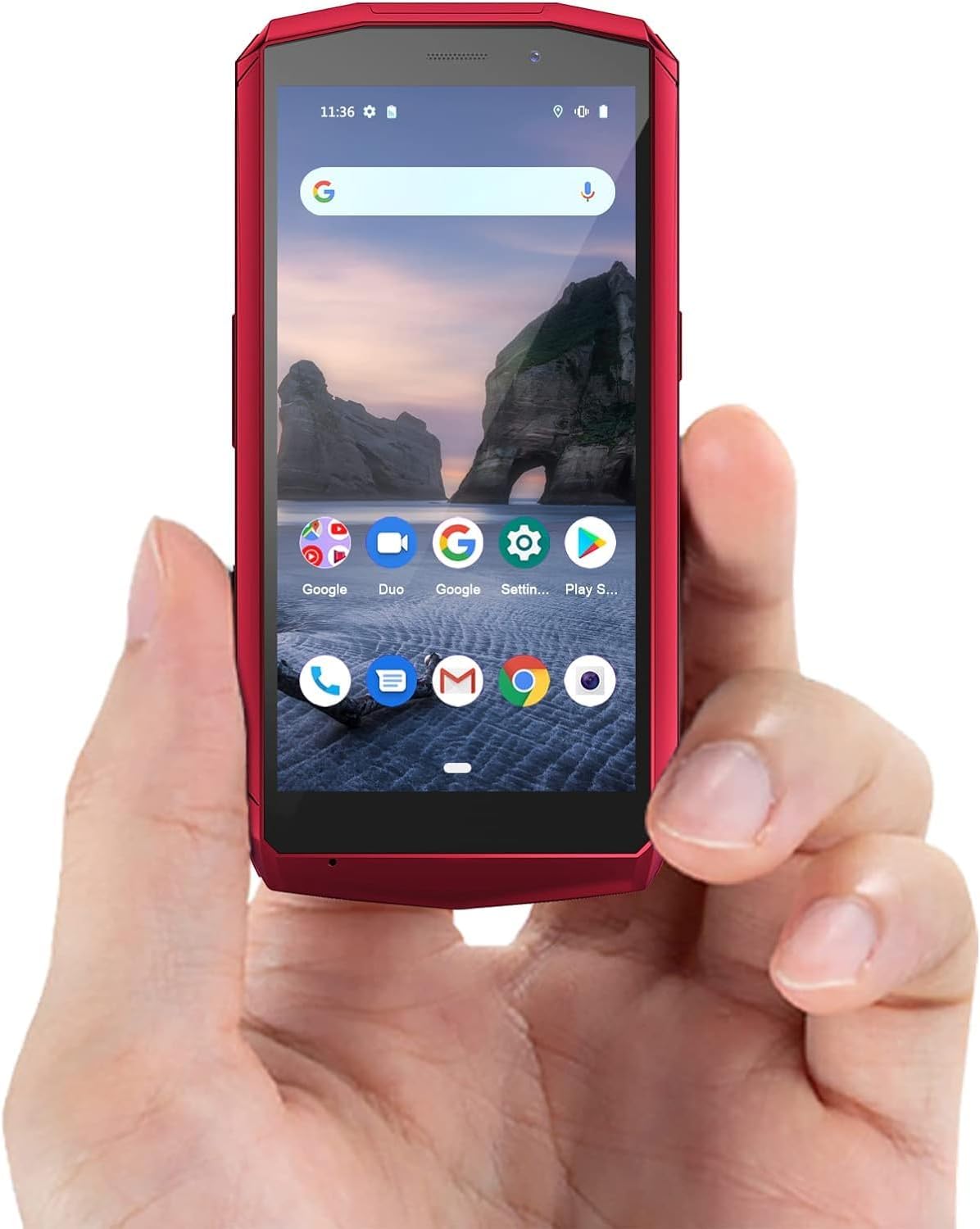
Image: The CUBOT Pocket smartphone, a compact device, is shown held comfortably in a user's hand, highlighting its small form factor.
What's in the Box
Upon unboxing your CUBOT Pocket smartphone, please verify that all the following items are included:
- CUBOT Pocket Smartphone
- USB Cable
- Pre-installed Screen Protector
- Clear Protective Case
- USB-C Earphones
Setup Guide
1. SIM and TF Card Installation
The CUBOT Pocket supports dual SIM cards or one SIM card and one TF (microSD) card for expandable storage. Locate the SIM card tray on the side of the device. Use the provided SIM ejector tool to open the tray. Carefully place your Nano-SIM card(s) and/or TF card into the designated slots, ensuring correct orientation. Gently push the tray back into the phone until it is flush with the device body.

Image: This diagram illustrates the flexible SIM card tray, allowing for either two SIM cards or one SIM card and one TF (microSD) card for expanded memory.
2. Initial Power On
Press and hold the Power button located on the side of the phone until the CUBOT logo appears on the screen. Follow the on-screen prompts to complete the initial setup, including language selection, Wi-Fi connection, and Google account sign-in.
3. Network Connection
To connect to a Wi-Fi network, navigate to Settings > Network & internet > Wi-Fi. Select your desired network and enter the password if prompted. For cellular data, ensure your SIM card is properly installed and your mobile data is enabled in Settings > Network & internet > Mobile network. The CUBOT Pocket supports 4G LTE connectivity. Please note that this smartphone is compatible with carriers such as AT&T, T-Mobile, Metro PCS, Straight Talk, and Mint Mobile. It is not compatible with CDMA service providers like Verizon, Sprint, Cricket, Boost Mobile, or U.S.Cellular.
Operating Instructions
1. Basic Navigation
The CUBOT Pocket runs on Android 11, offering a smooth and intuitive user experience. Navigate through the interface using touch gestures: swipe up from the bottom for the app drawer, swipe down from the top for quick settings and notifications, and tap icons to open applications. The system is optimized for efficient performance with its quad-core processor and 4GB RAM.

Image: This graphic highlights the internal specifications of the CUBOT Pocket, including its Quad Core processor, 4GB RAM, 64GB internal storage, and the capability for 128GB expandable storage.

Image: Various screenshots showcasing the Android 11 system interface on the CUBOT Pocket, demonstrating its simpler, smarter, and smoother user experience.
2. Camera Usage
The CUBOT Pocket is equipped with a 16MP rear camera and a 5MP front camera. To open the camera application, tap the camera icon on your home screen or in the app drawer. You can switch between front and rear cameras, select different modes (e.g., Photo, Video, Pro), and adjust settings within the camera app. Ensure good lighting for optimal photo and video quality.

Image: This image highlights the CUBOT Pocket's camera specifications, featuring a 16MP rear camera for detailed shots and a 5MP front camera for selfies.

Image: A visual representation of the phone's 16MP+5MP camera system and its Face ID unlock functionality, emphasizing safe and quick access.
3. Face ID Setup
The CUBOT Pocket features Face ID for quick and secure unlocking. To set up Face ID, go to Settings > Security > Face Unlock. Follow the on-screen instructions to register your facial features. Ensure you are in a well-lit environment during registration for optimal accuracy. Once set up, you can unlock your phone by simply looking at the front camera.

Image: The CUBOT Pocket is shown actively using its Face ID feature, illustrating how it can be unlocked within one second by recognizing facial features for safe and efficient access.
4. GPS Functionality
The device supports accurate positioning and navigation through GPS, GLONASS, and Galileo satellite systems, also supporting A-GPS for faster location fixes. This allows for reliable navigation, location-based services, and tracking. Ensure location services are enabled in your phone's settings for optimal performance.
Image: This image highlights the phone's GPS accurate positioning and navigation capabilities, including support for GLONASS and Galileo, and A-GPS for enhanced location services.
Maintenance
1. Battery Care
The CUBOT Pocket is powered by a 3000mAh battery. To prolong battery life, avoid extreme temperatures, do not overcharge or completely drain the battery frequently, and use the provided USB cable for charging. For optimal performance, charge the device when the battery level is low but before it completely depletes.

Image: The CUBOT Pocket is shown connected to a charger, with a visual indicator of its 3000mAh battery being charged, emphasizing its long-lasting power.
2. Storage Management
The phone comes with 64GB of internal storage and 4GB of RAM. You can expand the storage up to 128GB using a TF card. Regularly clear unnecessary files, cache data, and uninstall unused applications to maintain optimal performance and free up storage space. You can manage storage in Settings > Storage.
Troubleshooting
Common Issues and Solutions:
- Device not powering on: Ensure the battery is charged. Connect the phone to a charger for at least 30 minutes before attempting to power on again.
- Screen unresponsive: Try restarting the device by holding the Power button for about 10-15 seconds. If the issue persists, a factory reset might be necessary (back up data first).
- Poor network signal: Check your SIM card installation. Ensure you are within network coverage. If using Wi-Fi, restart your router.
- Apps crashing: Clear the app's cache (Settings > Apps & notifications > [App Name] > Storage & cache > Clear cache). If the problem continues, reinstall the app.
Network Compatibility:
As noted in the setup section, the CUBOT Pocket is designed to work with GSM carriers such as AT&T, T-Mobile, Metro PCS, Straight Talk, and Mint Mobile. It is not compatible with CDMA networks like Verizon, Sprint, Cricket, Boost Mobile, or U.S.Cellular. If you experience network issues, confirm your carrier's compatibility with GSM 4G bands.
Product Specifications
| Feature | Specification |
|---|---|
| Model Name | POCKET-R |
| Operating System | Android 11.0 |
| Display Size | 4 inches |
| RAM | 4 GB |
| Internal Storage (ROM) | 64 GB |
| Expandable Storage | Up to 128 GB (TF Card) |
| Battery Capacity | 3000 mAh Lithium Ion |
| Rear Camera | 16 MP |
| Front Camera | 5 MP |
| Connectivity | 4G Cellular, Wi-Fi, Bluetooth, USB, NFC |
| Navigation | GPS, GLONASS, Galileo, A-GPS |
| Security | Face ID |
| Item Weight | 4.5 ounces |
| Dimensions | 8.66 x 5.83 x 1.42 inches |
Product Overview Video
Video: An official product video showcasing the CUBOT Pocket phone, demonstrating its compact size and ease of portability in various daily scenarios, such as being carried in pockets or bags.
Warranty and Support
For warranty information, technical support, or service inquiries regarding your CUBOT Pocket smartphone, please refer to the warranty card included with your product or visit the official CUBOT website. You may also contact CUBOT customer service directly for assistance.
CUBOT Official Store: Visit CUBOT Store on Amazon


