
1. Introduction
Thank you for choosing the SOVMIKU 5MP Wireless Security Camera System. This manual provides essential information for the proper installation, operation, and maintenance of your security system. Please read this manual thoroughly before use and retain it for future reference.
2. Product Overview
Key Features:
- 5MP High-Resolution Cameras: Four 5-megapixel cameras with IR-CUT for clear imaging.
- Small NVR with 1TB HDD: Compact NVR with a pre-installed 1TB hard disk drive for continuous recording.
- 360° PTZ Functionality: Cameras offer 320° horizontal and 90° vertical rotation for comprehensive coverage.
- AI Motion Detection: Advanced motion detection with instant app/email notifications.
- Two-Way Audio: Built-in microphone and speaker for real-time communication.
- IP66 Waterproof: Durable design suitable for indoor and outdoor use in various weather conditions.
- Remote Monitoring: Access live view and recordings via the EseeCloud app on smartphones or PC software.
- 5x Digital Zoom: Allows for closer inspection of details.
System Components:
The system includes the NVR unit, four cameras, power adapters, and mounting accessories. Refer to the diagram below for component identification.

Figure 2.1: System Components Diagram
3. Setup Instructions
3.1 Initial Setup:
- Power Connection: Connect the power adapters to the NVR and each camera. The system is pre-paired at the factory, so cameras should automatically connect to the NVR upon power-up.
- NVR Connection: Connect the NVR to a monitor via HDMI for local viewing.
- Network Connection (Optional for Remote Viewing): For remote viewing via smartphone or PC, connect the NVR to your router using an Ethernet cable.
- App Download: Download the "EseeCloud" app on your smartphone or the EseeCloud software for PC.

Figure 3.1: Simple Installation Overview
3.2 Detailed Setup Steps:
- Insert power for the camera and NVR.
- Connect the camera and NVR (they will automatically pair).
- Connect the NVR to your network (for remote access).
- Download the "EseeCloud" app and scan the QR code to bind your device.

Figure 3.2: Detailed Setup Process
Download the EseeCloud app from your smartphone's app store or by scanning the QR code provided in the manual or on the NVR. You can also find the app at https://m.danji100.com/app/129021.html.
4. Operating Instructions
4.1 Remote Monitoring:
Once the NVR is connected to the internet and your device is bound to the EseeCloud app, you can view live footage and recorded videos from anywhere using your smartphone or PC.
4.2 Two-Way Audio:
The cameras feature built-in microphones and speakers. Use the EseeCloud app to engage in two-way conversations with individuals near the camera.
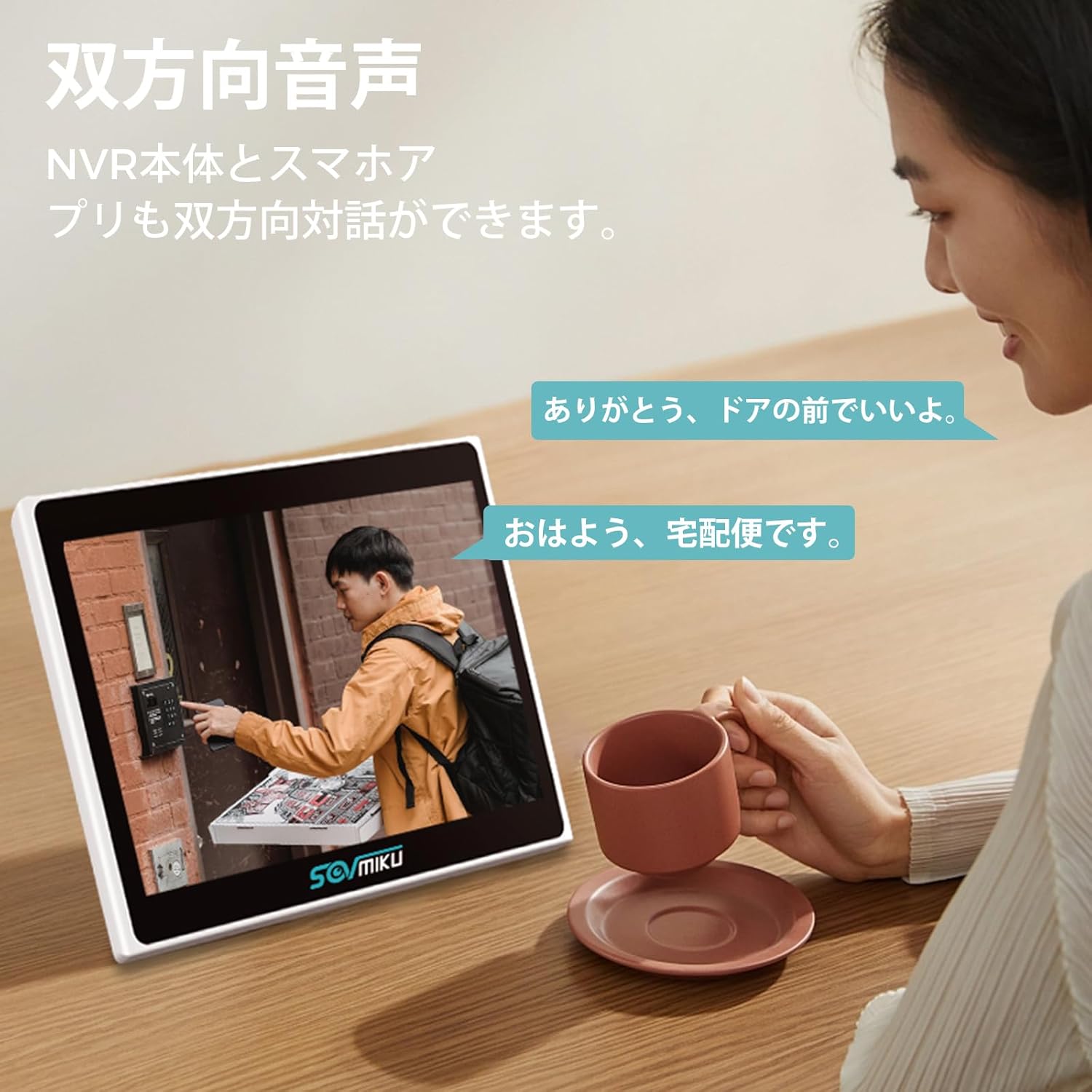
Figure 4.1: Two-Way Audio Functionality
4.3 Motion Detection and Alerts:
The system utilizes AI motion detection. When motion is detected, you will receive instant notifications on your smartphone app or via email. This feature helps optimize recording content and allows for quick retrieval of relevant video segments.
4.4 Recording:
The 1TB HDD supports 24/7 continuous recording. When the storage is full, the system automatically overwrites the oldest data. Motion-triggered recording helps conserve storage space and highlights important events.
4.5 PTZ Control:
Control the camera's pan (horizontal 320°) and tilt (vertical 90°) movements remotely via the EseeCloud app to adjust the viewing angle and eliminate blind spots.

Figure 4.2: 360° PTZ Functionality
4.6 Night Vision Modes:
The cameras offer three night vision modes: Color, Infrared, and Smart Mode, ensuring clear visibility even in low-light conditions. The night vision range is up to 20 meters.
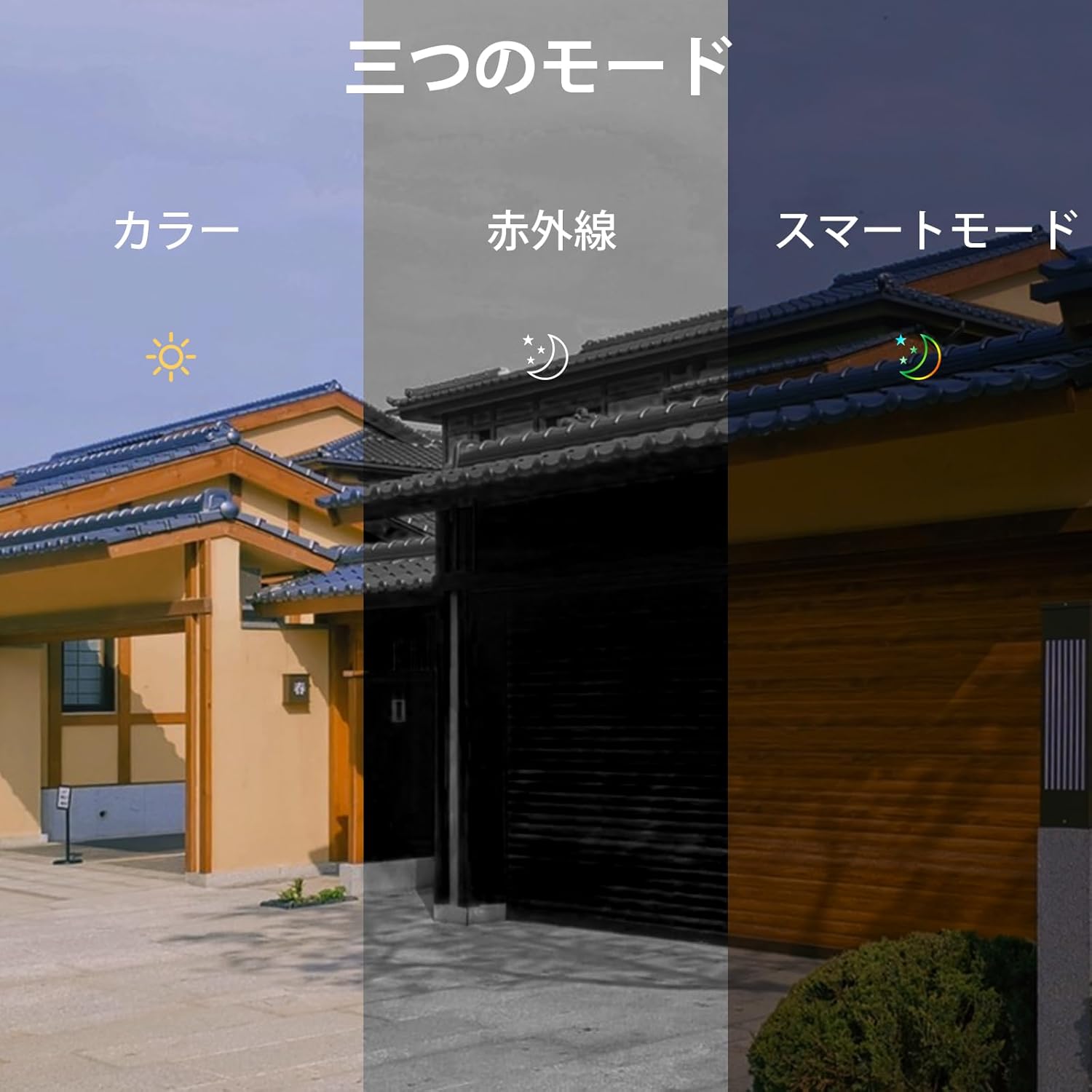
Figure 4.3: Three Night Vision Modes
4.7 Digital Zoom:
Utilize the 5x digital zoom feature through the app to magnify specific areas of the live or recorded footage for more detailed observation.

Figure 4.4: 5x Digital Zoom in Action
5. Maintenance
The SOVMIKU cameras are designed with IP66 weather resistance, making them suitable for outdoor use in various conditions, including rain and strong winds. To ensure optimal performance and longevity:
- Regularly clean the camera lenses with a soft, damp cloth to remove dust and dirt that may obstruct the view.
- Ensure all cable connections are secure and free from moisture.
- Avoid directing the camera lens directly at strong light sources for extended periods, as this may affect image quality.
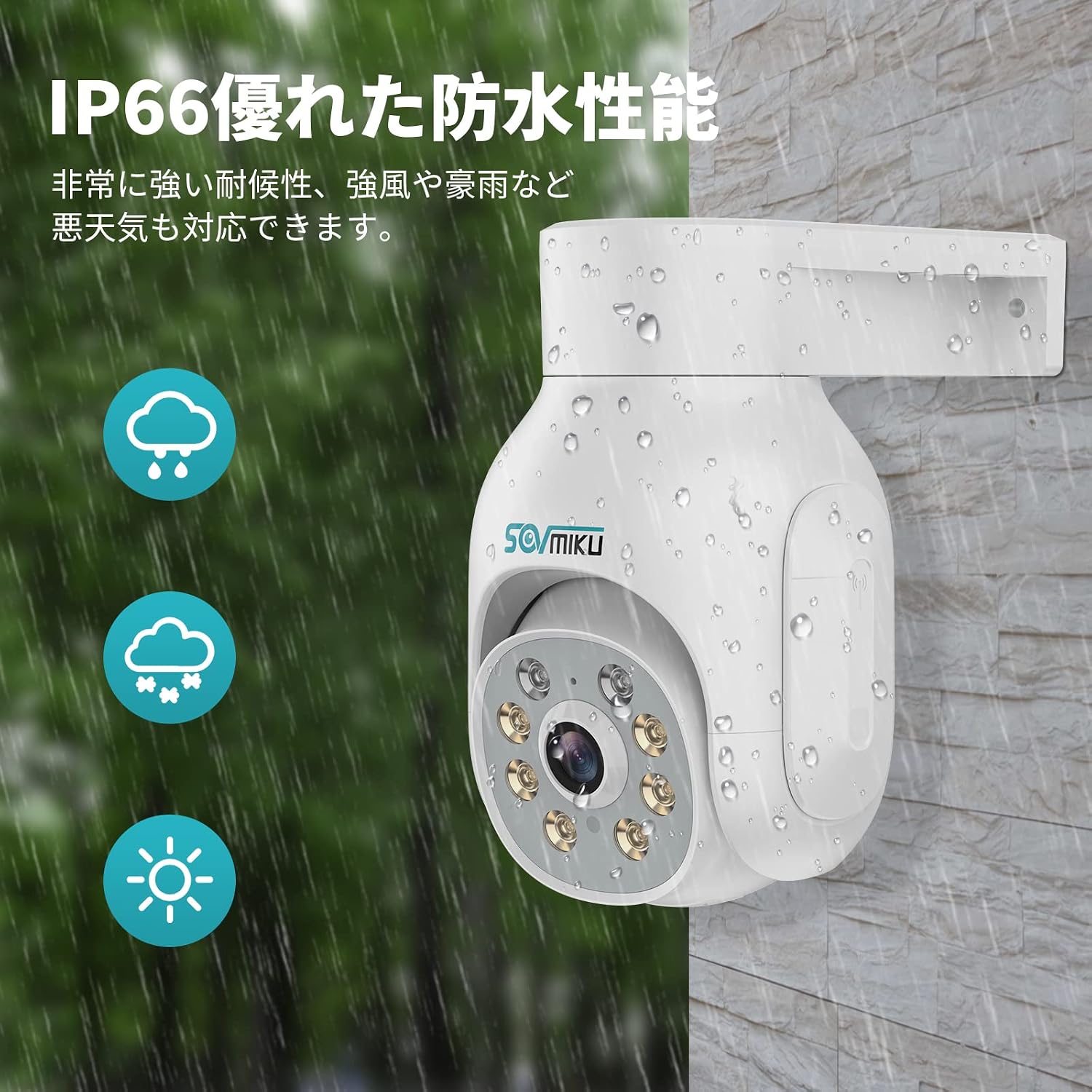
Figure 5.1: IP66 Waterproof Performance
6. Troubleshooting
If you encounter issues with your SOVMIKU security camera system, please refer to the following common troubleshooting tips:
- No Camera Display: Ensure both the NVR and cameras are powered on and their power adapters are securely connected. The cameras and NVR are pre-paired; if a camera loses connection, try re-pairing it according to the NVR's instructions.
- No Remote Viewing: Verify that the NVR is connected to your router via an Ethernet cable and has internet access. Check your smartphone's internet connection and ensure the EseeCloud app is updated.
- Poor Signal: The optimal wireless connection distance between the camera and NVR is approximately 15 meters in an environment without radio interference. Obstacles like thick walls can reduce signal strength. Consider repositioning the cameras or NVR.
- Motion Detection Not Working: Check the motion detection settings in the EseeCloud app or NVR interface to ensure it is enabled and configured correctly. Adjust sensitivity if necessary.
- Two-Way Audio Issues: Ensure the microphone and speaker settings are enabled in the app. Check for any physical obstructions around the camera's microphone or speaker.
If problems persist, please contact customer support.
7. Specifications
| Feature | Detail |
|---|---|
| Brand | SOVMIKU |
| Model Number | SFWK-4HD403-1T |
| Product Dimensions | 24 x 20 x 16 cm |
| Item Weight | 3.58 kg |
| Color | Four Camera Set |
| Power Source | Corded Electric |
| Special Features | Wireless, Waterproof (IP66) |
| Included Components | NVR Unit, Cameras |
| Connectivity Technology | Wireless |
| Video Capture Resolution | 1536p (5MP) |
| Memory Storage Capacity | 1 TB (HDD) |
8. Warranty & Support
Warranty:
This product comes with a 12-month warranty from the date of purchase. Please retain your proof of purchase for warranty claims.
Customer Support:
If you have any questions, concerns, or require technical assistance, please do not hesitate to contact our support team. We are committed to providing prompt and helpful service.
- Email: sovmiku_JP@163.com
- Support Hours: Monday - Saturday, 10:00 - 19:30 (Japan Standard Time)

Figure 8.1: Customer Support Information


