1. Introduction
Thank you for choosing the SOVMIKU 5MP Wireless Security Camera System. This system provides comprehensive surveillance with high-resolution cameras, two-way audio, and AI motion detection, designed for both indoor and outdoor use. This manual will guide you through the setup, operation, and maintenance of your new security system.
Please read this manual carefully before installation and use, and keep it for future reference.
2. Safety Information
- Ensure all power connections are secure and meet the specified voltage requirements.
- Do not expose the NVR or cameras to extreme temperatures, humidity, or corrosive environments.
- Avoid placing the NVR in direct sunlight or near heat sources.
- Do not attempt to disassemble or modify the product. This will void the warranty.
- Keep the product away from children and pets.
- For outdoor cameras, ensure proper sealing of all cable connections to maintain IP66 waterproof rating.
3. Package Contents
The SOVMIKU 5MP Wireless Security Camera System (Two Camera Set) includes the following components:
- 1 x Small NVR Main Unit (with 1TB HDD built-in)
- 2 x 5MP PTZ Wireless Cameras
- Power Adapters for NVR and Cameras
- Mounting Screws and Plugs
- User Manual (this document)

Image: Overview of the SOVMIKU 5MP Wireless Security Camera System, showing the NVR, two cameras, and the included 1TB HDD.
4. Product Overview and Components
Familiarize yourself with the main components of your SOVMIKU security system:

Image: Detailed diagram illustrating the various parts of the SOVMIKU camera (waterproof housing, WiFi antenna, microphone, IR lens, HD lens, spotlight, sensor) and the NVR (10-inch monitor, speaker, HDD box, bracket, power button, DC 12V 2A input, USB port, HDMI input, network port).
Camera Features:
- 5MP Ultra-High Resolution: Provides clear and detailed images.
- PTZ Functionality: Pan (horizontal 320°), Tilt (vertical 90°) for 360° coverage with no blind spots.
- IR-CUT Function: Enhances night vision clarity.
- 110° Wide-Angle Lens: Captures a broad field of view.
- Two-Way Audio: Built-in microphone and speaker for real-time communication.
- IP66 Waterproof Rating: Durable for outdoor use in various weather conditions.
- Advanced 7DB Antenna: Ensures stable Wi-Fi signal for reliable communication.
NVR Features:
- Compact Design: Flexible placement options.
- 1TB HDD Built-in: Supports 24/7 continuous recording with automatic overwrite.
- 10-Channel Support: Expandable up to 10 cameras.
- Multiple Connectivity: USB, HDMI, Network Port.
5. Setup Guide
The SOVMIKU wireless security camera system is pre-configured at the factory for easy setup. No complicated initial setup or LAN cable wiring is required for basic operation.
Step-by-Step Installation:
- Power Connection: Connect the power adapters to the NVR and each camera. Ensure they are plugged into a stable power source.

Image: Illustrates connecting the power cables to both the NVR and the camera units.
- Camera and NVR Connection: Once powered on, the cameras will automatically connect to the NVR. The live view should appear on the NVR monitor.

Image: A visual guide to the four main setup steps: connecting power, automatic camera-NVR pairing, network connection, and mobile app configuration.
- Network Connection (Optional for Remote Access): For remote viewing and app functionality, connect the NVR to your router using an Ethernet cable.
- Mobile App Setup (EseeCloud):
- Download the "EseeCloud" app from Google Play Store or Apple App Store.
- Register an account and log in.
- Add your NVR by scanning the QR code on the NVR or manually entering its ID.
- Once added, you can view live footage, playback recordings, and manage settings from your smartphone or PC (using EseeCloud software).
6. Operating Instructions
Live View and Recording:
- The NVR automatically displays live feeds from connected cameras.
- The system supports 24/7 continuous recording to the built-in 1TB HDD. When the storage is full, older data will be automatically overwritten.
- Motion Detection: The system features AI motion detection. When motion is detected, the camera will trigger recording, and you will receive instant notifications via the mobile app or email. This helps in quickly identifying and reviewing relevant events.
PTZ Control:
The cameras support Pan-Tilt-Zoom (PTZ) functionality, allowing you to adjust the camera's viewing angle remotely.

Image: Illustration of the camera's 360° PTZ capabilities, showing horizontal rotation of approximately 355° and vertical rotation of 90°.
- Use the NVR interface or the EseeCloud app to control the camera's pan (horizontal 320°) and tilt (vertical 90°) movements.
- The system also supports 5x digital zoom for closer inspection of details.

Image: Demonstrates the 5x digital zoom feature, allowing users to magnify specific areas of the surveillance feed.
Two-Way Audio:
The cameras are equipped with an omnidirectional microphone and speaker, enabling two-way communication.
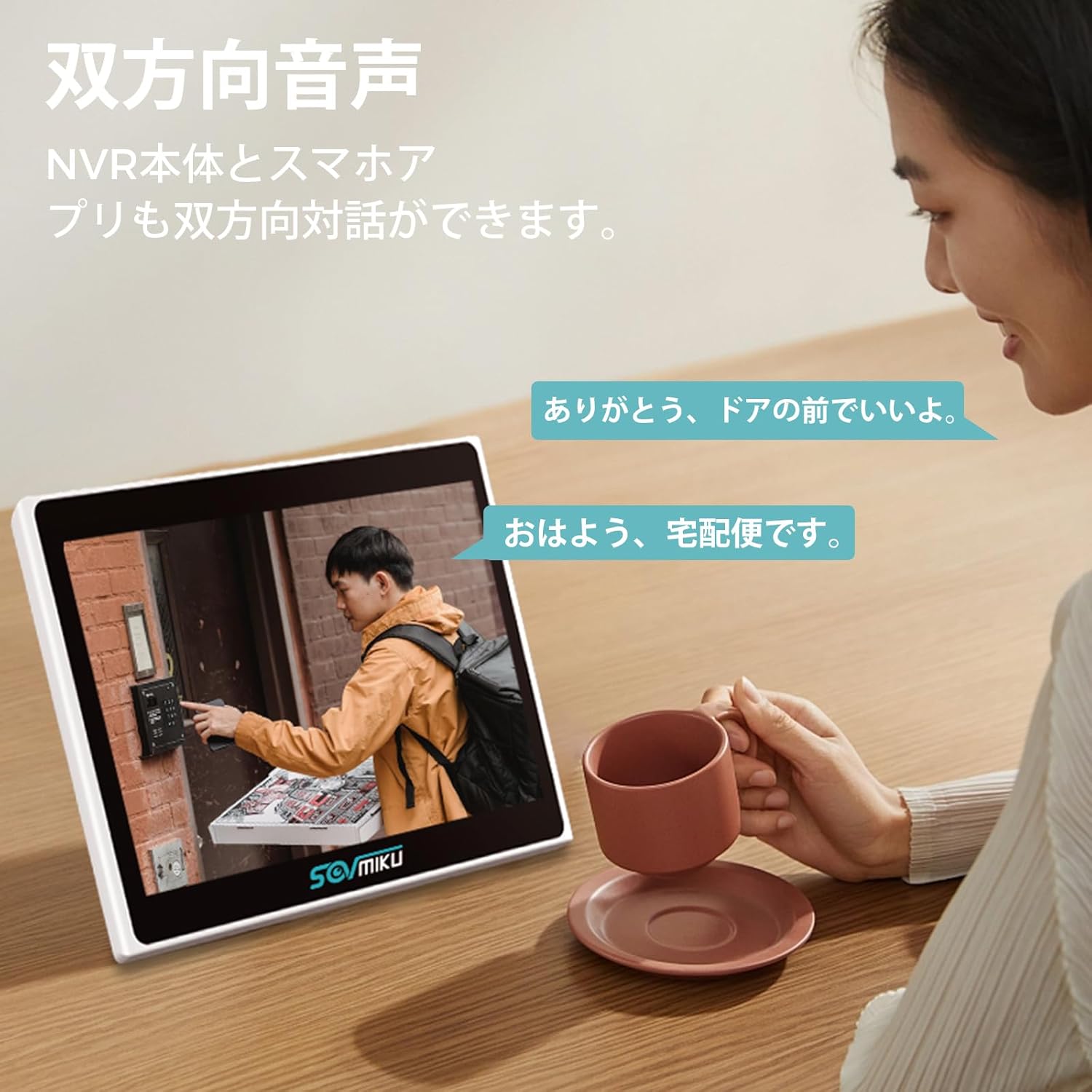
Image: Illustrates the two-way audio function, allowing communication between the NVR user and someone at the camera's location.
- Speak through the EseeCloud app or NVR to communicate with people near the camera.
- The clear audio quality ensures effective communication.
Night Vision Modes:
The cameras offer three night vision modes to suit different lighting conditions:
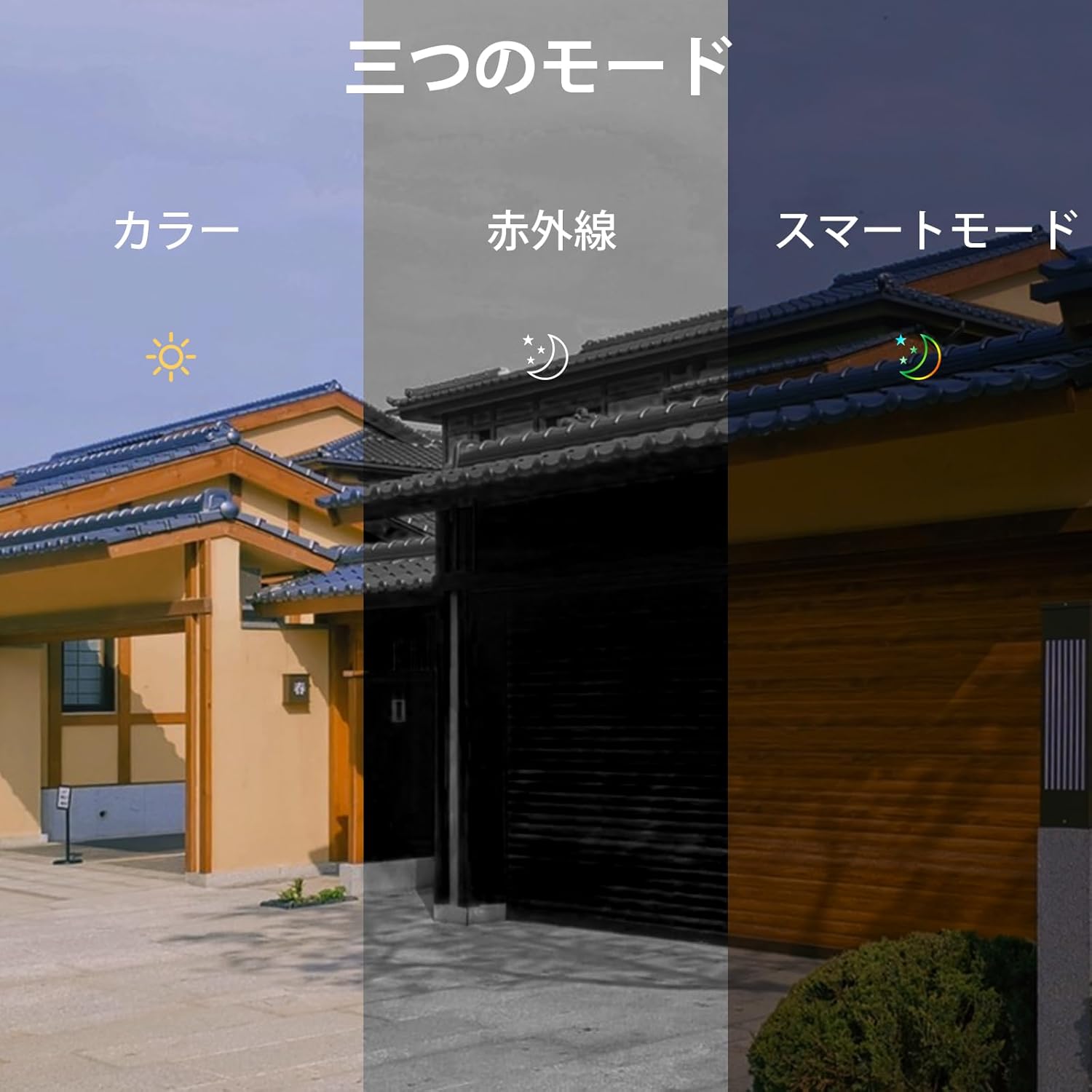
Image: Depicts the three available night vision modes: Full Color, Infrared, and Smart Mode, adapting to various low-light scenarios.
- Full Color Mode: Provides color images even in low light.
- Infrared Mode: Standard black and white night vision for clear visibility in complete darkness (up to 20 meters).
- Smart Mode: Automatically switches between infrared and color mode based on detected motion or light conditions.
7. Maintenance
- Cleaning: Regularly wipe the camera lens and NVR screen with a soft, dry cloth. Do not use harsh chemicals or abrasive materials.
- Storage Management: The 1TB HDD automatically overwrites old data when full. No manual intervention is typically required for continuous recording.
- Firmware Updates: Check the EseeCloud app or SOVMIKU's official website periodically for firmware updates to ensure optimal performance and security.
8. Troubleshooting
If you encounter any issues with your SOVMIKU security camera system, please refer to the following common problems and solutions:
| Problem | Possible Cause / Solution |
|---|---|
| No image on NVR screen. |
|
| Cannot access system via mobile app. |
|
| Poor image quality or screen issues. |
|
| Motion detection not working or false alarms. |
|
For issues not covered here, or if problems persist, please contact SOVMIKU customer support.
9. Specifications
| Feature | Detail |
|---|---|
| Brand | SOVMIKU |
| Model Number | SFWK-2HD403-1T |
| Product Dimensions | 20 x 22 x 14 cm |
| Item Weight | 2.79 Kilograms |
| Color | Two Camera Set |
| Power Source | Corded Electric |
| Connectivity Technology | Wired (for NVR network), Wireless (for cameras) |
| Video Capture Resolution | 1536p (5MP) |
| Special Features | Wireless, Waterproof (IP66), Two-Way Audio, AI Motion Detection, PTZ (Pan/Tilt/Zoom) |
| Memory Storage Capacity | 1 TB (HDD built-in) |
| Expandability | Up to 10 channels/cameras |
10. Warranty and Support
Warranty:
SOVMIKU provides a 12-month warranty from the date of product delivery. If you encounter any issues with the product, please contact our support team immediately.
Customer Support:
Our professional staff is dedicated to providing prompt and courteous support for product usage, troubleshooting, expansion, and installation inquiries.
- Email Support: sovmiku_JP@163.com
- LINE Service: Scan the QR code below or click the link to access SOVMIKU's official LINE account for easy support.

Image: QR code for quick access to SOVMIKU's official LINE support.


