
Lenovo G24-27
Lenovo G24-27 Gaming Monitor User Manual
Model: G24-27 (Type 66CFGZC1EU)
1. Introduction
This manual provides detailed instructions for the setup, operation, and maintenance of your Lenovo G24-27 gaming monitor. Designed for competitive gaming, this 23.8-inch Full HD (1920x1080) IPS display offers a 144Hz refresh rate (overclockable to 165Hz) and a 0.5ms MPRT response time, complemented by AMD FreeSync Premium technology for a smooth gaming experience.
Please read this manual thoroughly before using your monitor to ensure proper installation and optimal performance.
2. Package Contents
Verify that all items are present in your package:
- Lenovo G24-27 Monitor Display Panel
- Monitor Stand (Base and Neck)
- Power Cable
- HDMI Cable
- DisplayPort Cable
- Documentation (Quick Start Guide, Safety Information)
3. Setup Instructions
3.1 Assembling the Monitor Stand
Carefully remove the monitor components from the packaging. Place the display panel face down on a soft, clean surface to prevent scratches.
- Attach the stand neck to the display panel using the provided screws.
- Connect the stand base to the stand neck, securing it with the captive screw.
- Ensure all connections are firm and stable.

Figure 3.1: Front view of the Lenovo G24-27 monitor with stand assembled.
3.2 Connecting Cables
Connect the necessary cables to the rear of the monitor and your computer or other devices.
- Power: Connect the power cable to the monitor's power input and then to a power outlet.
- Video Input:
- For optimal performance, use the DisplayPort cable to connect to your computer's graphics card.
- Alternatively, use an HDMI cable to connect to your computer or other HDMI-compatible devices. The monitor supports 2 x HDMI 2.0 ports.
- Audio Output: Connect external speakers or headphones to the 3.5mm audio out port if desired.
- Security: Utilize the Kensington Lock slot for physical security.

Figure 3.2: Rear view of the monitor with labeled ports for power, HDMI, DisplayPort, Audio Out, and Kensington Lock.
3.3 Adjusting the Monitor
The monitor stand allows for ergonomic adjustments:
- Height Adjustment: Gently push or pull the monitor panel up or down to achieve your desired viewing height.
- Tilt Adjustment: Tilt the monitor panel forward or backward to optimize your viewing angle.
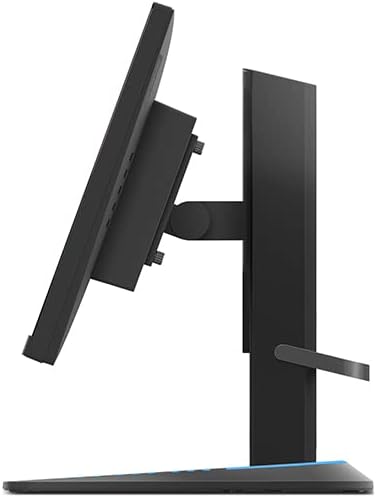
Figure 3.3: Side view illustrating the monitor's tilt adjustment capability.
4. Operating Instructions
4.1 Powering On/Off
Press the power button, usually located on the bottom right or rear of the monitor, to turn the monitor on or off. The power indicator light will illuminate when the monitor is active.
4.2 On-Screen Display (OSD) Menu
The OSD menu allows you to adjust various monitor settings. Access it using the buttons located on the monitor. Common settings include:
- Brightness/Contrast: Adjust image luminance and distinction.
- Color Settings: Modify color temperature, gamma, and individual RGB levels.
- Input Selection: Manually switch between HDMI and DisplayPort inputs.
- Gaming Settings: Enable/disable FreeSync, adjust response time, and set refresh rate.
- Picture Mode: Select predefined display modes (e.g., Standard, Gaming, Movie).
4.3 Lenovo Artery Software
For advanced control and customization, download and install the exclusive Lenovo Artery software from the official Lenovo support website. This software allows you to configure display settings directly from your operating system, enhancing your user experience.
4.4 Gaming Features
- High Refresh Rate: The monitor supports a native 144Hz refresh rate, overclockable to 165Hz, for smoother motion in games. Ensure your graphics card and system settings are configured to utilize this refresh rate.
- Fast Response Time: With a 0.5ms Moving Picture Response Time (MPRT), ghosting and motion blur are significantly reduced.
- AMD FreeSync Premium: This technology synchronizes the monitor's refresh rate with your AMD graphics card's frame rate, eliminating screen tearing and stuttering. Ensure FreeSync is enabled in both the monitor's OSD and your graphics card's control panel.
- IPS Panel: The In-Plane Switching (IPS) panel provides wide viewing angles and accurate color reproduction (99% sRGB color gamut).
5. Maintenance
5.1 Cleaning the Monitor
To maintain the monitor's appearance and performance:
- Always power off the monitor and unplug the power cord before cleaning.
- Use a soft, lint-free cloth lightly dampened with water or a non-abrasive screen cleaner.
- Do not spray cleaner directly onto the screen.
- Avoid using benzene, thinner, ammonia-based cleaners, or abrasive materials, as these can damage the display surface.
5.2 Eye Comfort Features
The Lenovo G24-27 is TÜV Rheinland Eye Comfort certified, designed to reduce eye strain during prolonged use. This includes features like flicker-free technology and low blue light emission. Adjust brightness and contrast settings to a comfortable level for your environment.
6. Troubleshooting
If you encounter issues with your monitor, refer to the following common solutions:
| Problem | Possible Solution |
|---|---|
| No image on screen |
|
| Image is blurry or distorted |
|
| Screen tearing or stuttering (in games) |
|
| Monitor not reaching 144Hz/165Hz |
|
7. Specifications
Key technical specifications for the Lenovo G24-27 monitor:
| Feature | Detail |
|---|---|
| Model Name | Lenovo G24-27 |
| Model Number | 66CFGZC1EU |
| Screen Size | 23.8 Inches |
| Panel Type | IPS (In-Plane Switching) |
| Resolution | 1920 x 1080 (Full HD) |
| Aspect Ratio | 16:9 |
| Refresh Rate | 144Hz (Overclockable to 165Hz) |
| Response Time | 0.5ms MPRT (Moving Picture Response Time) |
| Contrast Ratio | 3000:1 (Typical) |
| Brightness | 350 nits (Typical) |
| Color Gamut | 99% sRGB |
| Connectivity | 2 x HDMI 2.0, 1 x DisplayPort 1.4, 1 x Audio Out (3.5mm) |
| Ergonomics | Tilt, Height Adjustment |
| Special Features | AMD FreeSync Premium, TÜV Rheinland Eye Comfort, Lenovo Artery Software Support |
| Power Consumption (SDR) | 18.0 W |
| Power Consumption (HDR) | 35.0 W |
| Energy Efficiency Class | E (SDR), G (HDR) |
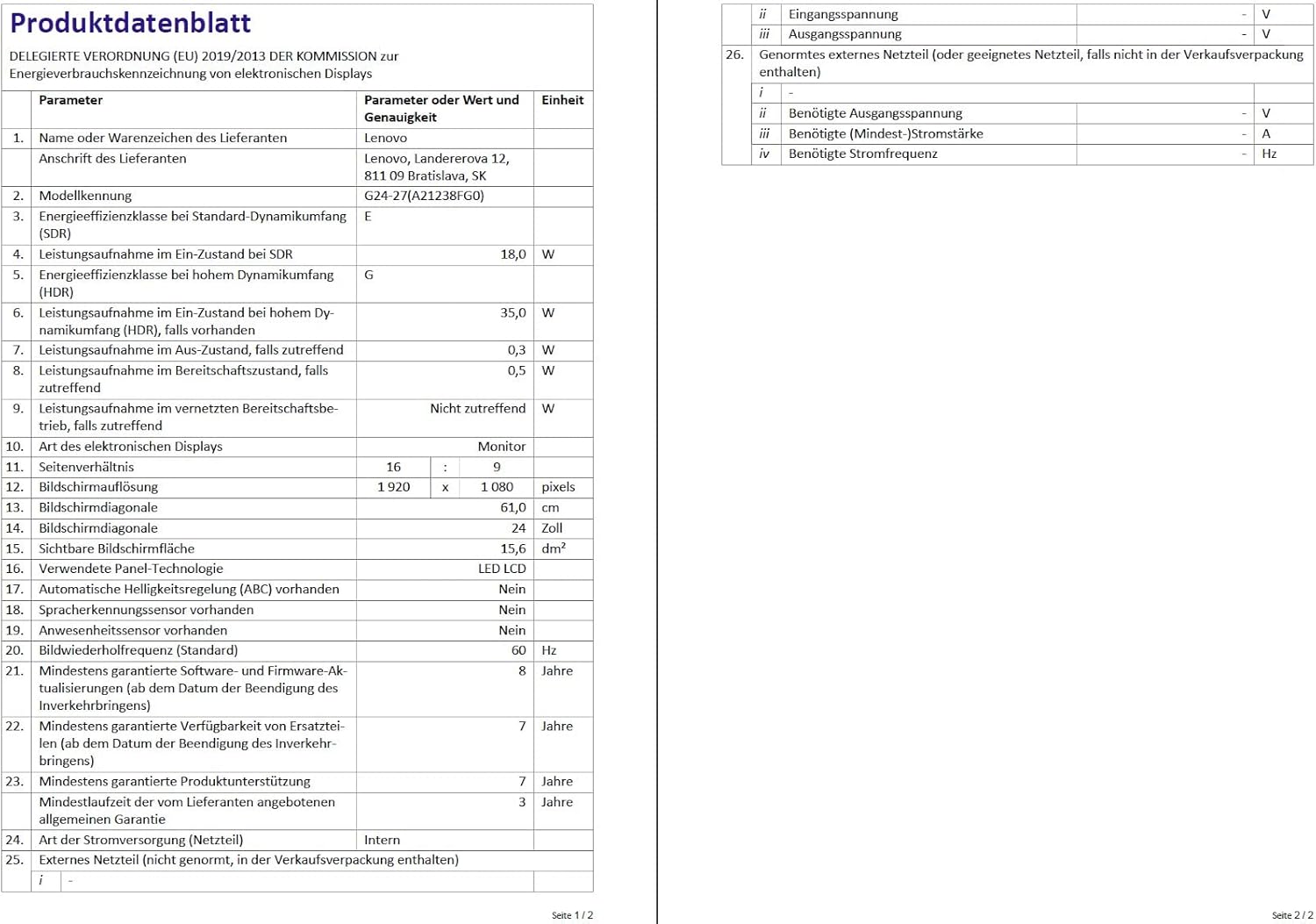
Figure 7.1: Energy efficiency label for the Lenovo G24-27 monitor. For more details, visit the official EU EPREL database: EPREL Database Link
8. Warranty and Support
8.1 Manufacturer's Warranty
The Lenovo G24-27 monitor comes with a manufacturer's warranty of 36 months (3 years). Please refer to the warranty card included in your package or visit the official Lenovo support website for detailed terms and conditions. This warranty does not affect your statutory consumer rights.
8.2 Technical Support
For technical assistance, troubleshooting beyond this manual, or warranty claims, please contact Lenovo customer support. You can find contact information and additional resources on the official Lenovo support website.
Lenovo Support Website: https://support.lenovo.com/
Ask a question about this manual
Ask about setup, troubleshooting, compatibility, parts, safety, or missing instructions. Manuals+ will review the question and use this page’s manual context to help answer it.