
1. Introduction
Welcome to the user manual for your ETOE Smart Projector. This portable projector features Android TV 10.0, native 1080P resolution with 4K support, Chromecast built-in, and advanced picture correction capabilities. Designed for both indoor and outdoor use, its fully-sealed optical engine ensures long-lasting performance. This manual provides essential information for setup, operation, maintenance, and troubleshooting to help you get the most out of your device.

The ETOE Smart Projector, a compact and versatile device for home entertainment.
Official Product Video: ETOE D2 Pro Home Theater Projector Overview
This video provides a comprehensive overview of the ETOE D2 Pro 1080P Android TV 10.0 Home Theater Projector, highlighting its key features and capabilities.
2. What's in the Box
Upon unboxing your ETOE Smart Projector, please ensure all the following items are present:
- ETOE D2 Pro Projector (x1)
- Remote Control (x1, batteries not included)
- DC 19V Adapter (x1)
- Power Cable (x1)
- User Manual (x1)
3. Setup
3.1 Initial Power On
- Connect the DC 19V Adapter to the projector's power input port.
- Plug the Power Cable into a wall outlet.
- Press and hold the power button on the projector or the remote control to turn on the device.
3.2 Network Connection
For full functionality, including streaming apps and Chromecast, connect your projector to a Wi-Fi network.
- Navigate to 'Settings' on the Android TV home screen.
- Select 'Network & Internet'.
- Choose your Wi-Fi network from the list and enter the password.
3.3 Google Account Setup
Sign in with your Google account to access Google Play Store, personalized recommendations, and voice assistant features.
- Follow the on-screen prompts during the initial setup process to sign in to your Google account.
- If you skip this step, you can always sign in later via 'Settings' > 'Accounts & Sign-in'.
3.4 Picture Adjustment (Keystone & Zoom)
The ETOE Smart Projector offers advanced picture correction features to ensure a perfectly rectangular image, even when placed at an angle.

Digital Keystone and Zoom functions allow for flexible projector placement and image sizing.
- Automatic Keystone Correction: The projector is equipped with automatic keystone correction. Upon startup or movement, it will attempt to correct the image shape automatically.
- Manual Keystone Correction: If automatic correction is not perfect, navigate to 'Settings' > 'Projection Settings' > 'Four Point Correction' to manually adjust each corner of the image.
- Digital Zoom: Adjust the projection size without moving the projector by going to 'Settings' > 'Projection Settings' > 'Zoom In/Out'. You can adjust the size from 50% to 100%.
4. Operating the Projector
4.1 Android TV & Apps
Your ETOE Smart Projector runs on Android TV 10.0, providing access to a vast library of content.

The Android TV 10.0 interface offers access to over 8000 apps, similar to a smartphone.
- Home Screen Navigation: Use the directional buttons on the remote to navigate through apps and content on the home screen.
- Accessing Apps: Select the 'Apps' icon to view all installed applications. You can download more from the Google Play Store.
- Voice Remote: Press the Google Assistant button on your remote to use voice commands for searching content, opening apps, or controlling playback.
Official Product Video: How to watch Youtube video on Pro Series Projector?
This video demonstrates how to access and watch YouTube videos on your ETOE Pro Series Projector.
4.2 Screen Mirroring & Casting (Chromecast Built-in)
Easily cast content from your Android or iOS devices, or even your laptop, to the projector's large screen.
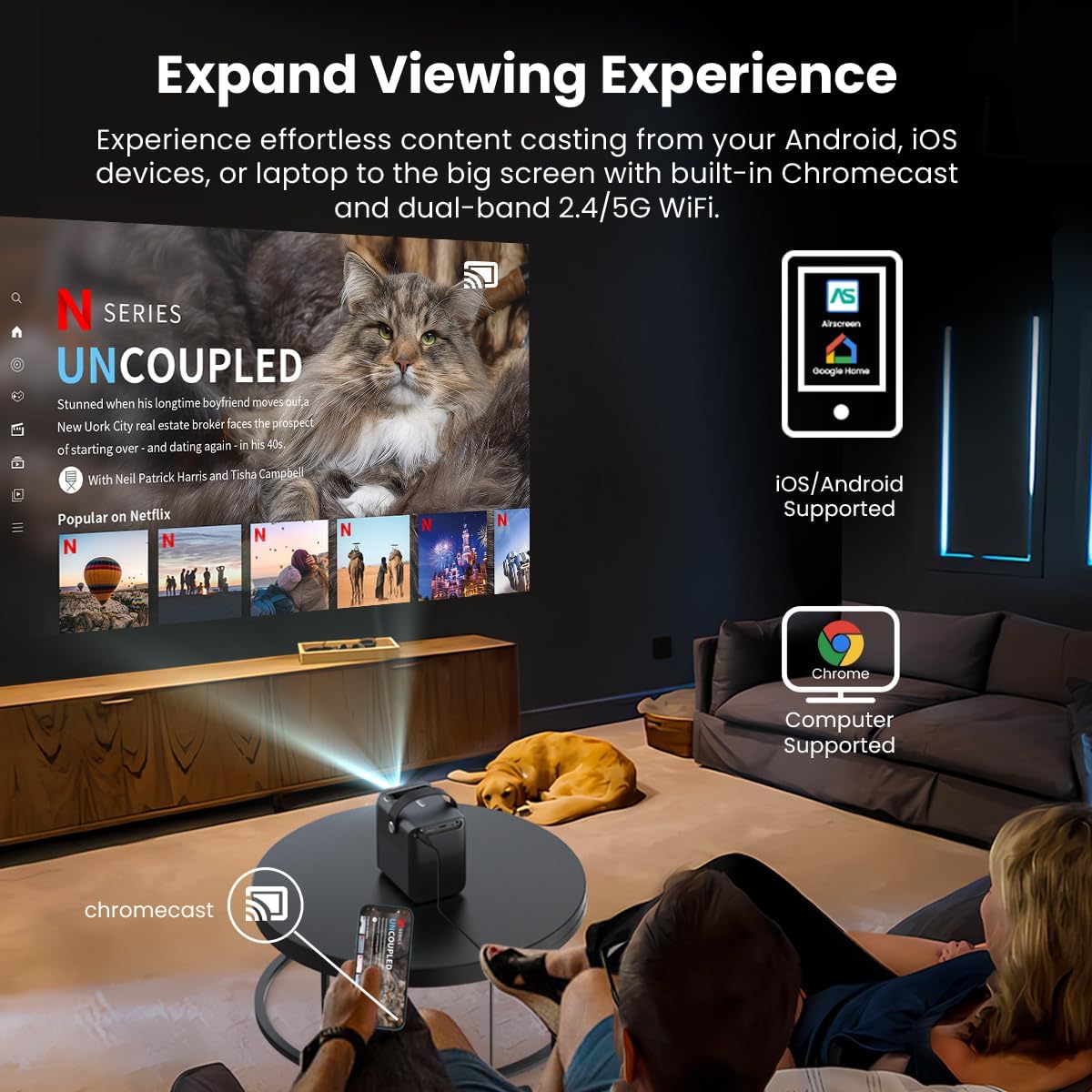
Chromecast built-in allows for effortless content sharing from Android, iOS, and laptop devices.
- Ensure your device and the projector are connected to the same Wi-Fi network.
- On your mobile device or computer, open a Chromecast-enabled app (e.g., YouTube, Netflix, Google Chrome).
- Tap the 'Cast' icon (usually a rectangle with a Wi-Fi symbol) and select your ETOE projector from the list of available devices.
4.3 Versatile Connectivity (HDMI, USB)
The projector offers multiple ports for connecting external devices.
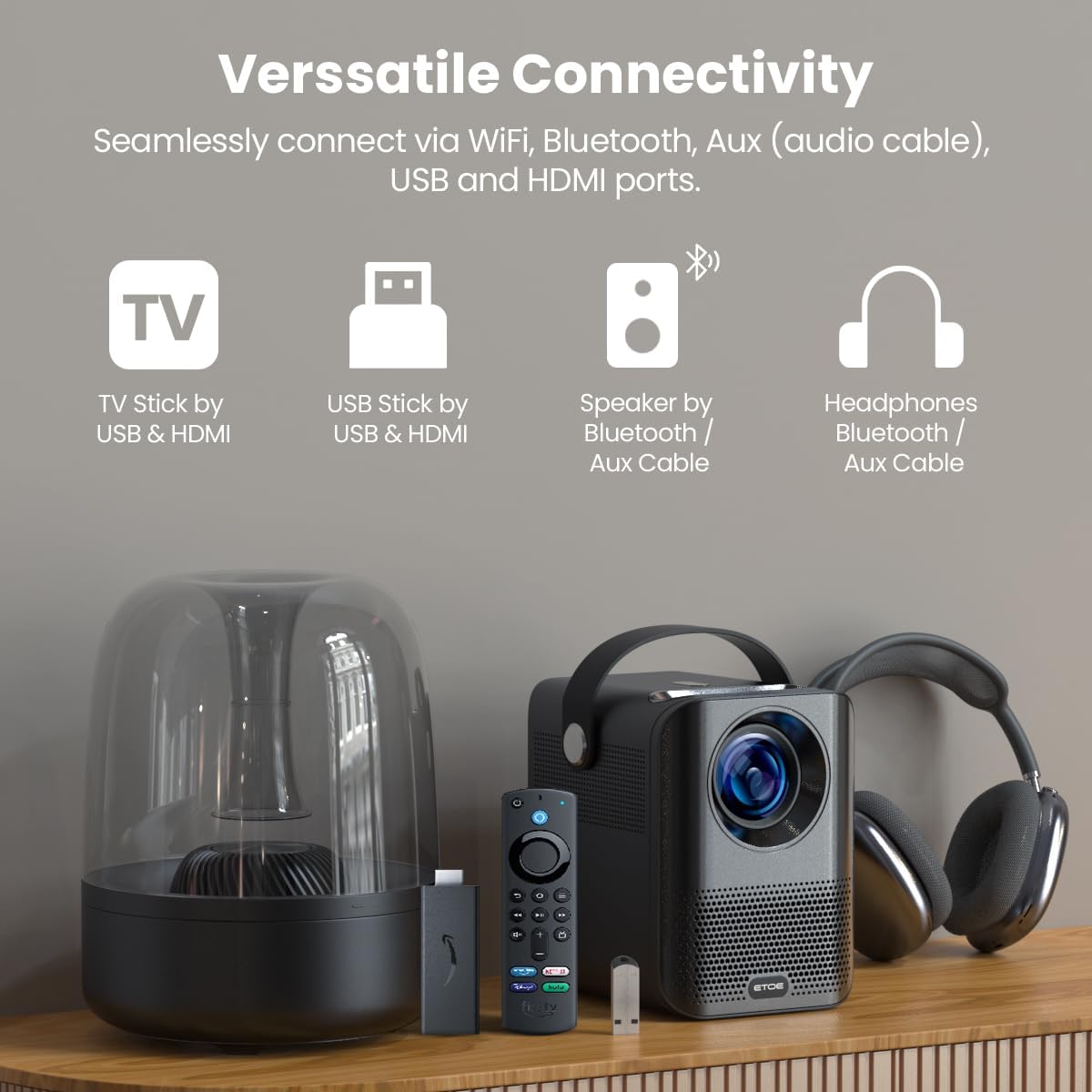
Connect TV sticks, USB drives, and other devices via HDMI and USB ports.
- HDMI: Connect gaming consoles (PS5/PS4, X-Box ONE), laptops, or TV sticks/boxes via the HDMI port. Select the HDMI input source from the projector's input menu.
- USB: Plug in USB drivers to play media files directly. Select the USB input source from the projector's input menu.
4.4 Audio
The projector has built-in speakers, but you can also connect external audio devices.
- Built-in Speakers: The projector features integrated speakers for audio playback.
- Bluetooth Audio: Pair Bluetooth speakers or headphones for a more immersive audio experience. Navigate to 'Settings' > 'Remotes & Accessories' > 'Add accessory' to pair your Bluetooth device.
5. Maintenance
5.1 Dust-Free Optical Engine
The ETOE Smart Projector features a fully-sealed optical engine, designed to prevent dust from entering the lens and affecting image quality. This significantly reduces the need for internal cleaning.

The fully-sealed optical engine ensures long-lasting, dust-free performance.
5.2 General Cleaning
- Exterior: Use a soft, dry cloth to wipe the exterior of the projector. Avoid abrasive cleaners or solvents.
- Lens: Gently clean the projector lens with a lens cleaning cloth or specialized lens wipes. Do not use paper towels or rough materials that could scratch the lens.
6. Troubleshooting
If you encounter any issues with your ETOE Smart Projector, please refer to the common problems and solutions below.
| Problem | Possible Solution |
|---|---|
| No picture/Power off unexpectedly | Ensure the power cable is securely connected. Check the power outlet. If it turns off randomly, contact support. |
| Blurry image | Adjust focus manually via settings or remote. Ensure the projection surface is flat and smooth. Clean the lens. |
| No sound/Low sound | Check volume levels on the projector and connected devices. Ensure external speakers/headphones are properly connected or paired via Bluetooth. |
| Wi-Fi connection issues | Ensure the projector is within range of your Wi-Fi router. Re-enter Wi-Fi password. Restart the projector and router. |
| Remote control not working | Check batteries and replace if necessary. Ensure there are no obstructions between the remote and the projector. Re-pair the remote via Bluetooth if it's a voice remote. |
If the issue persists after trying these solutions, please contact ETOE customer support for assistance.
7. Specifications
| Feature | Detail |
|---|---|
| Brand | etoe |
| Model Number | A1172 |
| Display Resolution | 1920 x 1080 (Native Full HD) |
| Brightness | 400 ANSI Lumens |
| Operating System | Android TV 10.0 |
| Connectivity Technology | Wireless, Chromecast, Bluetooth, HDMI, USB |
| Item Weight | 2.2 pounds |
| Product Dimensions | 5.31 x 4.45 x 5.83 inches |
| Speaker Type | Built-In |
| Special Features | Portable, Digital Keystone, Digital Zoom, Fully-Sealed Optical Engine |
| Recommended Uses | Home Cinema |
8. Warranty & Support
ETOE stands behind the quality of its products. Your projector comes with:
- 12-month after-sales service
- Lifetime technical support
If you have any questions or require assistance, please contact us directly. There is no need to return the projector for initial support inquiries.


